
Runs on OS X 10.11 and later, natively on both ARM and 64-bit Intel Macs.
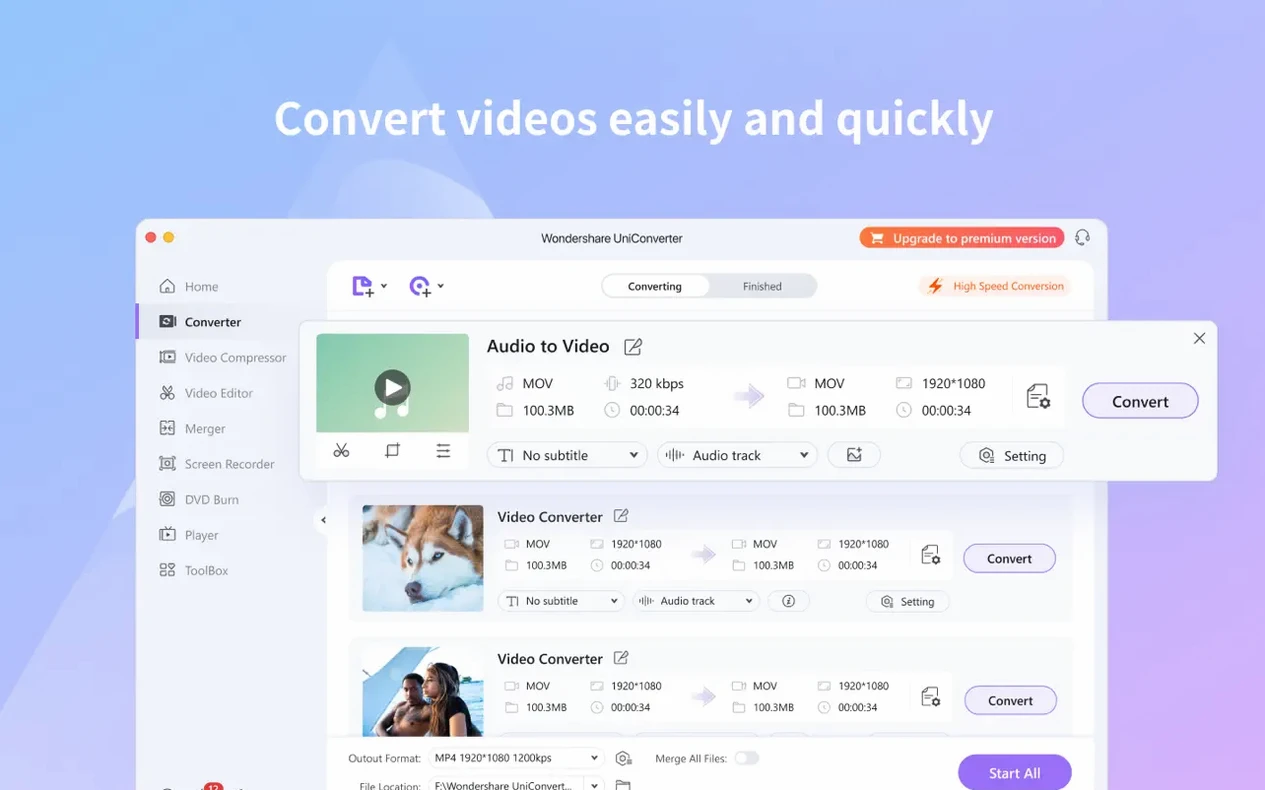
Format conversion — Transcodes between video and audio formats, including HEVC/H.265 for smaller file sizes at the same quality.
DVD handling — Converts DVD video directly to common formats and extracts audio tracks from discs or video files.
DRM removal — Converts DRM-protected files into formats standard devices can play.
File splitting and merging — Splits one clip into segments or merges multiple files into a single video.
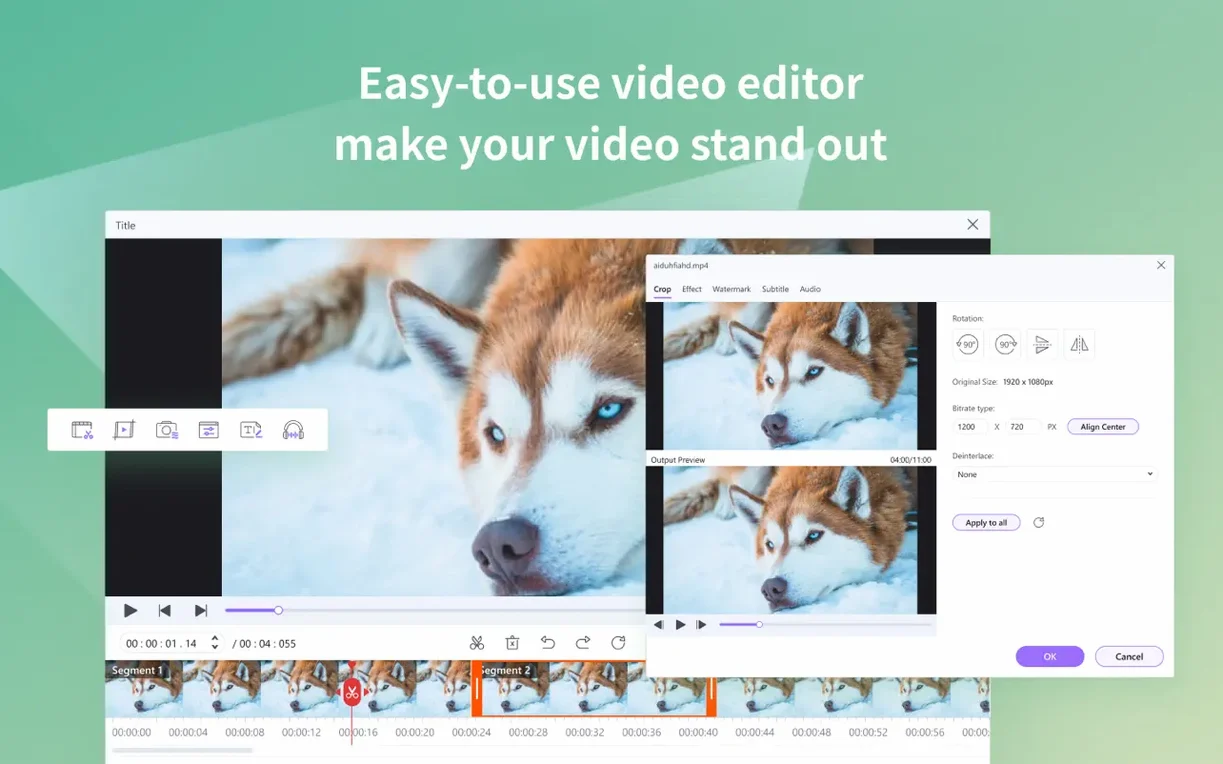
Built-in editor — Crops footage, removes black bars, and applies basic corrections without leaving the app.
2D to 3D conversion — Transforms standard video into 3D output for compatible displays.
Codec library — Installs native codecs for iMovie and Final Cut Pro, so those editors recognise more file types.
Wireless transfer — Sends converted files to Apple and Android devices over Wi-Fi, no USB cable needed.
Dropping the macOS Compatibility Floor to El Capitan
Version 15.7.3.564 tightened two things that affect daily workflow: compatibility and architecture support.
The compatibility floor dropped to OS X 10.11. That means older Macs still in service — a 2011 MacBook Air running El Capitan, for instance — can handle conversion queues without a newer OS. Practically, it removes the pressure to upgrade macOS just to keep a converter running.
Native ARM support is the bigger shift. On an M1 or M2 machine, the app no longer routes through Rosetta. Batch conversions of HEVC footage finish faster, and the interface stays responsive while a queue processes in the background. Intel users get a 64-bit native build as well, so nobody runs under emulation.
The combined effect: fewer beachballs during large jobs, and a wider install base across machines you might keep offline or dedicated to media work.
Drag a Folder to Preserve Its Structure
A few shortcuts and behaviours hide in plain sight. Once you spot them, they cut out repetitive steps.
- Drag-and-drop queue stacking — Drop a folder onto the main window instead of importing file by file. UniConverter preserves folder structure for output if you check the preference before converting.
- Right-click format swap — Control-click any file in the conversion list to change its output format individually, even when the global setting targets something else. Useful when a batch needs mostly MP4 but one clip must land as MOV.
- Preview from the queue — Double-click a queued file to open a quick preview. Trim in and out points without opening the full editor, then the conversion respects those markers.
- Audio-only extraction shortcut — Select a video file, pick an audio format from the dropdown, and the app strips the video track automatically. No need to switch to a separate audio extraction module.
- iTunes metadata sync — When transferring converted files to iTunes, UniConverter can pull metadata from the source and update the library entry. Enable it once in settings and it runs silently on every transfer.
- Wi-Fi transfer without setup wizards — Both devices need only the app and the same network. The Mac shows a short code; entering it on the mobile device pairs them. No accounts, no cloud detour.
When the Output Freezes Mid-Conversion
Even a polished toolkit has friction points. These come up often enough to document.
Gatekeeper blocks the installer
Mount the disk image, launch the Gatekeeper-friendly opener, and press Enter when Terminal prompts. That bypasses the quarantine flag. Drag the app into Applications afterward. If you skip the Terminal step and open the app directly, macOS will refuse to run it.
DVD conversion stalls or produces blank output
This usually traces to copy protection on commercial discs. While UniConverter handles DRM on individual files, some encrypted DVDs need the disc decrypted first through a separate library. For homemade or unprotected DVDs, conversion proceeds without extra steps. Also, check that the optical drive can read the disc — a scratched surface causes the same symptom.
HEVC exports fail on older hardware
If an older Intel Mac struggles with HEVC encoding, switch the output to H.264. The quality difference is marginal for most screens, and the encode completes without hanging. The same applies when a target device refuses to play HEVC files: re-wrap or re-encode to MP4/H.264 from the format dropdown.
Wireless transfer won't connect
Both devices need the same Wi‑Fi network and no client isolation enabled on the router. Guest networks often block device-to-device communication — that kills the pairing handshake. Moving both devices to the main network usually fixes it. Also, firewalls on the Mac (like Little Snitch) can block the connection; allow UniConverter temporary access to test.
Batch queue slows the entire machine
UniConverter uses available CPU cores aggressively. On machines with 8 GB of RAM, a long HEVC queue can make other apps sluggish. Lower the thread count in preferences or pause the queue during interactive work. Resuming after hours keeps progress intact.
Codec pack not recognised by iMovie or Final Cut
After installing the codec library from UniConverter, restart the target editor. iMovie and Final Cut Pro scan for new codecs on launch. If files still show as unsupported, check that you installed the codec pack after updating the editor — major Final Cut updates sometimes overwrite custom codecs.
- Improved — Build 15.7.3.564 supports OS X 10.11 and later.
- Improved — Universal build for ARM and 64-bit Intel Macs.
- OS X 10.11 or later
- ARM or 64-bit Intel processor
Comments 0
Sign in to leave a comment.Sign inCreate an account
No comments yet. If a step is still there after you install it, say so.
More in Video Converters
All in Video Converters ViWizard Spotify Music Converter
Turns Spotify tracks and playlists into standalone audio files with intact tags.
23 steps saved
 VideoProc Converter
Batch-transcodes footage from any camera or phone into an editor-friendly format.
21 steps saved
 Updated
VideoProc Converter AI
Combines video conversion, downloading, screen recording and AI upscaling in one window.
15 steps saved
 VideoByte BD-DVD Ripper
Converts a Blu-ray disc into a compact MP4 ready for Plex or a tablet.
11 steps saved
 Permute
Converts batches of media files to one format without repeated prompts.
9 steps saved
 Movavi Video Converter
Reshapes video, audio, and image files for a different screen or editor.
19 steps saved
 Macxvideo AI
Upscales and cleans up footage while handling format conversions in one go.
20 steps saved
 EditReady
Converts raw camera footage into edit-ready clips without the clutter of a general converter.