
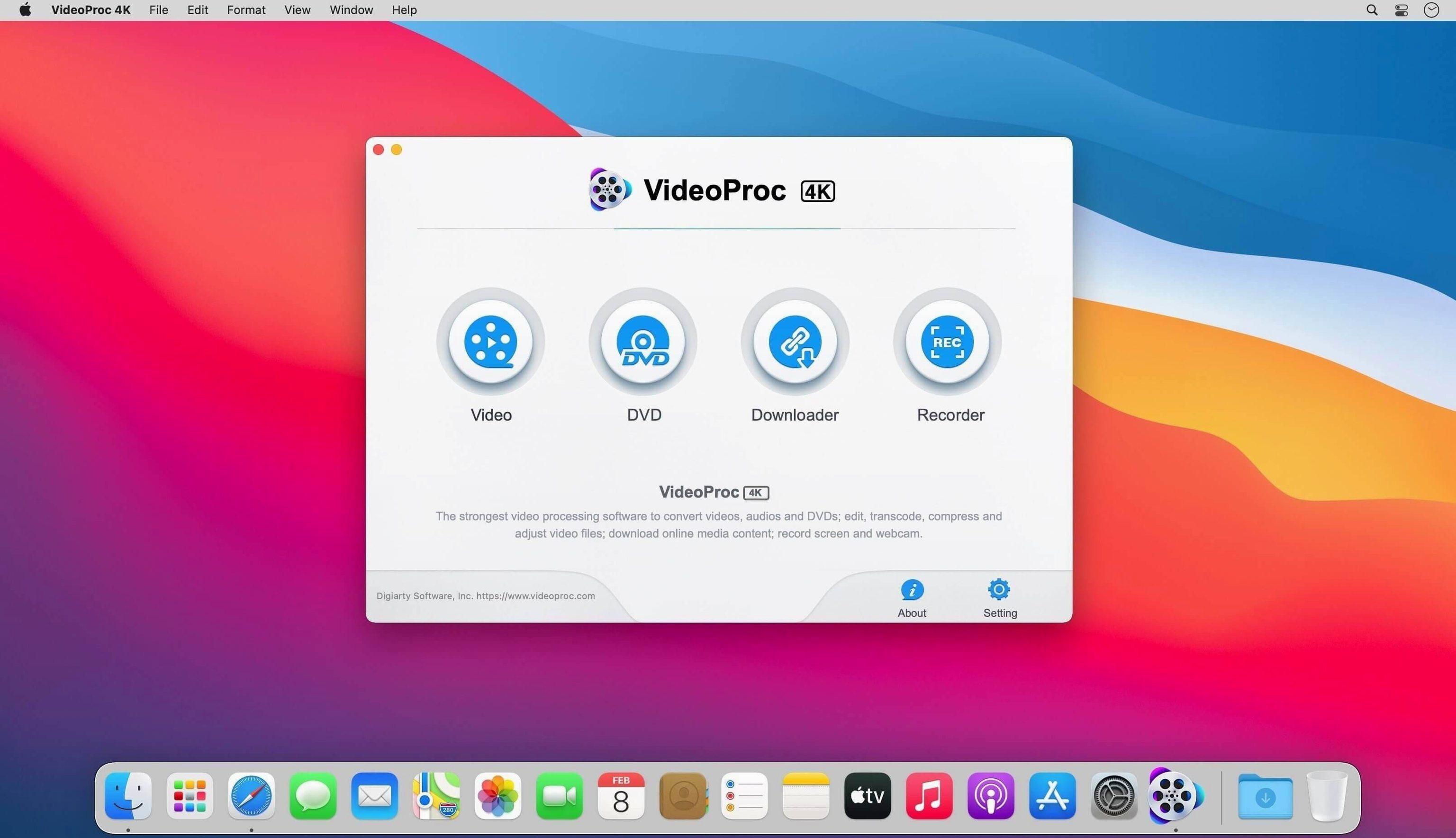
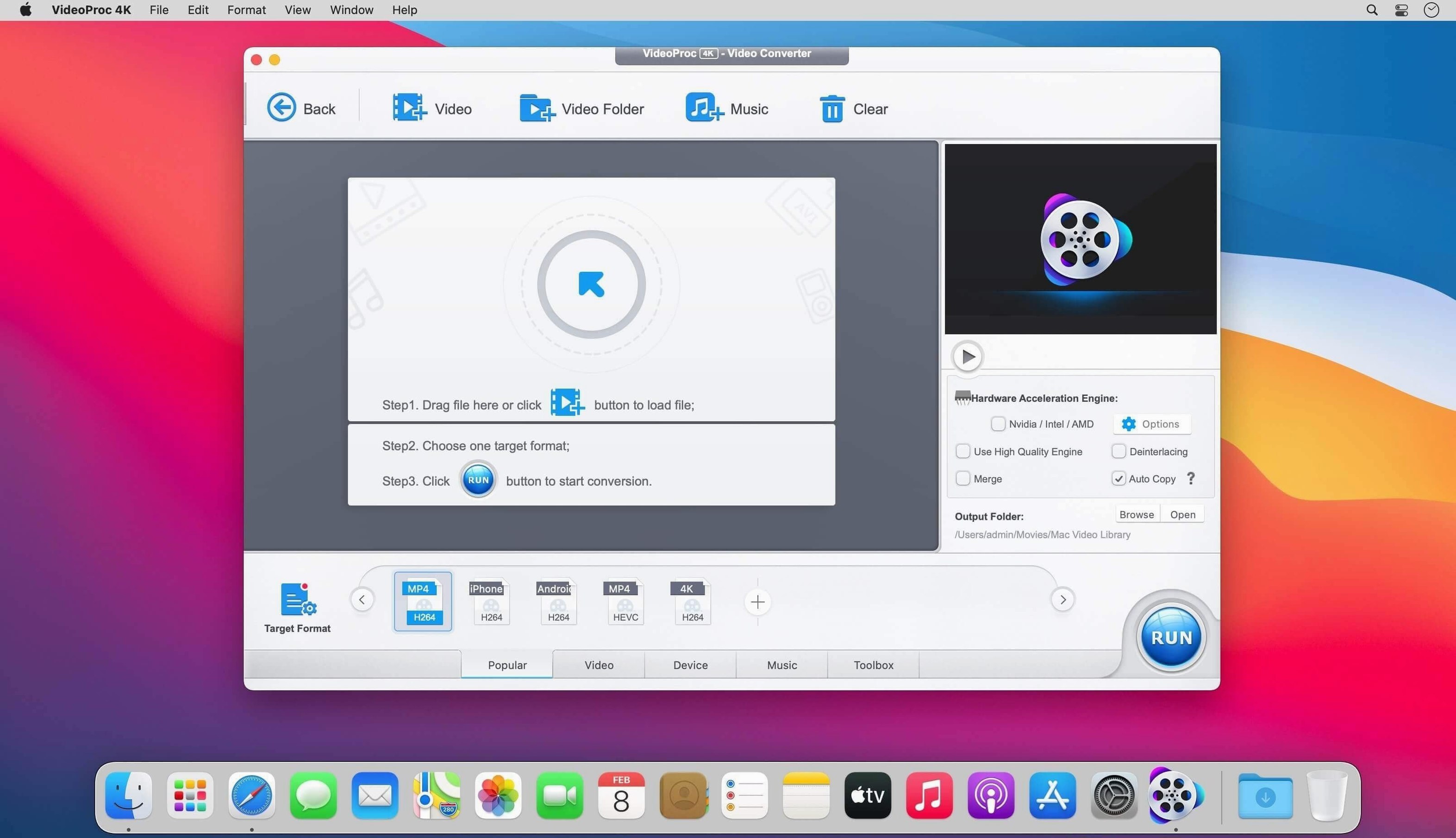
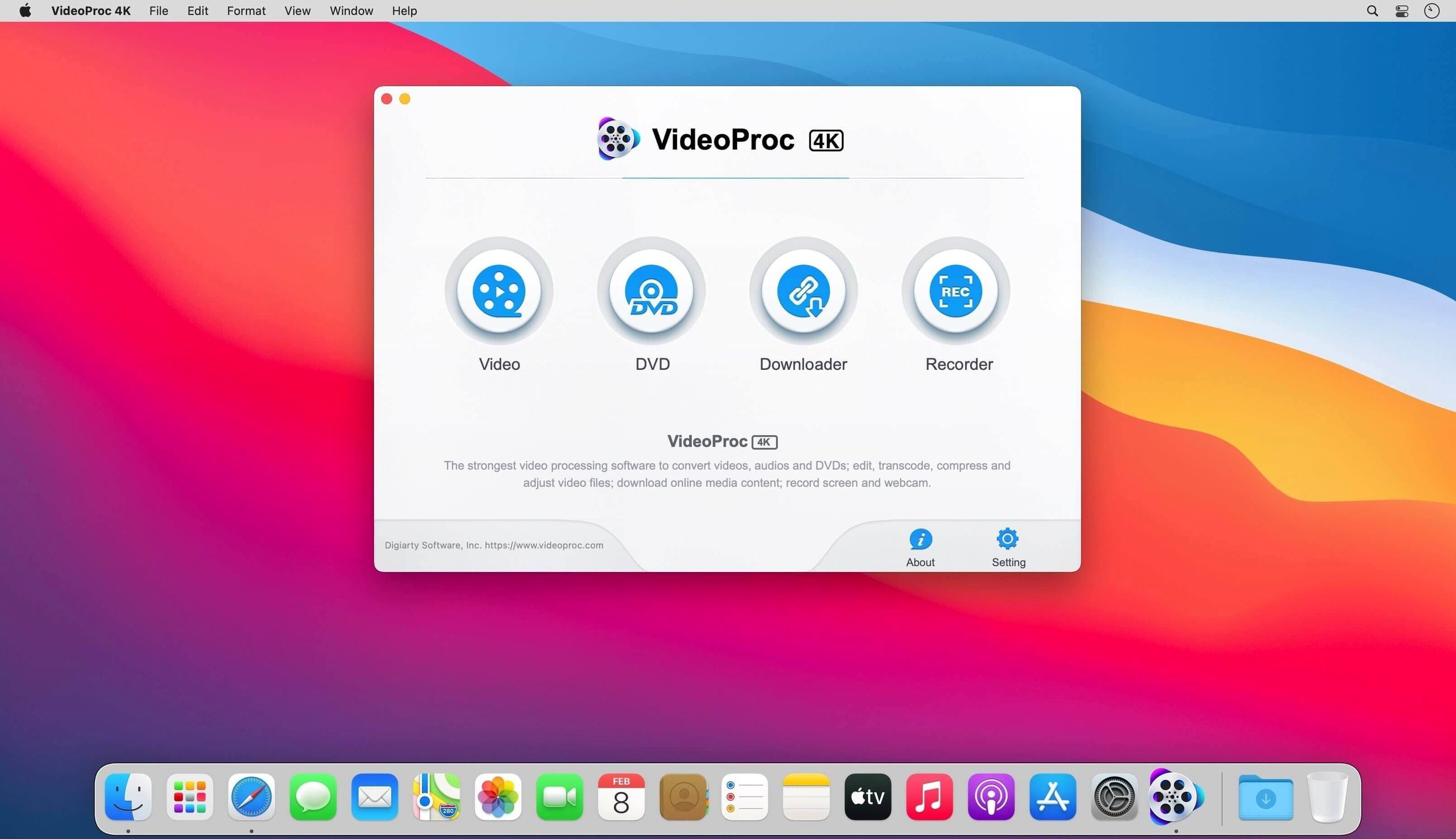
Footage from iPhones, Android phones, cameras, drones and GoPros rarely arrives in the format your editor wants. VideoProc Converter fixes that in one app.
- Convert and batch — transcode whole folders in one pass.
- AI upscaling and smoothing — Video Super Resolution sharpens old footage, Frame Interpolation adds in-between frames, and an Image AI module handles photos.
- Compress — shrink large files for sharing or storage.
- Trim and edit — cut, merge and tidy clips without a separate editor.
- Download — batch-grab UHD and HD video, audio and playlists.
- Record — capture the screen for tutorials and walkthroughs.
This 6.6 build is Intel (x86 64-bit). It runs on OS X 10.10 or later; the AI features need macOS 10.15 Catalina or later. On Apple Silicon it runs through Rosetta 2.
A videoproc converter session rarely lives in isolation. Drag a finished file into Final Cut Pro, DaVinci Resolve or an Adobe Premiere timeline and work begins without the editor complaining about an unrecognized format. The app speaks the same language as the big NLEs — ProRes, DNxHD and the flavour of H.264 each one prefers — so you spend zero time troubleshooting import failures.
On the macOS side, three integrations matter most.
- Finder Quick Actions — right-click any video in Finder, choose a preset, and conversion runs without opening the main window.
- Compressor fallback — editors who skip Apple Compressor or Adobe Media Encoder offload batch transcoding here because preset creation follows the same logic: pick a container, tune bitrate and resolution, save.
- Notification Centre — a finished queue pushes a system notification. No babysitting the progress bar.
Put a drone SD card into a reader, point the app at the DCIM folder, batch-convert everything to a mezzanine format, and import once into the editor. That chain — card to converter to timeline — saves an hour on Monday mornings.
Drone and action-cam shooters gain smooth ProRes scrubbing
Drone and action-cam shooters top the list. DJI, GoPro and Insta360 cameras output HEVC, H.265 10-bit and sometimes raw sensor data that older Macs choke on during playback. Transcoding to ProRes LT before editing makes scrubbing smooth on machines that otherwise drop frames.
Educators and trainers who record screen content lean on three features: record, trim dead air, compress for LMS upload limits. One app, no round-tripping between QuickTime Player, iMovie and HandBrake.
Archivists with shelves of MiniDV or AVCHD footage digitized years ago benefit from the AI upscaling module. Old 480p and 720p lectures come back cleaner when run through Video Super Resolution before re-encoding to H.265 for long-term storage.
Mobile-first creators who shoot vertical 4K on an iPhone and deliver horizontal 1080p for YouTube use the crop-and-convert path. Trim the clip, set the output aspect ratio, queue it with a Preset and post.
Group clips by source type instead of one-preset-fits-all queues
Throwing every clip into one queue with the same preset. A 4K drone clip, a screen recording and an old Flip Video file need different treatment. Group by source type and build separate presets for each; the preset manager handles the rest.
Ignoring the GPU toggle. Hardware acceleration is on by default for supported codecs, but beginners sometimes switch to CPU-only when they read a forum post about "more stable" encoding. On an M-series Mac the GPU path is fast and stable for H.264 and HEVC — leave it alone unless you have a specific reason.
Downscaling before editing. New users panic about file sizes and convert everything to 1080p low-bitrate before touching a timeline. Convert to a mezzanine codec at native resolution first, edit, then compress the export. Preserving quality at each stage matters more than saving disk space early.
Misreading the AI feature requirements. Video Super Resolution and Frame Interpolation need macOS 10.15 Catalina or later. Someone on an older Mac running the app on OS X 10.13 for classic conversion tasks will find the AI panels greyed out — not broken, just unavailable.
- OS X 10.10 or later (AI features: macOS 10.15 or later)
- Intel Mac; Apple Silicon via Rosetta 2
Questions I get before install
Does this VideoProc Converter build run natively on Apple Silicon?
No. Version 6.6 here is an Intel (x86 64-bit) build, so M-series Macs run it through Rosetta 2.
What AI features does the Mac version include?
Video Super Resolution for upscaling, Frame Interpolation for smoother motion, and an Image AI module for photo enhancement.
What macOS version is required for the AI capabilities?
The AI features need macOS 10.15 Catalina or later; the rest of the app runs on OS X 10.10 or later.
Comments 0
Sign in to leave a comment.Sign inCreate an account
No comments yet. If a step is still there after you install it, say so.
More in Video Converters
All in Video Converters Updated
VideoProc Converter AI
Combines video conversion, downloading, screen recording and AI upscaling in one window.
17 steps saved
 ViWizard Spotify Music Converter
Turns Spotify tracks and playlists into standalone audio files with intact tags.
15 steps saved
 VideoByte BD-DVD Ripper
Converts a Blu-ray disc into a compact MP4 ready for Plex or a tablet.
18 steps saved
 Wondershare UniConverter
Transcodes video and audio between formats and converts DVD content to common files.
11 steps saved
 Permute
Converts batches of media files to one format without repeated prompts.
9 steps saved
 Movavi Video Converter
Reshapes video, audio, and image files for a different screen or editor.
19 steps saved
 Macxvideo AI
Upscales and cleans up footage while handling format conversions in one go.
20 steps saved
 EditReady
Converts raw camera footage into edit-ready clips without the clutter of a general converter.