MacXVideo AI is a video enhancement and conversion app that uses machine learning to clean up footage, increase resolution, and handle format changes in a single tool.
4K capture, 4× upscaling, and frame-blending polish
- 4K screen recording — captures full-resolution screen content with system audio.
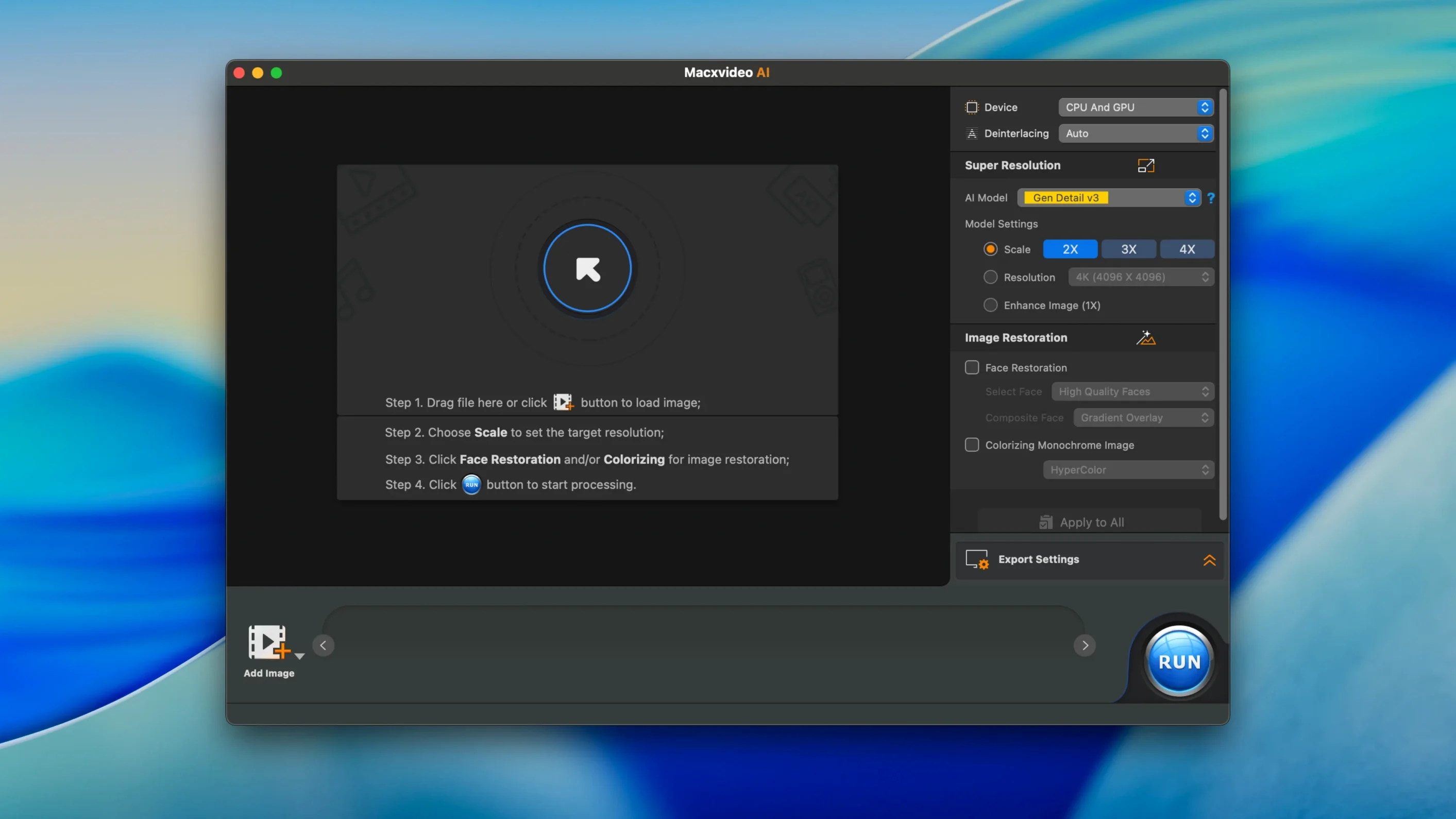
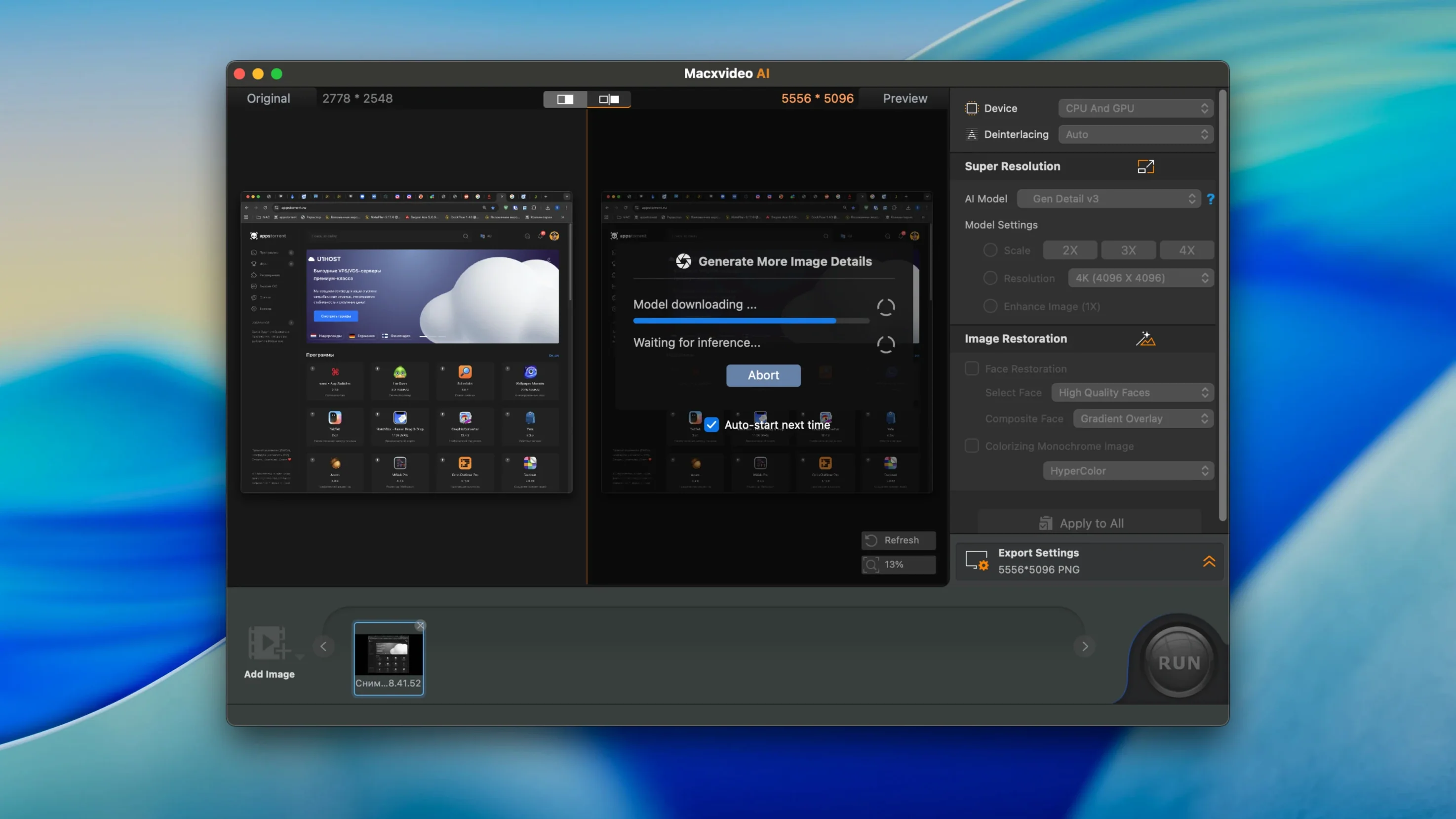
- AI Super Resolution — upscales video up to 4x, with support for 4K output.
- Frame interpolation — generates intermediate frames for smoother motion.
- Denoising — reduces grain and compression artifacts without softening detail.
- Bulk conversion — GPU-accelerated transcoding with presets for recent iPhone models.
- Image enhancement — applies the same AI models to still photos.
Runs on Apple Silicon and now supports macOS 27
- Requires macOS 10.15 or later.
- Runs on both Apple Silicon and 64-bit Intel Macs.
- Evolved from MacX Video Converter Pro; the feature set now centres on AI processing.
- Version 3.16 adds macOS 27 compatibility.
How Macxvideo AI compares with similar tools
Three names come up regularly when people look at AI-assisted video enhancement on Mac: Macxvideo AI, Topaz Video AI, and HitPaw Video Enhancer. They share a family resemblance — upscaling, denoising, frame interpolation — but differ in focus.
Topaz Video AI builds its reputation on precision. Its models treat a single clip for minutes, pulling detail from footage that looks unsalvageable. The trade-off is speed — batch work on a dozen files can feel glacial. Macxvideo AI leans the other direction: GPU-accelerated bulk processing with conversion presets ready to go. The AI enhancement is real, but it assumes you also need the video in a different format when it is done. The screen recorder inside the same window reinforces that — it is a pipeline tool, not a restoration laboratory.
HitPaw Video Enhancer splits the difference. It offers clear, beginner-friendly AI models and fast enough throughput, but lacks the format-conversion depth Macxvideo AI inherited from its Video Converter Pro roots — no multi-track MKV handling, no AV1 export, no baked-in device presets. If your day involves pulling screen recordings, cleaning them up, and delivering an iPhone-ready file, Macxvideo AI removes steps the others leave as separate chores.
Keep Original Colors stops AI upscaling from shifting hues
Three shifts in recent releases affect how the app feels day to day.
Version 3.15 brought a Keep Original Colors option into the AI Super Resolution workflow. Before this, upscaling could shift colour temperature slightly — barely noticeable in casual clips, but a headache when matching brand footage or skin tones across a project. Toggling the setting preserves the source colour profile, which cuts out a round-trip to a grading tool.
The jump to Python 3.11 in version 3.16 is less visible but matters for stability. AI model loading now completes faster on Apple Silicon, and the app no longer trips over certain Python dependency conflicts that could stall a long batch queue overnight.
Version 3.16 also added ready-to-use conversion presets for iPhone 18 Pro, iPhone 18 Pro Max, and iPhone Duo. That keeps the app aligned with current hardware — creators delivering directly to those devices can skip resolution guessing and aspect-ratio fiddling.
- New — Added compatibility with macOS 27.
- New — Ready-to-use conversion options for iPhone 18 Pro, iPhone 18 Pro Max, and iPhone Duo.
- Improved — Python environment moved to 3.11.
- macOS 10.15 or later
- Apple Silicon or 64-bit Intel processor
Questions I get before install
What does MacXVideo AI do that a regular converter doesn't?
It adds AI upscaling, denoising, and frame interpolation on top of standard conversion and compression, so you can improve video quality while changing formats.
Can it upscale old SD footage to HD or 4K?
Yes. AI Super Resolution increases resolution up to 4x, with output up to 4K.
Does it handle screen recording as well?
It includes a 4K screen recording module that captures your display and system audio, so you don't need a separate recorder for tutorials or presentations.
Comments 0
Sign in to leave a comment.Sign inCreate an account
No comments yet. If a step is still there after you install it, say so.
More in Video Converters
All in Video Converters Movavi Video Converter
Reshapes video, audio, and image files for a different screen or editor.
11 steps saved
 Permute
Converts batches of media files to one format without repeated prompts.
20 steps saved
 EditReady
Converts raw camera footage into edit-ready clips without the clutter of a general converter.
16 steps saved
 DVDFab
Copies, rips, or converts a protected disc to a playable file for any screen.
8 steps saved
 dBpoweramp Music Converter
Converts audio batches between formats while writing consistent metadata to every file.
14 steps saved
 Compressor
Queues a batch and hands encoding to the Mac’s hardware encoders.
15 steps saved
 VideoByte BD-DVD Ripper
Converts a Blu-ray disc into a compact MP4 ready for Plex or a tablet.
21 steps saved
 Updated
VideoProc Converter AI
Combines video conversion, downloading, screen recording and AI upscaling in one window.