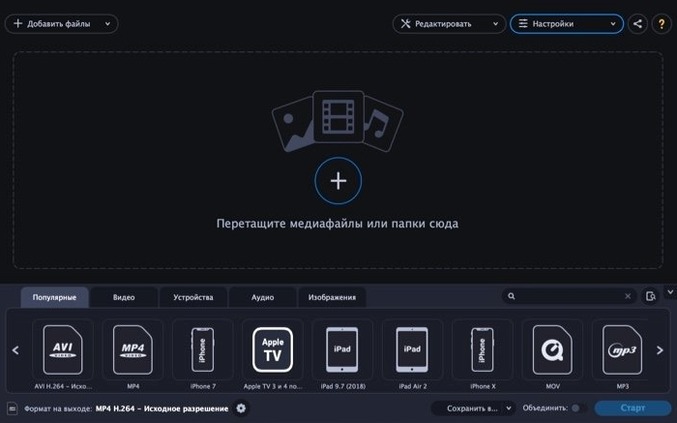
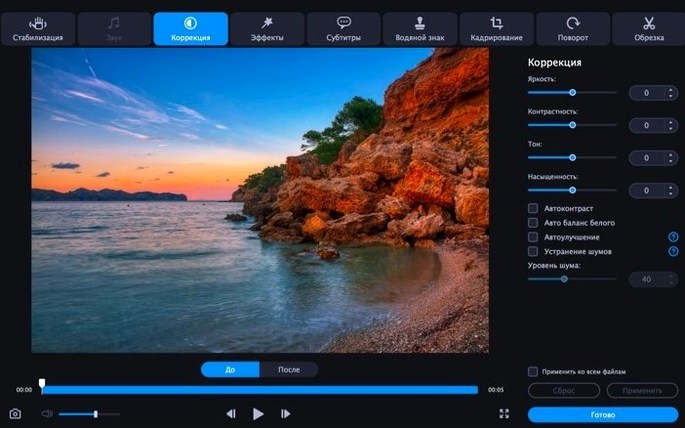
Think of it as a practical companion to your video player. Where a player handles playback, Movavi Video Converter handles the file itself, reshaping it for a different screen, a different editor, or a different set of ears. It converts video, audio, and image files without turning the process into a science project.
Core jobs it handles
- Re-wrap or re-encode video between AVI, MKV, MOV, MP4, MPEG, WebM, and WMV.
- Extract audio or convert music files to AAC, FLAC, M4A, MP3, OGG, WAV, and WMA.
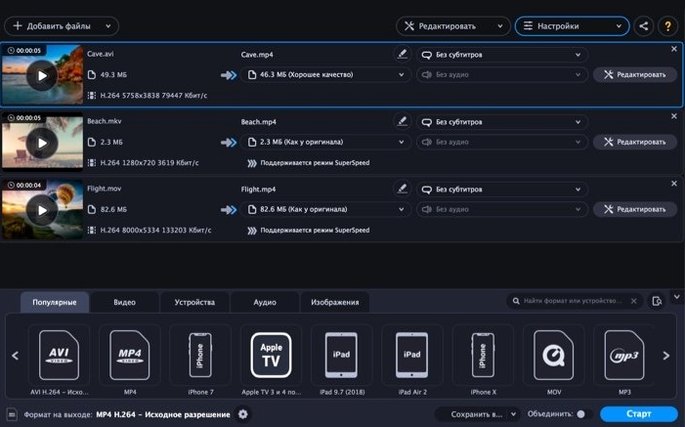
- Batch-process a whole folder of clips instead of feeding them in one by one.
- Apply quick fixes — trim, crop, rotate, adjust colour, reduce noise, or stabilize shaky footage.
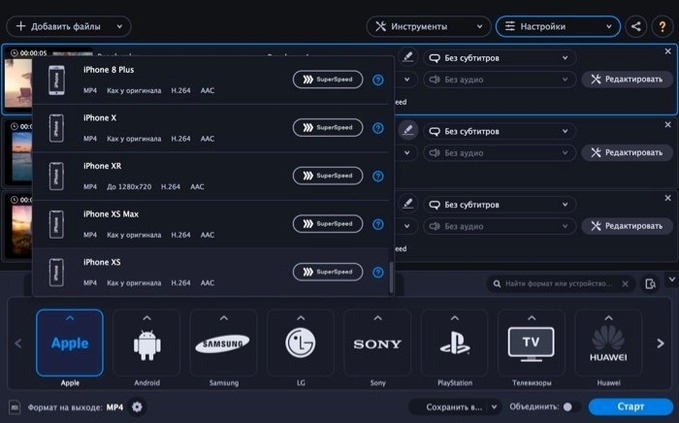
- Pick a device profile for an Apple, Samsung, Nokia, or Sony gadget and let the app sort the settings.
SuperSpeed mode repackages files without a full re-encode
Version 22.5.0 runs on Intel Macs with macOS 10.13 or later. The SuperSpeed conversion mode keeps things moving when you need a file repackaged without a full re-encode. Editing tools for volume, subtitles, text overlays, and watermarks are built in, so you can tidy up a clip before it leaves the app. The interface switches between thirteen languages, including English, German, French, Korean, and Japanese.
Time savings hit first when media comes from multiple sources
People who deal with media from multiple sources tend to notice the time savings first. A teacher pulling clips from an old camcorder for a slideshow, a musician stripping vocals from a rehearsal video to share as an MP3, or a small marketing team preparing social cuts in three different aspect ratios — these are the sorts of users who stop hunting for one-off web converters once they settle into a local tool like this one.
If your workflow already involves another editor, Movavi Video Converter slots in as the prep station. You do the rough trimming, the format switch, and the noise reduction here, then hand off a clean file. The device profiles are particularly useful when you are not sure what resolution or codec a specific phone or tablet expects. Pick the model and move on.
Drag a folder to grab every supported file inside it
- Drag a folder onto the window — the app picks up every supported file inside it, not just the top-level ones.
- Right-click a file in the queue to duplicate its conversion settings across several items. Handy when you have a batch that all need the same output profile.
- Hold Option while clicking a preset to see the exact codec, bitrate, and resolution before you commit. Good for avoiding surprises.
- The SuperSpeed badge only appears when the source and target formats share a compatible codec. If you do not see it, you are getting a full re-encode, which takes longer but guarantees compatibility.
- Image-to-GIF conversion respects the trim handles, so you can pull a short looping clip from a longer video without a separate tool.
Converted files vanish into the default Movavi Library folder
The most common one is ignoring the output folder setting. The app defaults to a Movavi Library location, and new users often convert a dozen files, then cannot find where they landed. Set a custom folder before your first batch.
Another trap is assuming the editing sliders work globally. In a batch, adjustments like colour correction or stabilization apply to the currently selected clip only. If you want the same tweak across all files, you need to adjust one, then use the copy-settings shortcut mentioned above.
Beginners also tend to overuse the noise reduction filter. A light touch cleans up hiss; dragging the slider too far gives voices a hollow, underwater quality. Preview a ten-second segment before committing to a long conversion.
- macOS 10.13 or later
- Intel-based Mac
Questions I get before install
Can I convert more than one file at a time?
Yes. You can batch-convert all files from a selected folder instead of processing them individually.
Which output audio formats does it support?
You can convert to AAC, FLAC, M4A, MP3, OGG, WAV, and WMA.
Can I add subtitles or watermarks during conversion?
Yes. The built-in editing tools let you overlay subtitles, text, and watermarks before converting.
Comments 0
Sign in to leave a comment.Sign inCreate an account
No comments yet. If a step is still there after you install it, say so.
More in Video Converters
All in Video Converters Macxvideo AI
Upscales and cleans up footage while handling format conversions in one go.
11 steps saved
 Permute
Converts batches of media files to one format without repeated prompts.
20 steps saved
 EditReady
Converts raw camera footage into edit-ready clips without the clutter of a general converter.
16 steps saved
 DVDFab
Copies, rips, or converts a protected disc to a playable file for any screen.
8 steps saved
 dBpoweramp Music Converter
Converts audio batches between formats while writing consistent metadata to every file.
15 steps saved
 VideoByte BD-DVD Ripper
Converts a Blu-ray disc into a compact MP4 ready for Plex or a tablet.
14 steps saved
 Compressor
Queues a batch and hands encoding to the Mac’s hardware encoders.
21 steps saved
 Updated
VideoProc Converter AI
Combines video conversion, downloading, screen recording and AI upscaling in one window.