
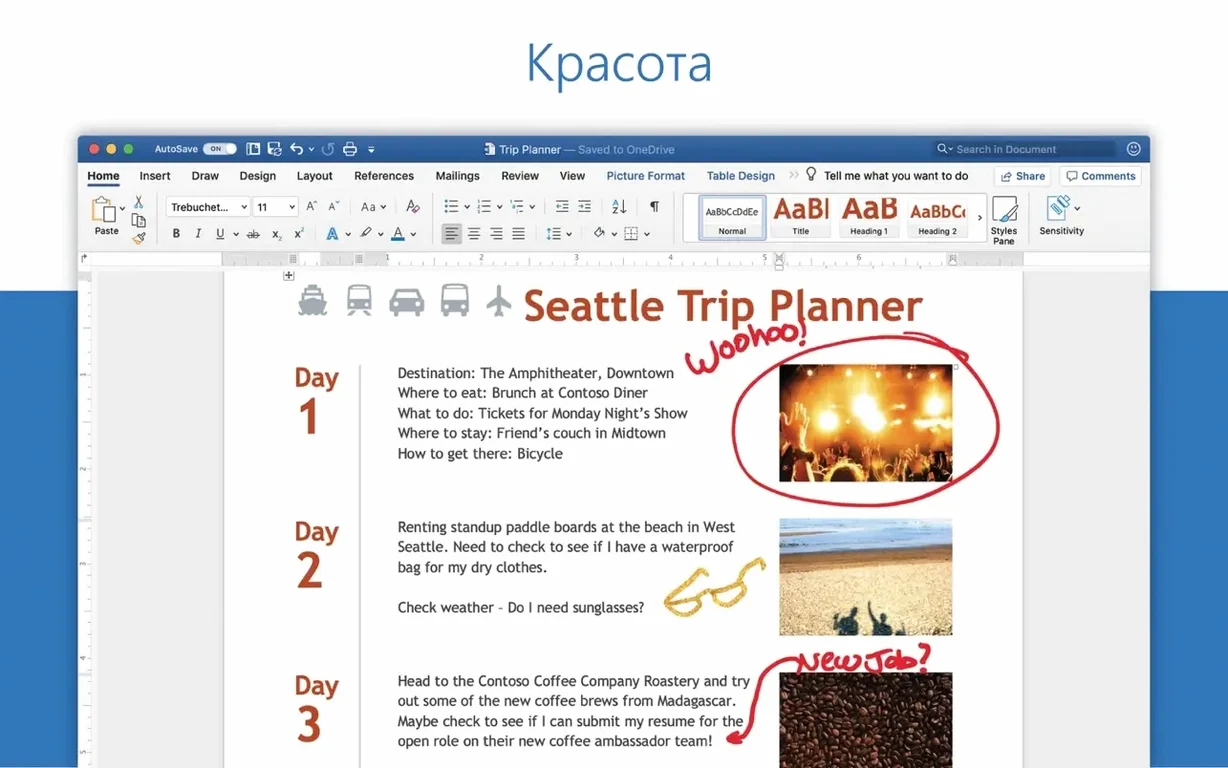
Microsoft Word is a word processor for creating, editing, and sharing text documents on a Mac. It fits next to the lightweight editors and notes apps you already open for quick thoughts, stepping in when the job calls for formal layouts, tracked changes, or a format the rest of the office expects.
- Draft reports, proposals, and letters with full control over styles, sections, and page layout.
- Edit and reply to document attachments directly from email without shuffling files to the desktop.
- Run collaborative reviews where multiple people comment and revise the same file in real time.
- Build templates for recurring documents so your small team starts from the same clean structure.
- Open and save the .docx format that most clients, agencies, and government forms require.
Version 16.93 brings a handful of quality fixes and keeps Word current with the rest of the Office for Mac suite. For teams that already live in Excel or Outlook, it completes the same suite.
First Days: Three Adjustments That Pay Off
Fresh install, blank document, blinking cursor. Most people start typing immediately. Spend twenty minutes on setup instead, and the next six months feel lighter.
Kill the default paste behaviour. Word wants to preserve source formatting by default. You almost never want that. Open Word's settings, switch to Edit, and set paste to "Keep Text Only." You can still reach the rich-paste options through the popover when you need them.
Pin your real styles, not the defaults. The ribbon shows Normal, No Spacing, Heading 1, Heading 2. If your work relies on Body Text, Quote, or a custom numbered-list style, right-click them in the Styles pane and pin them to the top row. The defaults teach muscle memory for things you will not use.
Set the save location to match where you actually think. Word defaults to a Microsoft 365 folder structure. If your team uses Finder folders, iCloud, or a shared drive, change the default local file location under Save settings so your documents land where you can find them without the Open dialog.
Splitting a Window to Merge PDF Feedback
Tuesday morning, a project manager sits down with a half-drafted proposal. The client sent feedback as a marked-up PDF and three separate emails. Instead of cross-referencing, she opens the proposal in Word, splits the window—left pane the document, right pane the client's latest email dragged in as a side attachment—and works through the comments in one view.
She toggles Track Changes on, not because the client asked for it, but because she wants to see what she altered when she revisits the draft tomorrow. Each section gets a Heading 1 marker so the Navigation Pane on the left acts as an outline she can jump through with a click.
The budget table was a mess in the first draft. She drops a quick Excel table into the document using Paste Special and picks "Microsoft Excel Worksheet Object," which keeps it editable later without leaving Word. A colleague messages her through Teams: can you check the intro paragraph? She shares the document link, watches the colleague's cursor appear in the margin, and resolves three small wording suggestions before lunch.
Fitting Word into a Mac Workflow
Word plays best when it is one tool in a chain, not the whole factory. The typical small-team setup pairs it with a handful of others.
- Finder and Spotlight. Tag proposal folders with colour labels. Spotlight searches inside .docx files natively, so a unique phrase from three months ago finds the document faster than browsing.
- Preview and PDF editing. Word exports to PDF directly, but the Mac's Preview handles merging, signing, and page reordering that Word's PDF tools overcomplicate. Draft in Word, polish the final PDF in Preview.
- Notes or Drafts for raw capture. Word is heavy for meeting scribbles. Capture bullet points in a plain-text app, then move them into Word when structure matters. The plain-text draft forces you to separate thinking from formatting.
- Shortcuts for batch tasks. A Shortcut that takes a folder of .docx files and exports each to PDF with a single click saves the repetitive Export-As-PDF dance. Run it on Friday afternoon before sending the weekly reports.
- Focus modes and Stage Manager. When a document needs two hours of uninterrupted drafting, a custom Focus mode that silences everything except Word and your reference material narrows the screen to what matters.
Double-Return Spacing That Breaks Styles
Watch for four habits that turn up in the first weeks and then calcify into permanent irritation.
Spacing with the Return key. Hitting Return twice between paragraphs, or three times before a heading, creates gaps that break the moment styles change. Set Space After in your paragraph style instead. One setting, consistent everywhere, and adjusting a template later does not leave phantom blank lines.
Direct formatting over styles. Selecting text and hitting Bold, then changing the font size, then the colour—repeat twenty times across a document—is the fastest way to a formatting disaster. You will spend an afternoon cleaning it up before the client sees it. Define a style once. Apply it by name. Sleep earlier.
Trusting AutoSave without checking location. AutoSave works only for files saved to a Microsoft 365 cloud location. If you created the document on the Desktop or in a local folder, AutoSave is greyed out and silent. You are relying on AutoRecover, which is a safety net, not a workflow. Pick your storage location deliberately at the start.
Ignoring the Navigation Pane. A twenty-page document without heading styles is a scroll-fest. Apply Heading 1 and Heading 2 styles to your section titles, then open the Navigation Pane from the View menu. Jumping between sections becomes one click. Reordering whole sections becomes drag-and-drop. The pane also reveals structural problems—a missing subsection, an orphaned idea—that remain invisible when you scroll.
Word rewards a light hand. The less you fight its internal logic, the more it quietly handles the formatting while you write. That takes a few deliberate habits, not years of expertise.
- Improved — Quality and performance.
- Fixed — Editing equations may not work as expected.
- macOS 13 or later
- Intel or Apple Silicon Mac
Questions I get before install
Which macOS versions does Word 16.93 support?
It requires macOS 13 or later and runs natively on both Intel and Apple Silicon Macs.
Can multiple people work on the same document at once?
Yes, Word supports collaborative editing where reviewers can comment and revise a shared document in real time.
What was fixed in the current version?
Version 16.93 includes quality and performance improvements, plus a fix for an issue where editing equations did not work as expected.
Comments 0
Sign in to leave a comment.Sign inCreate an account
No comments yet. If a step is still there after you install it, say so.
More in Office
All in Office Microsoft PowerPoint
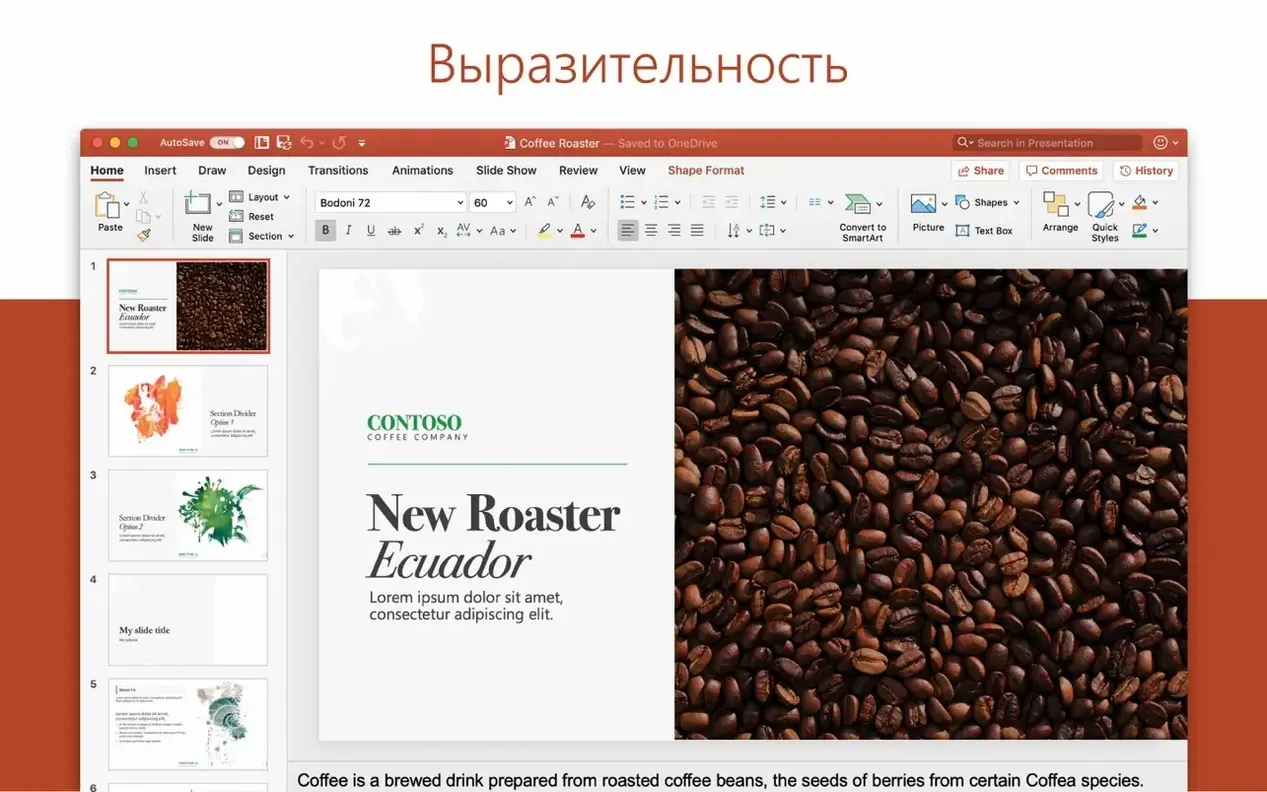
Builds presentation decks that move past static bullet points.
13 steps saved
 Microsoft Outlook
Puts mail and calendar in one window so you stop switching apps.
11 steps saved
 Microsoft Office
Gives a team six tools for documents, spreadsheets, and presentations.
19 steps saved
 Microsoft Excel
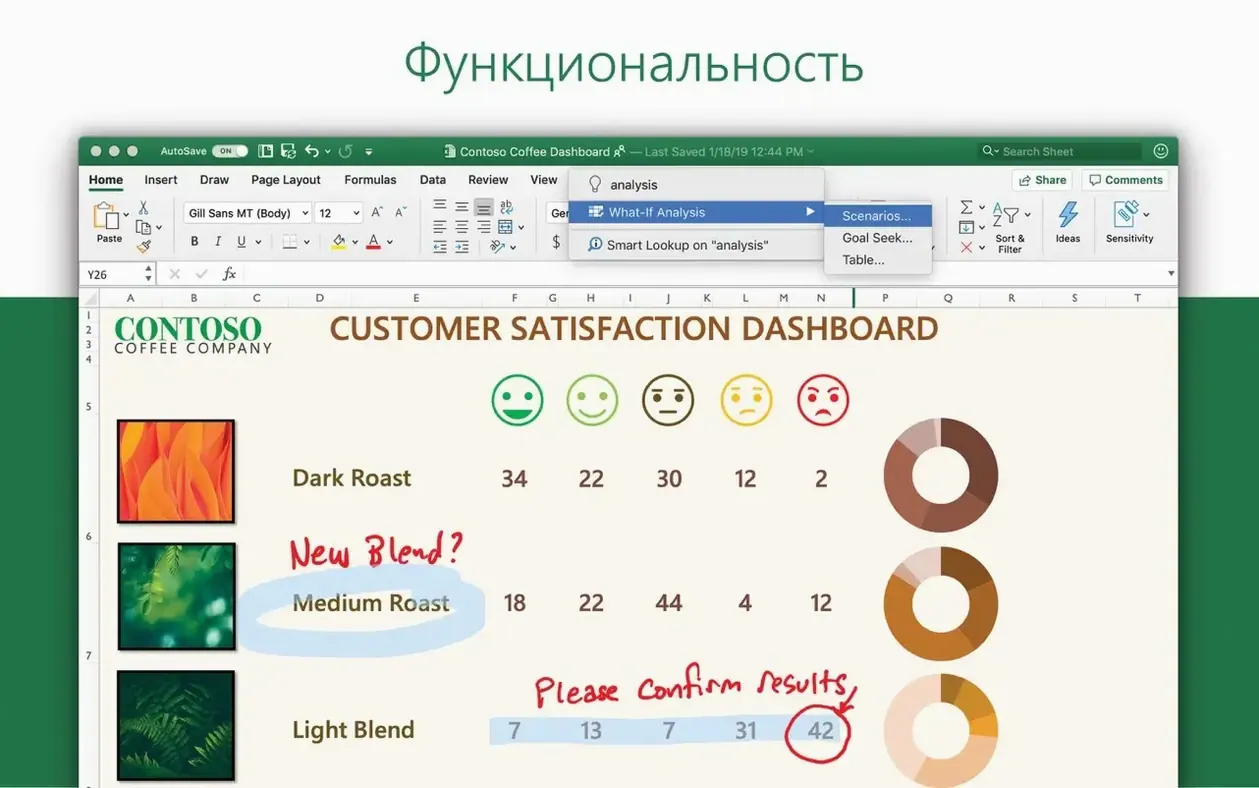
Builds budgets, forecasts and reports in spreadsheets the whole team can edit.
7 steps saved
 OmniFocus Pro
Flattens vague plans into tagged, location-aware actions you can actually complete.
13 steps saved
 OmniPlan Pro
Breaks a complex initiative into trackable tasks linked by dependencies and resources.
9 steps saved
 OmniReader Pro
Opens PDFs, ebooks and documents in one reader with notes and reading modes.
22 steps saved
 Updated
iA Writer
Strips away formatting so you focus on structure and phrasing, then export to any format.