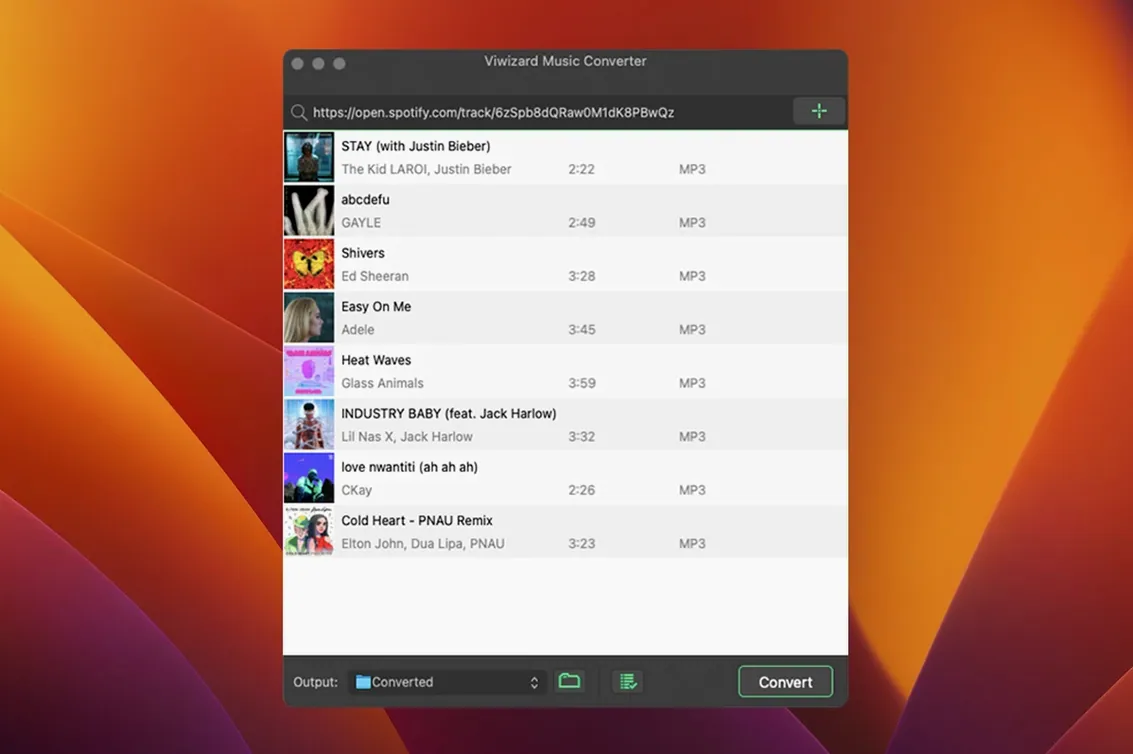
ViWizard Spotify Music Converter is a desktop utility that turns Spotify tracks, playlists, albums, podcasts and audiobooks into standalone audio files.
Build a local library with six format choices and preserved ID3 tags
- Building a local library from Spotify catalogues without a live connection
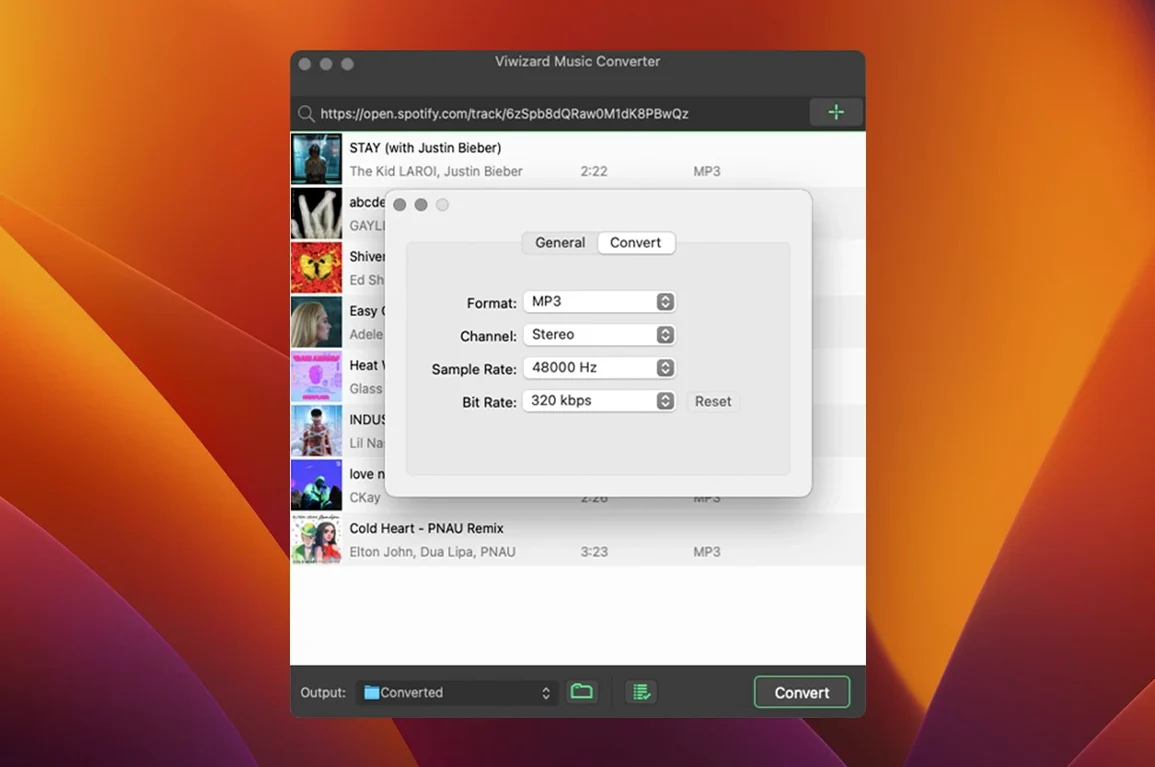
- Format choice — MP3, FLAC, WAV, AIFF, M4A and M4B are all available
- Preserving ID3 tags so artist, album and artwork survive the conversion
- Queuing entire discographies in one batch instead of track-by-track
Runs on Intel Macs via the built-in Spotify Web Player
- Relies on the built-in Spotify Web Player; playback is not handled outside the app
- Runs on Intel-based Macs only (macOS 10.10 or later)
Test one playlist across all formats to hear the FLAC difference
Don’t convert your entire library on day one. Pick a single playlist — something under 50 tracks — and run it through all six output formats. Listen to the same 30-second passage in each. You’ll notice the difference between FLAC and 128 kbps MP3 immediately, and that shapes every setting you choose later.
Three things to set up early:
- Output path rules. Tick the option that auto-sorts by artist or album. You’ll thank yourself when the folder has structure, not a flat list of 2,000 files.
- Bitrate ceiling. For spoken-word podcasts, 128 kbps is plenty. Reserve 320 kbps and FLAC for music you genuinely care about. Smaller files mean faster batch runs.
- Metadata check. After the first conversion, open a track in Finder. Confirm the artwork and year carried over. If something’s missing, adjust the output settings before you scale up.
One more thing: quit other browsers during a large batch. The built-in web player shares resources with anything else that’s open, and a quiet machine converts faster.
Drag albums into the queue inside a single-window player
It’s 9:42 a.m. and you’ve got three albums to prepare for a road trip. ViWizard is already open. The Spotify Web Player sits inside the same window — no app switching.
You drag the first album into the queue. The track list appears with checkboxes; you uncheck the two interludes you don’t need. Output format is set to M4A at 256 kbps, a compromise you settled on after the first-week tests. You click convert.
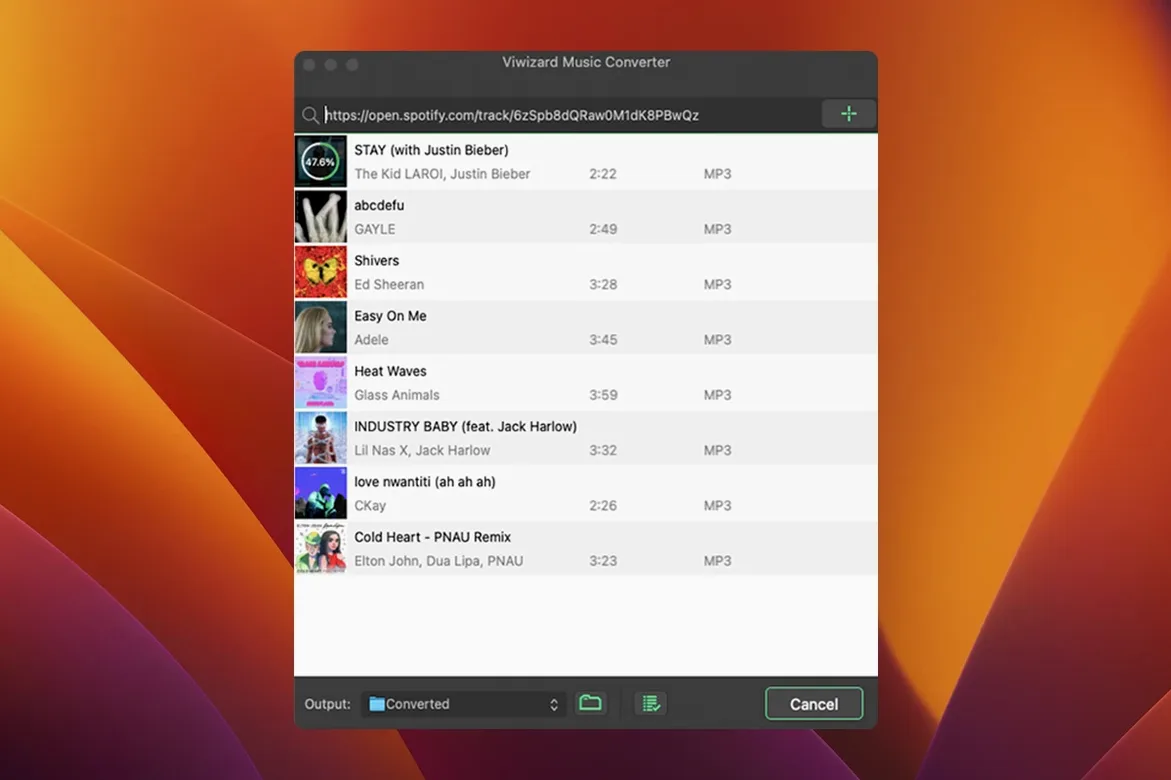
While it runs, you pull up a second album — a podcast series, actually. You switch the format to M4B, tick the audiobook output option, and queue all eight episodes. ViWizard processes the music batch first, then slides straight into the spoken-word queue without prompting.
By 9:58 a.m. both folders are on the desktop. Artist folders, named cleanly, album art embedded. You eject the external drive, drop the folders on it, and you’re done. No post-conversion cleanup, no re-tagging.
Three questions people ask beforehand
Does it need a separate Spotify app? No. Everything runs through the built-in web player. You log in once inside ViWizard, and you don’t need the Spotify desktop client installed at all. That keeps the tool self-contained and avoids version conflicts when Spotify updates.
How long does a track take? Conversion speed tracks playback speed — a four-minute song takes roughly four minutes. Batch mode doesn’t magically accelerate that, but it does remove the waiting between tracks. You set the queue, walk away, and return to a finished folder.
What happens to my playlists after conversion? Nothing. The original Spotify playlists stay untouched. ViWizard reads the track list and creates local copies alongside, so your streaming library remains exactly as it was. The local files are an addition, not a replacement.
If you’ve been searching for a ViWizard Spotify Music Converter Mac that handles both music and spoken word without juggling separate utilities, the single-window workflow here keeps things straightforward. Some users look for a ViWizard Spotify Music Converter torrent to test before committing; the version covered here is 2.17.0, built for Intel Macs back to OS X 10.10.
- macOS 10.10 or later
- Intel processor (x86-64)
Comments 0
Sign in to leave a comment.Sign inCreate an account
No comments yet. If a step is still there after you install it, say so.
More in Video Converters
All in Video Converters VideoProc Converter
Batch-transcodes footage from any camera or phone into an editor-friendly format.
21 steps saved
 Updated
VideoProc Converter AI
Combines video conversion, downloading, screen recording and AI upscaling in one window.
15 steps saved
 VideoByte BD-DVD Ripper
Converts a Blu-ray disc into a compact MP4 ready for Plex or a tablet.
18 steps saved
 Wondershare UniConverter
Transcodes video and audio between formats and converts DVD content to common files.
11 steps saved
 Permute
Converts batches of media files to one format without repeated prompts.
9 steps saved
 Movavi Video Converter
Reshapes video, audio, and image files for a different screen or editor.
19 steps saved
 Macxvideo AI
Upscales and cleans up footage while handling format conversions in one go.
20 steps saved
 EditReady
Converts raw camera footage into edit-ready clips without the clutter of a general converter.