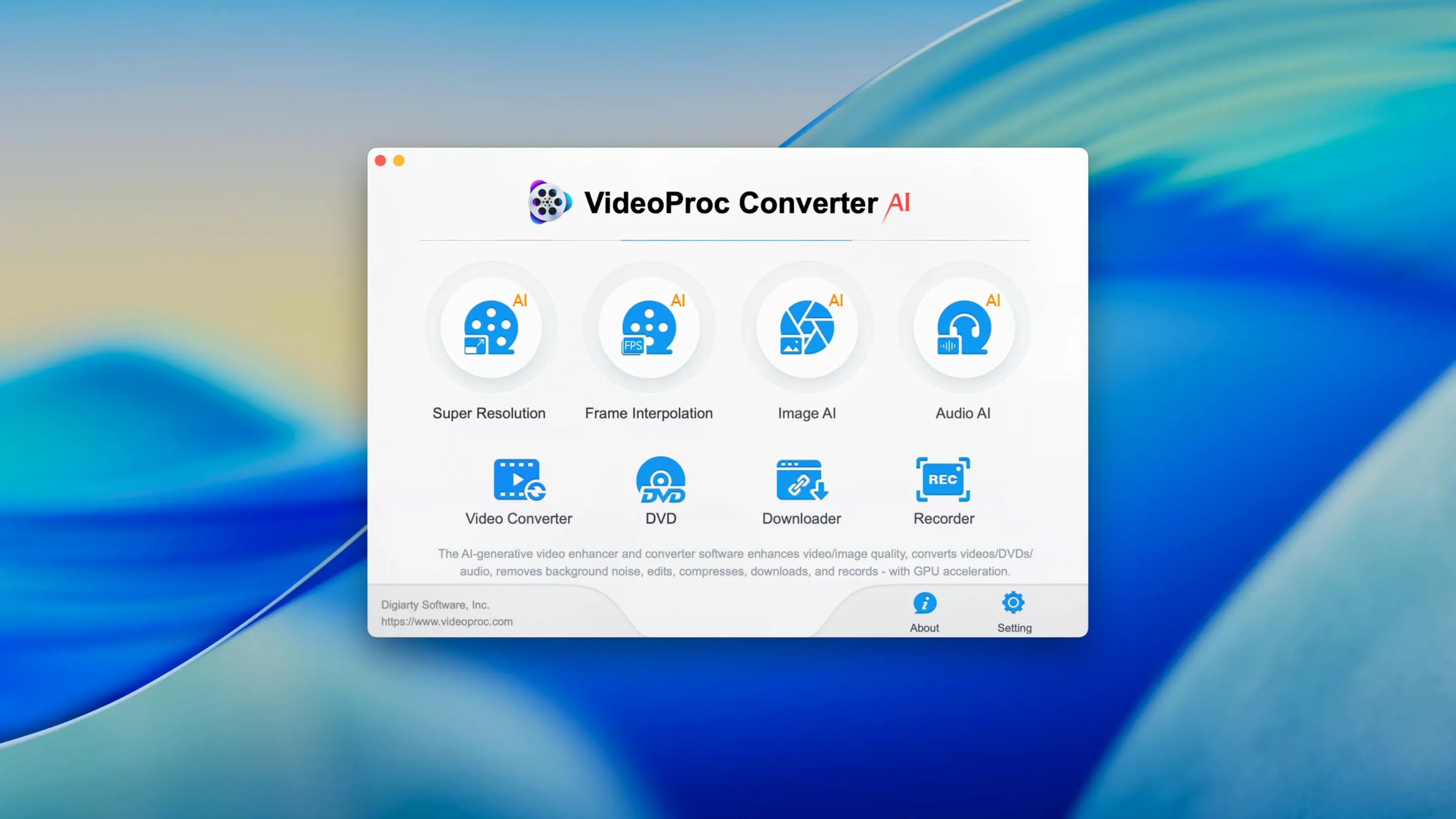
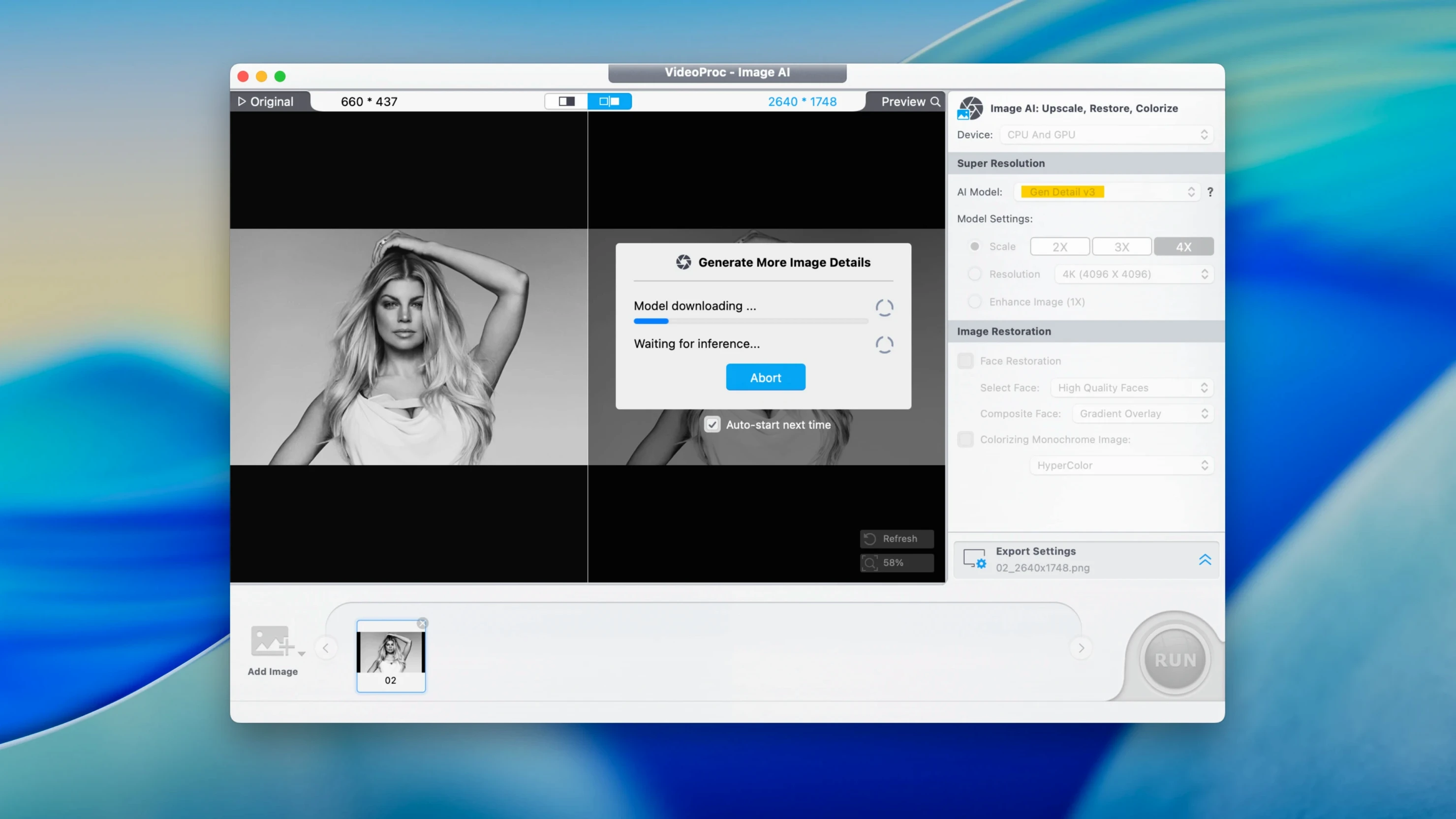
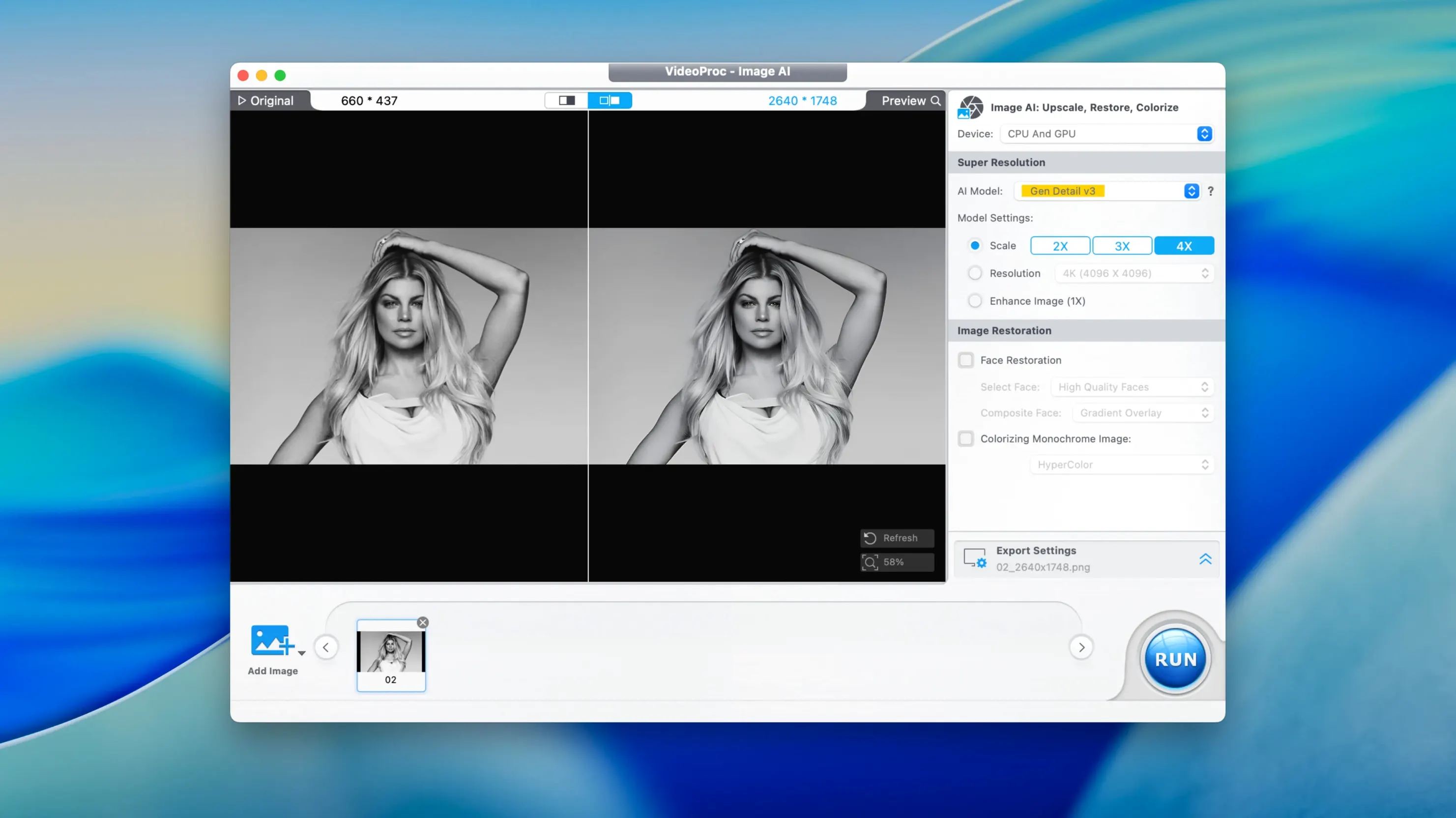
Think of VideoProc Converter AI as HandBrake with a download manager, a screen recorder, and a photo upscaler built into the same window. It handles the heavy lifting for video conversion, but it also pulls media from YouTube or TikTok, records your screen with voice commentary, and uses AI to sharpen old footage to 4K or 8K. The goal is fewer apps open at once.
Batch convert, AI upscale to 8K, and download from YouTube
- Converting batches of video between formats like MP4, MOV, MKV, HEVC, and ProRes.
- Upscaling low-resolution or noisy footage to 4K or 8K with the built-in AI models.
- Downloading video and audio from YouTube, Vimeo, TikTok, and Facebook.
- Recording the full screen, a window, or the camera feed with voice narration.
- Trimming, merging, and splitting clips without switching to a separate editor.
- Extracting clean audio tracks from video files.
Requires Apple Silicon or Intel Mac with Metal or Quick Sync
- Requires macOS 10.15 or later on a 64-bit Intel or Apple Silicon Mac.
- Hardware acceleration relies on Metal, Intel Quick Sync, or the Apple M1/M2 media engine.
- The interface layers multiple tools into one window, which takes a few sessions to navigate comfortably.
Multi-platform creators chaining download, trim, convert, and export
Content creators who publish across three or four platforms weekly notice the overlap first. A single project often needs a download, a trim, a format flip, and a compressed export — VideoProc Converter AI chains those steps without bouncing between four utilities.
Mac users restoring old family footage get a different kind of value. The AI upscaling and denoising turn VHS or DV material into watchable 4K, and the stabilization smooths out handheld shake that was baked into the original recording.
Educators and trainers who record screen lessons also benefit. The screen recorder captures the Mac display with voice commentary, and the converter compresses the result for a learning management system or a shared folder — no separate compression tool needed.
Anyone who regularly rips audio from video — podcast editors pulling interview clips, musicians grabbing reference tracks — will use the audio extraction more than they expect. It handles MP3, AAC, and FLAC output with control over bitrate and sample rate.
From 4K HEVC drone clip to Instagram-ready edit in one window
Start in the Video module. Load a 4K HEVC clip straight from the drone's SD card — the app reads HEVC without a plugin on macOS 10.15 and later. Drag the clip into the timeline trimmer and set in and out points to cut the segment you want. No need to open a separate editor.
Next, apply stabilization if the clip shows any wind jitter. Enable the stabilization checkbox and set the strength to medium. The preview window updates so you can check the crop before committing.
For the export, pick the Instagram preset under the Web Video profiles. The app sets H.264, 1080p, and a bitrate that balances quality and upload speed. Switch on hardware acceleration to use the Mac's media engine — on Apple Silicon, the encode finishes noticeably faster.
If the original clip is noisy — common with smaller drone sensors — run the AI denoiser before the final export. The cleaned footage compresses better and looks sharper on a phone screen. Queue the denoise pass, then let the conversion run. One app, one pass, one file ready to post.
Enable hardware acceleration or 4K exports will crawl
- Hardware acceleration — On by default for supported Macs, but verify it under Preferences > General. If the checkbox is off, the app falls back to software encoding and 4K exports crawl.
- Default output folder — Change it from the Mac's Movies folder to a project-specific directory. The app remembers the last-used location per session, but setting a permanent default saves cleanup time later.
- Downloader format preference — In the Downloader module, pick MP4 (H.264) as the default download format. The app sometimes defaults to WebM, which QuickTime won't preview without a plugin.
- AI model download path — The Super Resolution and denoising models are large. Point the cache to a drive with plenty of free space under Preferences > AI Models. An external SSD works fine.
- Merge behavior — When merging clips, the app defaults to "match first file" for resolution and frame rate. Switch it to "custom" if your timeline mixes 30fps and 60fps footage; otherwise, the output may stutter.
- macOS 10.15 or later
- Apple Silicon or Intel 64-bit
Questions I get before install
What video formats does VideoProc Converter AI handle?
It supports 4K, 8K, HDR, HEVC, ProRes, MP4, MOV, MKV, and AVI, covering most modern production and delivery codecs.
Can it download audio only from a video stream?
Yes. You can extract just the audio track from an online video or a local file without keeping the video stream.
Comments 0
Sign in to leave a comment.Sign inCreate an account
No comments yet. If a step is still there after you install it, say so.
More in Video Converters
All in Video Converters VideoByte BD-DVD Ripper
Converts a Blu-ray disc into a compact MP4 ready for Plex or a tablet.
23 steps saved
 VideoProc Converter
Batch-transcodes footage from any camera or phone into an editor-friendly format.
17 steps saved
 ViWizard Spotify Music Converter
Turns Spotify tracks and playlists into standalone audio files with intact tags.
18 steps saved
 Wondershare UniConverter
Transcodes video and audio between formats and converts DVD content to common files.
11 steps saved
 Permute
Converts batches of media files to one format without repeated prompts.
9 steps saved
 Movavi Video Converter
Reshapes video, audio, and image files for a different screen or editor.
19 steps saved
 Macxvideo AI
Upscales and cleans up footage while handling format conversions in one go.
20 steps saved
 EditReady
Converts raw camera footage into edit-ready clips without the clutter of a general converter.