A mastering engineer saves a high-resolution WAV file. A podcaster needs it as an MP3, and the client wants an Apple Lossless copy for their archive. All three need the same artist name and cover art embedded.
Audio Formats and Metadata That Travel Intact
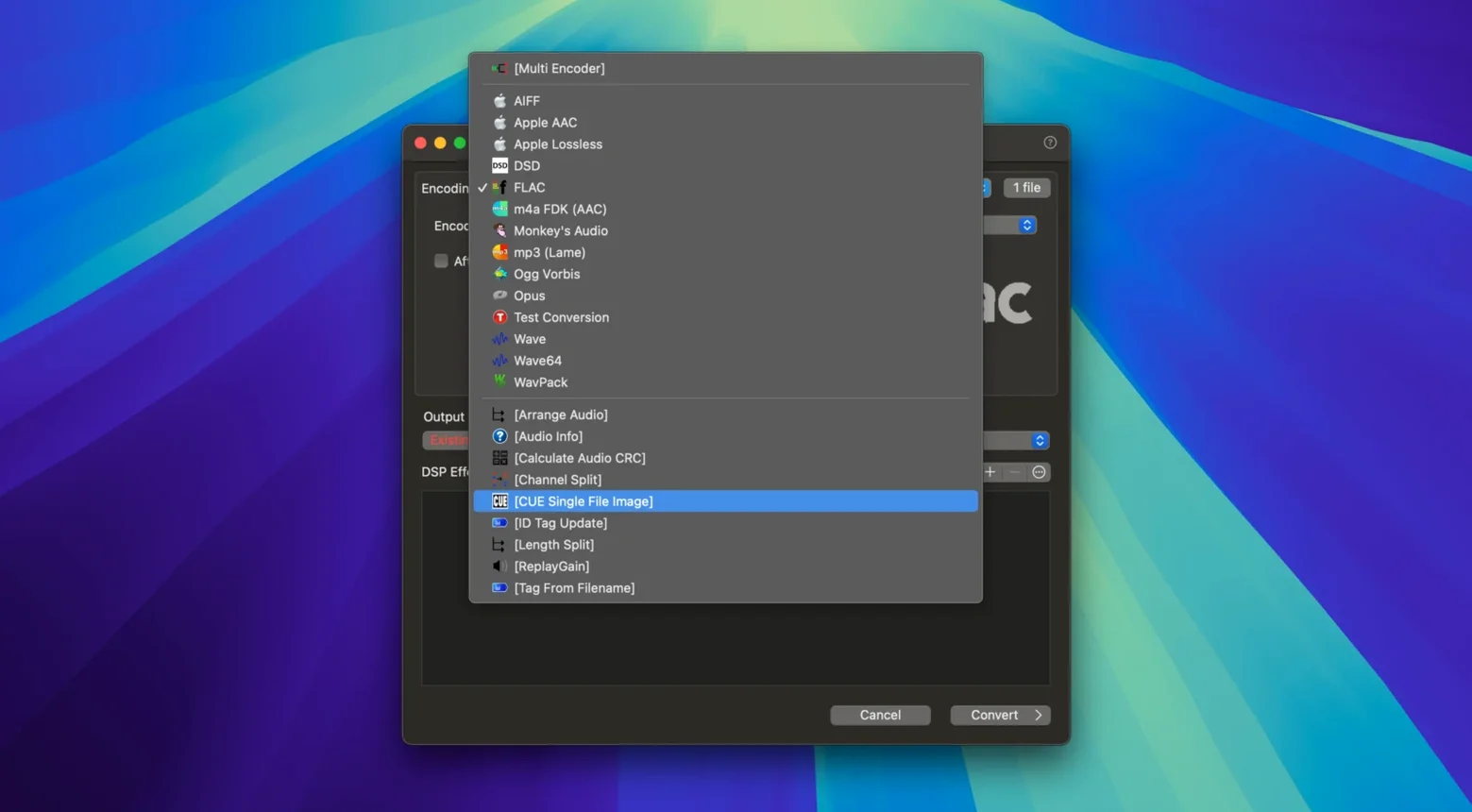
It converts between MP3, M4A, WAV, AIFF, AAC, FLAC, Apple Lossless, and WMA. ID tags and artwork travel with the audio, so you don’t re-enter metadata after every export.
Right-Click Batch Conversion with Multi-Core Speed
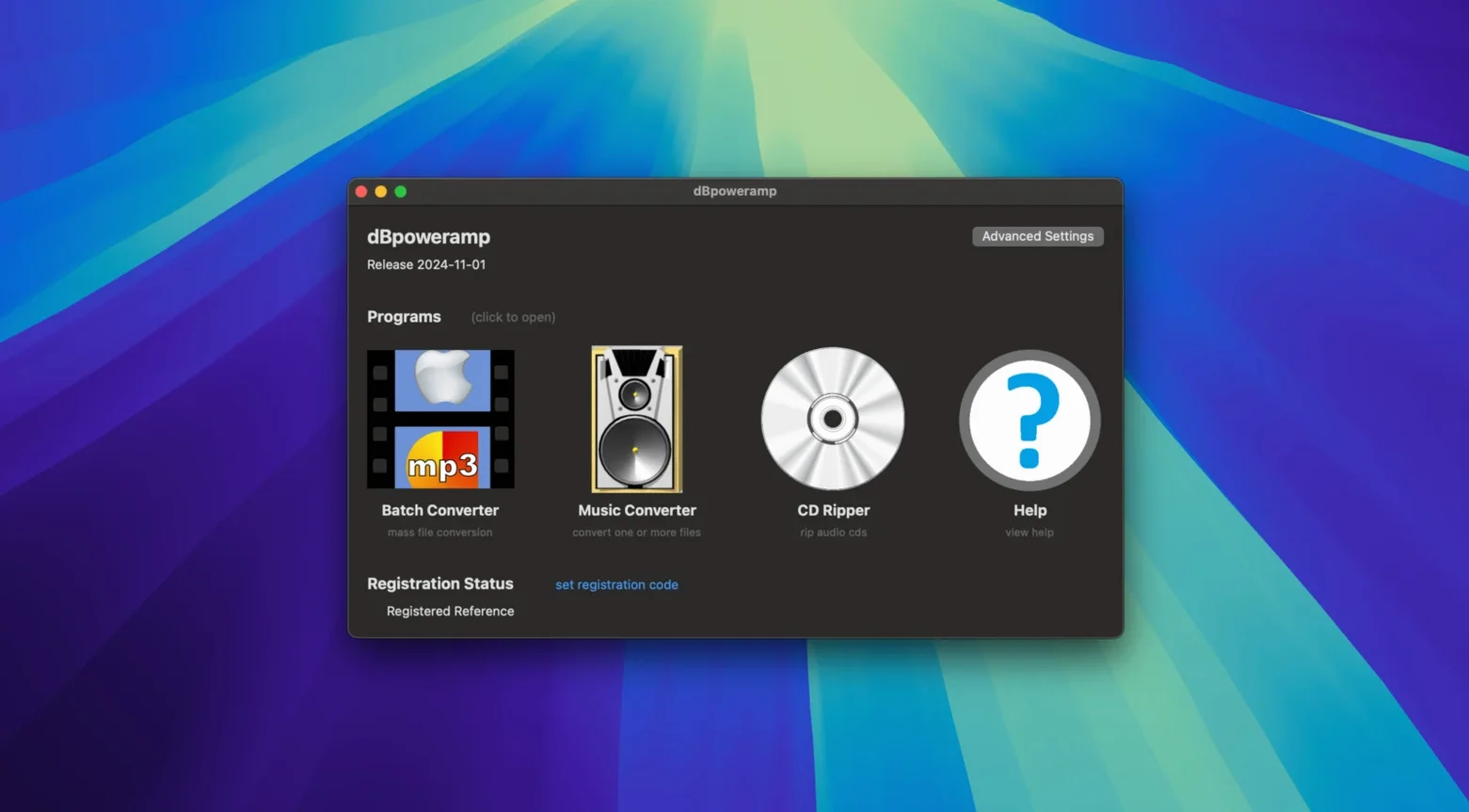
After installation, select a batch of files, right-click, and choose Convert with dBpoweramp. The encoder uses multi-core processing to push through large folders without tying up the machine for long.
Can I fix tags before converting?
Yes. The built-in ID tag editor lets you clean up track names, album fields, and artwork before the files leave your drive. It’s a small fix that stops messy libraries from spreading downstream.
Does it replace iTunes or Music?
No. It sits next to your library manager as a specialist batch processor. Use it for one-off format changes, bulk archive jobs, or preparing files for a DAP that needs a specific codec.
Original Files Stay Safe During Conversion
Does it overwrite my original files? No — dBpoweramp creates new copies in the target format. Originals stay untouched unless you deliberately set the output folder to the same location and choose to replace.
Will it handle a folder with mixed formats? Yes. You can throw a folder of FLAC, WAV, and AIFF files at the batch converter and set one output format. Each source type gets decoded and re-encoded cleanly.
Is the Mac version a port or a native app? It runs natively on both Apple Silicon and Intel 64-bit Macs. The interface is built for macOS, not a Windows wrapper.
Do I need to install anything extra for older codecs? Not for the common ones. WMA support is included. If you need niche formats, check the codec pack, but MP3, AAC, FLAC, and Apple Lossless work out of the box.
Output Folder Wandering and Lossy-to-Lossy Traps
Skipping the output folder check. The converter remembers your last-used destination. Beginners often dump a day’s worth of transcodes into the same folder as last week’s project, then wonder where the files went.
Re-encoding lossy to lossy. Converting an MP3 to AAC and expecting the same clarity is a common misstep. Every lossy-to-lossy pass discards more data. Start from a lossless source whenever you can.
Ignoring the DSP settings. A batch of files with wildly different volumes gets converted as-is unless you enable volume normalization. Tick that box before a big job and playback levels stay consistent across the folder.
Forgetting to set the naming pattern. The default output name might include only the track number and title. If you need artist or album in the filename, configure the pattern before clicking Convert — otherwise you’ll be renaming files by hand.
- New — Resampling improvements for cleaner conversion chains.
- Fixed — Edit Tags Enter key now behaves correctly when autocomplete is visible.
- Fixed — Removed a false warning about an Intel-only component on the latest macOS.
- macOS 11 or later
- Apple Silicon and Intel Macs
- Interface language: English
Comments 0
Sign in to leave a comment.Sign inCreate an account
No comments yet. If a step is still there after you install it, say so.
More in Video Converters
All in Video Converters DVDFab
Copies, rips, or converts a protected disc to a playable file for any screen.
14 steps saved
 Compressor
Queues a batch and hands encoding to the Mac’s hardware encoders.
20 steps saved
 EditReady
Converts raw camera footage into edit-ready clips without the clutter of a general converter.
9 steps saved
 Adobe Media Encoder
Queues exports from Premiere or After Effects so you keep editing without waiting.
19 steps saved
 Macxvideo AI
Upscales and cleans up footage while handling format conversions in one go.
9 steps saved
 Movavi Video Converter
Reshapes video, audio, and image files for a different screen or editor.
11 steps saved
 Permute
Converts batches of media files to one format without repeated prompts.
15 steps saved
 VideoByte BD-DVD Ripper
Converts a Blu-ray disc into a compact MP4 ready for Plex or a tablet.