
Version 5.3 added a metadata viewer for immersive sources, an anaglyph preview toggle, and a 5.1 AAC option in Apple Device presets. The core workflow that editors rely on stayed intact: pick a setting, queue a batch, and let the Mac’s hardware encoders handle H.264 or HEVC while you keep working.
Build a custom encode preset
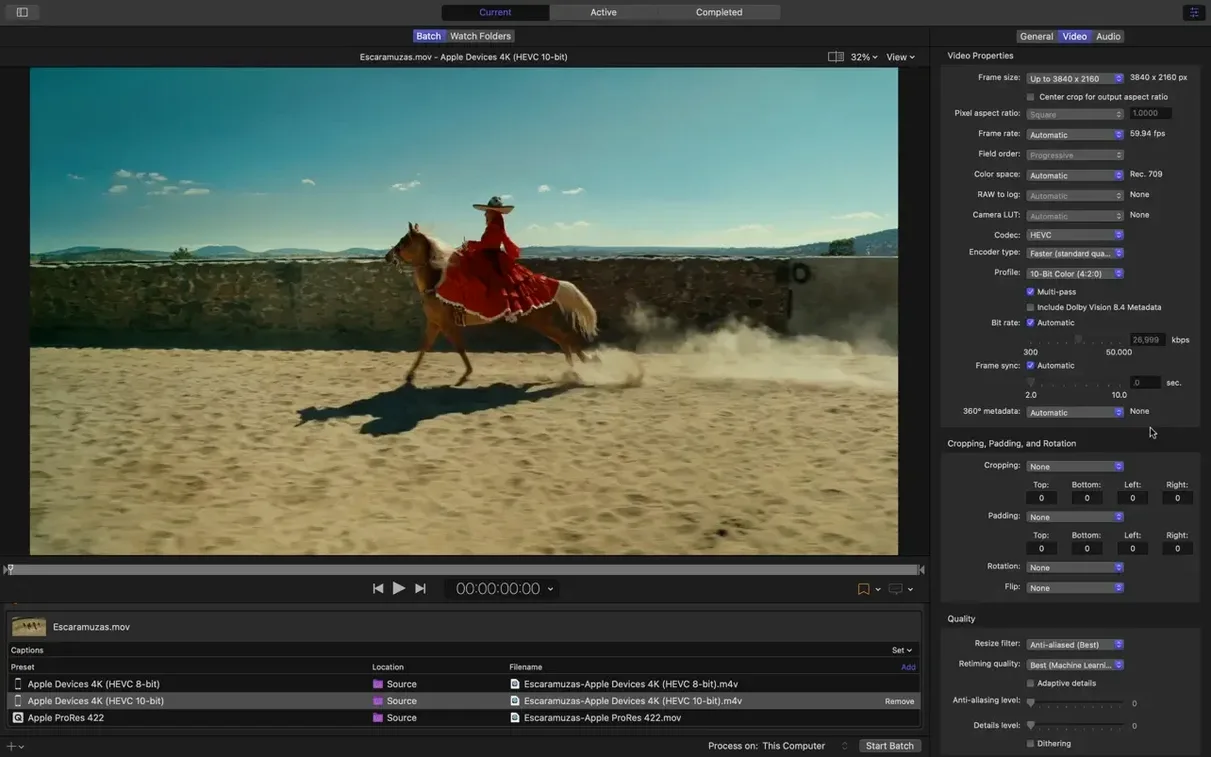
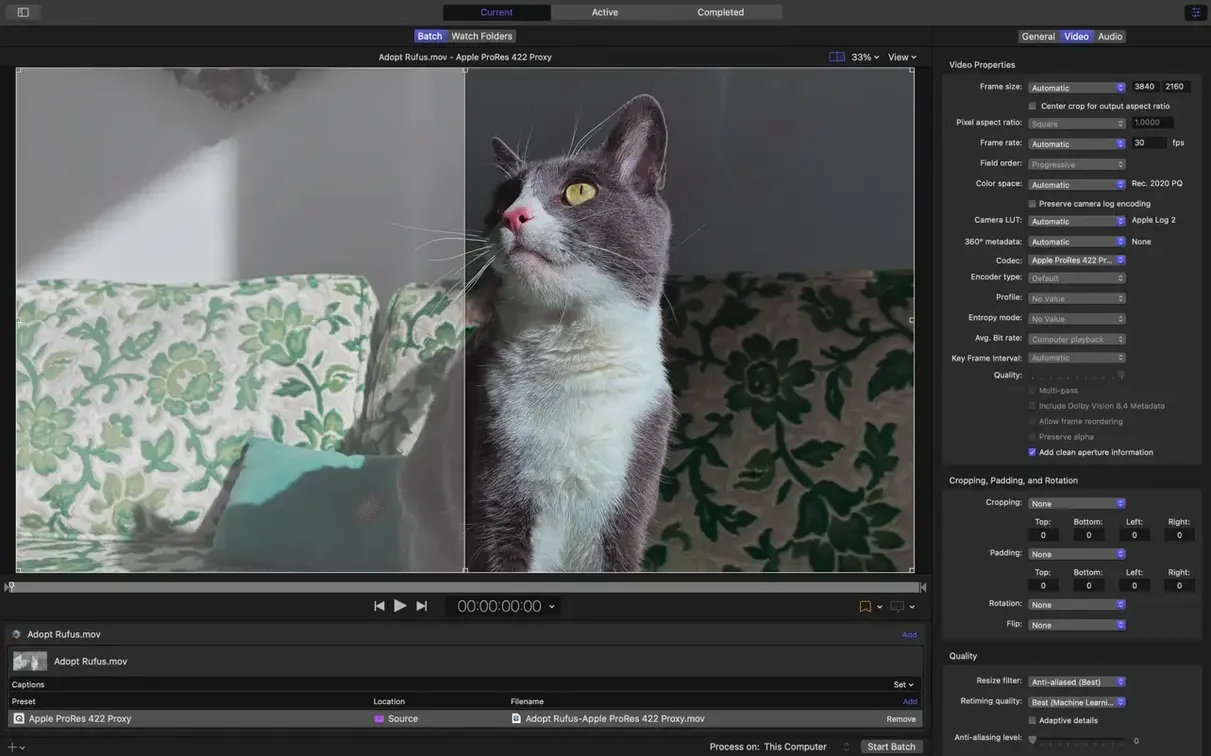
Open the side panel, choose a format, then fine-tune audio channels, data-rate caps on Apple silicon, or stereoscopic delivery inside the inspector.
Export from Final Cut Pro
Send a timeline straight to Compressor, assign a preset, and let it spread the work across multiple CPU cores.
Automate the hand-off
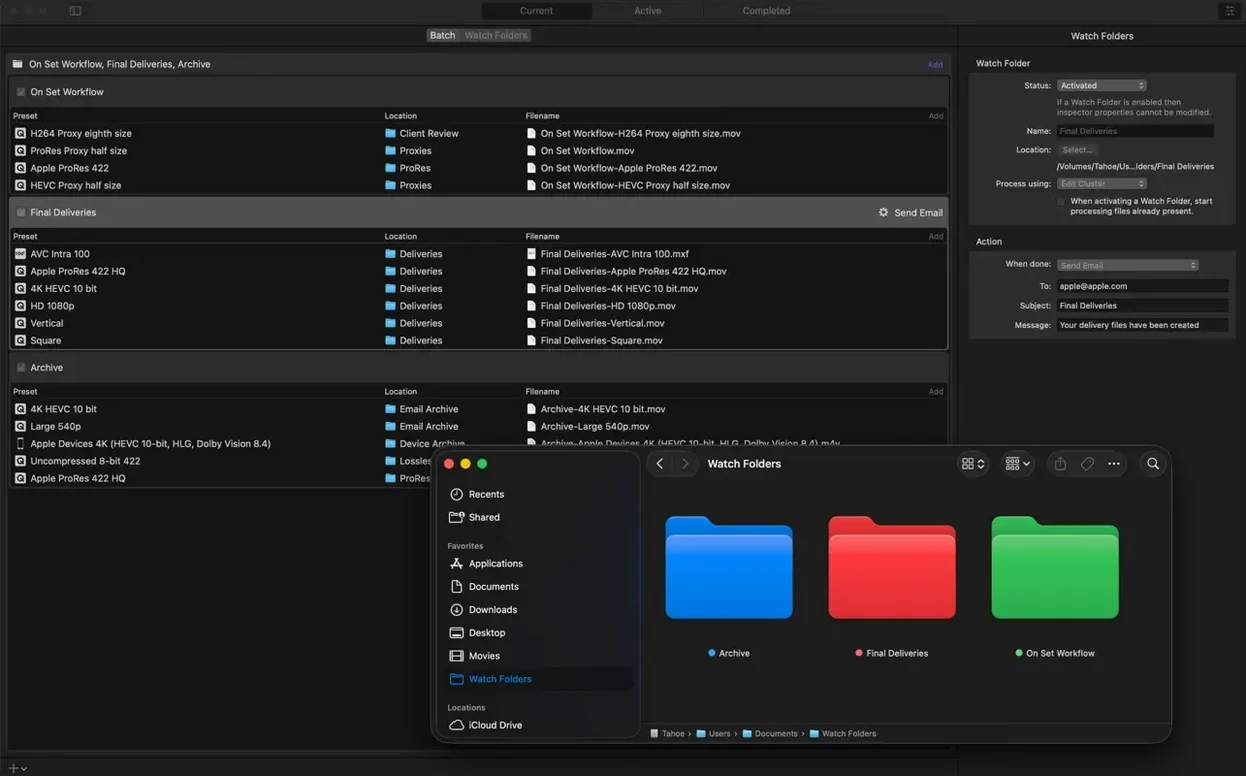
Stack a post-encode action — copy or move the file, send an email, or run a custom script — so the next step runs without you.
Compressor vs the alternatives
Most Mac editors eventually ask whether they need Compressor or whether something else will do. Three common cross-shopped tools are HandBrake, Adobe Media Encoder, and ffWorks. Each solves a different slice of the problem.
HandBrake
HandBrake is a single-machine transcoder that does H.264, HEVC, and a handful of older codecs well. It reads almost anything and its presets cover common devices. Where it stops is professional delivery. No MXF wrapping, no distributed encoding, no 360° metadata pass-through, and no direct timeline hand-off from Final Cut Pro. HandBrake suits one-off conversions. Compressor suits a finishing workflow.
Adobe Media Encoder
Media Encoder mirrors Compressor's role inside Adobe's ecosystem. It watches folders, queues renders from Premiere Pro and After Effects, and supports a wide codec spread. The gap appears on Apple hardware: Compressor uses the same rendering engine as Final Cut Pro and Motion, so colour, scaling, and HDR metadata stay consistent through the round-trip. Media Encoder can't guarantee that parity if your master lives in a Final Cut timeline.
ffWorks
ffWorks puts a Mac-native interface on top of FFmpeg. It exposes nearly every encoder flag and filter. Power users who enjoy building expressions for data-rate limits or colour-space conversion will feel at home. Compressor trades that granular control for speed of setup: pick a preset, maybe tweak two settings, queue it, move on. ffWorks also lacks the shared rendering engine and the direct Final Cut Pro send-to-queue.
Where Compressor fits in a Mac editor's toolkit
Compressor rarely works alone. Its natural neighbours are Final Cut Pro, Motion, and the Finder — and it threads them together.
- Final Cut Pro — Send a project or a compound clip with File > Send to Compressor. The timeline renders through the same engine, so what you see during playback is what the encode delivers.
- Motion — Export a Motion project as a QuickTime master, then drop it into Compressor for device-specific outputs. The shared engine preserves colour profiles and alpha channels without surprises.
- Finder Quick Actions — Select a file, right-click, and choose an encode preset via the Services menu. Compressor launches, adds the job, and can auto-close when done.
- macOS sharing destinations — Compressor presets tagged as destinations appear in the Share menu of Final Cut Pro and QuickTime Player. One click queues the job.
- Shared computers — Enable distributed encoding across other Macs on the local network. Compressor splits segments and reassembles the result, which cuts encode time on long timelines or 4K HDR batches.
- Apple silicon hardware encoders — The app automatically engages the media engine on M-series chips for H.264 and HEVC. Version 5.3 adds data-rate limit controls specifically for those hardware pipelines.
Encode without Final Cut Pro or a wired network
Does Compressor work without Final Cut Pro? Yes. Drag any source file into the batch window, assign a preset, and encode. The integration with Final Cut is a convenience, not a requirement.
Will distributed encoding work over Wi-Fi? It can, but wired gigabit Ethernet keeps segment transfers predictable. Over Wi-Fi, a dropped packet can stall the batch, and the speed gain from extra nodes gets eaten by retransmission delays.
Can Compressor write ProRes on an Apple silicon Mac? Yes. ProRes encode and decode are hardware-accelerated on M-series chips, and Compressor exposes all ProRes variants through the inspector.
Does the anaglyph preview in version 5.3 affect the final output? No. The preview overlay is a monitoring aid for stereoscopic material. The output file uses the delivery format you select in the inspector — typically left-eye or right-eye priority, not a red-cyan composite.
What happens to a compressor mac os installation when macOS updates? Apple's pro apps generally expect the latest dot-release of the current macOS. Compressor 5.3 asks for macOS 15.6 or later; staying current avoids framework mismatches.
A session with Compressor
You finish a 12-minute timeline in Final Cut Pro — 4K, HLG HDR, a few 360° clips in the second half. The project needs three deliverables: a ProRes 422 HQ master, an HEVC 10-bit file for the web, and an Apple Immersive output for a headset review session.
You choose File > Send to Compressor. The app opens and the job lands in the batch window. You drag the preset for ProRes 422 HQ onto the job, then duplicate it twice with Command-D. On the first copy you assign an HEVC 10-bit preset and open the inspector. The data-rate limit control sits in the video properties — you cap it at 35 Mbps and set the colour space to Rec.2020 HLG. On the second copy you pick an Apple Immersive preset and use the new metadata viewer to confirm the 180° projection map looks right. You toggle the anaglyph preview; the stereoscopic alignment checks out.
You open the Shared Computers list. Two other Macs on the network show as available. You tick both, then click Start Batch. Compressor segments the ProRes job, hands chunks to the helpers, and encodes the HEVC and Immersive files locally on the hardware media engine. The fans stay quiet.
While the batch runs, you switch back to Final Cut Pro and start rough-cutting the next sequence. Twenty minutes later, three files land in the output folder. A post-encode script renames them to client spec and copies the HEVC to a watched folder that triggers an upload. You never touched the Finder.
- New — Immersive metadata viewer for checking spatial attributes before encoding.
- New — 180° Apple Projected Media Profile output and anaglyph preview for stereoscopic work.
- New — 5.1 AAC audio option in Apple Device export settings.
- New — HEVC data-rate limits on Apple silicon and support for transcoding immersive sources without separate WAV files.
- macOS 15.6 or later
- Apple silicon or Intel Mac
- 8 GB memory
- 1.2 GB free disk space
Questions I get before install
Does Compressor 5.3 work without Final Cut Pro?
Yes. It runs as a standalone transcoder and also integrates with Final Cut Pro and Motion when they are installed.
Which Macs support the new HEVC data-rate limits?
The feature requires Apple silicon. Intel Macs still get hardware-accelerated H.264 and HEVC encoding through Compressor.
Comments 0
Sign in to leave a comment.Sign inCreate an account
No comments yet. If a step is still there after you install it, say so.
More in Video Converters
All in Video Converters dBpoweramp Music Converter
Converts audio batches between formats while writing consistent metadata to every file.
16 steps saved
 DVDFab
Copies, rips, or converts a protected disc to a playable file for any screen.
20 steps saved
 EditReady
Converts raw camera footage into edit-ready clips without the clutter of a general converter.
9 steps saved
 Adobe Media Encoder
Queues exports from Premiere or After Effects so you keep editing without waiting.
19 steps saved
 Macxvideo AI
Upscales and cleans up footage while handling format conversions in one go.
9 steps saved
 Movavi Video Converter
Reshapes video, audio, and image files for a different screen or editor.
11 steps saved
 Permute
Converts batches of media files to one format without repeated prompts.
15 steps saved
 VideoByte BD-DVD Ripper
Converts a Blu-ray disc into a compact MP4 ready for Plex or a tablet.