Dato needs macOS 26 or later and runs on both Apple Silicon and Intel hardware. The interface is in English.
Full calendar and time zone clocks in the menu bar
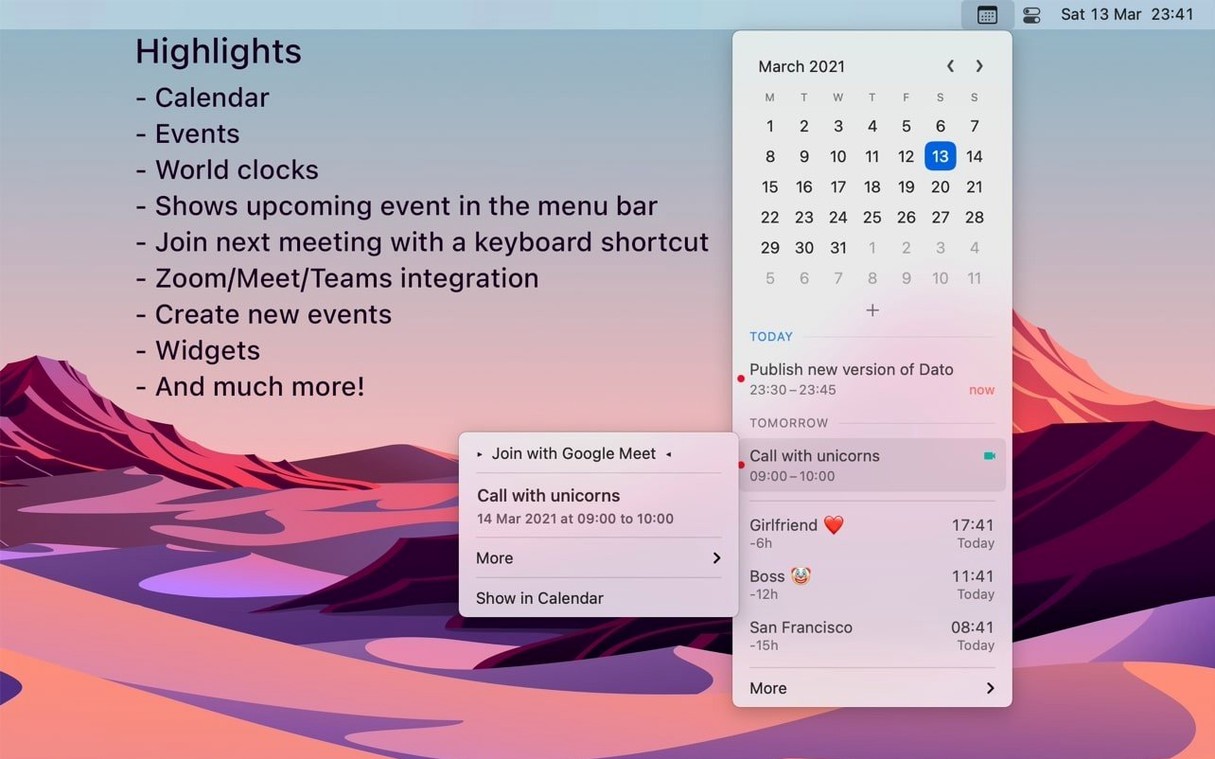
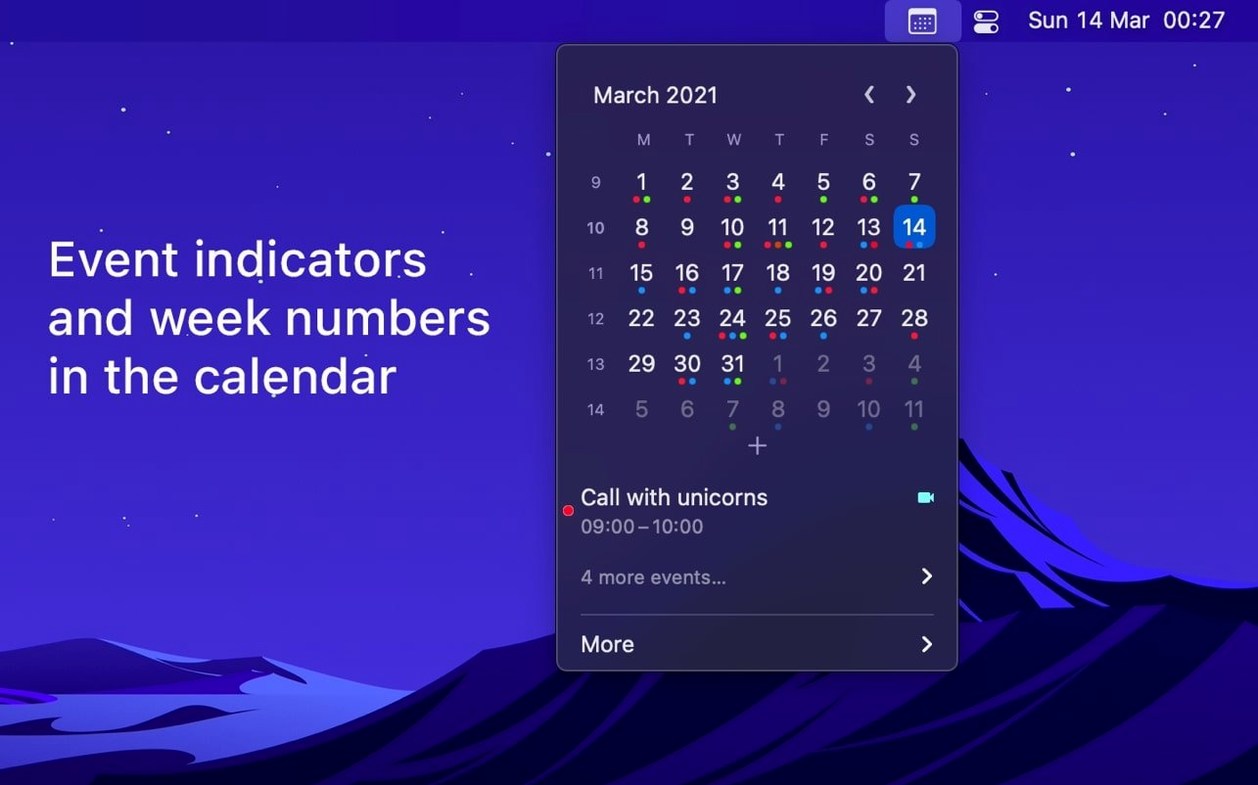
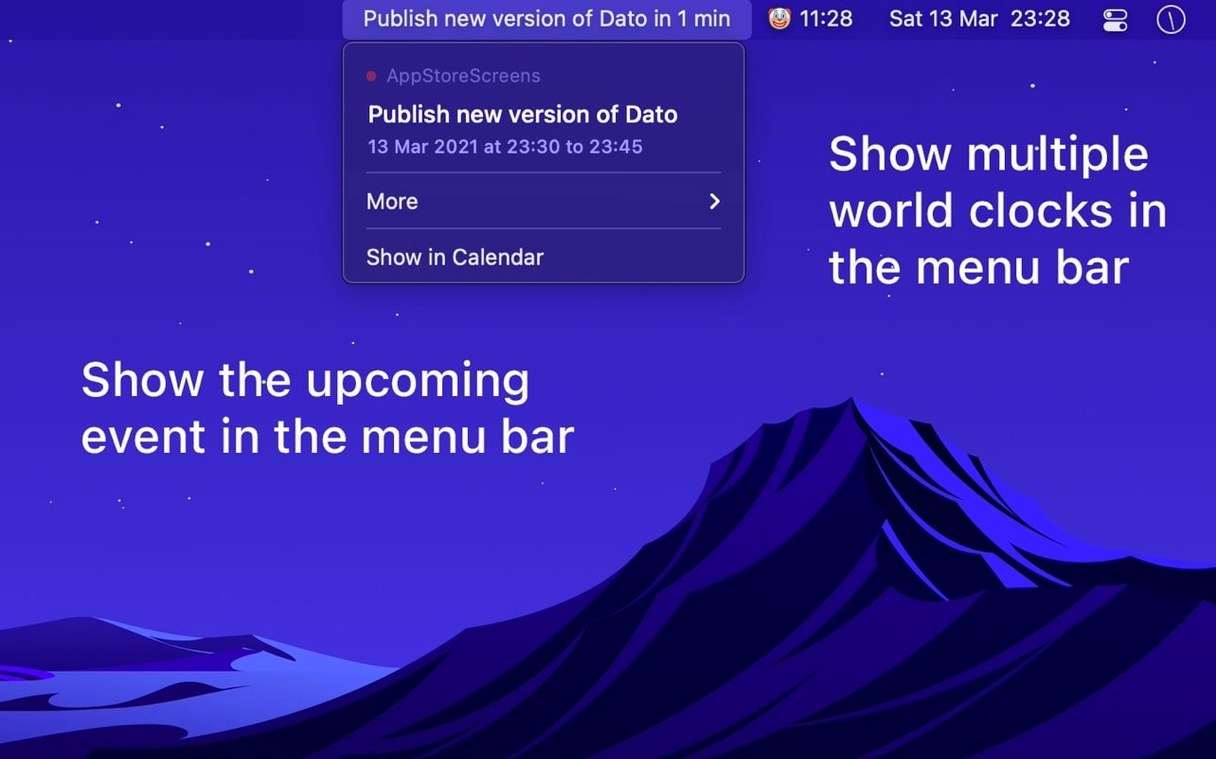
- Seeing your full calendar and upcoming events without opening a separate app.
- Tracking multiple time zones with custom-named world clocks.
- Getting a meeting heads-up directly in the menu bar.
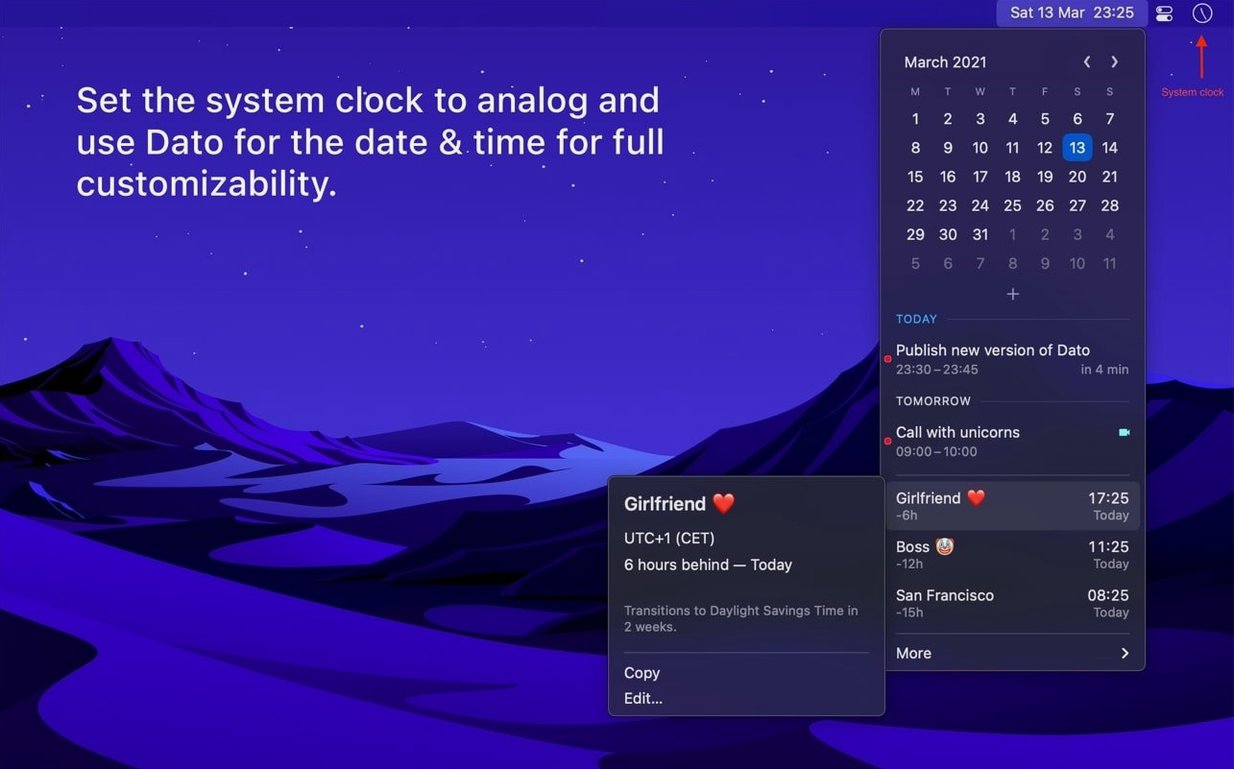
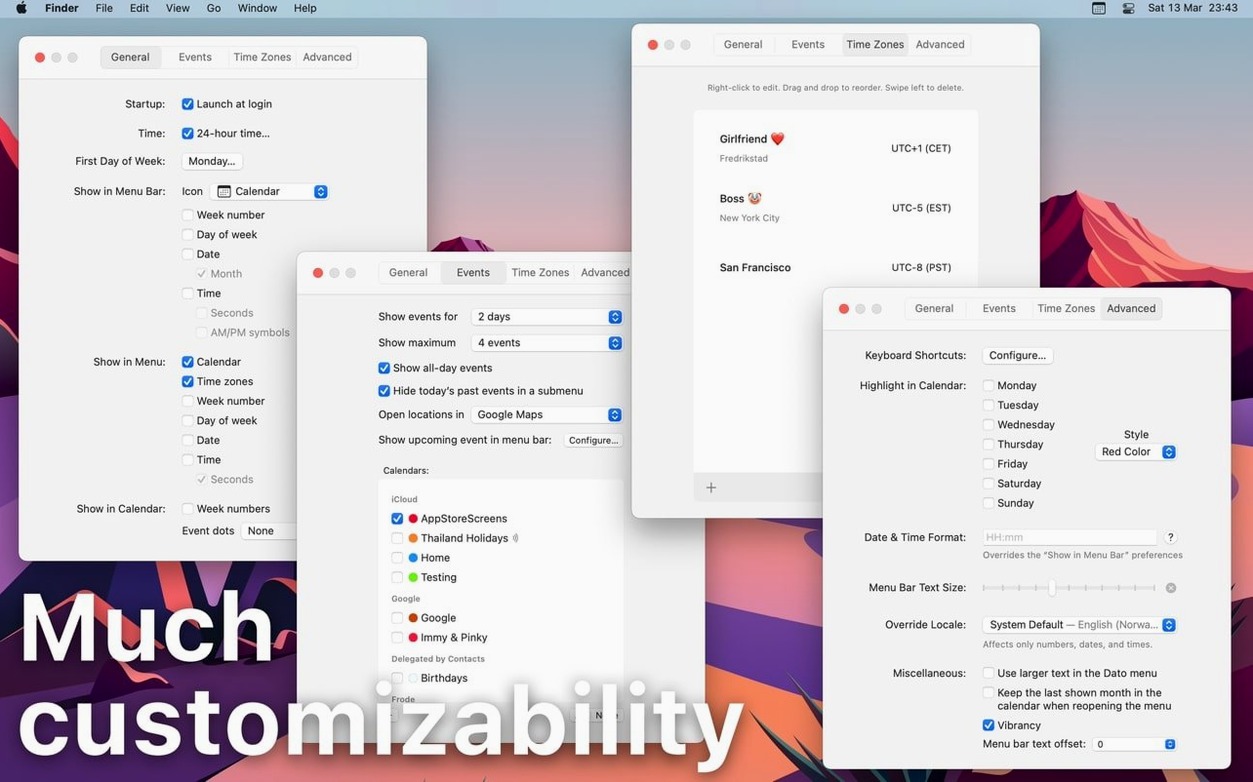
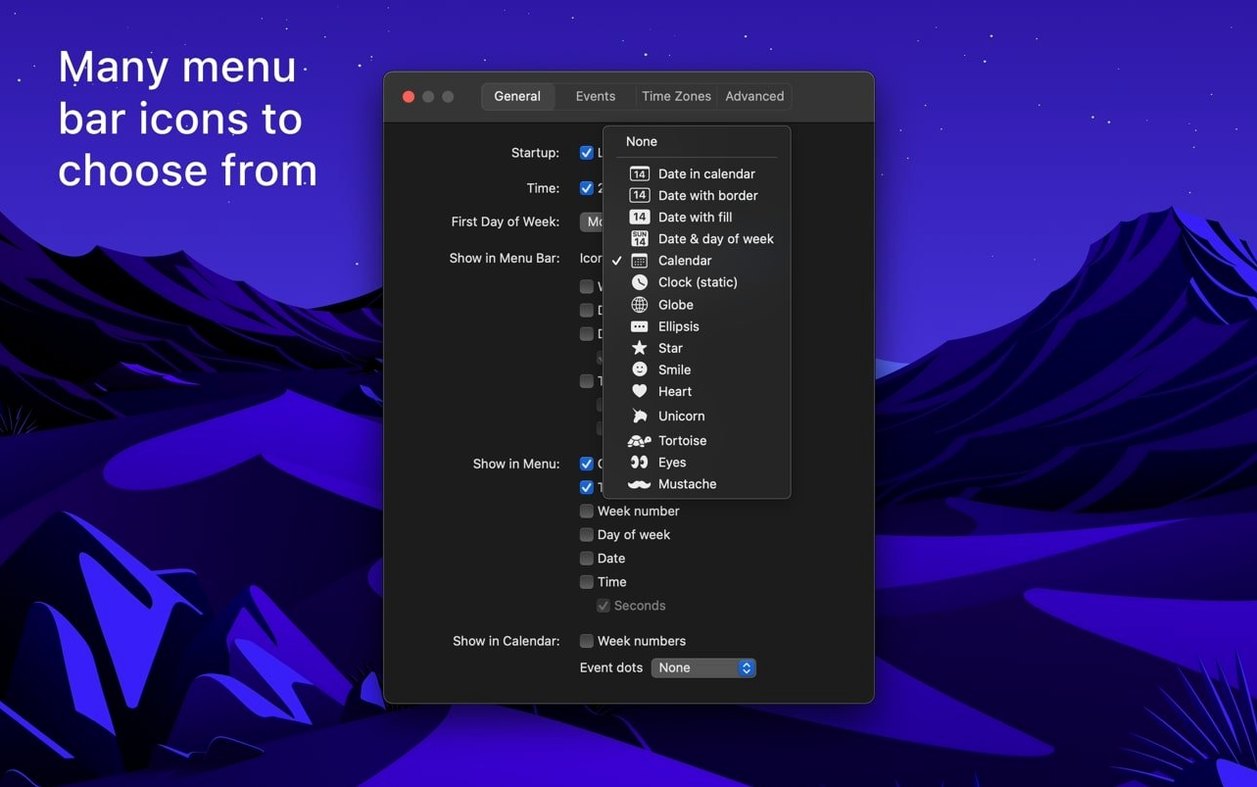
- Replacing the standard clock with a configurable date and time display, including seconds.
- Using widgets for date, time, calendar, and world clocks in Notification Centre.
Menus in English only, web links instead of native app
- Menus and settings are available only in English.
- Google Calendar events open on the web, not in a native client.
- It replaces the standard menu bar clock rather than sitting beside it.
How Dato fits with other apps
Dato picks up every calendar account macOS knows — iCloud, Google, Outlook, Exchange, and subscribed calendars — without separate sign-in. That means a change you make in Fantastical or BusyCal appears in Dato’s menu immediately, and the reverse holds too. Delegated calendars come through the same pipe, so an assistant’s managed calendar shows up alongside your own.
The meeting integrations are narrow but effective. When an event carries a Zoom, Google Meet, or Microsoft Teams link, Dato displays a join icon and a button right in the menu. A single global shortcut — configurable, of course — jumps into the next meeting without touching a browser. If you prefer Google Calendar’s web view for details, Dato opens the event there directly.
On the automation side, Shortcuts support lets you pull Dato’s calendar data or trigger actions like opening the menu from a shortcut. That pairs well with apps like Raycast or Alfred for keyboard-driven workflows. The date and time calculator sits apart from Spotlight’s math, but you can reach it through a shortcut assigned to a keystroke.
The widgets keep calendar, world clocks, and date/time in Notification Centre. They don’t replace the menu bar; they extend it for a glance while you’re elsewhere on the desktop.
A remote product manager’s morning
You work across Vancouver, London, and Amsterdam. The menu bar shows your local time with seconds, plus two world clocks labelled “UK team” and “NL team.” A third clock for Sydney hides in the menu — you check it only when planning late calls.
At 8:55 a.m. a fullscreen meeting notification pops up. The 9 a.m. daily stand-up has a Google Meet link. You press the join shortcut and land in the call. After the meeting, you click the menu bar to see the rest of the day: a one-on-one at 11, a product review at 2. The calendar highlights Tuesday and Thursday — your office days — with a light tint you set in preferences.
Mid-afternoon, you need to schedule a call with Amsterdam for next Wednesday. You open the time travel view, jump to Wednesday, and confirm the time difference before sending the invite. No website, no mental arithmetic. When a colleague asks for a date 45 days out, you pull up the date calculator from a shortcut and copy the answer.
- macOS 26 or later
- Apple Silicon or Intel 64-bit Mac
Questions I get before install
Which calendar services does Dato support?
It supports all calendar services connected to macOS, including iCloud, Google, Outlook, and delegated calendars.
Can I customise the menu bar clock?
Yes. You can show seconds, display an upcoming event, and set a custom colour for the date and time.
Comments 0
Sign in to leave a comment.Sign inCreate an account
No comments yet. If a step is still there after you install it, say so.
More in Office
All in Office Updated
Complete Anatomy
Turns a flat screen into a layered, manipulable model of the human body.
14 steps saved
 Updated
ClickClack - Typing Trainer
Sharpens typing form with drills that respond to your actual habits.
15 steps saved
 Updated
EndNote
Inserts citations and builds the bibliography inside your document as you write.
16 steps saved
 Updated
Final Draft
Auto-formats script elements and remembers character names so you write without stopping.
9 steps saved
 BusyCal
Merges tasks and appointments into one calendar view with weather-aware sharing.
22 steps saved
 GoodNotes
Replaces paper notebooks with searchable, rearrangable digital ones.
23 steps saved
 GraphPad Prism
Organizes and graphs repeated experiments without duplicating work.
22 steps saved
 Updated
iA Writer
Strips away formatting so you focus on structure and phrasing, then export to any format.