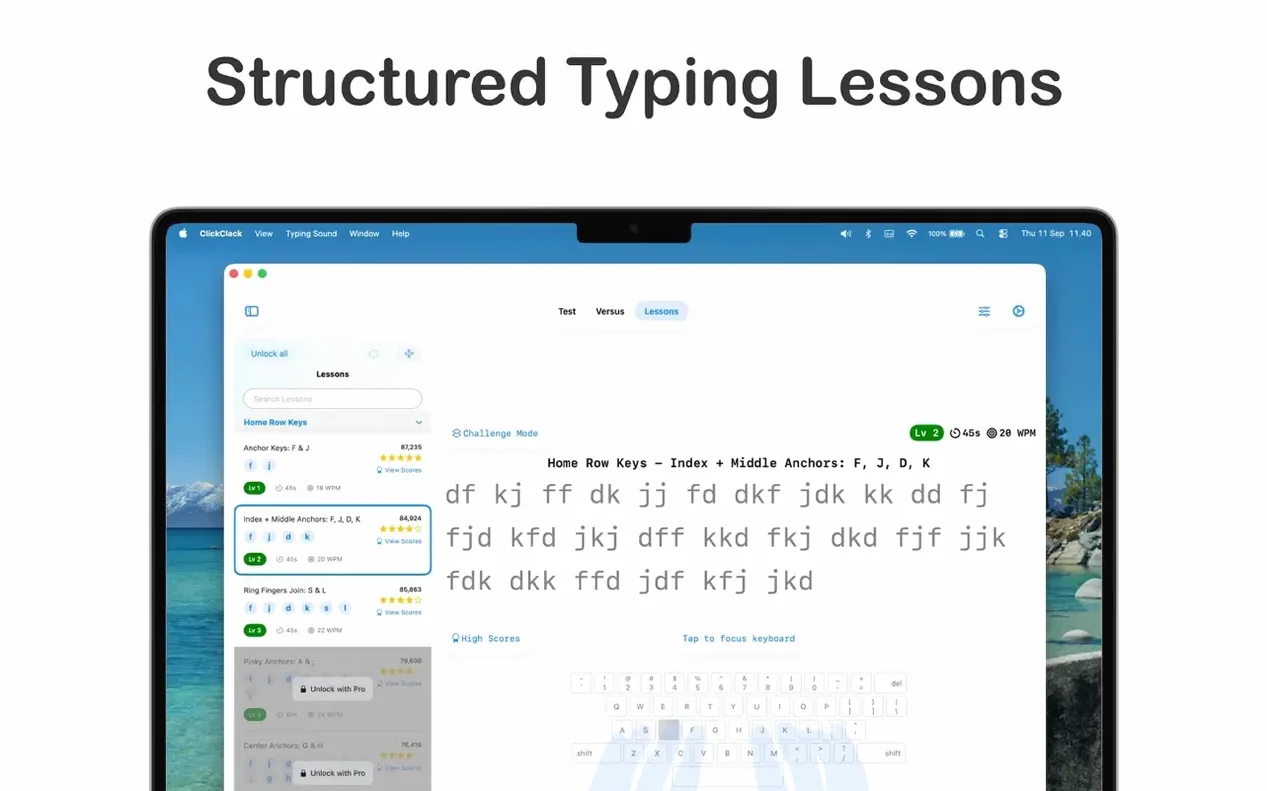
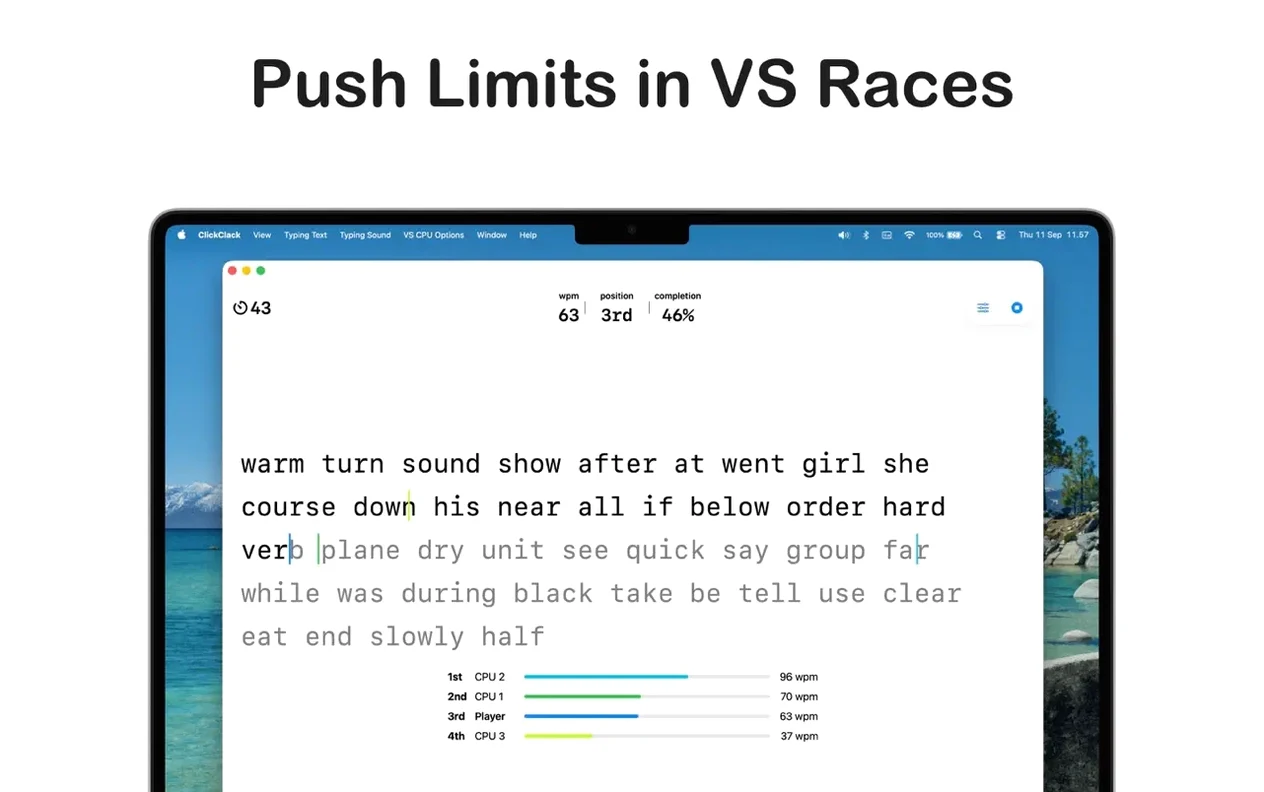
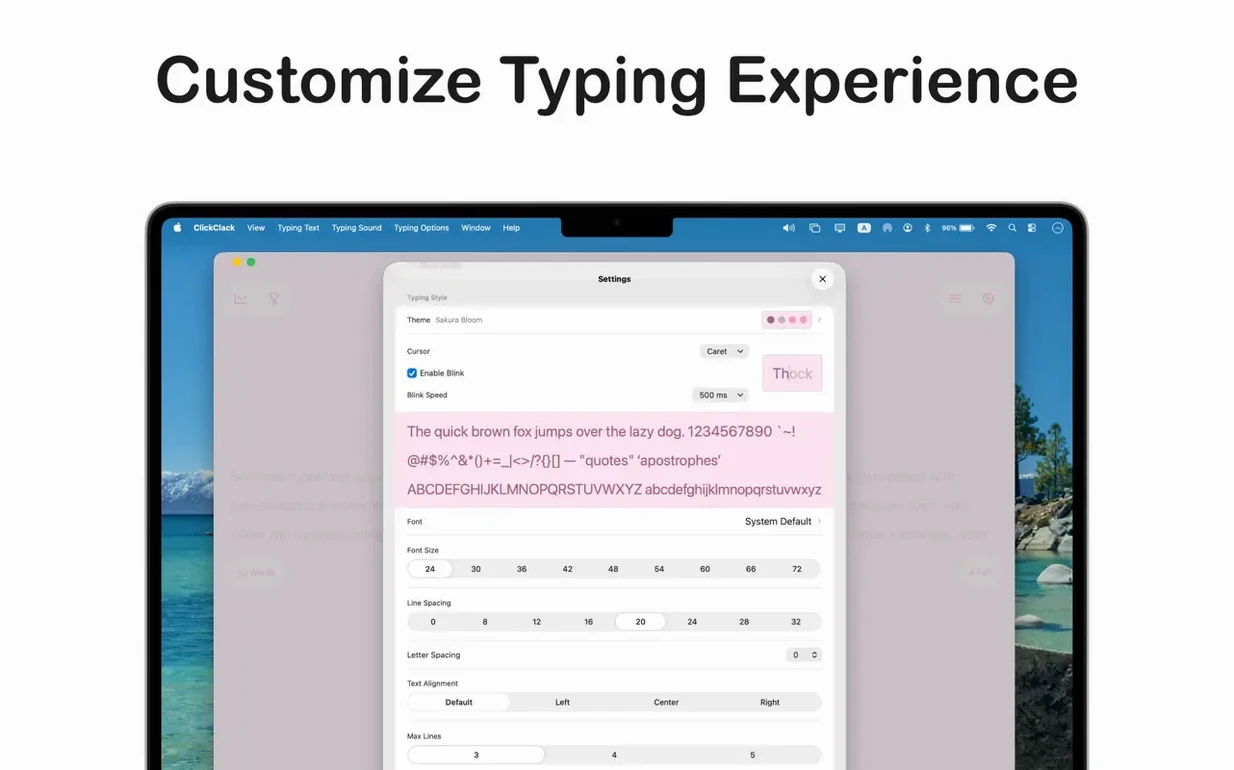
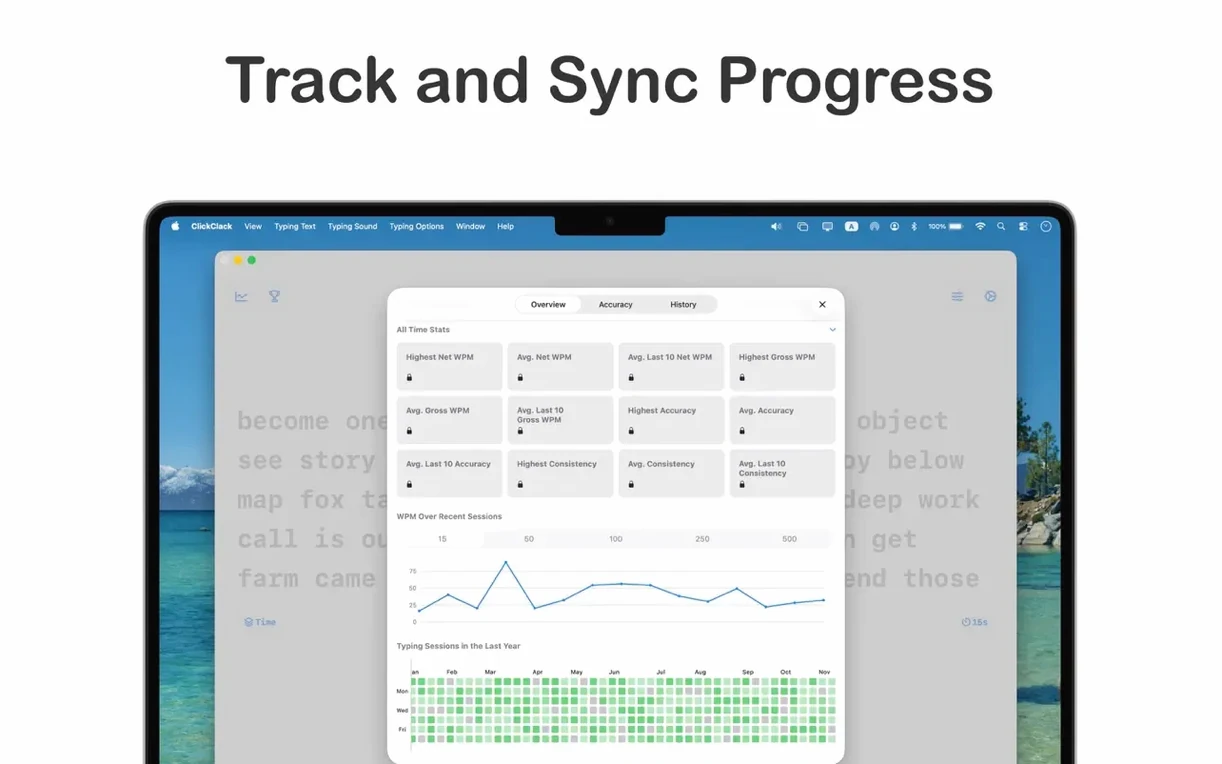
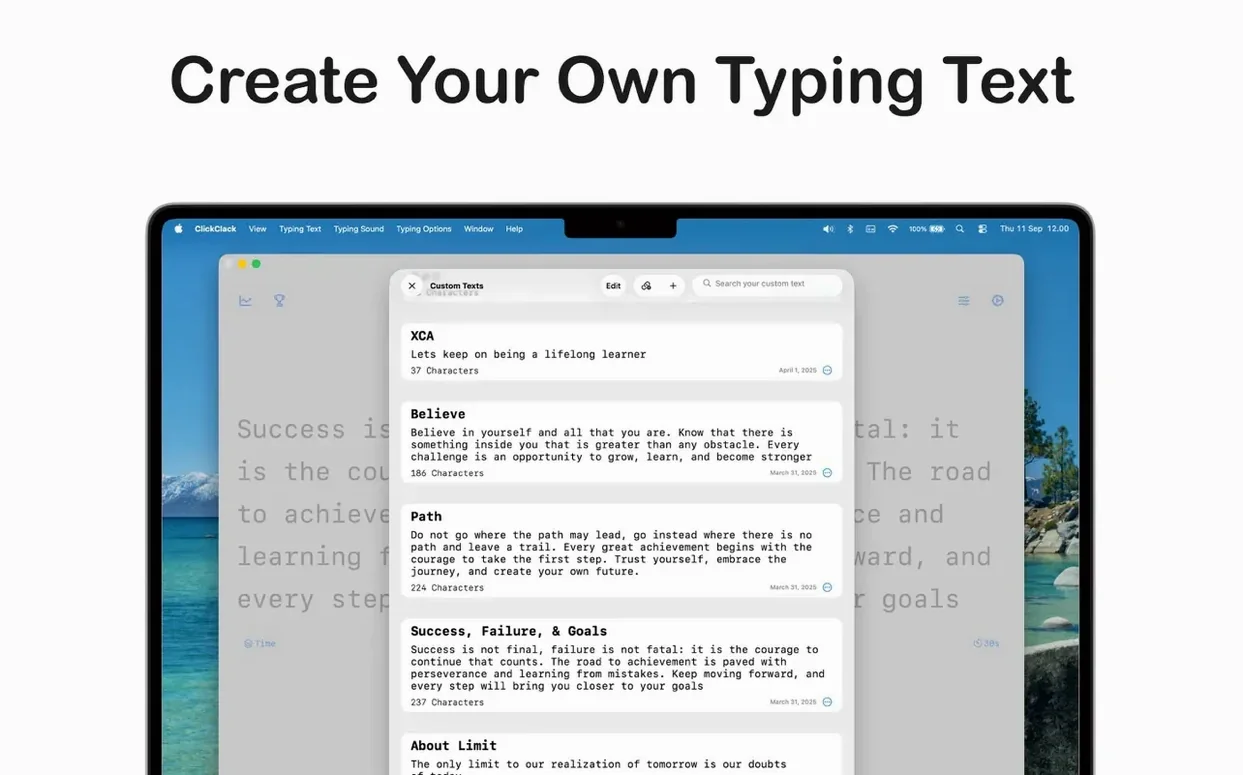
Slow, error-prone typing turns simple emails and reports into a slog. ClickClack tightens up your form with drills that respond to how you actually type.
- Pick a lesson by key zone. Start with home row or jump straight to the combinations that trip you up.
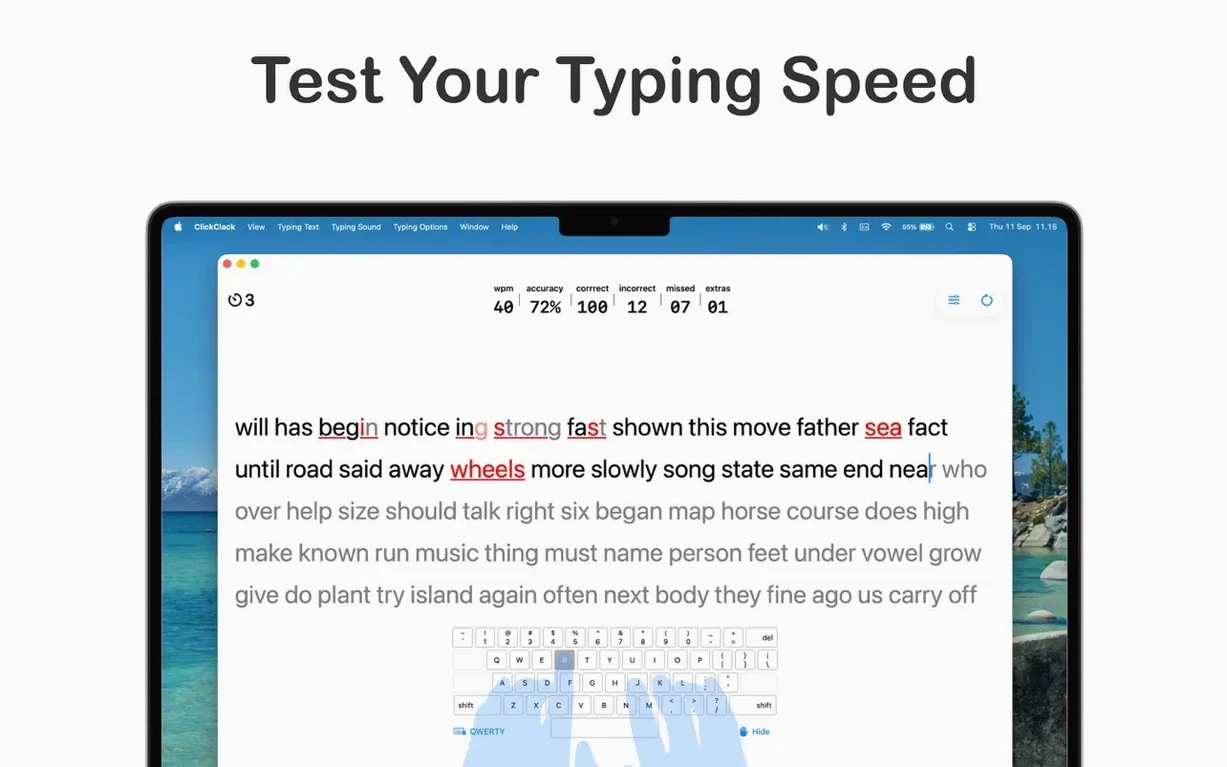
- Follow the on-screen guide. Key highlighting, colour-coded errors, and keypress animation show you exactly what you hit versus what you meant to hit.
- Let the app adjust. Exercises adapt to your pace and recurring mistakes, so practice time targets weak spots instead of rehashing what you already know.
- Review the error map. Detailed statistics lay out speed, accuracy, progress trends, and a visual map of every missed key.
Fix the eyes-down habit early
Most fresh installs trip on the same few habits. Fixing them early saves weeks of frustration.
- Watching the keyboard. The whole point of touch typing is keeping eyes on the screen. Tape a sheet of paper over your hands if you cannot break the glance reflex. ClickClack's on-screen key highlight is your reference — not the physical keys.
- Chasing speed before accuracy. Hammering through lessons at 80 wpm with 15% errors builds sloppy muscle memory. Lock in 98% accuracy first; speed follows on its own.
- Skipping the error map. The visual heat map of missed keys is the single most useful stat in the app. Ignoring it means practicing blind. Check it after every session and dedicate a focused drill to your worst two keys.
- Long, irregular sessions. Twenty minutes daily beats two hours every Saturday. Short bursts let your motor cortex consolidate patterns between sessions.
- Staying on easy lessons too long. Once a key zone hits consistent 95%+ accuracy, move on. The adaptive exercises already adjust difficulty — lingering on home row after you have it down wastes practice time.
Under two seconds to a responsive session
ClickClack launches in under two seconds on both Apple Silicon and Intel machines. The interface stays responsive during timed practice, with no perceptible lag on keypress animation or stat updates — even with several other apps open. CPU use sits around 3–5% on an active typing drill and drops to near zero when idle. Memory footprint hovers between 80 and 110 MB, which is modest for an Electron-free native app.
Stability has been uneventful across multiple sessions. No crashes, no beachballs, no corrupted stat history after the 5.0.2 update. The app handles mid-lesson language switches without resetting progress — useful if you alternate between, say, English and Russian practice. Long real-text exercises (news articles, fiction excerpts) load instantly and scroll without stutter.
One thing worth noting for heavy users: the error map gets genuinely useful only after three or four sessions of consistent data. Early stats are noisy. Give it a week of daily use before drawing conclusions about your weakest zones.
It is a focused, native Mac app that builds muscle memory for clean, accurate touch typing. Version 5.0.2 brings bug fixes and UI polish.
What's new in 5.2.0
New
- Dynamic N-Gram Word Focus Lab lesson. Targets the exact character sequences that trip you up. Pick from three drill strategies — Targeted, Smart Mix, or Expansion logic — to close accuracy gaps. The PRO tier lets you configure up to 12 concurrent sequences in one high-intensity drill.
Improved
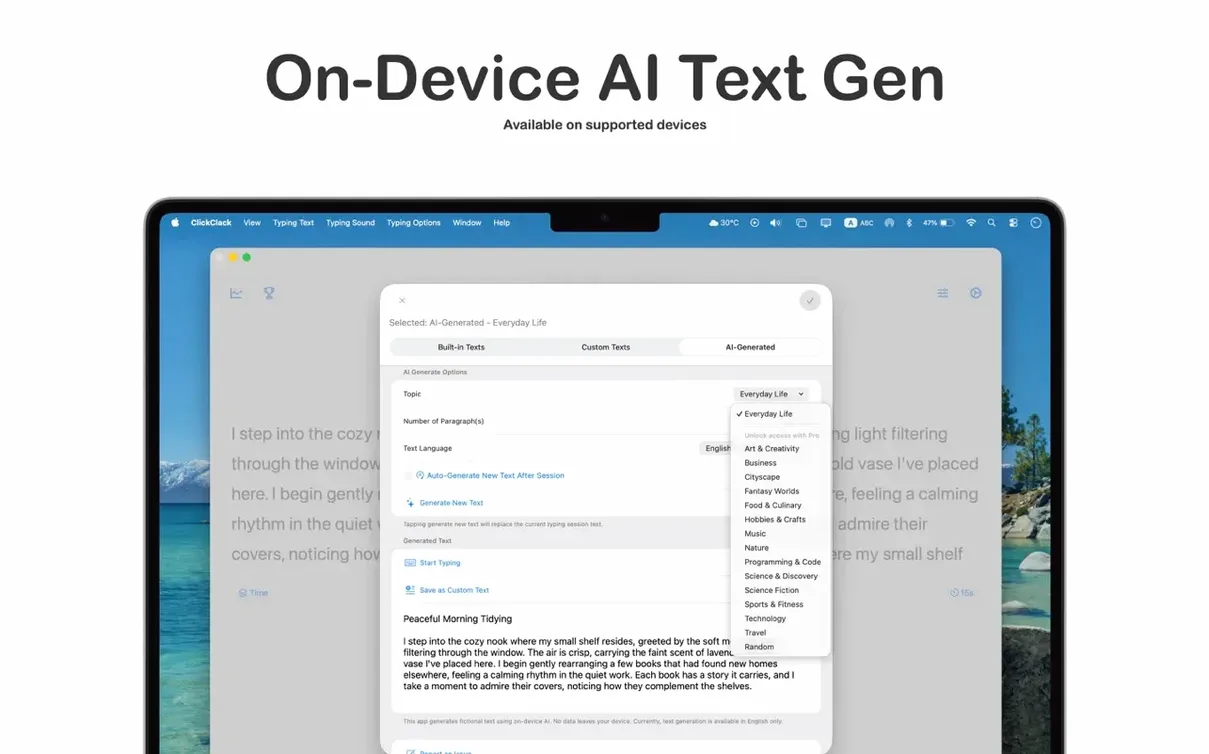
- On-device AI typing text generation. Create unlimited practice text locally with Apple Intelligence. Requires macOS 26.
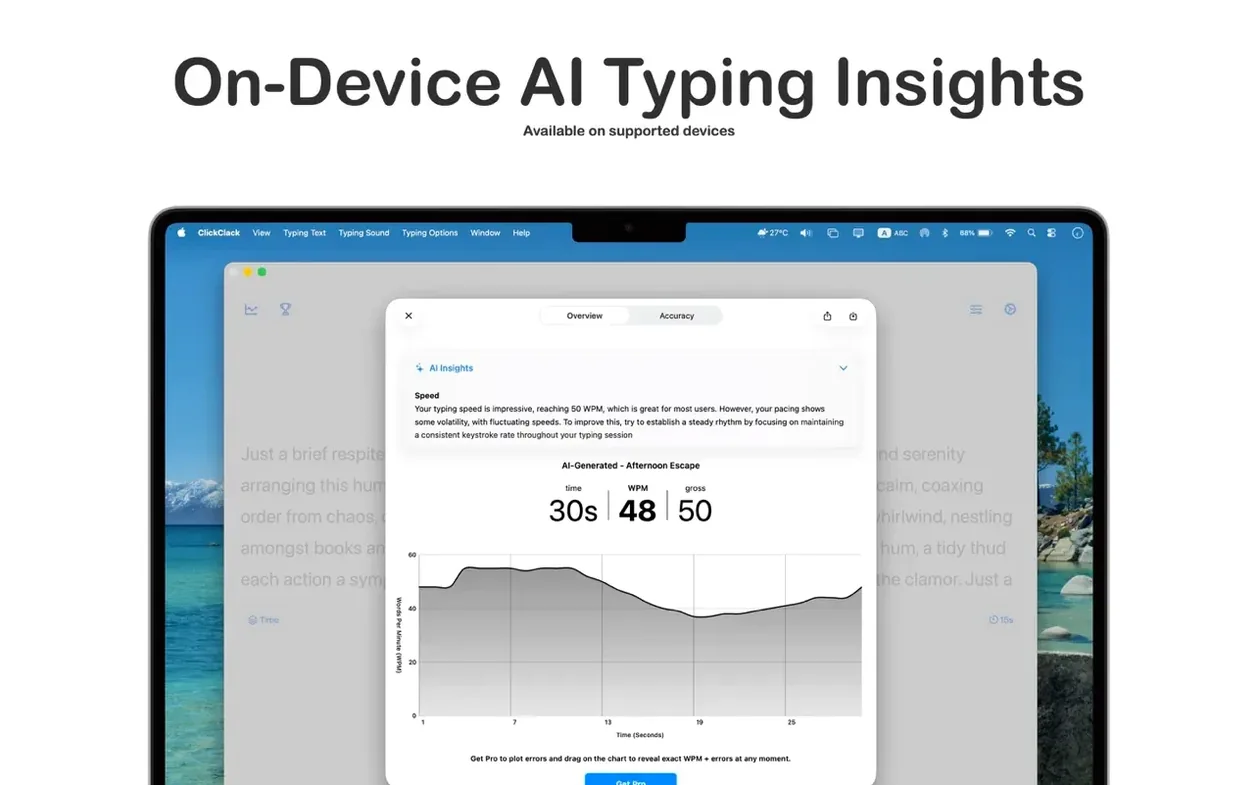
- AI Result Insights. Private, on-device analysis of speed, consistency, and accuracy. Nothing leaves your Mac.
- Custom Sound Packs. Load high-fidelity audio to match the feel of your favourite mechanical switches.
Fixed
- General bug fixes and UI polish.
- macOS 14.5 or later
- Apple Silicon or Intel 64-bit processor
Questions I get before install
Does ClickClack run on Intel and Apple Silicon Macs?
Yes, the app supports both Intel and Apple Silicon Macs running macOS 14.5 or later.
Comments 0
Sign in to leave a comment.Sign inCreate an account
No comments yet. If a step is still there after you install it, say so.
More in Office
All in Office Updated
Complete Anatomy
Turns a flat screen into a layered, manipulable model of the human body.
9 steps saved
 BusyCal
Merges tasks and appointments into one calendar view with weather-aware sharing.
5 steps saved
 Dato
Puts your full calendar and world clocks directly in the menu bar.
15 steps saved
 Updated
EndNote
Inserts citations and builds the bibliography inside your document as you write.
16 steps saved
 Updated
Final Draft
Auto-formats script elements and remembers character names so you write without stopping.
22 steps saved
 GoodNotes
Replaces paper notebooks with searchable, rearrangable digital ones.
23 steps saved
 GraphPad Prism
Organizes and graphs repeated experiments without duplicating work.
22 steps saved
 Updated
iA Writer
Strips away formatting so you focus on structure and phrasing, then export to any format.