
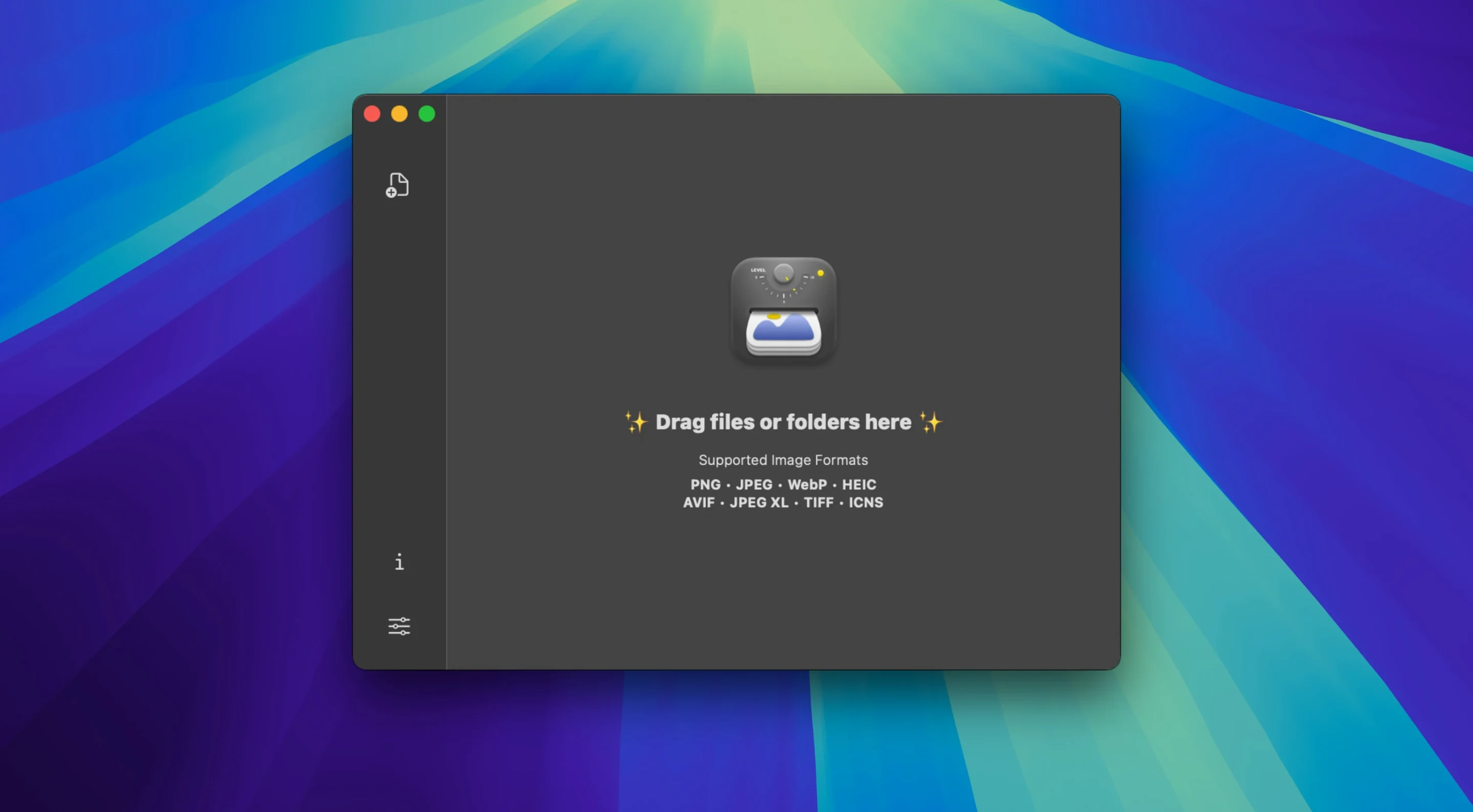
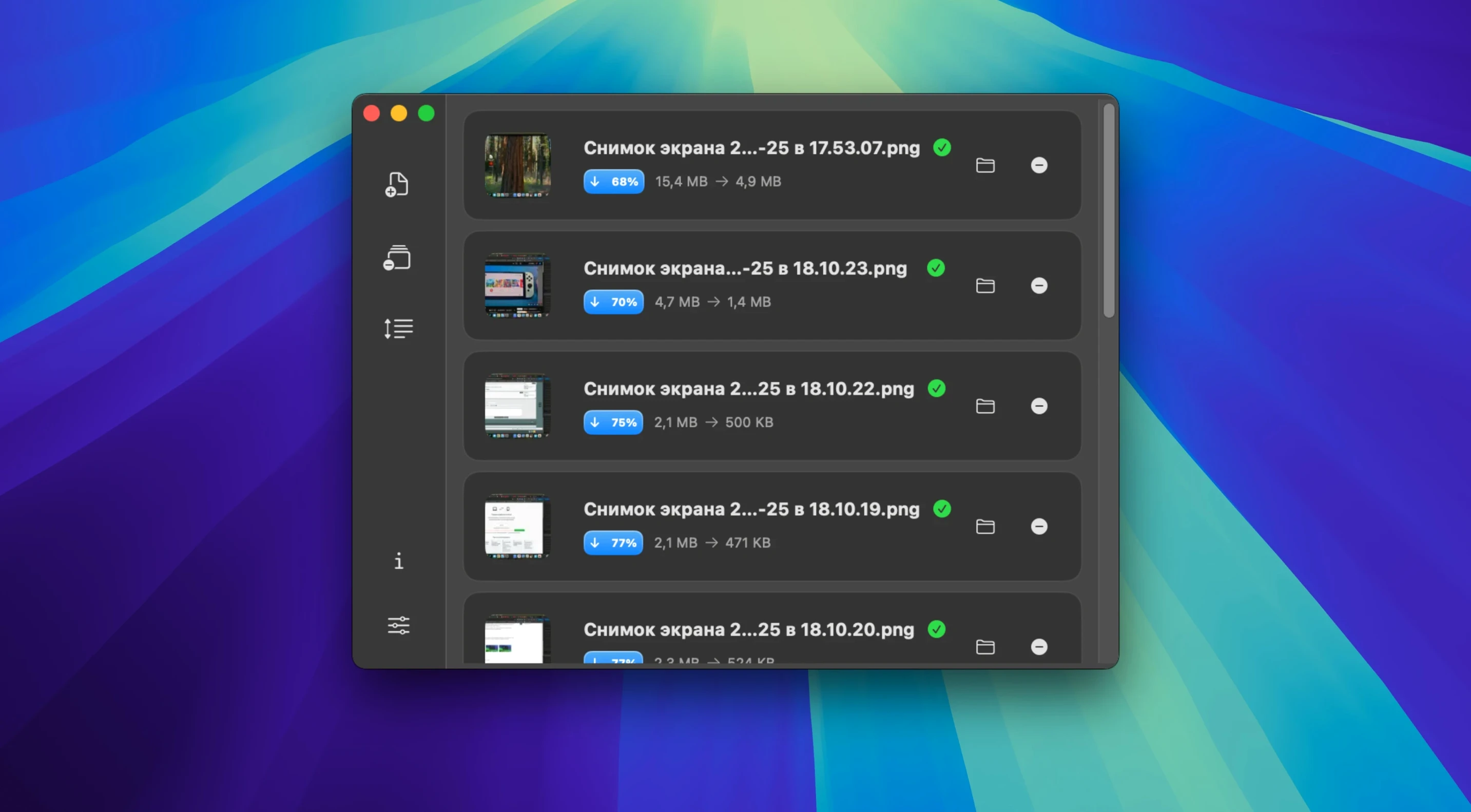
Start with Watch Folder. Point it at a project directory and walk away. Zipic grabs every new PNG or JPEG that lands there, crunches it, and drops the smaller copy into the output folder you chose. No dialogs, no confirmation clicks.
| Detail | Value |
|---|---|
| Developer | 5KM Tech |
| Version | 1.10.1 |
| macOS | Ventura or later |
| Processing | Entirely local |
After the Watch Folder, set up Finder Quick Actions. Select a batch of images, right-click, and run a pre-saved Zipic recipe. It is the fastest way to resize product photos to a uniform width or convert a folder of HEICs to JPEG before sharing. The app adapts to your system theme and stays quiet in the menu bar until you need it. Switch between compression, resizing and format conversion with three tabs. Every operation stays on your machine—nothing uploads anywhere.
Overwrite Accidents from a Shared Output Folder
Dragging a folder of high-resolution originals straight into the output folder is the most common stumble. Zipic overwrites without asking when names collide. Create a separate output directory first, or let the Watch Folder handle naming automatically.
Another trap: treating every format the same way. WebP compression settings that look fine on a JPEG can produce mud on a gradient-heavy PNG. Test one image before running a batch of 200. The app processes quickly enough that a single-file sanity check costs ten seconds and saves a redo.
Skipping the resize step before compression wastes cycles. A 6000-pixel-wide source shrunk to 1200 pixels, then compressed, lands at a fraction of the file size compared to compressing the original and resizing later. Zipic lets you chain both operations in one pass—use it.
Users who ignore the Raycast and Shortcuts integrations often end up doing repetitive drag-and-drop sessions. A single Shortcut that watches a client-review folder, converts HEIC to JPEG at 80% quality, and moves the results to Dropbox runs unattended. The automation pieces exist for a reason.
Compressing Fifty JPEGs in a Coffee-Pour
Batch processing is where Zipic earns its keep. Fifty 24-megapixel JPEGs compress in roughly the time it takes to pour coffee. The progress bar is honest. No beachball, no phantom freezes when switching between the compression and conversion tabs mid-job.
Memory pressure stays flat. Activity Monitor shows the app hovering under 200 MB during a heavy batch. It releases what it allocates; after closing the window, idle consumption drops to near zero. On an Apple Silicon Mac, the native binary keeps the fans silent even during a folder watch that catches a hundred new images.
A Zipic for Mac cracked search sometimes reveals comments about perceived instability on Intel machines under Ventura. In daily use, version 1.10.1 runs without a single crash across long sessions. The only meaningful resource spike comes from SVG processing, which briefly taps a single CPU core harder than raster formats. Even then, the interface remains responsive.
- macOS Ventura or later
- Apple Silicon or Intel Mac
Questions I get before install
Does Zipic upload my images to a server?
No. All compression, resizing and conversion happens locally on your Mac.
Can I use Zipic without opening the main window?
Yes. It supports Finder Quick Actions and Apple Shortcuts, so you can process images directly from the Finder or automated workflows.
Comments 0
Sign in to leave a comment.Sign inCreate an account
No comments yet. If a step is still there after you install it, say so.
More in Mac Apps
All in Mac Apps Zenteek
Indexes and searches a music library of 10,000 or more tracks without slowing down.
13 steps saved
 Wondershare Recoverit
Recovers files from drives that no longer mount in macOS, including lost partitions.
5 steps saved
 Wondershare Filmora
Trims clips, straightens horizons, and adds text overlays on a simple timeline.
4 steps saved
 Updated
Wirecast Pro
Replaces a hardware switcher with a software control room for live video production.
5 steps saved
 Wipr
Strips ads, trackers, and cookie popups from Safari pages before they download.
19 steps saved
 WinZip Mac Pro
Shrinks files, locks them with encryption, and gets them where they need to go.
4 steps saved
 Updated
Wins
Arranges and snaps application windows into layouts without dragging edges pixel by pixel.
10 steps saved
 Winclone Pro
Backs up only the blocks that changed in your Windows partition for faster, smaller snapshots.