
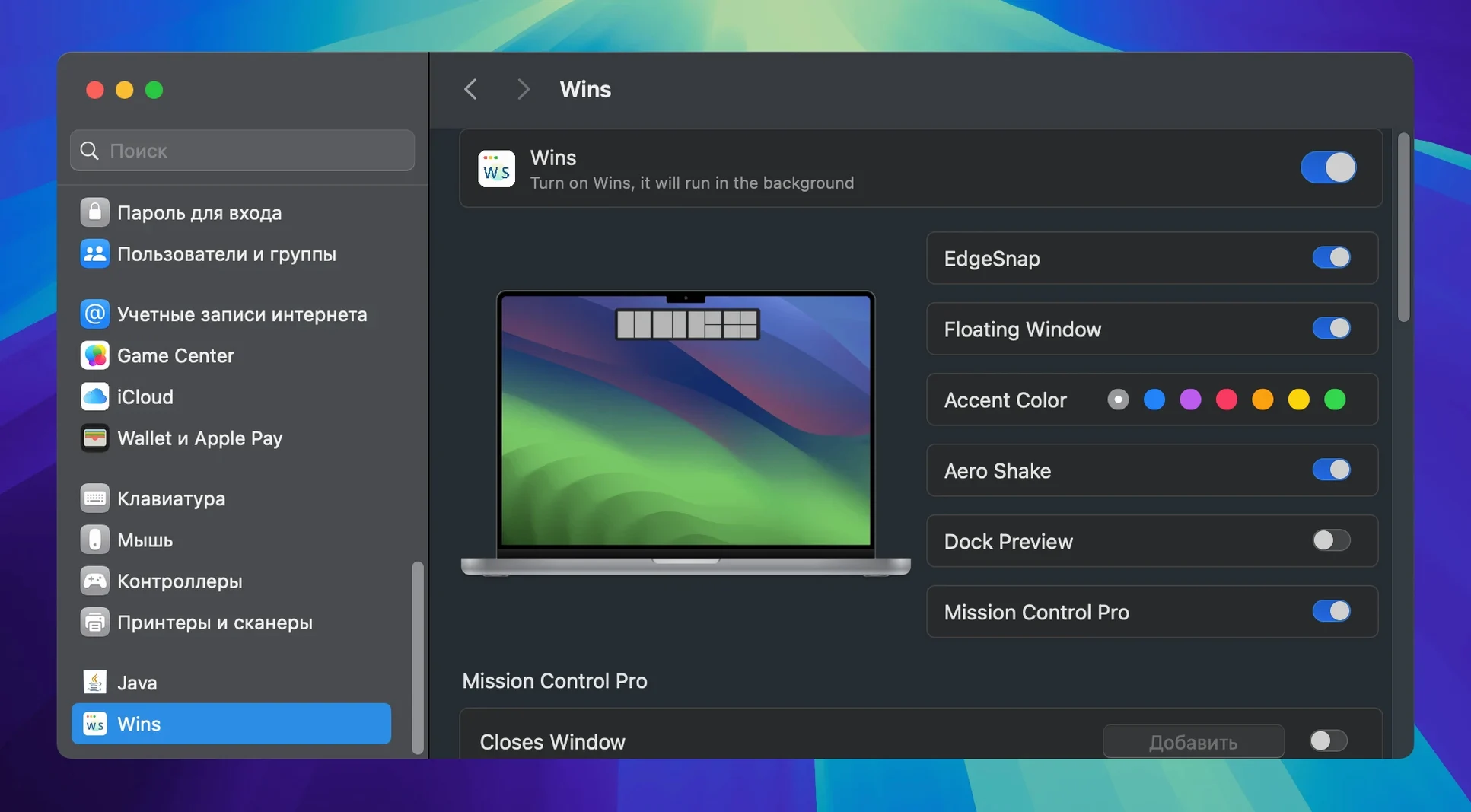
Wins is a macOS window manager for arranging, splitting, and controlling application windows without dragging edges pixel by pixel.
Split windows without losing context
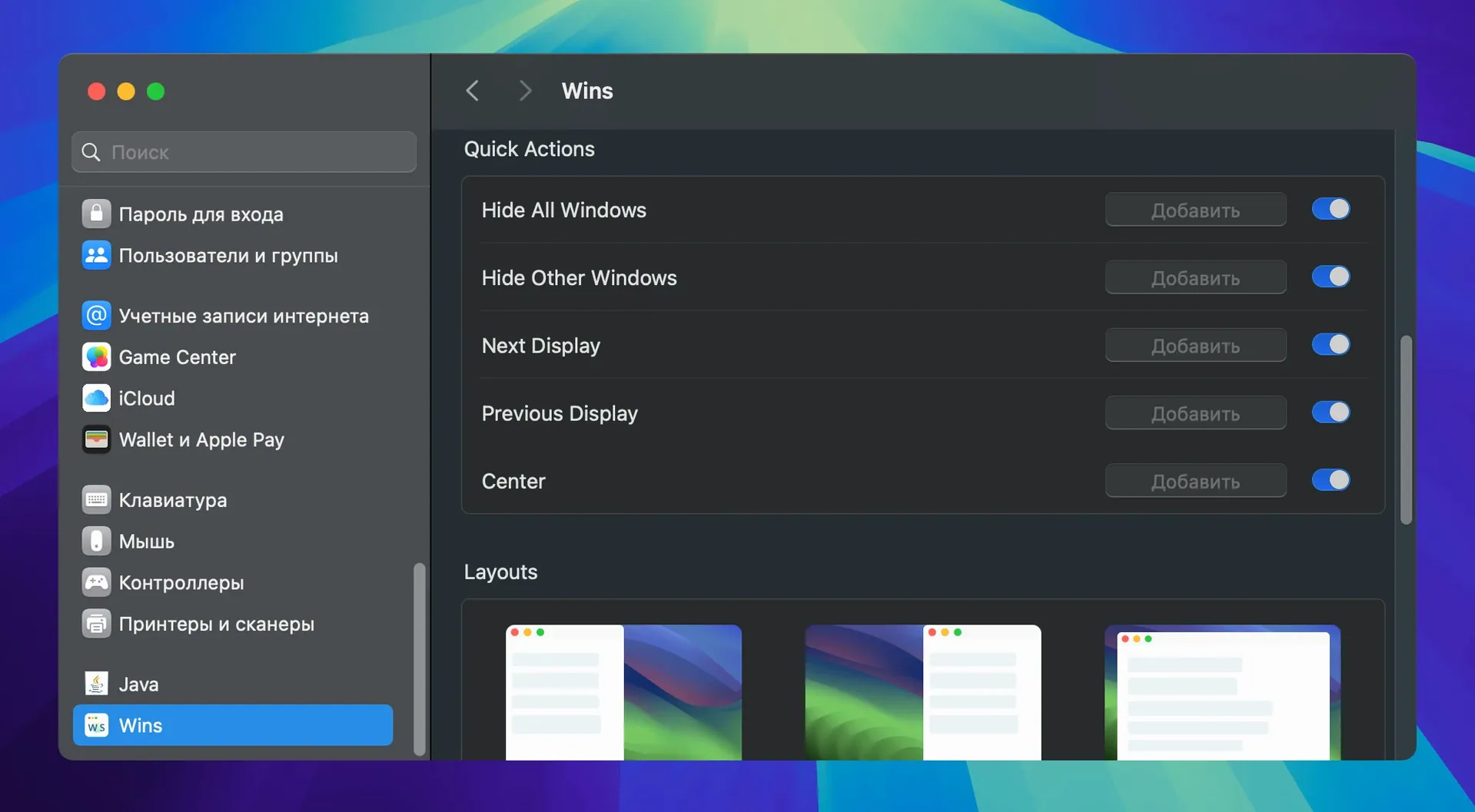
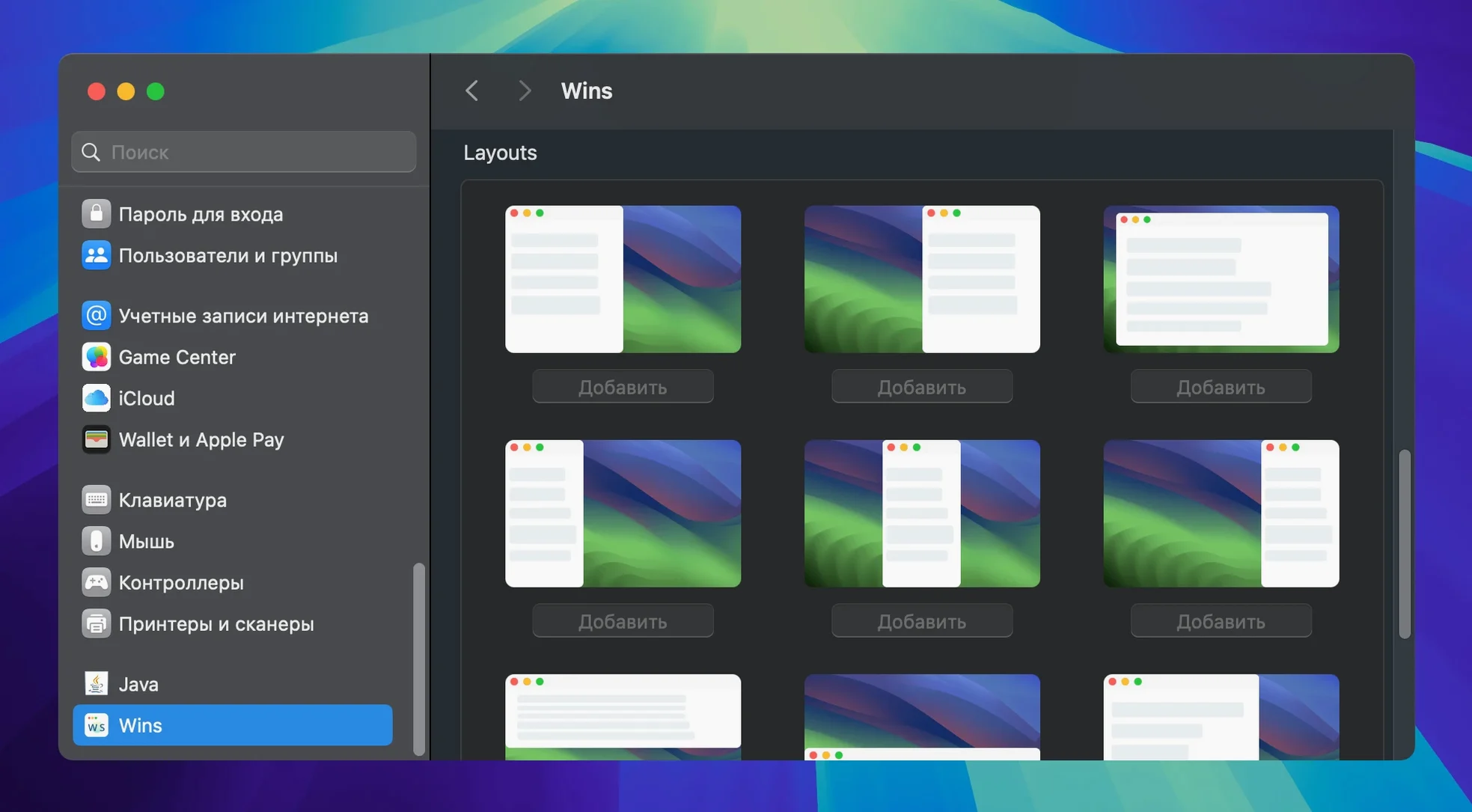
Use floating split windows to keep one app visible while working in another. Quick split actions snap windows into the layout you need, and moving a window to another display takes one command.
Control Mission Control itself
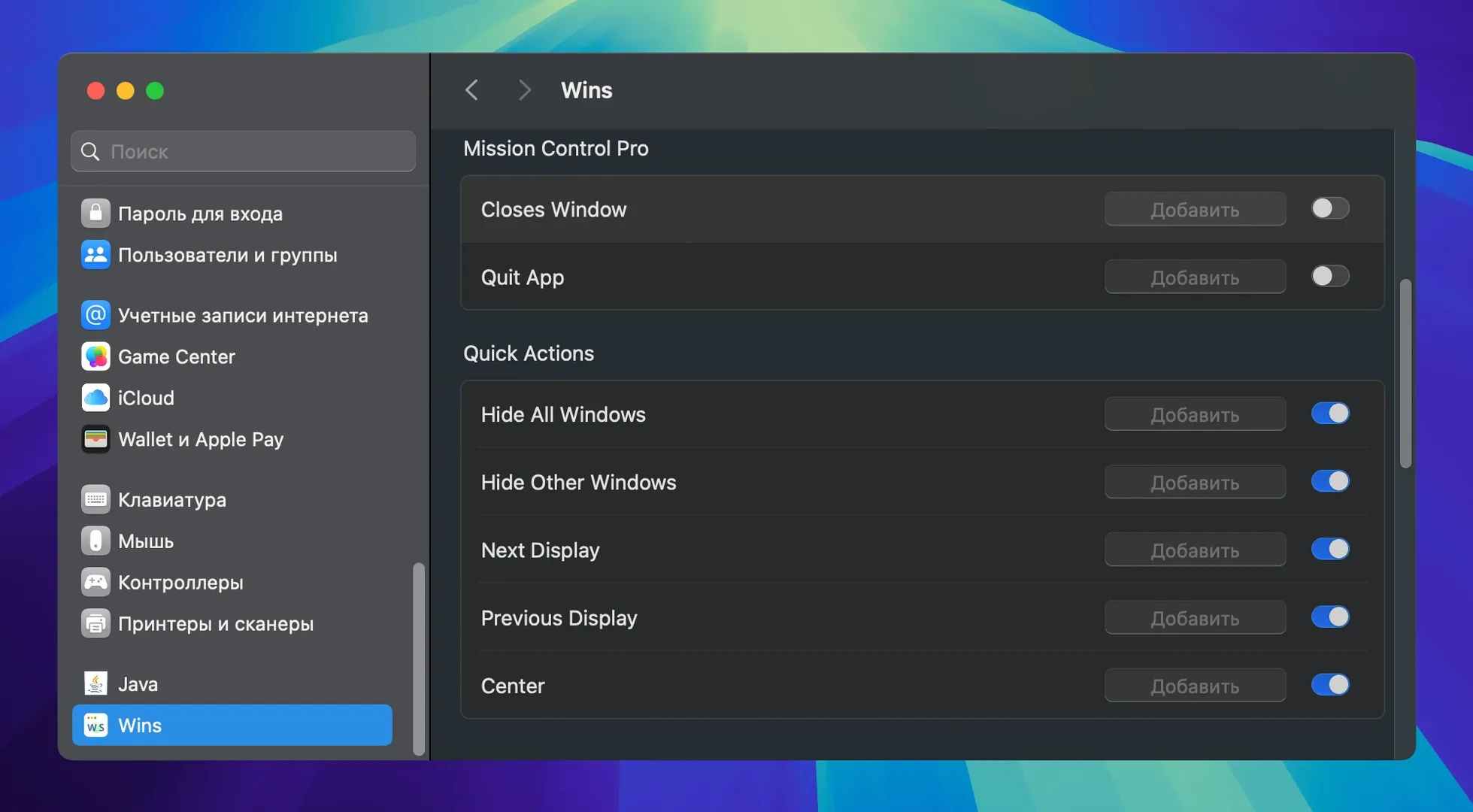
Mission Control Pro extends the built-in macOS view so system processes are easier to locate and manage. The 3.6 release optimized that lookup path and cut power consumption along the way.
Lock the Dock and hide everything
Dock Lock stops accidental rearrangement of Dock icons. When you need a clear screen, hide all windows at once and bring them back when you are ready.
Where Wins fits in your tool stack
Wins is not a launcher, not a clipboard manager, and not a deep system modifier. It sits squarely in the window-management layer — the space between how macOS positions windows by default and how you actually work. That means it plays well with tools like Raycast or Alfred for launching, because it never grabs the same shortcuts. It also respects Stage Manager; windows you split and save with Wins remain in their Stage Manager groups.
Two macOS features that complement Wins particularly well:
- Hot Corners — assign a corner to trigger a Wins split layout, and you can throw a window into a preset grid without touching the keyboard.
- Focus Filters (macOS 13+) — pair a Focus mode with a saved Wins layout. When you switch to Writing, your editor, notes, and references arrange themselves automatically.
Because Wins integrates directly into System Settings, its preferences live where you expect them — not in a separate floating panel that fights the look of the rest of the OS.
How Wins compares with similar Mac apps
Three window managers occupy the same conversation on macOS. Here is how they differ in daily use.
Wins vs. Rectangle
Rectangle is a free, open-source window manager built on keyboard shortcuts and snap-to-zone logic. It handles quick resizing well. Where Wins diverges is in saved layouts and Mission Control Pro. Rectangle does not remember window groups across sessions, does not show previews when you hover the Dock, and has no concept of floating split windows. Wins gives you a wider set of controls over the workspace itself, not just individual window frames.
Wins vs. Magnet
Magnet uses drag-to-snap and keyboard shortcuts to tile windows into halves, thirds, and quarters. It is simple and consistent. Wins replaces Magnet’s approach with Snap Island for quick splitting and adds Dock Lock, window shaking to hide others, and layout restoration — features Magnet does not attempt. If all you want is snap-to-edge tiling, Magnet stays out of your way. If you want the workspace to respond to how you move between tasks, Wins covers more ground.
Wins vs. Moom
Moom offers a hover-based grid overlay, saved layouts, and deep customization of window controls. Both apps save and restore layouts. Wins differentiates itself with Mission Control Pro, Dock window previews, and Dock Lock — three features Moom does not address. Moom’s grid is more granular for pixel-level placement; Wins leans toward splitting and workspace-wide commands.
Stage Manager keeps its sets under Wins layouts
Does Wins interfere with macOS Stage Manager?
No. Wins operates on the window level and does not disable or override Stage Manager groupings. A layout you restore in Wins appears inside the Stage Manager set that was active when you saved it.
How much system memory does it actually use?
The developer reports under 30 MB of RAM and CPU usage that typically sits around 0.1% when idle. On an Apple Silicon Mac, Wins is a universal binary, so it runs natively without Rosetta overhead.
Can I try a saved layout on a different display setup?
Yes — but with the caveat that windows scale to the available screen real estate. A layout built on a 27-inch Studio Display will adapt to a 14-inch MacBook Pro screen, though you may want to save separate layouts for each configuration.
Does macOS Wins keep working after a system update?
The 3.6 release added full support for macOS 27 and tightened the Mission Control Pro integration. Because Wins hooks into supported system APIs rather than patching private frameworks, it tends to survive point updates without breaking. The System Settings integration also means you manage permissions from one place when macOS asks.
What happens when I shake a window?
Shaking a window hides every other window on the current display. It is a fast way to focus on one thing without minimizing or closing anything. Shake again to restore the previous set.
- macOS 12 or later
- Apple Silicon or Intel 64-bit
Questions I get before install
Does Wins run on Apple Silicon and Intel Macs?
Yes. Wins has native support for both Apple Silicon and Intel chips, and requires macOS 12 or later.
How much memory does Wins use?
The developer states memory usage is under 30 MB, which keeps it light during active window management.
Comments 0
Sign in to leave a comment.Sign inCreate an account
No comments yet. If a step is still there after you install it, say so.
More in Mac Apps
All in Mac Apps WinZip Mac Pro
Shrinks files, locks them with encryption, and gets them where they need to go.
10 steps saved
 Winclone Pro
Backs up only the blocks that changed in your Windows partition for faster, smaller snapshots.
5 steps saved
 Wipr
Strips ads, trackers, and cookie popups from Safari pages before they download.
5 steps saved
 WidgetWall
Adds a collection of functional widgets and stickers right onto your desktop.
4 steps saved
 Updated
Wirecast Pro
Replaces a hardware switcher with a software control room for live video production.
6 steps saved
 Updated
WhatCable Pro
Decodes a USB-C cable's hidden speed and power ratings from its e-marker chip.
5 steps saved
 Wondershare Filmora
Trims clips, straightens horizons, and adds text overlays on a simple timeline.
13 steps saved
 Wondershare Recoverit
Recovers files from drives that no longer mount in macOS, including lost partitions.