
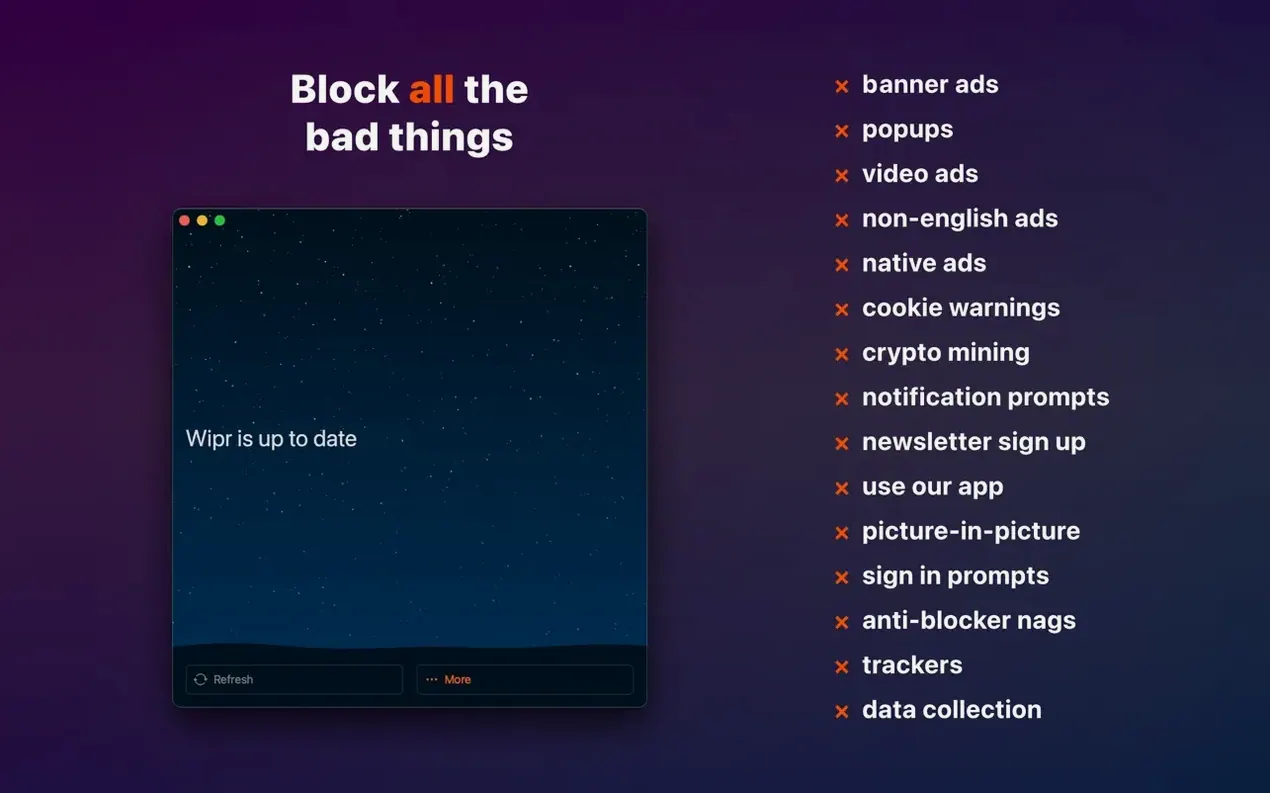
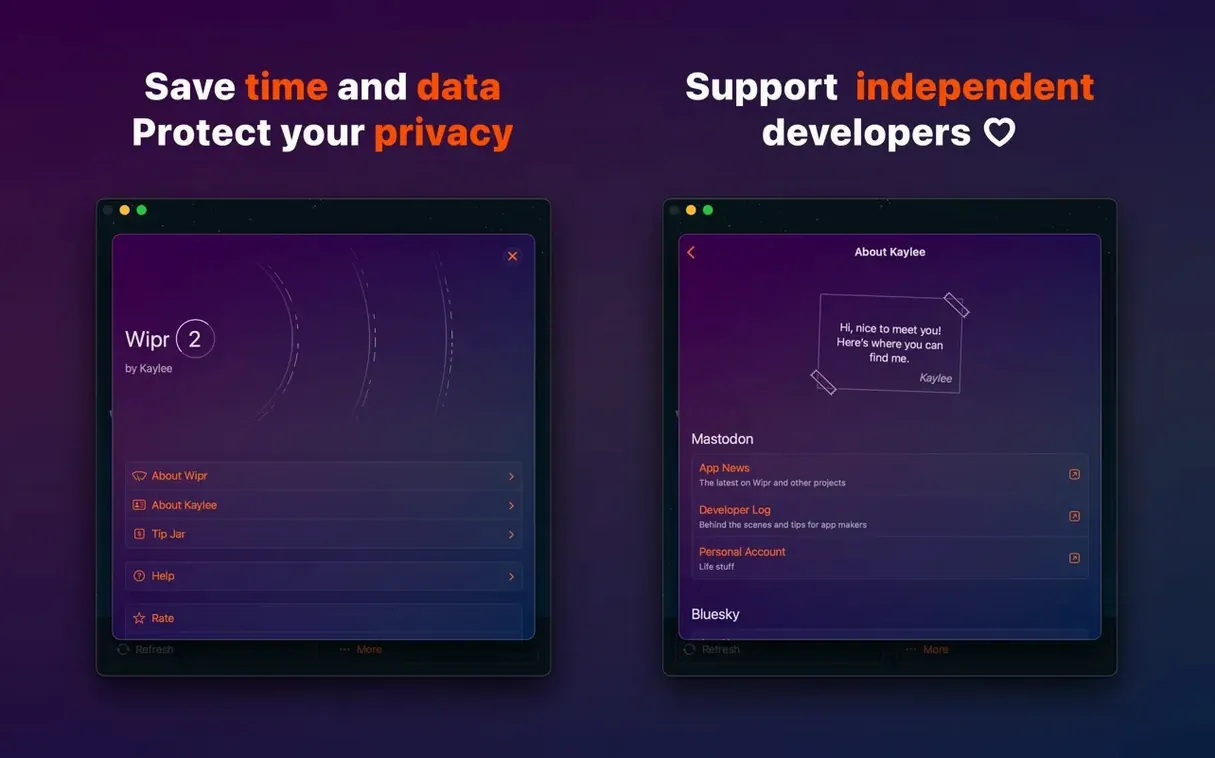
Web pages arrive heavy with ads, trackers, and cookie consent popups that slow down reading and waste bandwidth. Wipr strips that weight out of every Safari page.
Block ads and trackers
Wipr stops display ads, invisible trackers, and auto-play popups before they download, which makes pages render noticeably faster.
Remove cookie warnings
The blocker also silences cookie consent banners and other recurring web annoyances, so you read the content, not the legal notices.
Lighten every page load
With less cruft to fetch, sites use less data and feel snappier. Wipr 2 is the successor to the legacy Wipr app, rebuilt as a universal app for supported Apple devices.
Extra Rules Tighten Against Sign-Up Walls and Cookie Popups
Version 2.38 strengthened Wipr Extra — the rules engine that handles tricky overlays, embedded sign-up walls, and persistent newsletter popups. Sites that previously slipped a cookie notice through now stay quiet. Accessibility improvements in the same release tightened VoiceOver labels and keyboard navigation inside the app itself. Day to day, those changes mean fewer manual page reloads and a cleaner reading surface without tweaking any settings.
One Extension Toggle Activates Blocking Across All Safari Tabs
Wipr works as a Safari extension, so macOS treats it like any other content blocker: enable it once in Safari’s Extensions preferences, and it applies to every window and tab group. Because the blocking happens at the browser level, apps that open Safari views — Mail message viewers, the Shortcuts ‘Show Web Page’ action, or third-party RSS readers that embed WebKit — inherit the same filtering automatically. No extra setup.
For a privacy-focused setup, pairing Wipr with iCloud Private Relay keeps DNS and IP traffic separate while Wipr handles on-page clutter. Private Relay routes Safari traffic through two relays; Wipr strips the payload. Together they reduce the surface area that trackers can see.
Grant All Websites Permission to Avoid Accidental Free Passes
After dragging the app to Applications and launching it, activate Wipr from Safari’s Preferences > Extensions. Grant it permission for All Websites — this ensures no site gets a free pass unless you create one intentionally. The app fetches a fresh blocklist on first launch and then updates twice a week on its own.
- Spot-check a heavy news site. Load a media homepage before and after enabling Wipr to gauge the speed difference. The visual emptiness where ad units sat confirms it's working.
- Disable ad-blocker detection warnings. If a site complains, toggle Wipr off for that domain via the Safari toolbar icon, reload, and decide whether the content is worth the noise.
- Resist layering blockers. Running a second content blocker alongside Wipr can cause rule collisions that leave blank spaces or broken layouts. Stick with one and let the twice-weekly list updates handle gaps.
- Check Reader View behaviour. With cookie notices blocked, Safari’s Reader button appears sooner on article pages. That combination — Wipr clearing the cruft, Reader reformatting the text — is the quickest path to a clean reading experience.
- Improved — Wipr Extra blocking on many websites
- Improved — Accessibility support
- macOS 10.13 or later
- Apple Silicon or Intel Mac
- Interface: English
Questions I get before install
Does Wipr work on Apple Silicon and Intel Macs?
Yes, Wipr is a universal app that runs on both Apple Silicon and Intel Macs.
What changed in the latest Wipr update?
Version 2.38 brought accessibility improvements and better Wipr Extra handling on many websites.
Comments 0
Sign in to leave a comment.Sign inCreate an account
No comments yet. If a step is still there after you install it, say so.
More in Mac Apps
All in Mac Apps WinZip Mac Pro
Shrinks files, locks them with encryption, and gets them where they need to go.
4 steps saved
 Updated
Wirecast Pro
Replaces a hardware switcher with a software control room for live video production.
4 steps saved
 Updated
Wins
Arranges and snaps application windows into layouts without dragging edges pixel by pixel.
10 steps saved
 Winclone Pro
Backs up only the blocks that changed in your Windows partition for faster, smaller snapshots.
5 steps saved
 Wondershare Filmora
Trims clips, straightens horizons, and adds text overlays on a simple timeline.
5 steps saved
 WidgetWall
Adds a collection of functional widgets and stickers right onto your desktop.
13 steps saved
 Wondershare Recoverit
Recovers files from drives that no longer mount in macOS, including lost partitions.
6 steps saved
 Updated
WhatCable Pro
Decodes a USB-C cable's hidden speed and power ratings from its e-marker chip.