
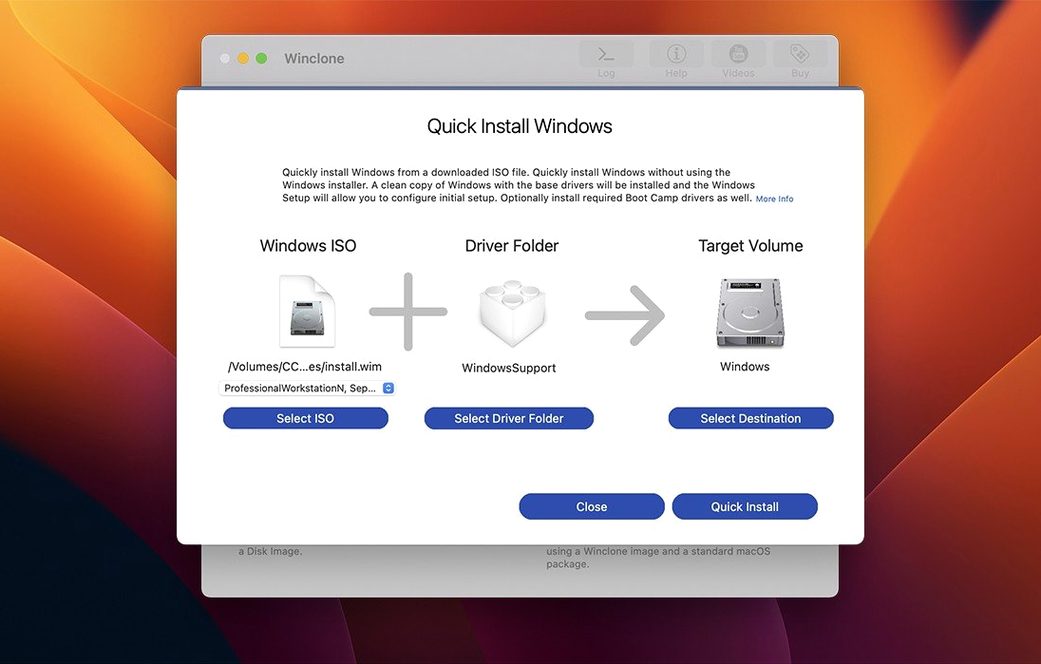
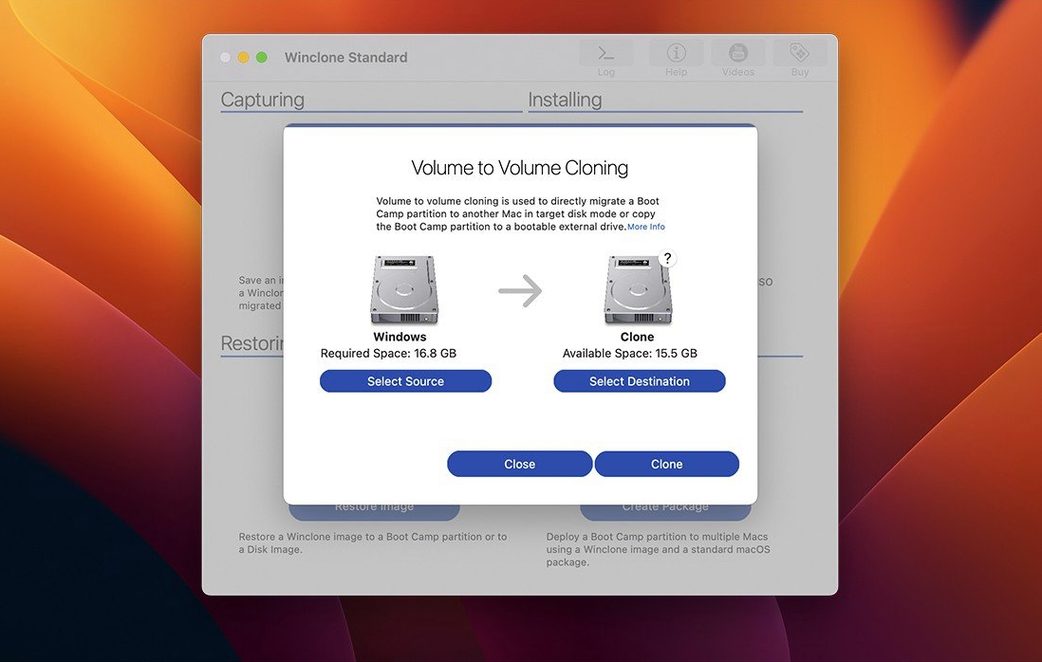
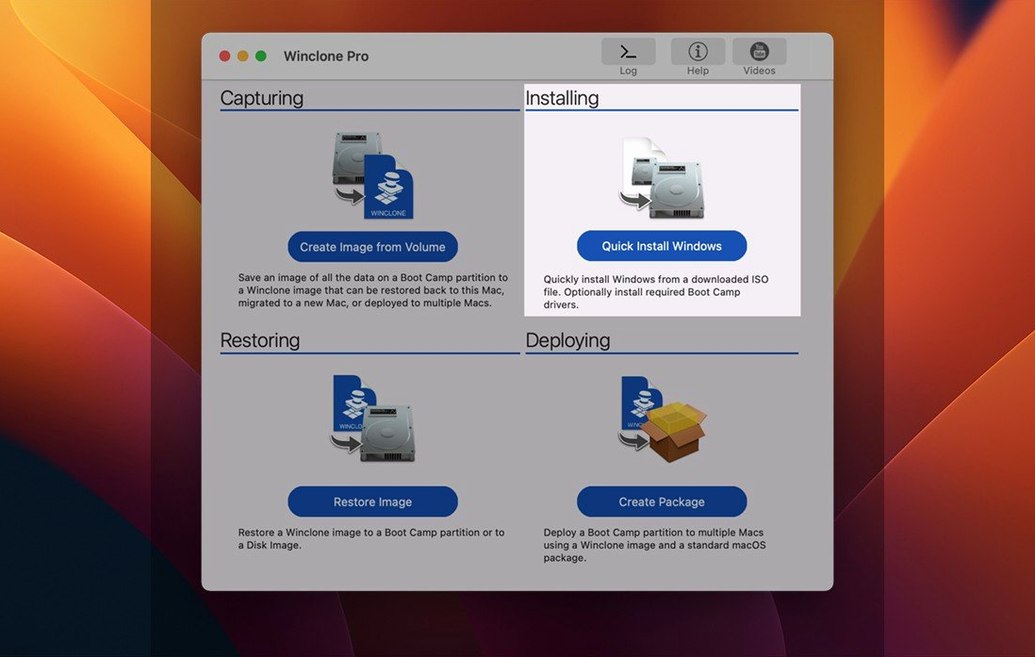
The package deployment tools get most of the attention, but Incremental Imaging is the feature that changes the daily rhythm. Instead of capturing a full 40 GB snapshot every time you tweak the Windows side, Winclone Pro saves only the blocks that shifted. That means faster backups, less space eaten on the Mac volume, and a library of restore points you can actually keep around without a second thought.
- Create incremental images of a Boot Camp partition so only changed data is written.
- Restore images to attached NTFS, ExFAT, or DOS-FAT32 volumes, not just the internal drive.
- Shrink or expand the Windows file system during a restore to fit a new partition layout.
- Detect and report mismatched GPT and MBR boot records before they cause a boot failure.
- Package a Windows install for MDT or SCCM deployment alongside your Mac imaging workflow.
It sits right next to the other admin tools on the Mac. When imaging macOS with System Restore or a third-party cloner, Winclone handles the Windows half of the dual-boot equation. The progress estimate and completion percentage give you a predictable window for the job, and the updated interface keeps those controls within reach without burying them in a wizard.
Snapping a Pre-Update Boot Camp Snapshot from the Dock
You sit down after a Windows update cycle, coffee in hand. The Boot Camp partition is healthy, but you need a snapshot before the next round of quarterly software pushes. Winclone Pro is already pinned to the Dock.
- Select the source. The sidebar lists your Boot Camp volume. Click it. The main pane fills with partition details — size, filesystem, used space, and whether the GPT/MBR records are in agreement.
- Pick a destination. You point it at a folder on an external SSD. The interface confirms write permissions and available space.
- Name the image. A date stamp and a short label. “2026-03_accounting_prepatch.” You check the Incremental box because a full base image already lives in that folder.
- Start the clone. The progress bar ticks upward with an estimate that stays honest. While it runs, you switch to another desktop and keep working. No beachball, no locked-out workflow.
- Sound cue. The chime tells you it finished clean. You glance at the log to confirm zero warnings about boot record mismatches, then eject the external drive and lock it in a drawer.
A Full Migration, End to End
An old iMac is being retired, and its Boot Camp partition needs to move to a newer machine. The Windows side runs a proprietary inventory tool that nobody wants to reinstall from scratch. Here is how local disk-to-disk migration makes that a one-morning job.
Connect both Macs with a Thunderbolt cable and boot the old iMac in Target Disk Mode. On the destination Mac, Winclone Pro sees the old Boot Camp volume as an attached disk. You run a full image capture to the new Mac’s internal SSD. Once the image is saved, you create a fresh Boot Camp partition with the same size — slightly larger, actually, because you intend to expand the file system. Select the image, pick the new partition as the target, and tick Expand filesystem to fill volume. The restore finishes, and the new machine boots into Windows without a repair prompt. The inventory tool launches as if nothing changed.
Ditching the Wizards for One-Click Clone, Package, and Restore
The move to version 10 brought a quiet but real improvement for anyone juggling multiple deployment workflows. The updated interface stopped pretending you wanted a wizard for everything. Cloning, packaging, and restoring each sit one click apart. That alone shaves minutes off repetitive admin sessions. Version 10.5 kept the changes small and specific: updated OS requirements and verified Tahoe compatibility. For a tool that lives on the boundary between two operating systems and their boot records, that kind of under-the-hood verification is the difference between a smooth migration and a Tuesday spent troubleshooting partition tables.
- New — Verified Tahoe compatibility and updated OS requirements.
- macOS macOS 10.15 or later
- Architecture Intel
Comments 0
Sign in to leave a comment.Sign inCreate an account
No comments yet. If a step is still there after you install it, say so.
More in Mac Apps
All in Mac Apps WidgetWall
Adds a collection of functional widgets and stickers right onto your desktop.
4 steps saved
 Updated
Wins
Arranges and snaps application windows into layouts without dragging edges pixel by pixel.
6 steps saved
 Updated
WhatCable Pro
Decodes a USB-C cable's hidden speed and power ratings from its e-marker chip.
19 steps saved
 WinZip Mac Pro
Shrinks files, locks them with encryption, and gets them where they need to go.
5 steps saved
 Wipr
Strips ads, trackers, and cookie popups from Safari pages before they download.
4 steps saved
 Updated
Wirecast Pro
Replaces a hardware switcher with a software control room for live video production.
5 steps saved
 Wondershare Filmora
Trims clips, straightens horizons, and adds text overlays on a simple timeline.
19 steps saved
 WALTR PRO
Converts and places any media file into the right Apple app on the target device.