Silicon and Intel Macs running Monterey onward
WidgetWall supports both Apple Silicon and Intel 64-bit Macs. You need macOS 12 (Monterey) or a later version installed.
What appears on the desktop after setup?
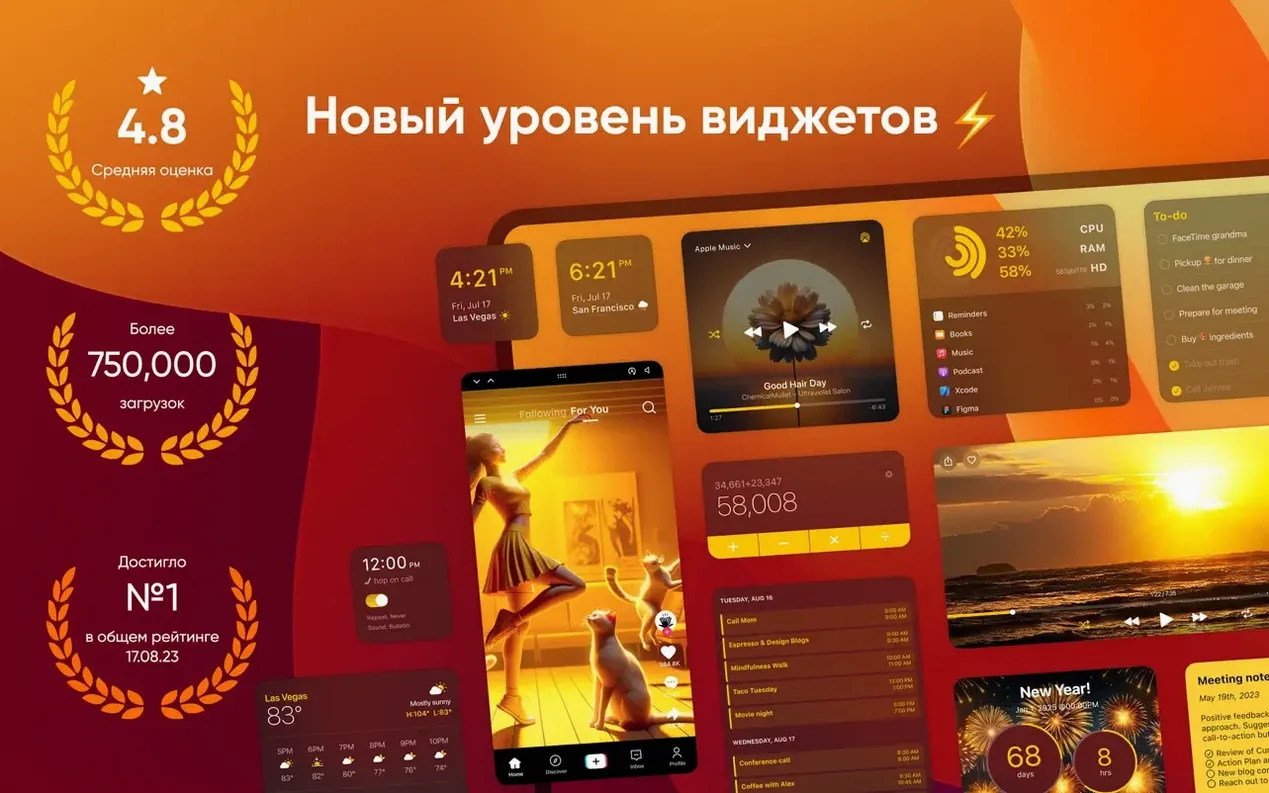
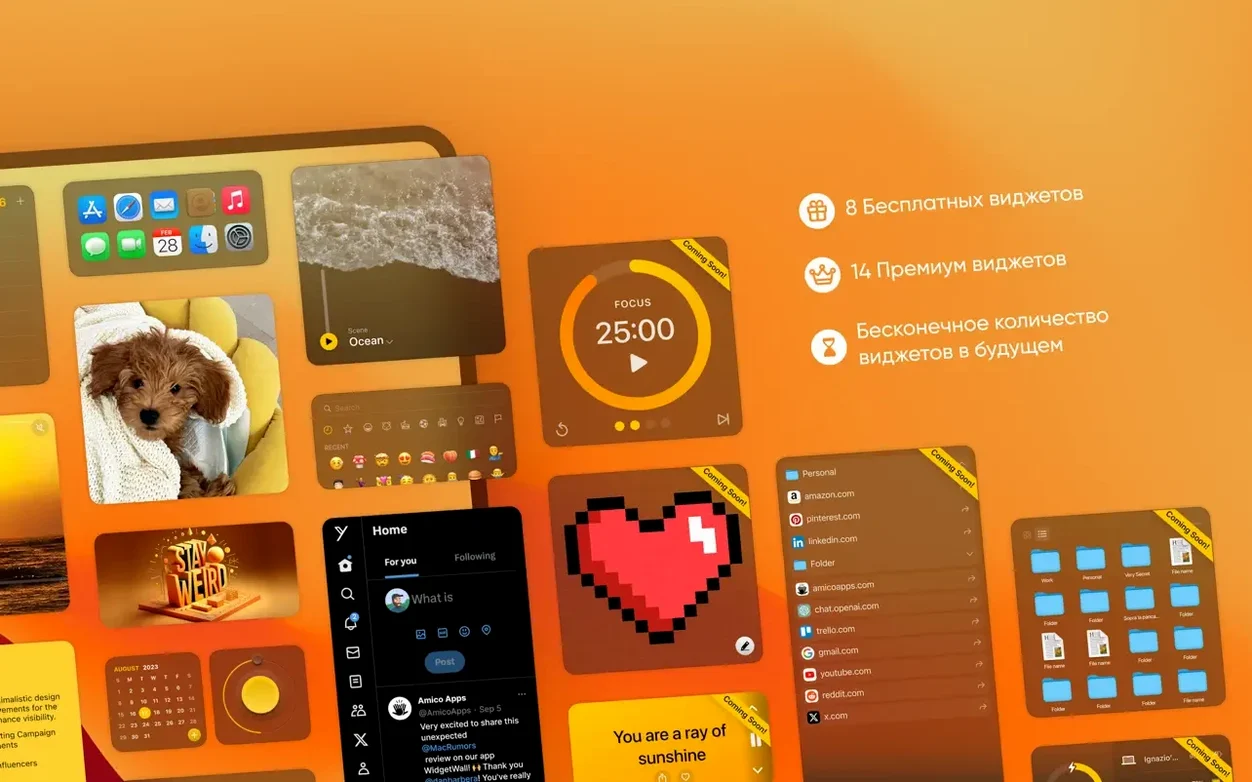
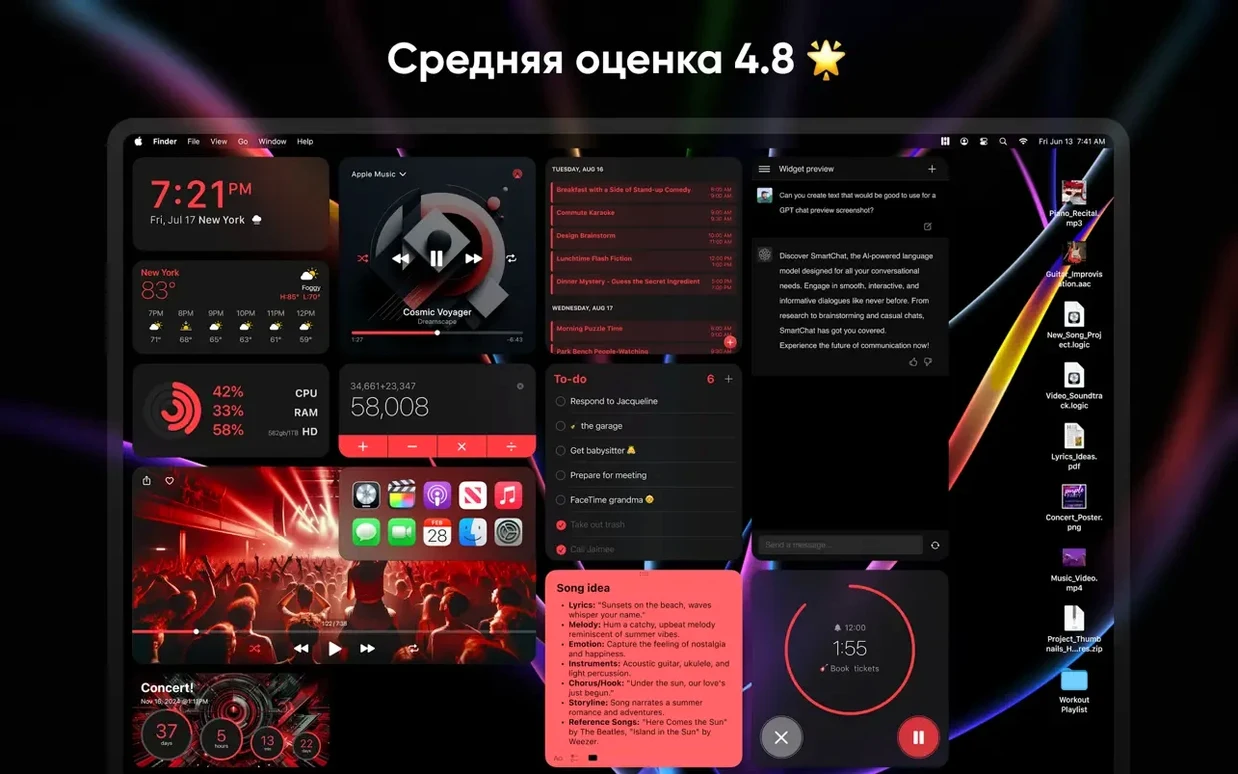
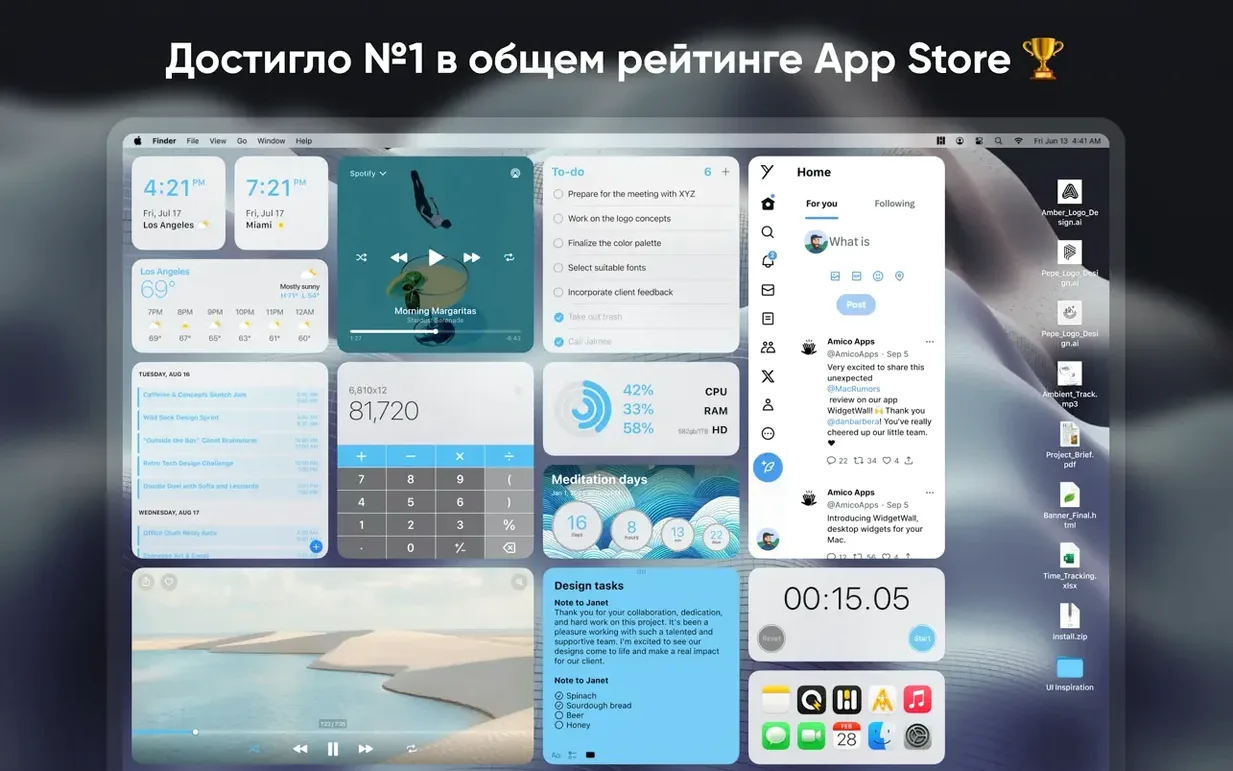
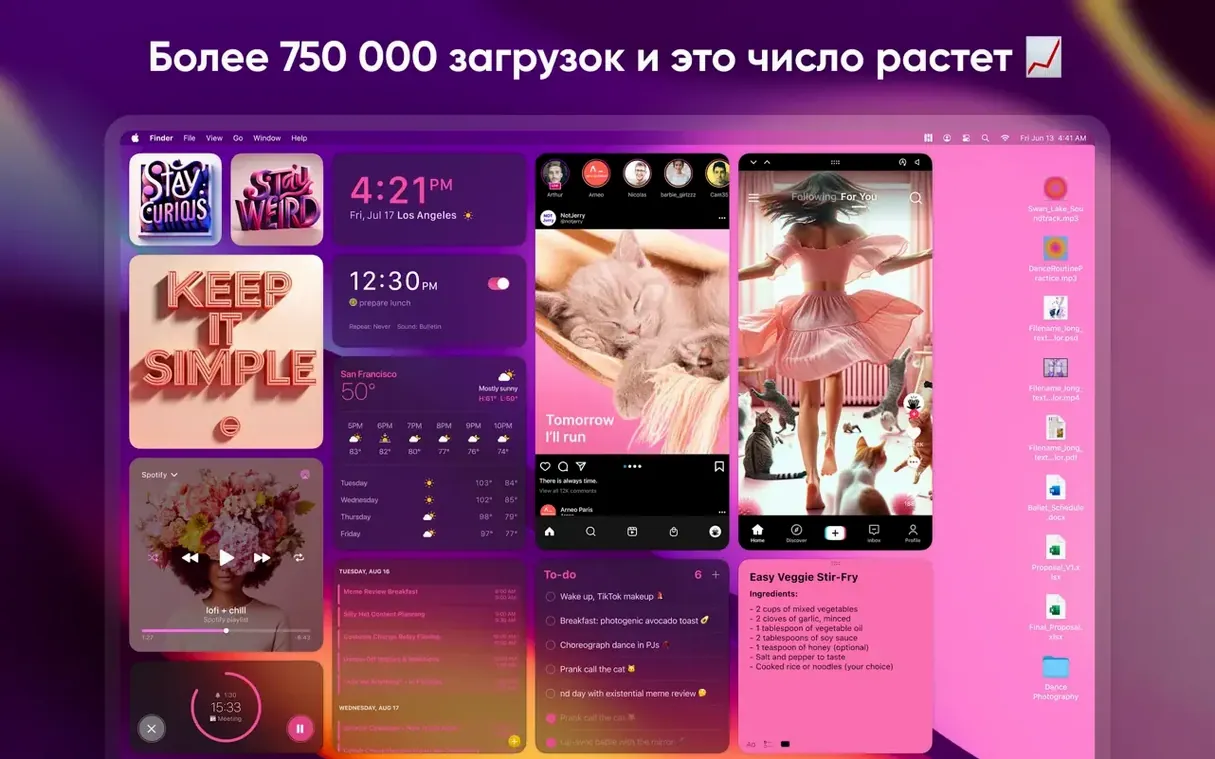
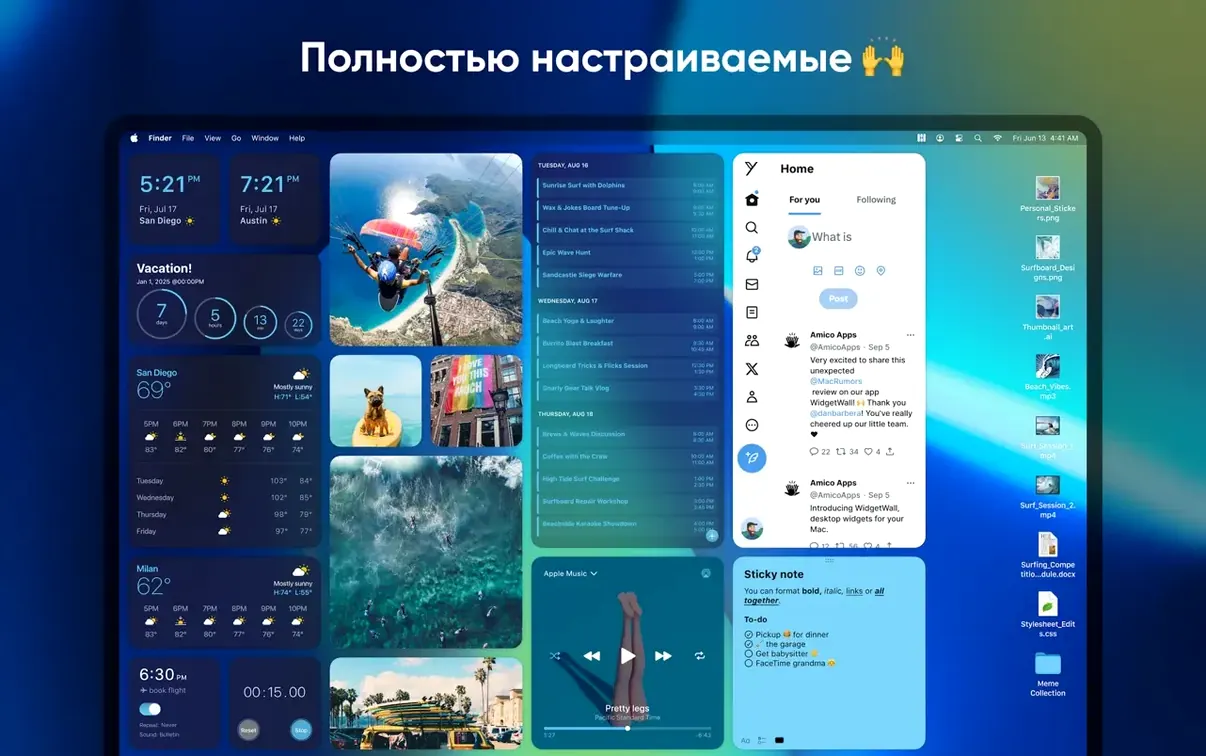
The app installs a collection of functional widgets and stickers automatically. You can place them anywhere on your desktop.
Can I adjust the widget sizes?
Yes. Every widget offers small, medium, and large size options so they fit neatly into your layout.
Where should I look for updates?
From cluttered desktop to Calendar glance in 20 minutes
You start the morning with a cluttered desktop and a mental list of what needs attention. WidgetWall is already running—it launches at login by default. Here’s how the next twenty minutes unfold.
- Glance at the Calendar widget. It sits top-right, medium size. Today’s date is bold; two meetings are listed underneath. You spot a 10:30 call you had forgotten.
- Start a Pomodoro session. The Pomodoro Timer widget is parked near the bottom-left corner. You click it, set 25 minutes, and begin clearing email. The countdown ticks visibly without stealing focus.
- Check the Weather widget. Rain forecast for the afternoon. You mentally reschedule the walk you were planning. No app to open—the information is just there.
- Use the Notes widget as a scratchpad. A client mentions a deadline change during the call. You type it directly into the Notes widget, medium size, without opening a separate app. It saves instantly.
- Switch to the Music widget. After the call, you tap play on the ambient playlist you keep pinned. The widget shows track and artist; volume control is a slider away.
- End the day with the Countdown Timer. You set it for 4 PM, a soft reminder to wrap deep work. When it fires, a subtle animation plays. No jarring alarm, just a nudge.
The desktop becomes a dashboard. Widgets don’t demand attention—they just surface what you need when you glance at them. By the end of the session, you have opened exactly two traditional apps: email and a browser. Everything else lived on the desktop.
Start with three widgets, not a wall of them
New users often place too many widgets at once and then wonder why the desktop feels busy. Start small.
- Begin with three widgets. Choose one time-based (Clock or Pomodoro Timer), one information-based (Weather or Calendar), and one utility (Notes or App Shortcuts). Live with those for a day before adding more.
- Group related widgets spatially. Keep timekeepers together in one corner. Put reference widgets—Weather, Stats, Calendar—along the right edge. Reserve the left edge for active tools like Calculator and Notes. Your eyes learn the layout faster than you expect.
- Test each widget in all three sizes. The Clock widget, for instance, feels very different in large mode versus small. Large mode dominates a corner; small mode tucks neatly beside the menu bar. Experiment before committing to a layout.
- Use the White Noise widget during focus sessions. Pair it with the Pomodoro Timer. Start the noise first, then start the timer. The combination signals your brain that deep work has begun.
- Resist the urge to install every available widget. TikTok and Emoji Browser are fun, but they pull attention. Add them later, once your core layout feels settled.
Lock in auto-launch so it feels native
WidgetWall works out of the box, but three adjustments make it feel native to your workflow.
- Launch at login. Enabled by default on most setups, but confirm it. Open WidgetWall’s preferences and make sure the option is checked. The whole point is having widgets ready before you start opening apps.
- Widget opacity. A few widgets, especially the larger ones, can compete with desktop files visually. Drop opacity to 85–90%. The widgets stay legible but recede slightly, making icons and folders easier to scan.
- Default widget size for new additions. WidgetWall remembers your last choice, but setting a deliberate default—medium, for most people—keeps subsequent additions consistent. Change it once in settings and every new widget you drag out will match your layout.
Once these three are dialled in, the rest is placement and habit. Within a week, you stop thinking of WidgetWall as an app at all. It becomes part of the desktop itself. For anyone searching for widgetwall mac download or a straightforward widget wall download, the setup investment is minimal and the daily payoff compounds quickly.
The developer, Amico Apps LLC, recommends updating to the latest version of WidgetWall to keep the widget set current.
- macOS 12 or later
- Apple Silicon or Intel 64-bit processor
Comments 0
Sign in to leave a comment.Sign inCreate an account
No comments yet. If a step is still there after you install it, say so.
More in Mac Apps
All in Mac Apps Winclone Pro
Backs up only the blocks that changed in your Windows partition for faster, smaller snapshots.
6 steps saved
 Updated
WhatCable Pro
Decodes a USB-C cable's hidden speed and power ratings from its e-marker chip.
4 steps saved
 Updated
Wins
Arranges and snaps application windows into layouts without dragging edges pixel by pixel.
19 steps saved
 WinZip Mac Pro
Shrinks files, locks them with encryption, and gets them where they need to go.
5 steps saved
 Wipr
Strips ads, trackers, and cookie popups from Safari pages before they download.
4 steps saved
 Updated
Wirecast Pro
Replaces a hardware switcher with a software control room for live video production.
19 steps saved
 WALTR PRO
Converts and places any media file into the right Apple app on the target device.
23 steps saved
 Wallspace
Replaces static desktop images with a catalogue of live 4K wallpapers.