
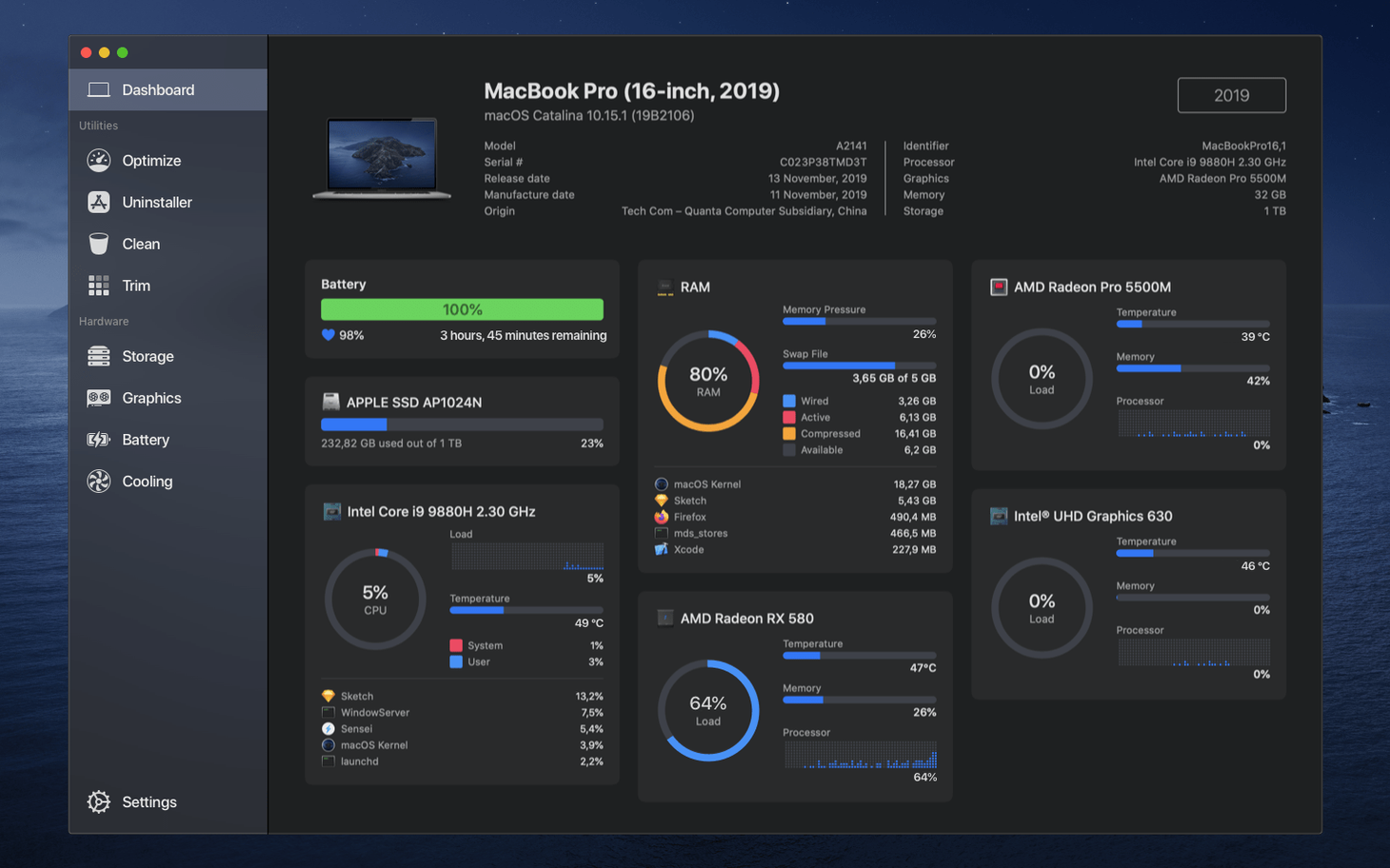
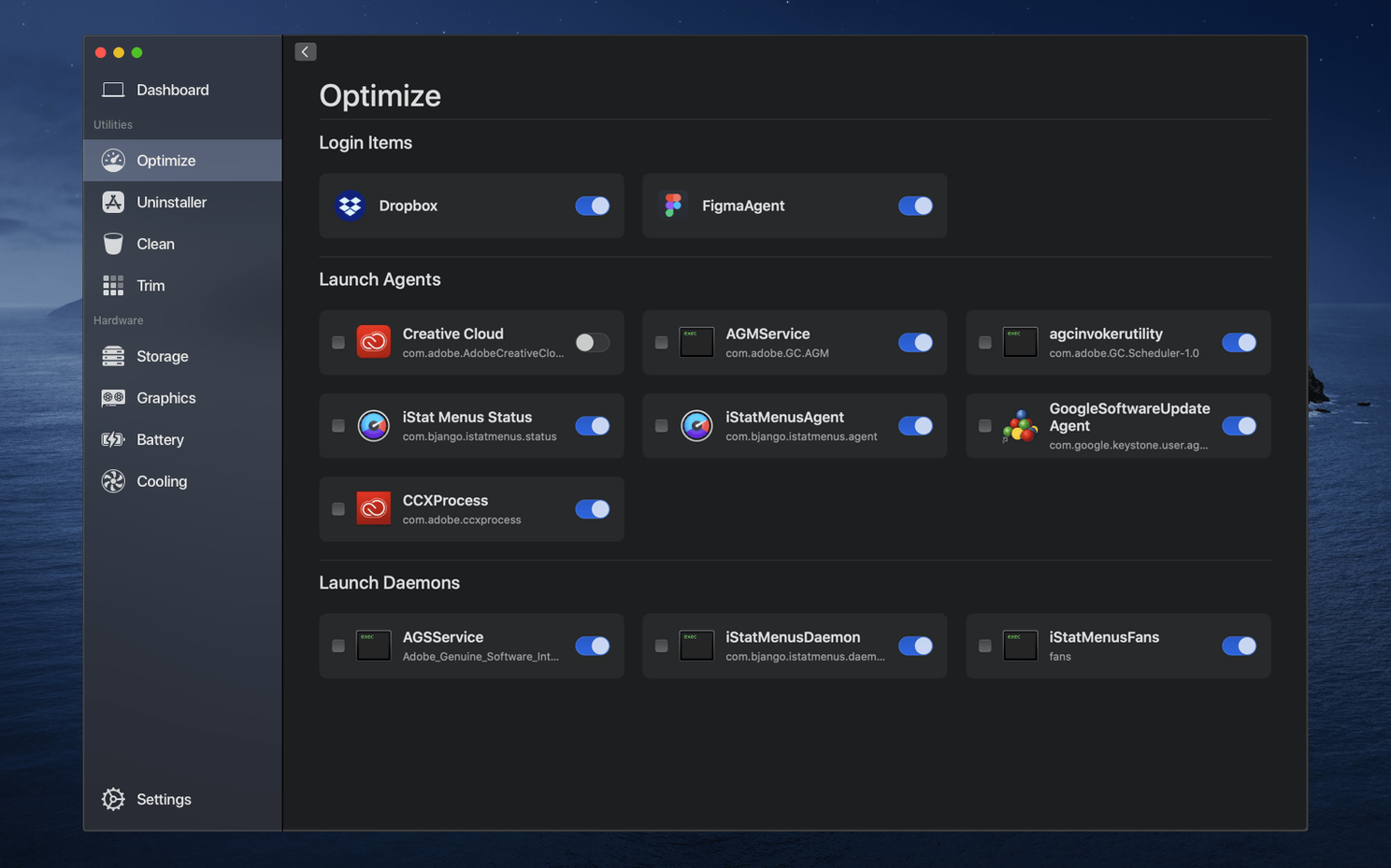
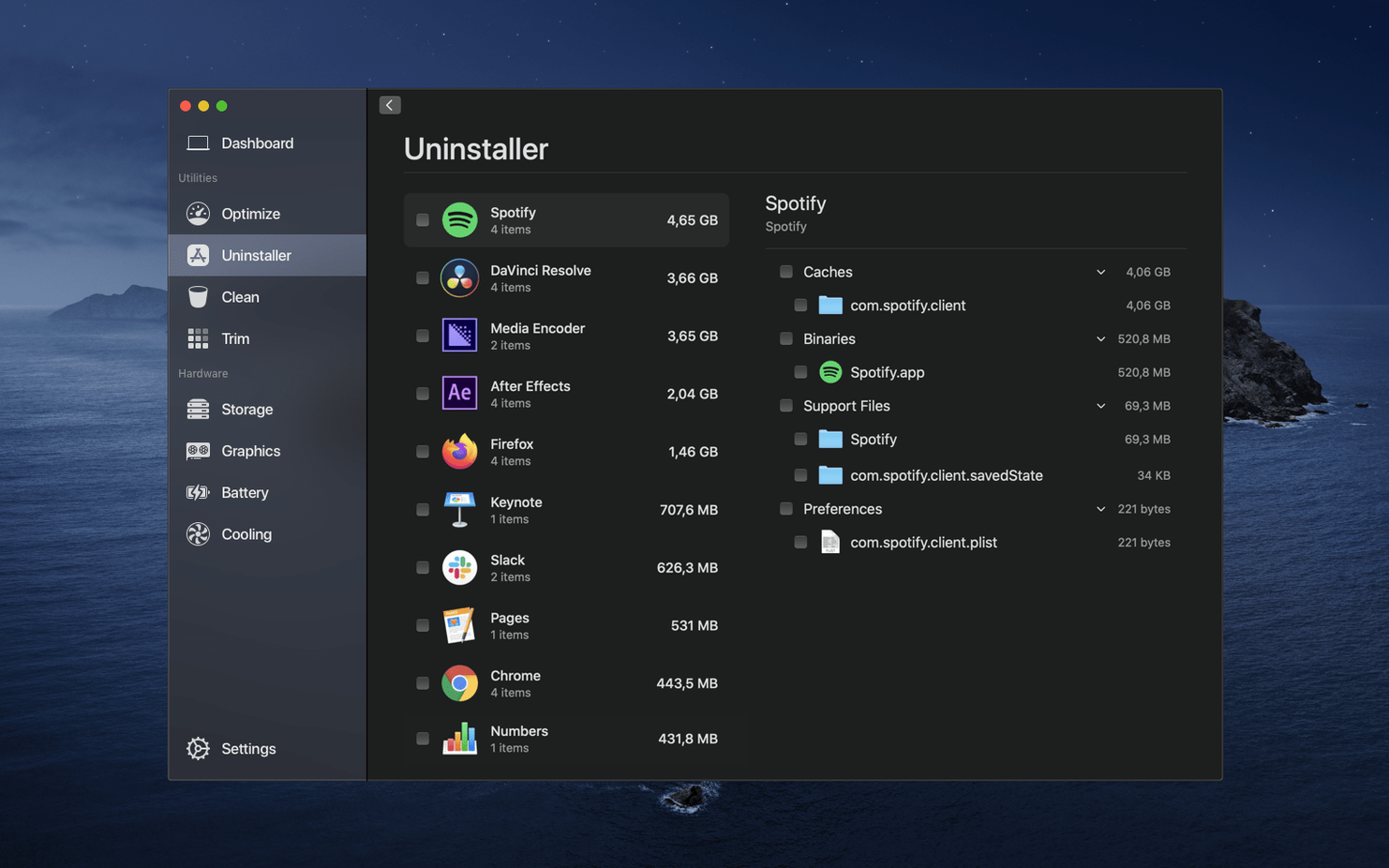
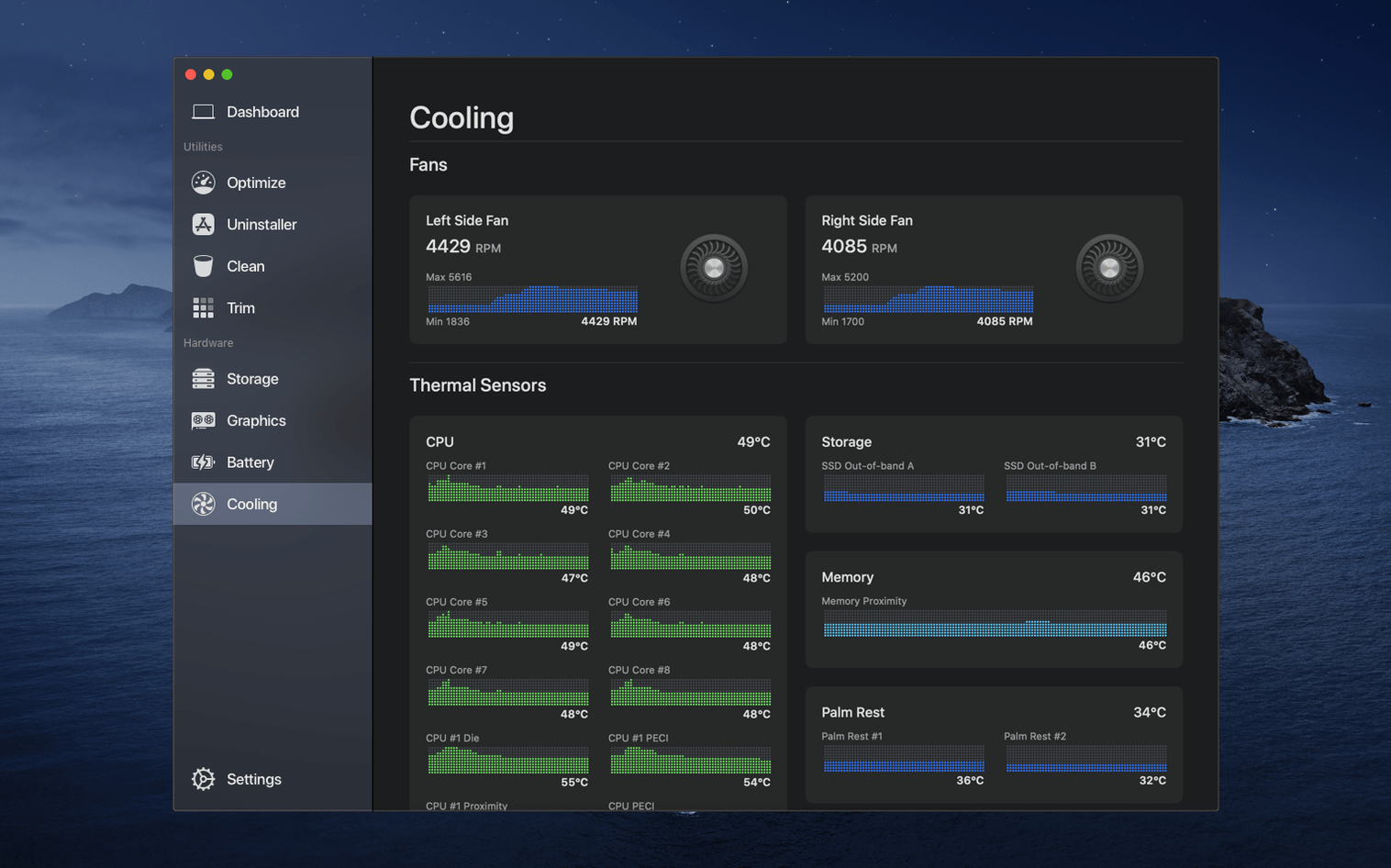
The current version keeps the toolset focused. No new modules, just refinements to the hardware reporting and menu bar Monitor. Here is what the app handles once it is on your machine:
- Monitor CPU, GPU, and RAM activity from the menu bar.
- Check battery health and SSD lifespan in the Dashboard.
- Enable TRIM on third-party solid-state drives.
- Control fan speeds manually when thermals spike.
- Free up space by clearing caches and logs.
Everything lives in a single clean window. The menu bar Monitor draws from the main app, so you see live stats without opening the full interface. It is a practical toolkit for keeping an eye on what your hardware is doing and stepping in when you need to tweak something.
How Sensei Compares with Similar Mac Utilities
Sensei occupies a specific niche, and it is worth placing it next to a few alternatives that Mac users tend to reach for.
Sensei vs. iStat Menus
iStat Menus focuses entirely on monitoring. Its menu bar widgets are more configurable, and it covers network traffic, disk I/O, and sensor data with deeper granularity. What it lacks is Sensei's cleaning side — no disk cleanup, no TRIM enabler, no application uninstaller. Sensei covers both monitoring and maintenance in one app, which matters when you want fewer utilities installed.
Sensei vs. CleanMyMac X
CleanMyMac X leans hard into system cleaning, malware scanning, and application management. Its monitoring module is secondary. Sensei flips that priority: hardware monitoring leads, and cleanup supports it. If you already have a maintenance routine but miss real-time hardware insight, Sensei fits better. If you want guided cleanup wizards, CleanMyMac X takes the lead.
Sensei vs. Macs Fan Control
Macs Fan Control does one thing — fan management — and does it well. Sensei includes basic fan control alongside its broader toolkit. You will not get per-sensor fan curves or presets here, but the ability to override fan speed when a machine runs hot covers the common case without installing a separate utility.
Menu Bar Monitor Refreshes Every Second
Sensei 2.1.2 runs natively on Apple Silicon and Intel, and it shows. The main window paints quickly, and switching between Dashboard, Clean, and Hardware tabs is immediate. The menu bar Monitor updates CPU, GPU, and memory readings once per second, which keeps the data fresh without causing perceptible lag.
Memory usage during a typical work session sits between 120 and 160 MB for the main app. The menu bar helper adds another 30 MB or so. CPU draw is negligible when idle, usually under 1%. During a disk scan for cleanup items, CPU usage climbs briefly to 5–8% on an M-series chip, then settles back down. Temperature readings stay consistent across sleep-wake cycles, and the fan control module respects manual settings without drifting — a common pain point in third-party fan tools.
Stability in version 2.1.2 is solid. The app handles macOS 14 and later without crashes when switching between modules rapidly or waking the Mac from sleep. One observation worth noting: the TRIM enabler requires a restart to take effect, which the app communicates clearly before proceeding.
How Sensei Fits into a Daily Workflow
Sensei works best as a silent observer. Place the Monitor in the menu bar, set it to show CPU and memory, and leave it running. It becomes a quick reference — a glance tells you whether a process is hogging resources or whether the battery is degrading faster than expected.
Pair it with macOS's built-in Activity Monitor for deeper process inspection and with Time Machine for backups. Sensei's cleanup module handles caches and logs, but it does not touch Time Machine snapshots or system-critical files, so the two coexist without friction. The uninstaller module removes applications more thoroughly than dragging them to the Trash, catching leftover preference files and support folders that stock macOS leaves behind.
If you already use a dedicated backup tool or a specific uninstaller like AppCleaner, Sensei's overlapping features do not interfere. Each module is optional, and the app never runs background tasks unless you initiate them.
- macOS 14 or later
- Apple Silicon or Intel Mac
Questions I get before install
Does Sensei show GPU temperature?
Sensei monitors GPU activity and performance data. For specific sensor readouts like temperature, check the Dashboard or menu bar Monitor in the current build.
Comments 0
Sign in to leave a comment.Sign inCreate an account
No comments yet. If a step is still there after you install it, say so.
More in Mac Apps
All in Mac Apps Updated
Serato DJ Pro
Mixes tracks live with controllers, effects and smart key matching.
22 steps saved
 Updated
Screens 5
Lets you reach and arrange remote screens through Siri, Shortcuts, or the menu bar.
5 steps saved
 ScreenFlow
Records the screen and supplies editing tools to turn a raw take into a finished video.
19 steps saved
 Updated
Screen Studio
Records your screen and gives you editing tools to finish the take in one app.
17 steps saved
 Serato Studio
Turns a DJ workflow into a beat-making environment built around stems and cue points.
19 steps saved
 Shadowrocket
Routes your Mac's network requests through different proxies based on custom rules.
19 steps saved
 Shottr
Floats a fast, local markup tool over your screen without switching contexts.
15 steps saved
 Sketch
Moves a design from a blank artboard to reusable, scalable components.