macOS 13.1 is the recommended starting point for Screen Studio, and the current build runs on both Intel and Apple Silicon machines. That one number answers most compatibility questions before the download finishes.
| Detail | Spec |
|---|---|
| Current version | 3.7.5-4595 |
| Recommended OS | macOS 13.1 or later |
| Architecture | Intel + Apple Silicon |
| Interface | English |
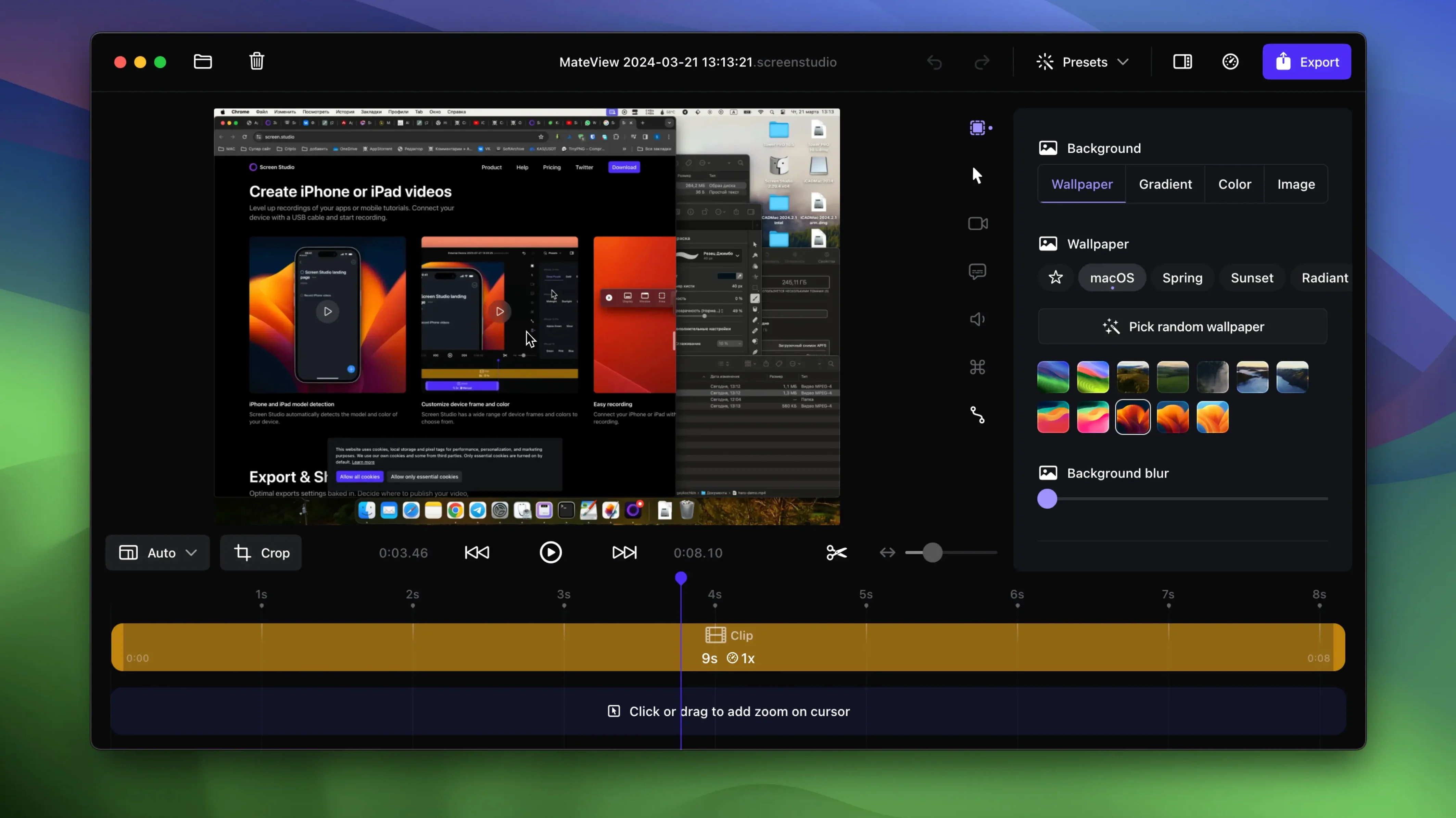
Once it runs, the recorder does the busywork itself. Screen Studio zooms in on actions as they happen, smooths cursor motion, and hides a static pointer with a short animation. Zoom changes stay editable — drag them onto the timeline or pick a manual selection while editing. Capture covers a Mac or a connected iPhone or iPad over USB, with webcam, microphone, and system audio in the same session. Exports include GIF, and a shareable link can be generated for the finished video.
Hit Record, Pick a Window, and Leave the Mic Warm
Open the app and hit the record button. Choose the display, the window, or the connected iPhone. I do demos, so I pick a window, toggle system audio from that app only, and leave the microphone warm. The webcam dot turns green when it catches me.
I walk through the feature. Screen Studio tracks clicks and keystrokes — the shortcut overlay pops up without me thinking about it. When I pause, the cursor fades after the set delay. I stop recording and the timeline opens immediately.
Now the real work. The app has already placed zoom events wherever I clicked or typed. I drag the ones I don't need off the timeline, then scrub to a moment where I moved too fast. I drop a manual zoom, pull the handles to frame the button I meant to highlight, and the motion between zooms softens automatically. The cursor loop option grabs the pointer and brings it back near its start position — handy for a looped GIF export.
I trim the top and tail, cut a stumble in the middle, and open the audio panel. Voice normalization lifts the quiet bits. The local transcript generator finishes in a few seconds. I pick vertical export, check the auto-scaled framing, and write out a 4K60 file. Drag it to the clipboard, paste into a message, done.
System Audio Grabs Only Some Apps—Here’s the Fix
System audio only captures some apps. Check the source picker — Screen Studio can grab all system audio or only selected apps. If an app isn't listed, it may be routing audio privately. Quit and relaunch the app, then reopen the recorder.
iPhone or iPad not detected. The device must be connected over USB and unlocked. If it still doesn't appear, trust the computer from the device prompt. Screen Studio detects model and colour automatically once the trust relationship is established.
Zoom events feel jumpy. Automatic zooms follow clicks and keystrokes, but rapid sequences can stack events. Open the timeline, spread the zoom markers apart, and shorten the motion duration. Smoother right away.
Cursor looks tiny in the export. Change cursor size after recording — the setting lives in the overlay panel. The same panel controls static cursor hiding and the fade animation length.
Transcript stuck or missing. The transcript generates locally on the Mac. Large recordings take longer. If it hangs, trim silence from the ends and re-trigger generation. It usually wakes up.
Auto-Scale Now Reads Vertical Exports Reliably
Version 3.7.5-4595 tightened three things I rely on during a regular screen studio for mac session. Vertical export scaling previously needed manual adjustment for some window sizes; now the auto-scale reads the content area more reliably. Less tweaking before export.
System audio capture from selected apps got quieter fixes — fewer dropouts when switching between apps mid-recording. The cursor loop timing was also reworked. In earlier builds, the return path could feel abrupt near the clip end. The current version decelerates the pointer more naturally, which matters when the exported video loops on a product page or in a social feed.
The iPhone detection stack improved. Screen Studio mac os now identifies newer iPad models without a manual colour fallback, so the device bezel in the recording matches the hardware. Small thing, but it removes a tell that the video was staged.
Transcript generation on Apple Silicon finishes faster in this build. Not a dramatic change, but noticeable when you generate captions for a ten-minute walkthrough. The local-only processing keeps the workflow tight — no uploads, no waiting on a service.
- macOS 13 or later
- Apple Silicon or Intel 64-bit Mac
Comments 0
Sign in to leave a comment.Sign inCreate an account
No comments yet. If a step is still there after you install it, say so.
More in Mac Apps
All in Mac Apps ScreenFlow
Records the screen and supplies editing tools to turn a raw take into a finished video.
22 steps saved
 Updated
Screens 5
Lets you reach and arrange remote screens through Siri, Shortcuts, or the menu bar.
10 steps saved
 Sensei
Monitors hardware health, performance, and storage directly from the menu bar.
18 steps saved
 Updated
Serato DJ Pro
Mixes tracks live with controllers, effects and smart key matching.
17 steps saved
 Serato Studio
Turns a DJ workflow into a beat-making environment built around stems and cue points.
19 steps saved
 RightFont
Lets you preview and activate fonts without opening Font Book.
19 steps saved
 Shadowrocket
Routes your Mac's network requests through different proxies based on custom rules.
19 steps saved
 Shottr
Floats a fast, local markup tool over your screen without switching contexts.