
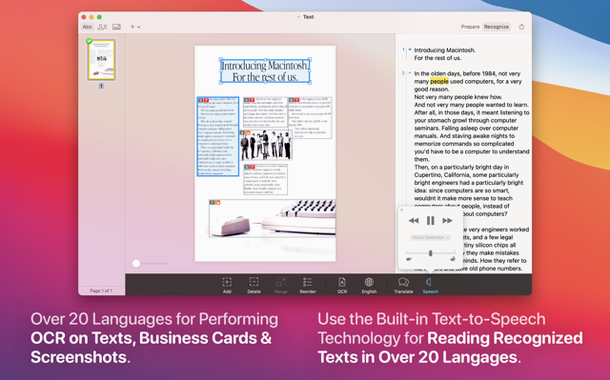
Super-accurate OCR kicks in the moment you drop a scan or photo onto the window. Prizmo Pro handles the capture, cleanup, and recognition in one place, so you spend less time fiddling with separate utilities and more time with the finished document.
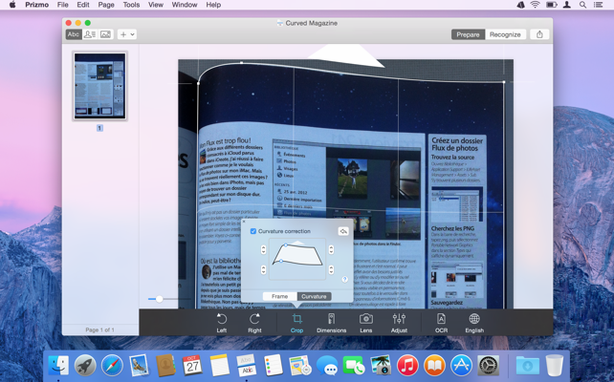
Does it actually fix curved book pages?
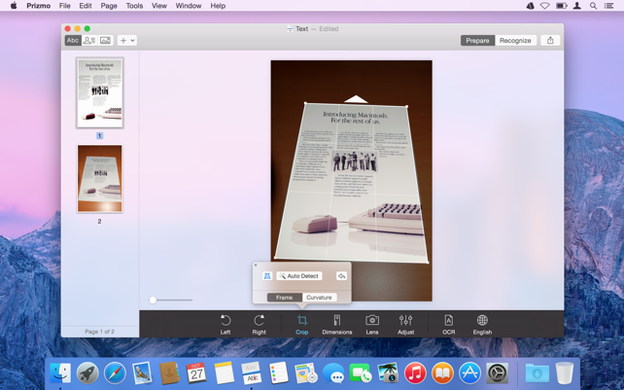
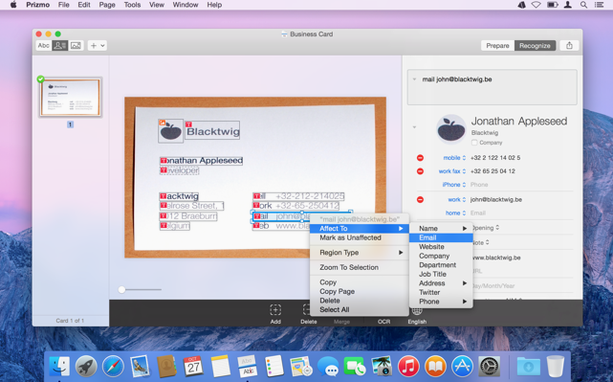
Yes. The image correction tools work on perspective and page curvature right inside the app. You flatten a warped page spread, crop the edges, and clean up shadows before the OCR engine even touches the text. That step alone saves a trip to a photo editor. Once the document is flat and sharp, recognition runs on-device across ten languages including Russian, German, and Czech. You then edit the recognized text directly in the side panel—correct a misread character, fix a column break, or adjust formatting without exporting to another program.
Can it read the text back to me?
It can, across 26 languages. The spoken voice is useful for proofing a long document or pulling quotes while you work on something else. Automation support ties the pieces together too; script the repetitive parts of a scan-to-text workflow and let Prizmo Pro run hands-free. Files sync over iCloud, so a document you capture on one Mac is ready for export on another.
Feed It a Sharp Capture or Expect Garbage Text
Most early frustration comes from feeding the app a bad image and expecting OCR to sort it out. Recognition is only as good as the capture, so a blurry phone photo of a wrinkled receipt will produce garbage text no matter how many languages you enable. Flatten and crop first, then let the engine work.
- Skipping the cleanup pass — shadows, page curl, and skew all hurt accuracy. Run perspective correction before OCR, not after.
- Selecting every language at once — recognition slows down and error rates climb. Pick the one or two languages actually on the page.
- Exporting before reviewing the text panel — a quick pass over flagged characters takes a minute and saves a messy DOCX later.
- Ignoring the region selector — table columns and multi-column layouts need manual zones or the output order scrambles.
Handoff a Scan from One Mac to Another
The app rewards a little exploration. Handoff lets you start a scan on one Mac and pick it up on another without airdropping files around. Cloud integrations with Dropbox, Evernote, and Google Drive mean an export can land straight in a shared folder. And for anyone who runs the same routine weekly, script-based automation removes the clicking entirely.
- Drag a scan onto the dock icon — the document opens and starts preprocessing without launching the full window first.
- Edit text in the side panel with keyboard shortcuts — tab through flagged words instead of mousing to each one.
- Set a default export preset — pick searchable PDF with a standard naming pattern once, then every export follows it.
- Use the reading voice for proofing — hearing the recognized text catches errors your eyes skip over.
- macOS 10.13 or later
- Apple Silicon or Intel Mac
Comments 0
Sign in to leave a comment.Sign inCreate an account
No comments yet. If a step is still there after you install it, say so.
More in Mac Apps
All in Mac Apps Principle
Turns static Figma or Sketch mockups into clickable, scrollable prototypes.
22 steps saved
 ProPresenter
Runs multi-layer slides, video, and audio for venues where the show cannot stop.
15 steps saved
 Updated
Presentify
Annotates and highlights anything on your screen, regardless of the app underneath.
23 steps saved
 PyCharm
Catches type errors and syntax problems before you run the script.
19 steps saved
 Updated
PowerPhotos
Splits one massive Photos library into smaller, manageable ones.
22 steps saved
 Updated
QLab
Puts every show cue under one roof so the operator sees a single timeline.
16 steps saved
 QuarkXPress
Sets automatic layout rules that respond as you type.
22 steps saved
 PopClip
Surfaces a relevant action the moment you select text or a link.