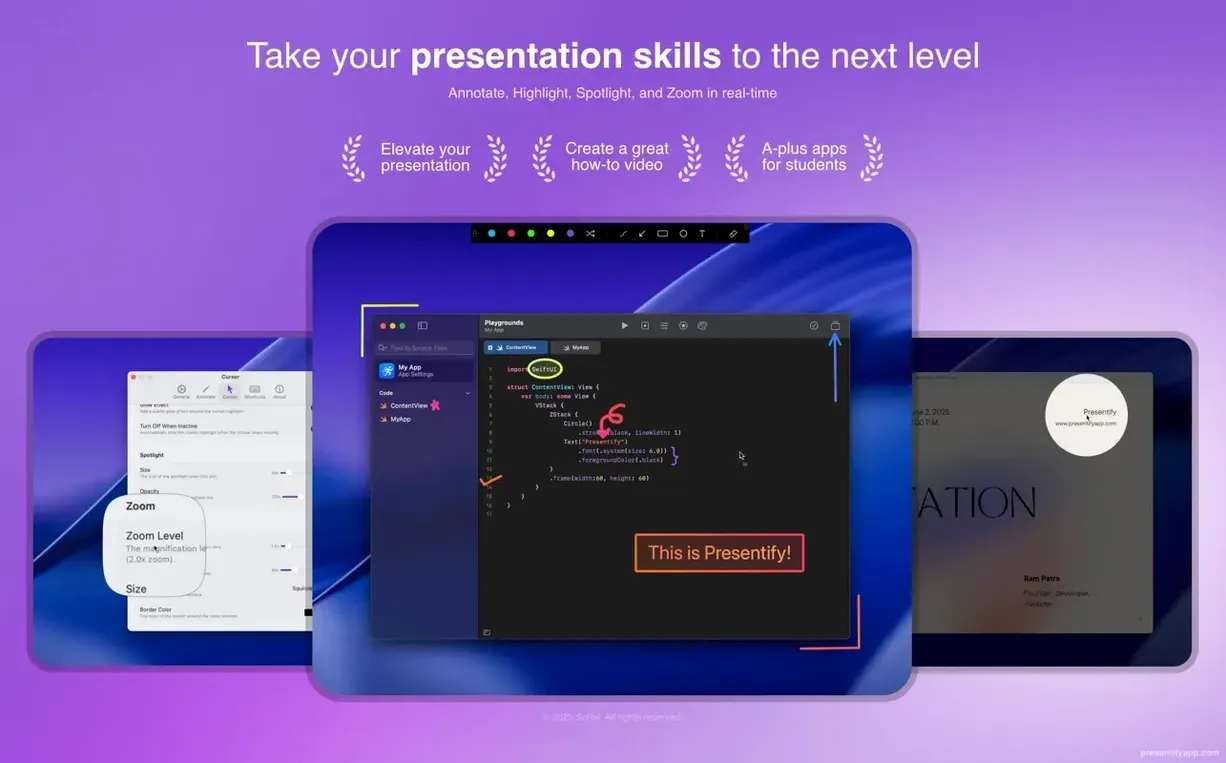
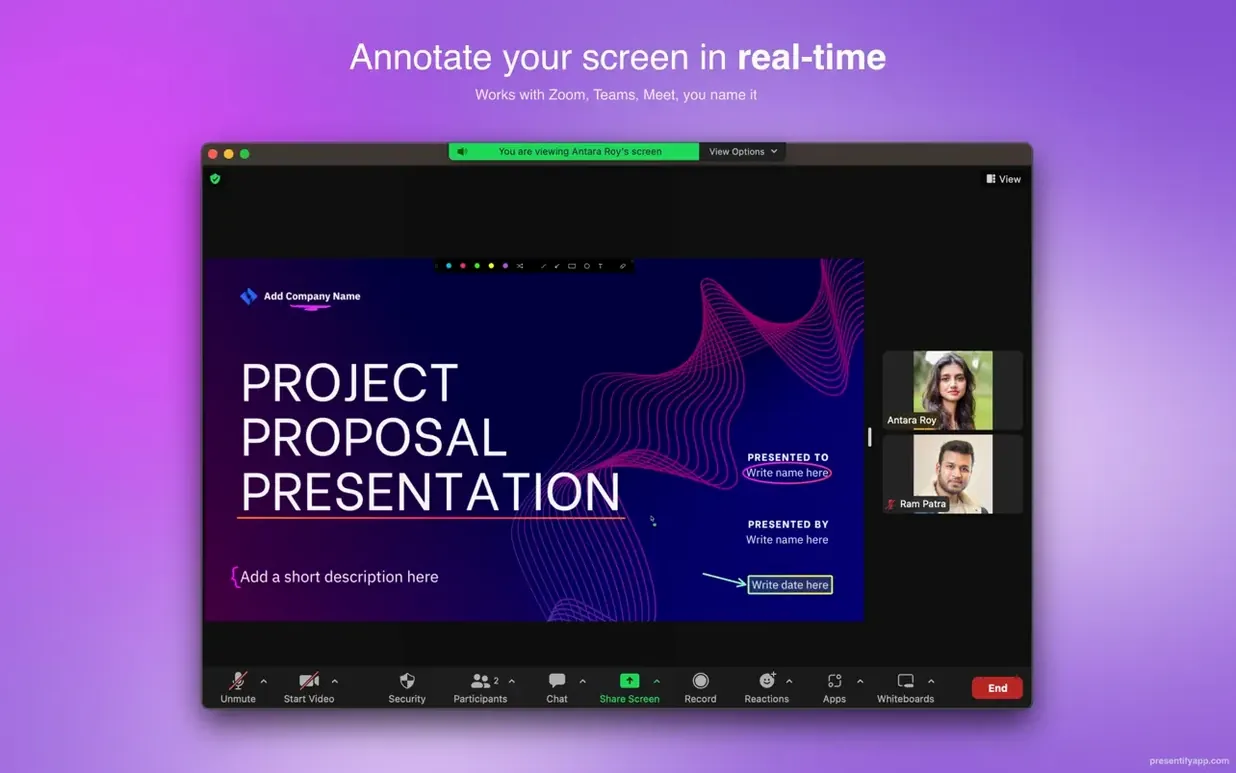
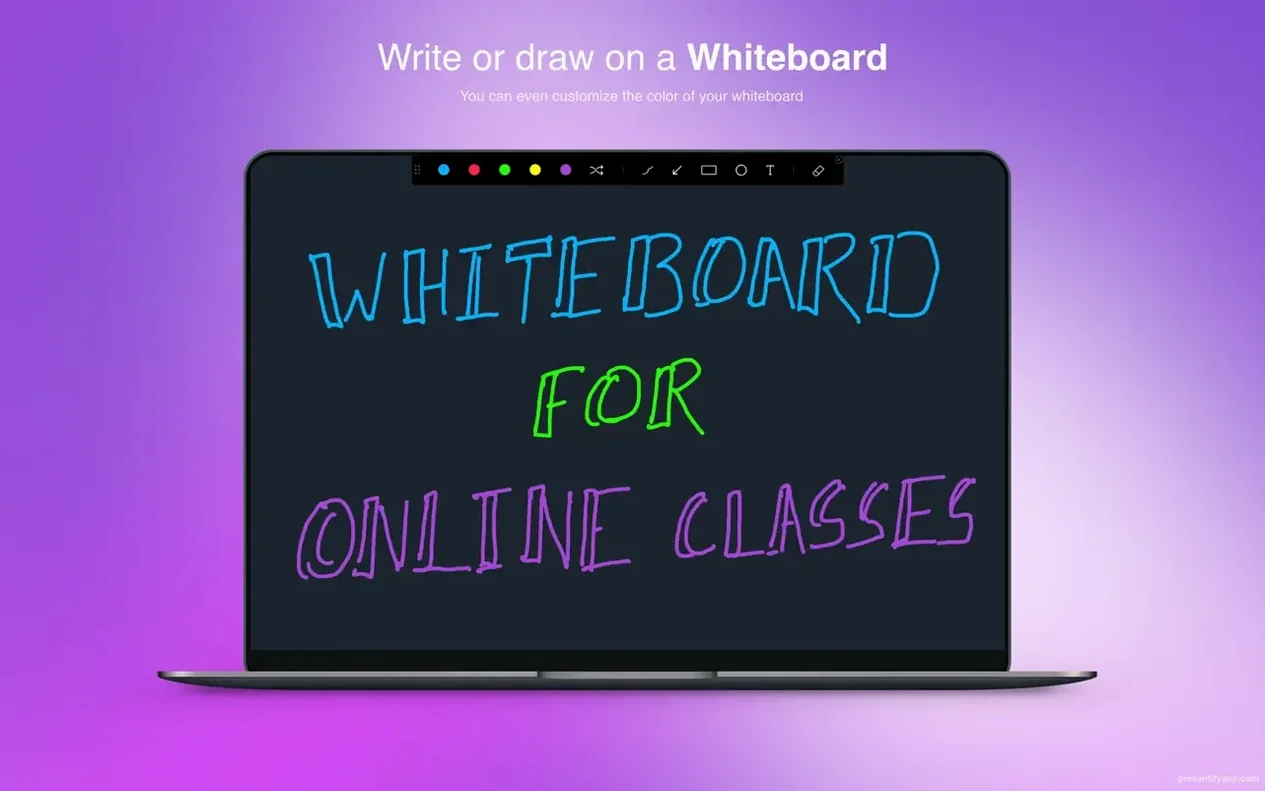
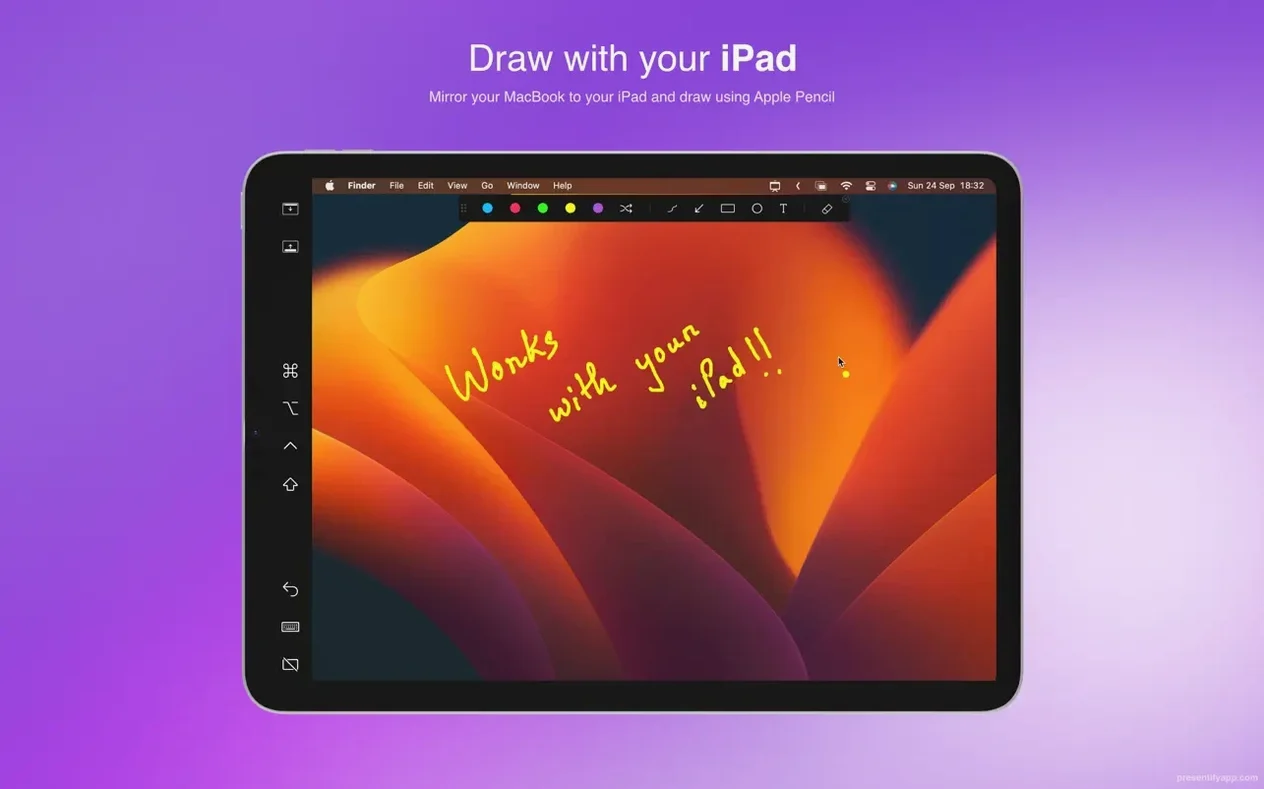
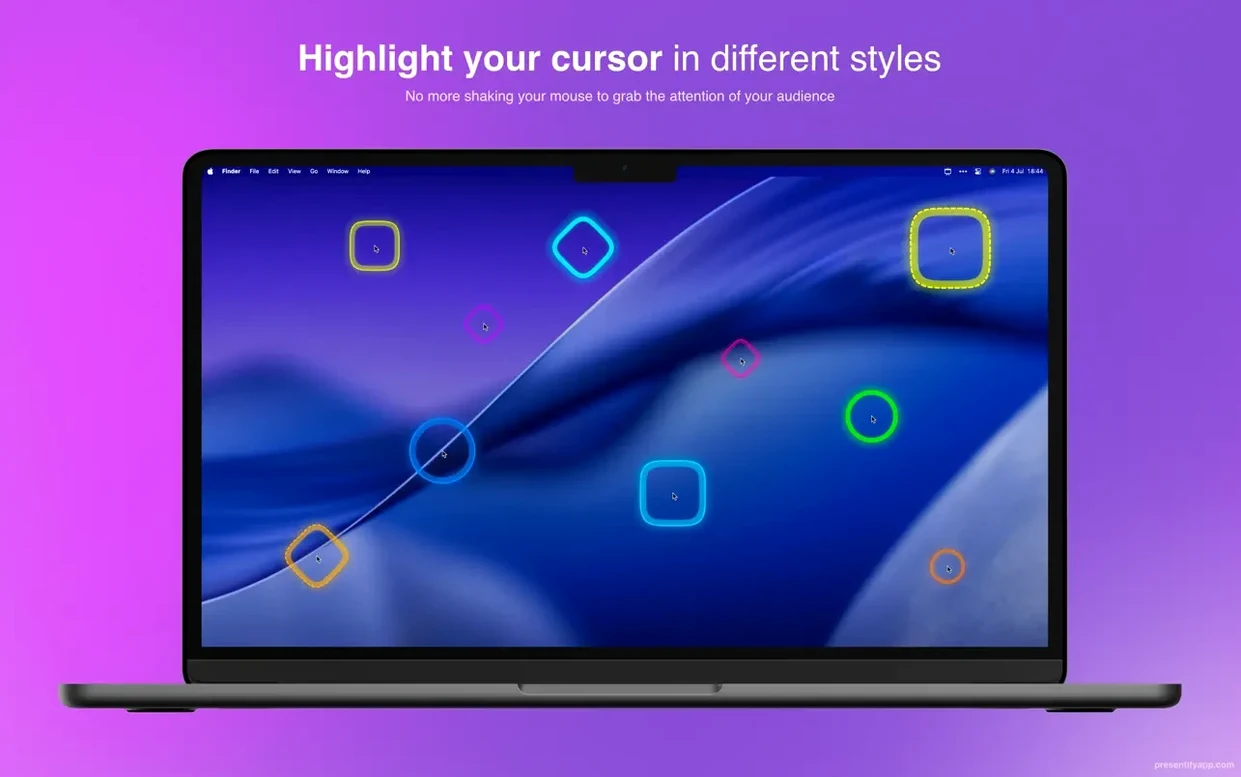
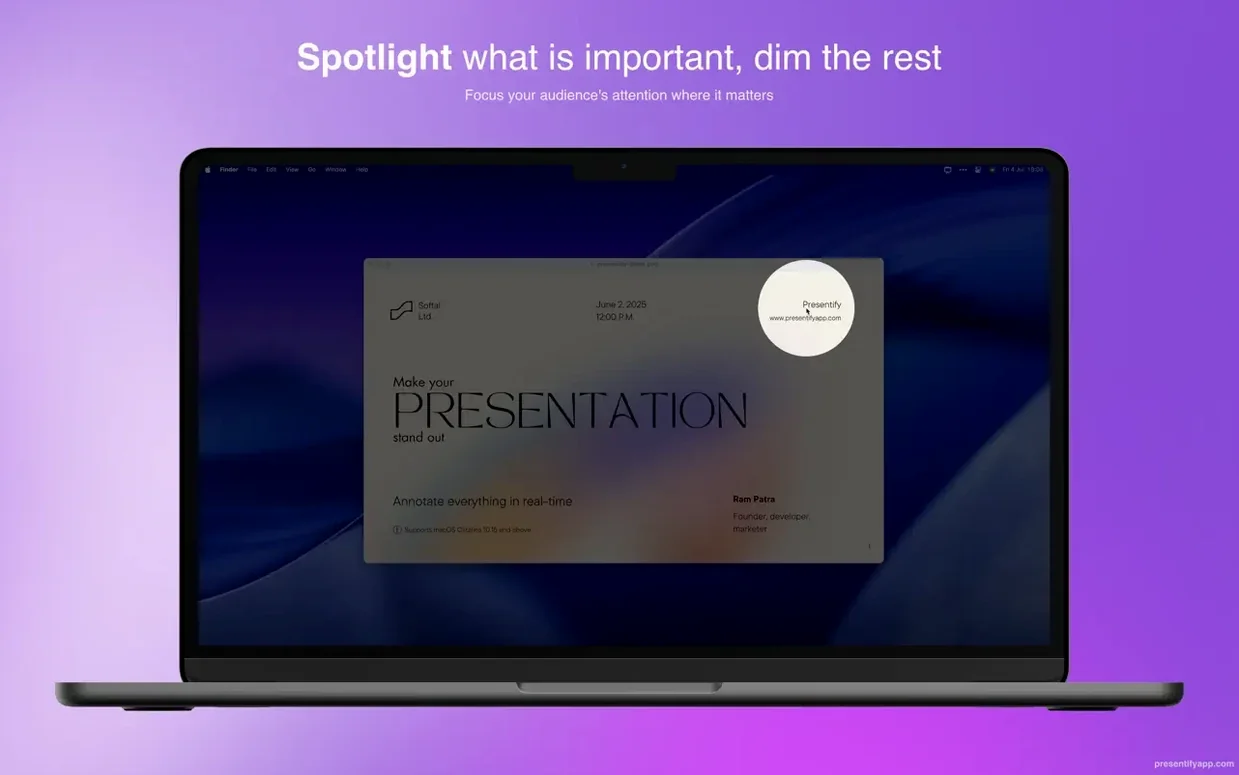
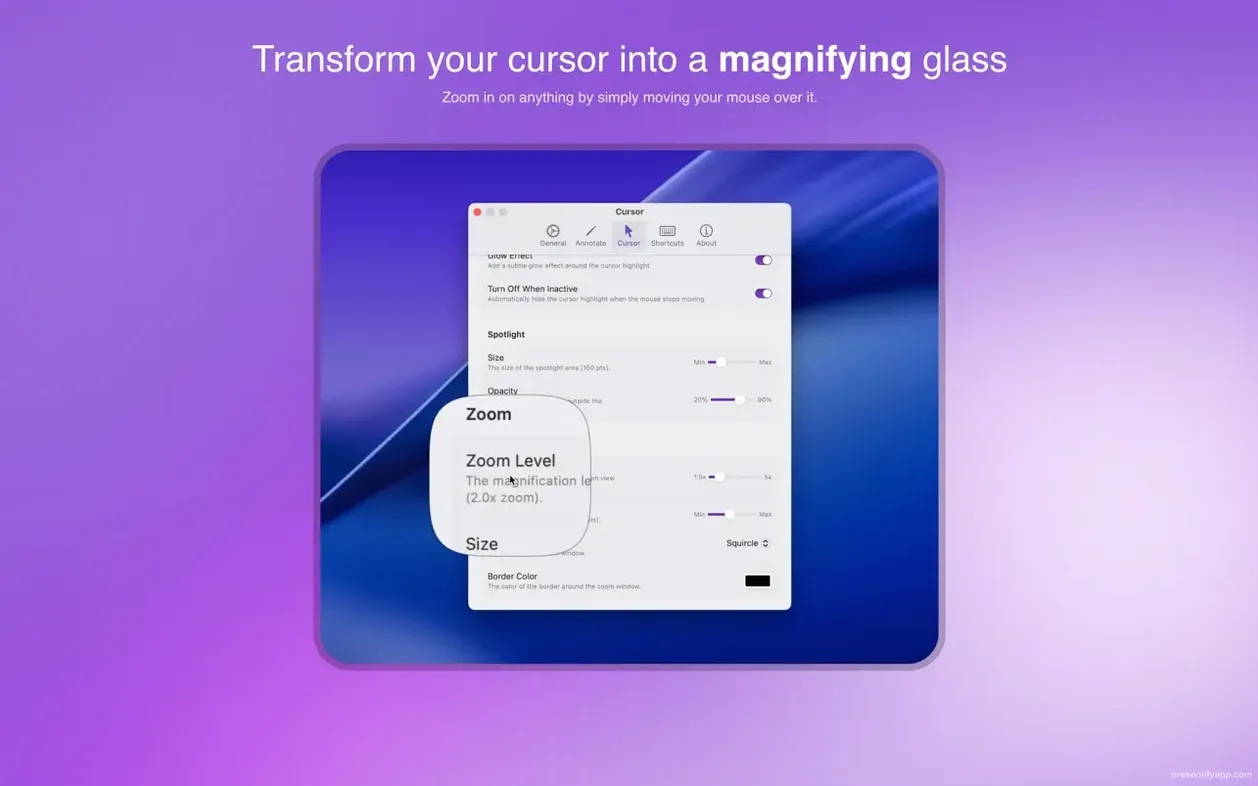
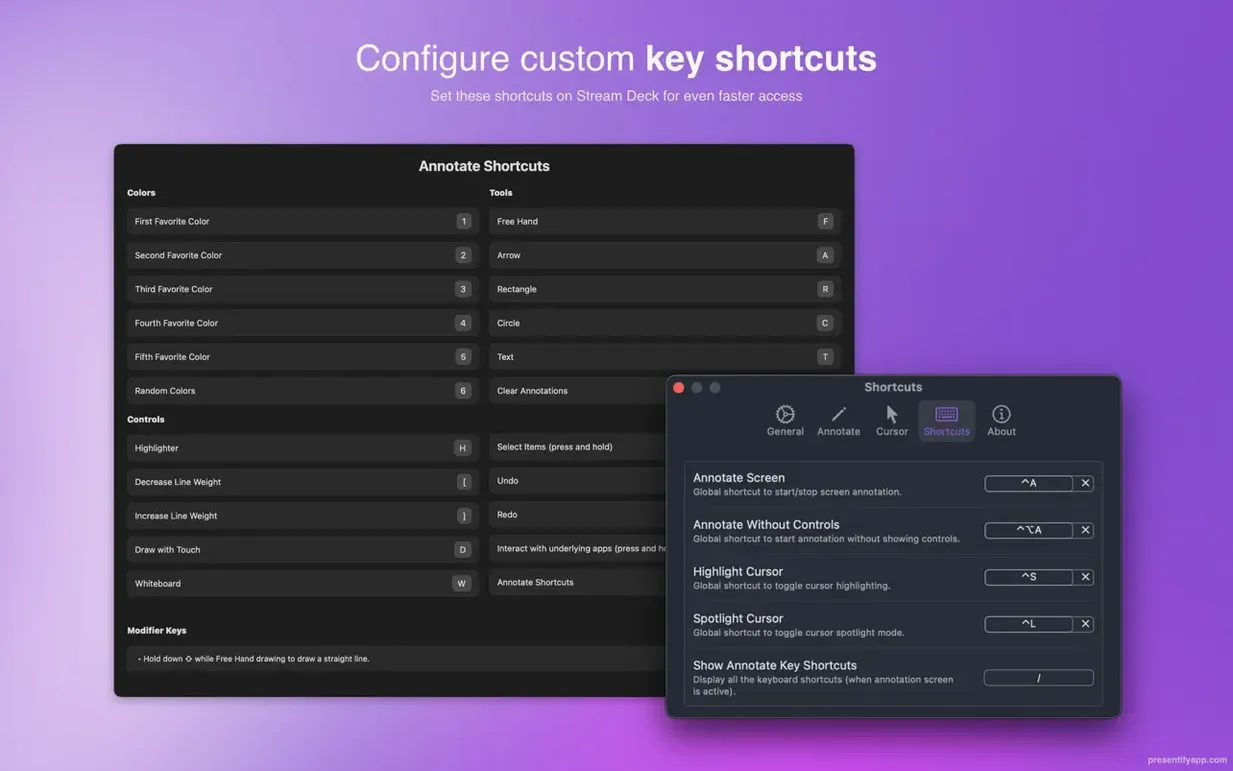
Keynote has built-in drawing tools. Zoom has a whiteboard. Presentify sits one layer above both of them. It gives you annotation, cursor highlighting, and zoom controls that work over anything on your screen — slides, videos, PDFs, code, or a live demo.
Mark Up Keynote Slides Mid-Presentation
- Presenters who mark up Keynote slides without switching tools.
- Teachers running Zoom, Google Meet, or Skype sessions.
- Tutorial creators who need cursor highlights and spotlight effects.
- Wacom and XP-Pen tablet users who want text and shape annotations.
macOS 13 Wall and Silent Updates
- Requires macOS 13 Ventura or newer.
- First launch needs a restart from Activity Monitor.
- No update notes for version 8.1.3.
Annotations Stay Fluid Across Full-Screen Keynote
Version 8.1.3 ships without release notes, so the practical differences show up in the details. Annotation stays responsive during full-screen Keynote presentations. The menu bar icon keeps its controls within reach when other apps take over the display. No new settings screens, no renamed tools — the workflow remains the same as earlier 8.x builds.
What matters day to day is stability. Holding Fn to interact with apps under an active annotation layer still works in the default mode. Automatic erasing clears ink after a set interval without interrupting a live demo. Handwriting from a Wacom tablet registers with the same latency as mouse strokes, which keeps the tool usable for long teaching sessions.
Random Gradient Fills for Code Markup
- Gradient colours — turn on random gradient fills and each stroke gets a different colour blend. Useful when marking up code so consecutive highlights stay visually distinct.
- Text highlighting without covering the text — the highlighter sits behind the words instead of painting over them. Readability stays intact, even on dense slides.
- Automatic erasing — set annotations to fade after a few seconds. Good for quick emphasis during a live walkthrough when you do not want ink piling up.
- Spotlight mode — dim everything except a circle around the cursor. A quiet way to redirect attention without drawing anything.
- Zoom tools — magnify a region without leaving the current app. Handy for small interface details in a Google Meet demo.
Fn Key Unlocks the Frozen Annotation Layer
Most early frustration comes from three habits.
- Forgetting the Fn key. The default mode blocks clicks through the annotation layer. New users assume the app is frozen. Hold
Fnand the click passes to the app underneath. - Skipping the first-launch restart. After copying the app to Applications, the first open sometimes leaves the process hanging. Quit it in Activity Monitor, open it again, and it settles into the menu bar.
- Drawing without a tablet. Text annotation with a mouse is possible but clumsy. Presentify works best with an XP-Pen or Wacom tablet when you need readable labels and shapes.
Presentify for Mac free download pages often mention the menu bar setup, but the app earns its keep in full-screen mode where other annotation tools disappear.
- macOS 13 or later
- Apple Silicon or Intel 64-bit
Comments 0
Sign in to leave a comment.Sign inCreate an account
No comments yet. If a step is still there after you install it, say so.
More in Mac Apps
All in Mac Apps Updated
PowerPhotos
Splits one massive Photos library into smaller, manageable ones.
17 steps saved
 Principle
Turns static Figma or Sketch mockups into clickable, scrollable prototypes.
13 steps saved
 Prizmo Pro
Captures, cleans, and recognizes text in scans with curved-page correction.
22 steps saved
 ProPresenter
Runs multi-layer slides, video, and audio for venues where the show cannot stop.
22 steps saved
 PopClip
Surfaces a relevant action the moment you select text or a link.
23 steps saved
 PyCharm
Catches type errors and syntax problems before you run the script.
13 steps saved
 Plugin Alliance Brainworx bx_mastering studio
Shapes a finished master from a stereo mix with simple, focused controls.
22 steps saved
 Updated
QLab
Puts every show cue under one roof so the operator sees a single timeline.