
One 200 GB Photos library is a problem; three smaller ones are a solution.
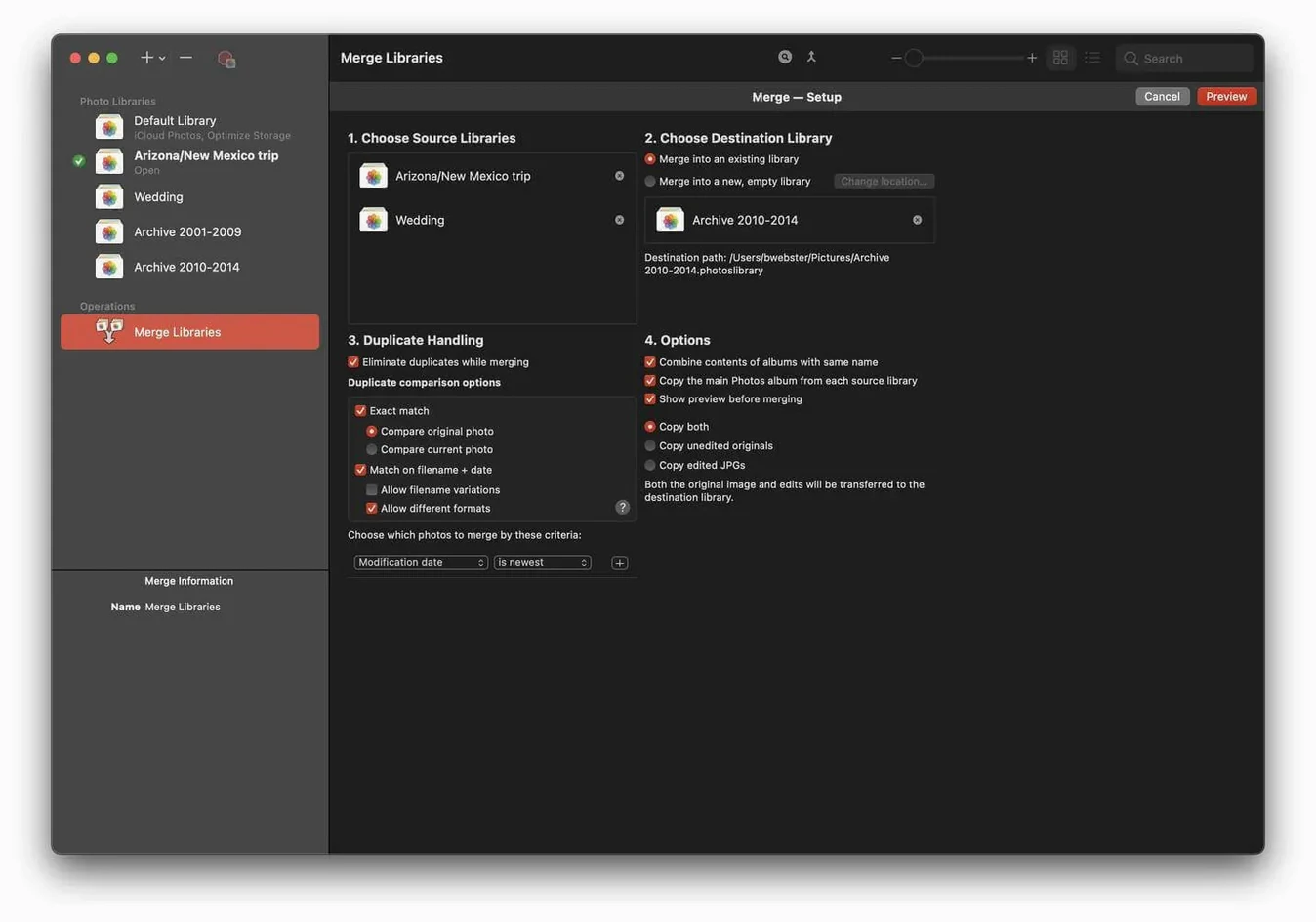
Library splitting — move photos into separate libraries by date, album, or manual selection instead of keeping everything in one massive file.
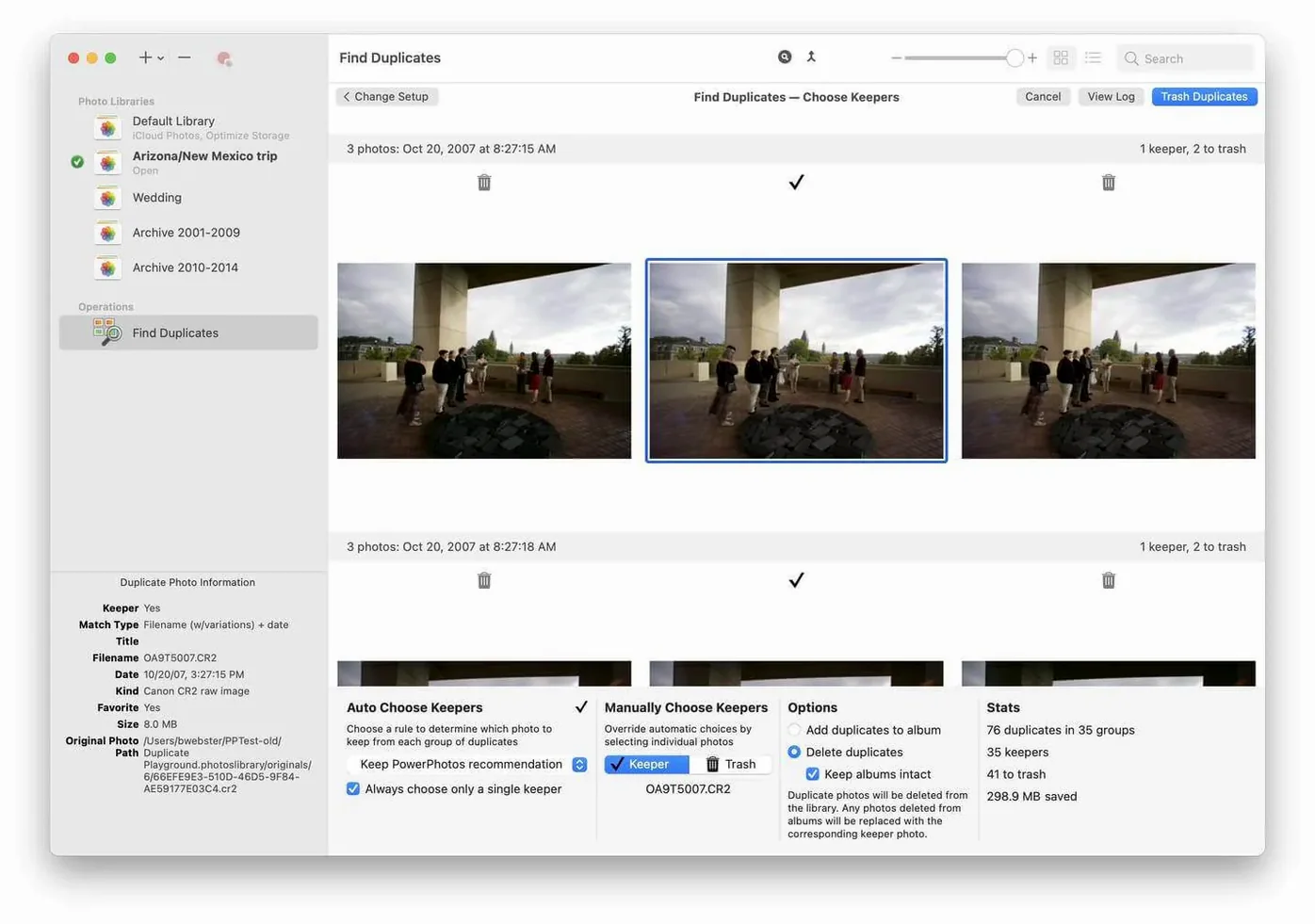
Duplicate detection — scan libraries side by side and flag exact copies so you can delete them without opening each library.
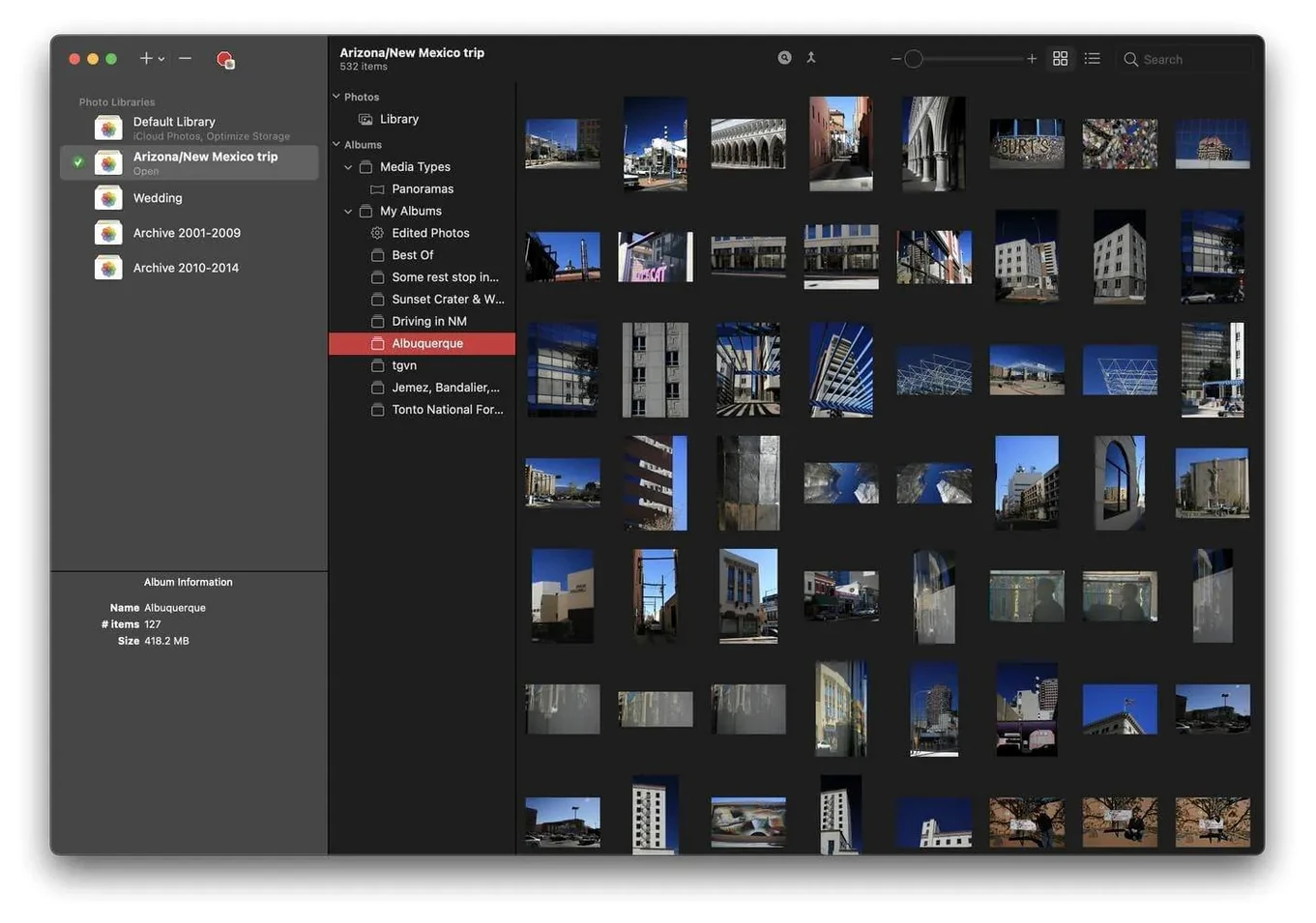
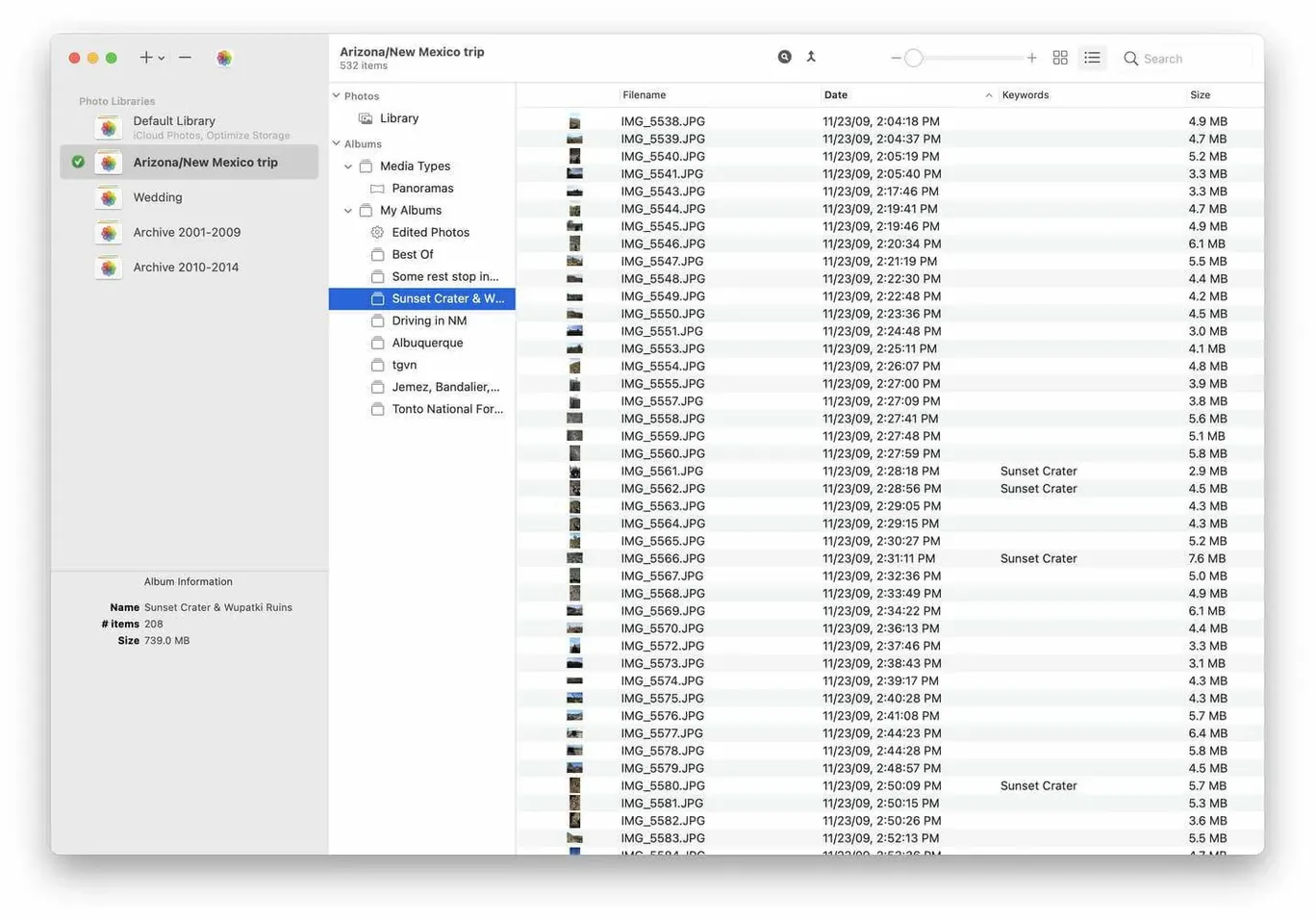
In-app browsing — view photos inside PowerPhotos without launching Photos or switching libraries.
Library switching — jump between libraries from a single list rather than digging through Finder.
iCloud storage control — keep only the libraries you sync online and store the rest locally to reduce your iCloud footprint.
How PowerPhotos fits with other tools
PowerPhotos works alongside the built-in Photos app, not instead of it. Keep Photos as your editor and sharing hub; use PowerPhotos when you need to move, compare, or search across libraries. The two apps share the same library format, so anything you split or clean in PowerPhotos opens normally in Photos afterward.
macOS features stay intact. Spotlight finds libraries on your drive as usual, Time Machine backs them up on its schedule, and iCloud sync applies only to the library Photos has open. PowerPhotos simply gives you a second window into the same files.
If you keep libraries on an external drive, eject the drive from Finder before unplugging. PowerPhotos holds no background processes, so there is nothing to quit first.
Let the Scanner Map Your Library
- Let it scan. Open your main library once. PowerPhotos builds its index quickly, but a 200 GB library needs a minute or two.
- Start with a duplicate pass. Run duplicate detection on your largest library before splitting anything. Removing copies first means fewer files to move later.
- Create one test library. Split off a small album — 50 photos is enough — to see how the move works before reorganizing thousands.
- Check the library list. Add any libraries you keep on external drives so they appear in the switcher.
After the first split, open the new library in Photos to confirm everything landed where you expected. Then switch back from the PowerPhotos library list and continue.
Find by Dragging a Photo into Search
- Drag a photo into the search field — PowerPhotos finds visually similar images across all indexed libraries, which is faster than browsing when you remember what a shot looks like but not where it lives.
- Hold Option while deleting — PowerPhotos moves duplicates to the Photos trash instead of removing them immediately, giving you a safety net for a few days.
- Use the keyboard in duplicate view — arrow keys move between pairs, and the spacebar toggles a larger preview without touching the mouse.
- Name libraries clearly — the switcher shows only the filename, so “Family 2019–2023” beats “Library 4” when you are scanning the list.
- Check library sizes in the list — the size column makes it obvious which library is pulling iCloud storage, so you know exactly what to move offline.
These details are easy to miss on a first pass, but they save real time once you are managing three or four libraries regularly.
Version 3.4.9 fix lands with a targeted stability update. No new features this round — just a tighter, cleaner build.
- macOS 14 (Sonoma) or later
- Apple Silicon or Intel 64-bit processor
Questions I get before install
Does PowerPhotos work on my Mac?
It requires macOS 14 or later and runs on both Apple Silicon and Intel 64-bit Macs.
Comments 0
Sign in to leave a comment.Sign inCreate an account
No comments yet. If a step is still there after you install it, say so.
More in Mac Apps
All in Mac Apps Updated
Presentify
Annotates and highlights anything on your screen, regardless of the app underneath.
17 steps saved
 Principle
Turns static Figma or Sketch mockups into clickable, scrollable prototypes.
13 steps saved
 Prizmo Pro
Captures, cleans, and recognizes text in scans with curved-page correction.
22 steps saved
 PopClip
Surfaces a relevant action the moment you select text or a link.
22 steps saved
 ProPresenter
Runs multi-layer slides, video, and audio for venues where the show cannot stop.
13 steps saved
 Plugin Alliance Brainworx bx_mastering studio
Shapes a finished master from a stereo mix with simple, focused controls.
23 steps saved
 PyCharm
Catches type errors and syntax problems before you run the script.
20 steps saved
 PlistEdit Pro
Edits property lists and JSON in a structured, searchable editor.