
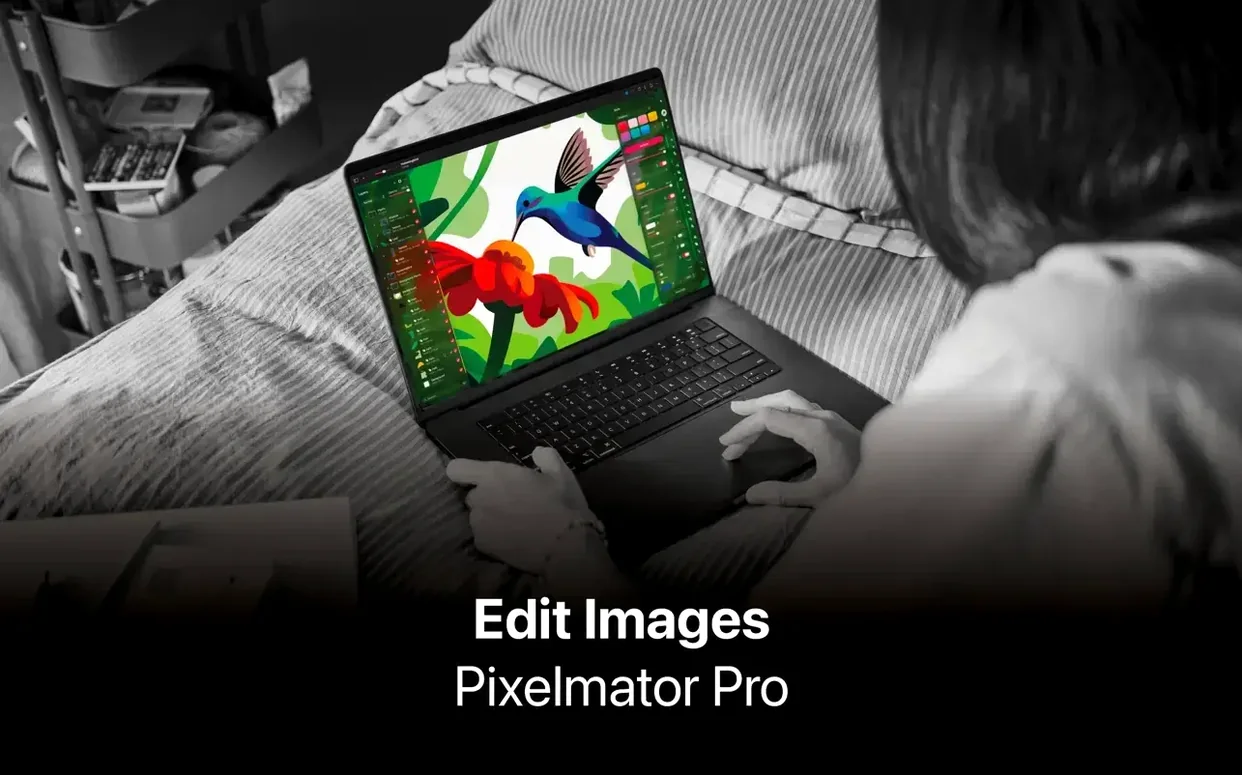
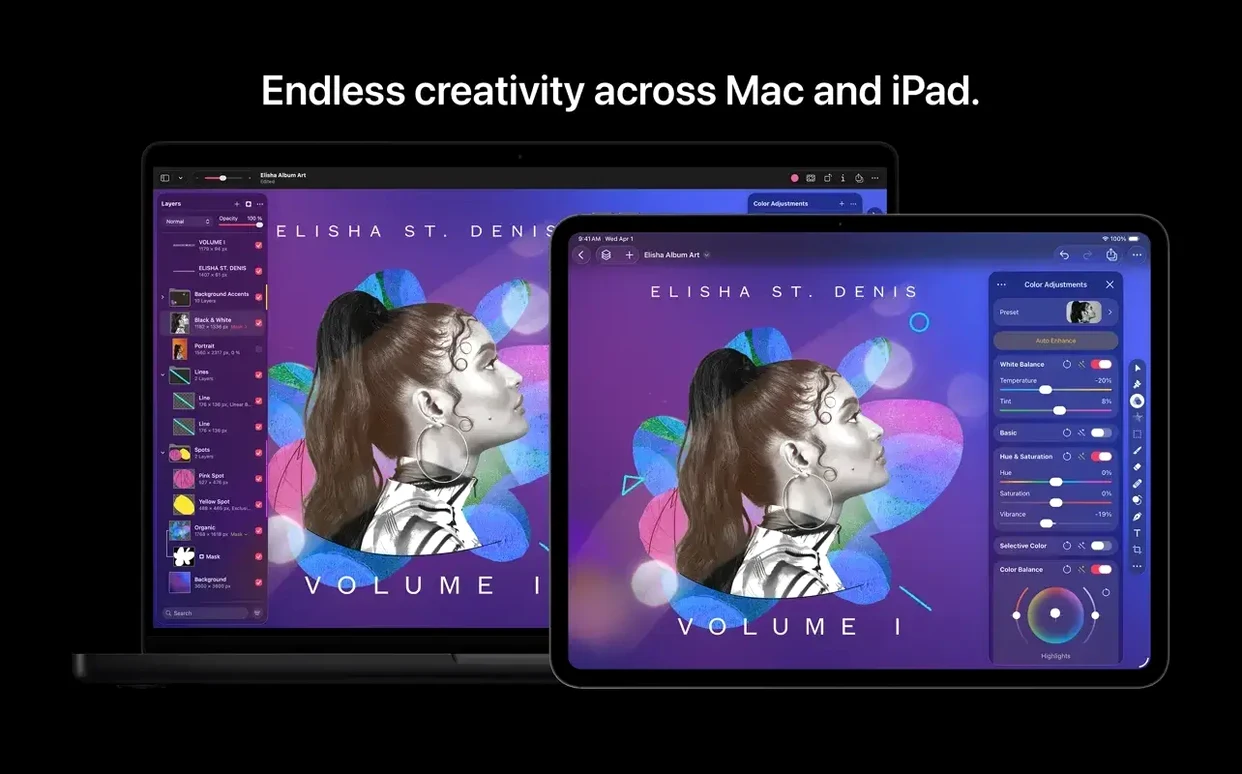
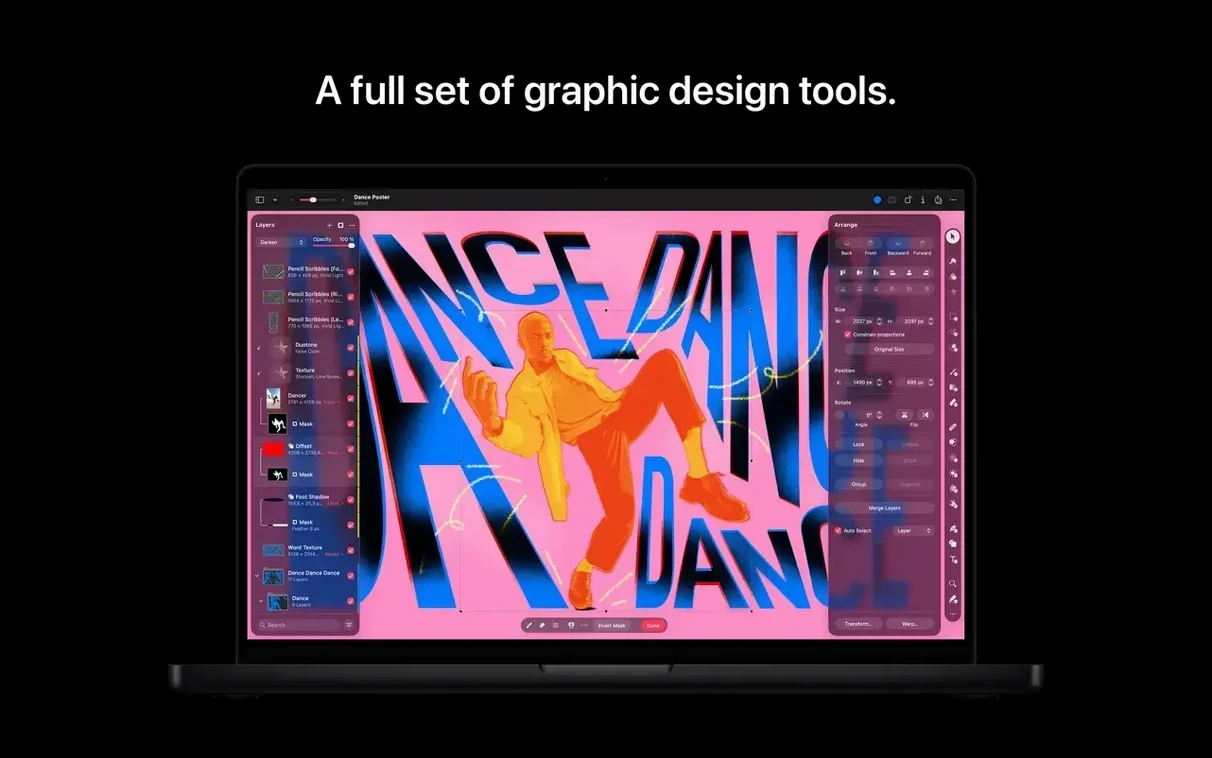
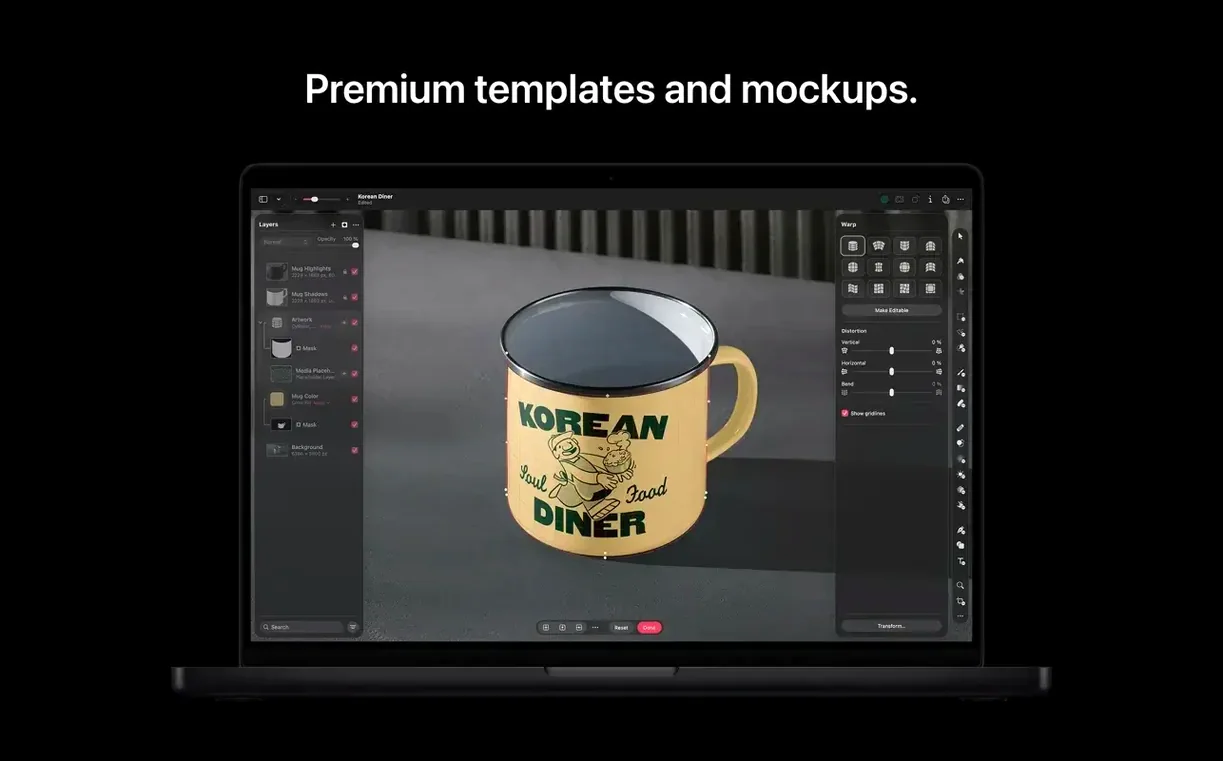
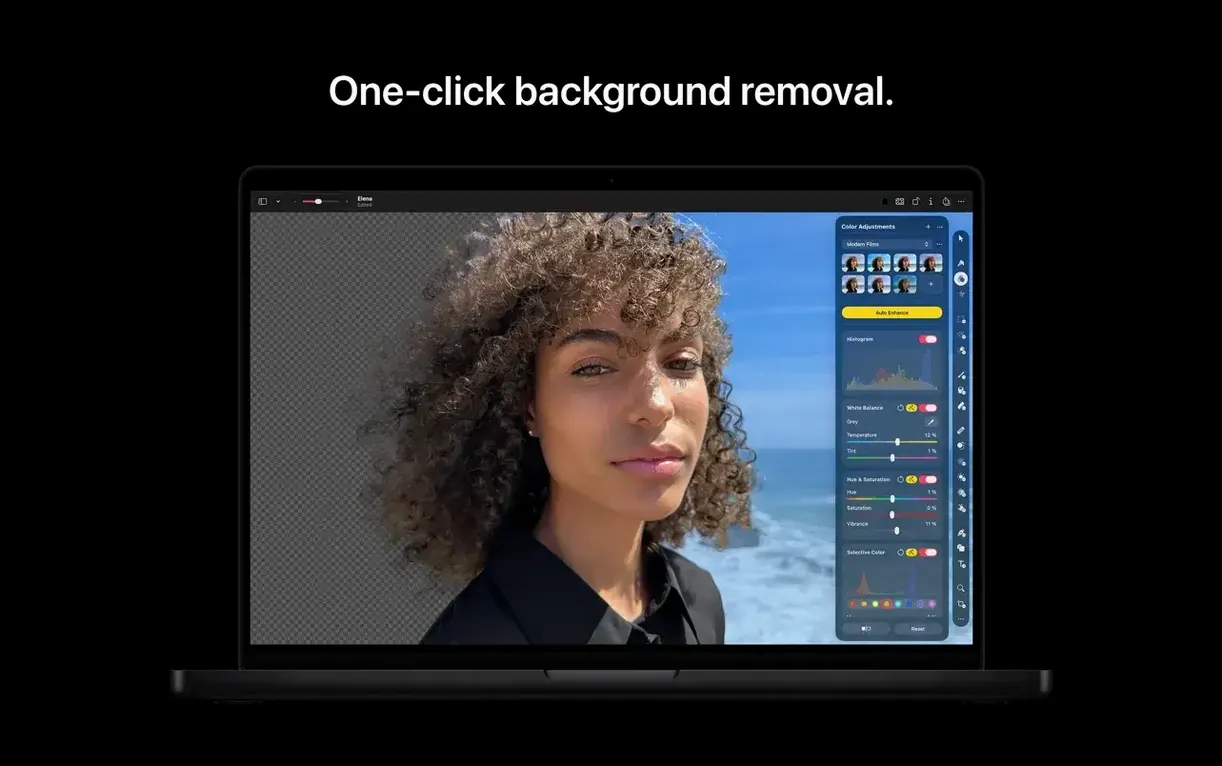
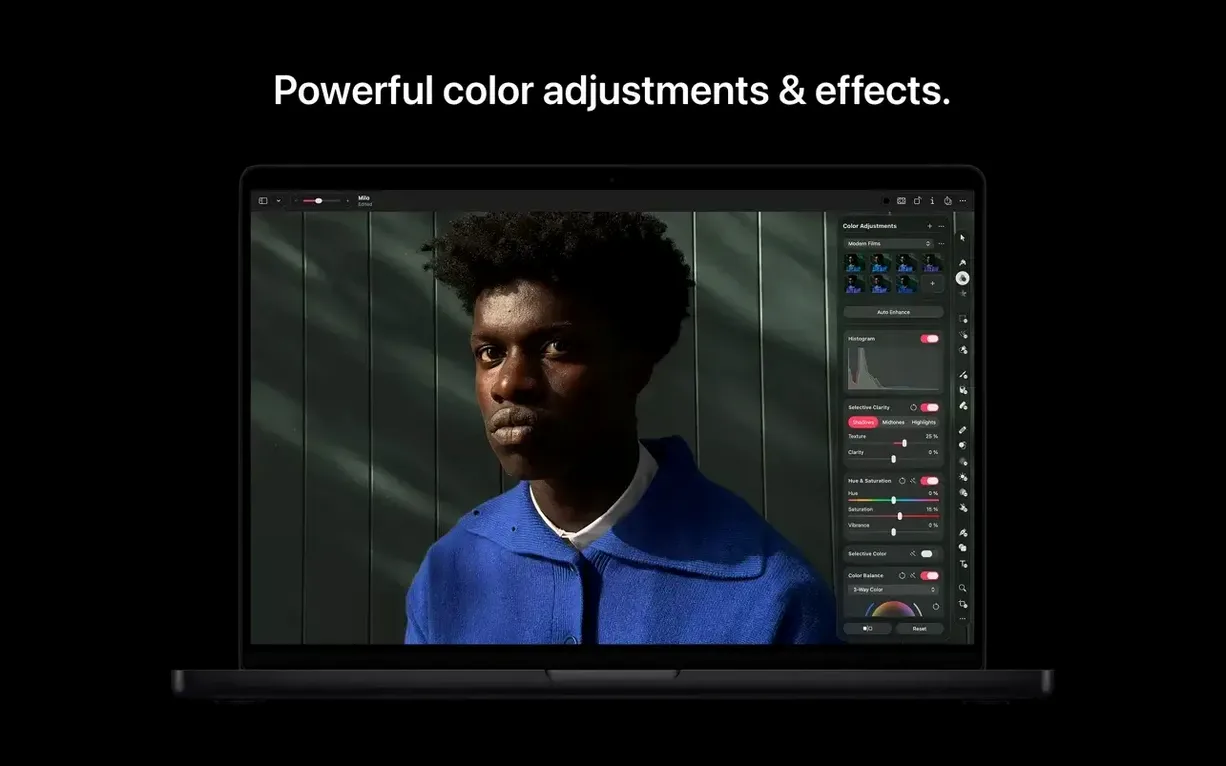
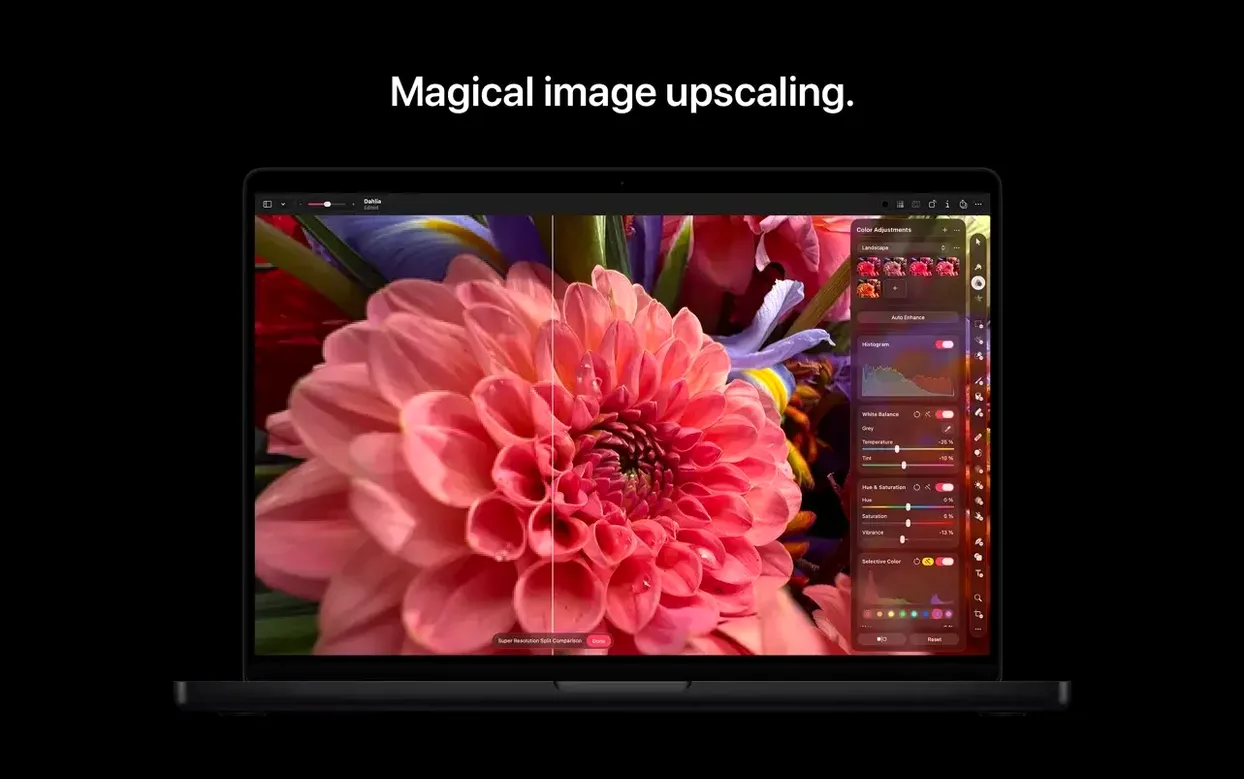
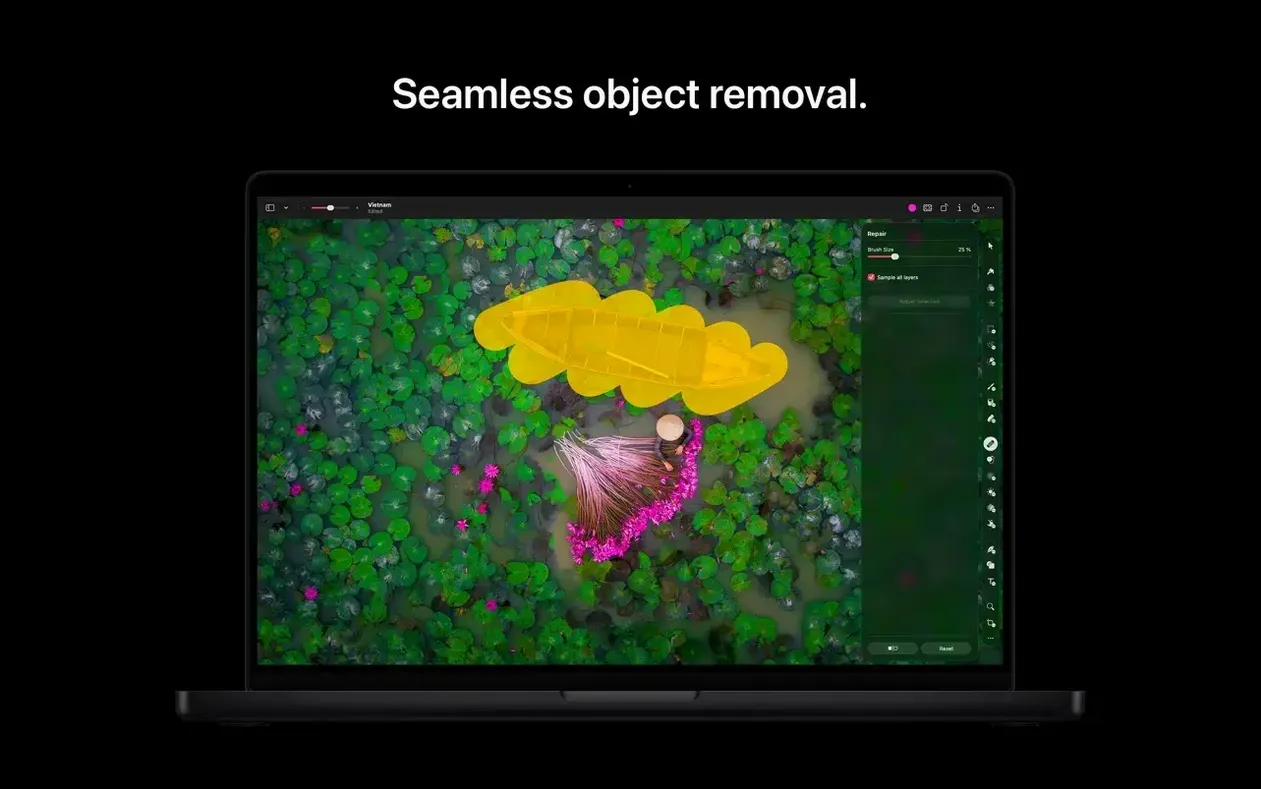
Pixelmator Pro is a Mac-native image editor built for photo enhancement, compositing, drawing, and vector work. If you have just completed your Pixelmator Pro download, start with a handful of core actions to understand how the app fits together.
Four things to try first
- Edit a RAW file. Open a RAW photo directly. Adjust exposure and colour without converting it first.
- Place and edit an SVG. Drag in a vector file. Resize it, change its fill, and edit individual points.
- Use a colour adjustment layer. Apply a non-destructive edit so you can tweak or remove it later without touching the original pixels.
- Combine photos with a mask. Layer two images, add a mask, and paint with black to reveal or hide parts of the top layer.
Raster, Vector, and Batch Processing in One Format List
The app supports common raster formats—JPEG, PNG, TIFF, PSD, HEIF, and more—alongside vector files like SVG and PDF. Batch processing is available through Automator actions for resizing or format conversion across multiple images at once.
Round-Trip Editing That Leaves Photos.app in Place
Pixelmator Pro fits into a Mac workflow without forcing you to reorganize how you already work. It reads and writes the formats other tools expect, and it respects the system features you already rely on.
- Photos. Launch Pixelmator Pro from inside Photos, make your edits, and save the result back to the library as a non-destructive edit. The original stays intact.
- Mail and AirDrop. Send a finished image from the share sheet without exporting to the Desktop first.
- Automator. Batch actions for resizing, converting, or applying adjustments to folders of images. Set up a workflow once and reuse it.
- PSD files. Open layered Photoshop documents with masks, text, and adjustment layers preserved. Round-trip them when you collaborate with someone who still works in Photoshop.
- SVG files. Bring vector assets in from other design tools, edit them, and export them back out.
The single-window layout keeps the editing surface clean. You spend less time hunting for palettes and more time making changes. On Apple silicon, everything—from RAW decode to machine-learning adjustments—runs natively.
Version 4.3 adds the Content Hub, which places stock photos, shapes, and illustrations a click away inside the app. When you need a supporting visual for a layout, you can search the hub, drop an asset onto the canvas, and keep working without leaving Pixelmator Pro.
Cooling a Warm RAW Portrait with Non-Destructive Layers
You open a RAW portrait shot taken late afternoon. The white balance is too warm. You start with a Colour Adjustment layer, pull the temperature slider left, and add a touch of exposure. The changes stack above the base layer, so nothing is burned into the file yet.
Next you want to remove a chair that pokes into the frame from the right edge. You click the Repair tool, brush over the chair, and the area fills with a plausible extension of the wall behind it. The retouch looks clean at full zoom.
The photo now needs a headline. You switch to the Type tool, click on the canvas, and add a line of text. You select a font from your installed library, then open the Content Hub to find a small geometric shape that works as a visual counterweight. You drag it in, align it with the text block, and adjust its fill colour to match the image palette.
You need a square crop for a profile thumbnail. You choose the crop ratio, reposition the frame, and apply it. The original pixels remain intact because the crop is non-destructive.
Finally, you export a JPEG for the web and use the share sheet to send a copy to Photos. The whole session takes about twenty minutes, and you never opened another application.
When an Opened PSD Text Layer Breaks
Every editor has friction points. These are the ones people run into most often with Pixelmator Pro, along with what to do about them.
A PSD opens but a text layer looks different. The font may not be installed on your Mac. Install the matching font and reopen the file. If the font is unavailable, the app substitutes the closest match it can find.
Edits feel slow on large RAW files. Close other GPU-heavy applications. If you work on a Mac with Apple silicon, Pixelmator Pro uses the Neural Engine and GPU for decode and machine-learning tasks—make sure you are on the current version to get full hardware support.
A batch workflow through Automator stops halfway. Check the source folder for unsupported files. One bad file can interrupt the whole workflow. Run the action on a small test folder first.
An SVG imports but some elements are missing. Pixelmator Pro handles standard SVG elements well, but complex filters or raster effects embedded in an SVG may not translate. Simplify the file in a dedicated vector editor before importing.
You cannot find a tool you used before. The single-window layout hides some tools behind contextual panels. Right-click or Control-click a layer to see available actions, or use the Tools menu to bring a palette back into view.
One App Covering RAW, Vectors, and Typography
Does it replace my current photo editor? For most photographers and designers, yes. It covers RAW development, retouching, compositing, masking, typography, and vector editing in one app. If your work depends on very specific plug-ins from another ecosystem, check whether those plug-ins have Pixelmator Pro equivalents first.
Will it open my existing files? PSD, TIFF, PNG, JPEG, HEIF, SVG, PDF, and several other formats are supported. Layered PSDs keep their structure. RAW files open directly.
How does it behave on an older Mac? Native support covers Apple silicon and Intel. The system requirements list macOS 26 or later. Performance on Intel machines is still solid for everyday edits, but features built around Core ML and the Neural Engine shine on Apple silicon.
Is it hard to learn? The toolset follows familiar image-editor conventions. If you have used any layer-based editor, the first session feels familiar. The single-window layout reduces the time spent arranging palettes.
Can I work without buying stock assets? Yes. The Content Hub is a convenience, not a requirement. You can import your own photos, vectors, and illustrations freely.
- New — Content Hub for inserting photos, graphics, shapes, and illustrations.
- New — Generate Image for creating pictures from text descriptions.
- New — Generate from Image for text-based edits and transformations.
- New — Custom vector shape generation from text descriptions.
- Improved — Support for Switch Control and VoiceOver.
- Requires a Mac with Apple silicon.
- Requires macOS 10.13 High Sierra or later.
Questions I get before install
Can Pixelmator Pro edit vector files?
Yes, it can open and edit SVG vector files directly, letting you adjust shapes and points.
Does it support non-destructive editing?
Indeed, colour adjustments and effects can be applied as separate layers, leaving your original image untouched.
What file types can I open?
It handles JPEG, TIFF, PNG, PSD, HEIF, SVG, PDF, GIF, BMP, TGA, and JPEG 2000 files.
Comments 0
Sign in to leave a comment.Sign inCreate an account
No comments yet. If a step is still there after you install it, say so.
More in Mac Apps
All in Mac Apps Updated
Pixea Plus
Views and edits images with masks, layers, and a full undo stack.
20 steps saved
 PlistEdit Pro
Edits property lists and JSON in a structured, searchable editor.
12 steps saved
 PhotoSweeper
Finds and removes duplicate and near-identical images across drives.
22 steps saved
 PhotoScape X Pro
Fixes, collages and turns batches of photos into GIFs in one app.
13 steps saved
 Plugin Alliance Brainworx bx_mastering studio
Shapes a finished master from a stereo mix with simple, focused controls.
23 steps saved
 Photomator
Edits photos with AI-powered adjustments and batch tools built for the Mac.
22 steps saved
 PopClip
Surfaces a relevant action the moment you select text or a link.
7 steps saved
 Photo Mechanic
Culls and tags photos straight from the memory card before import.