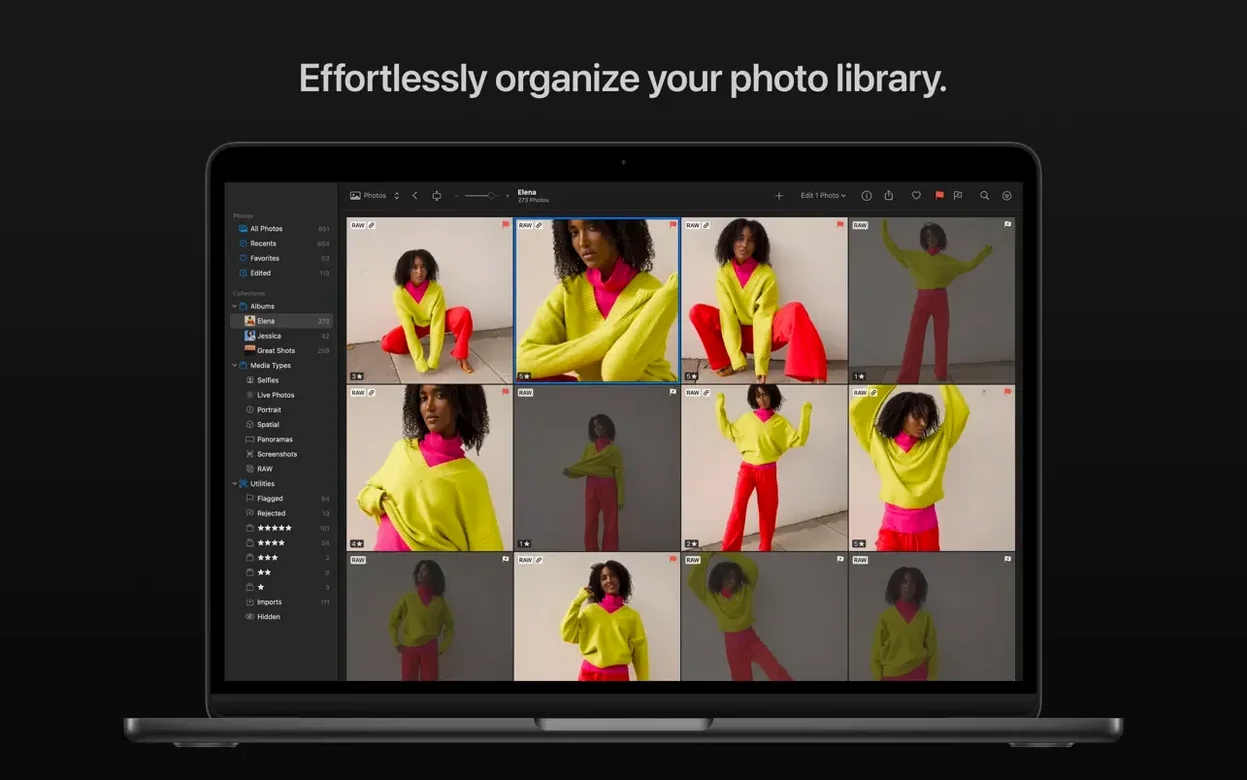
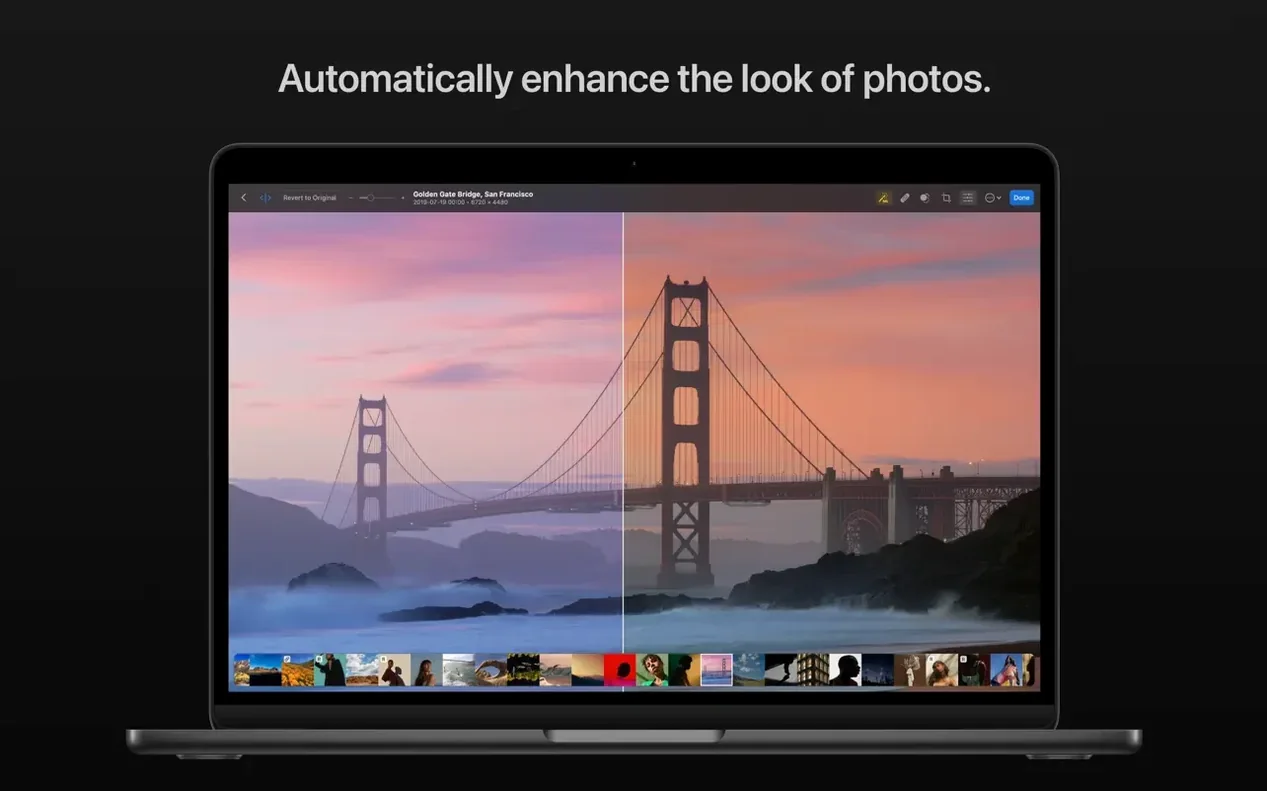
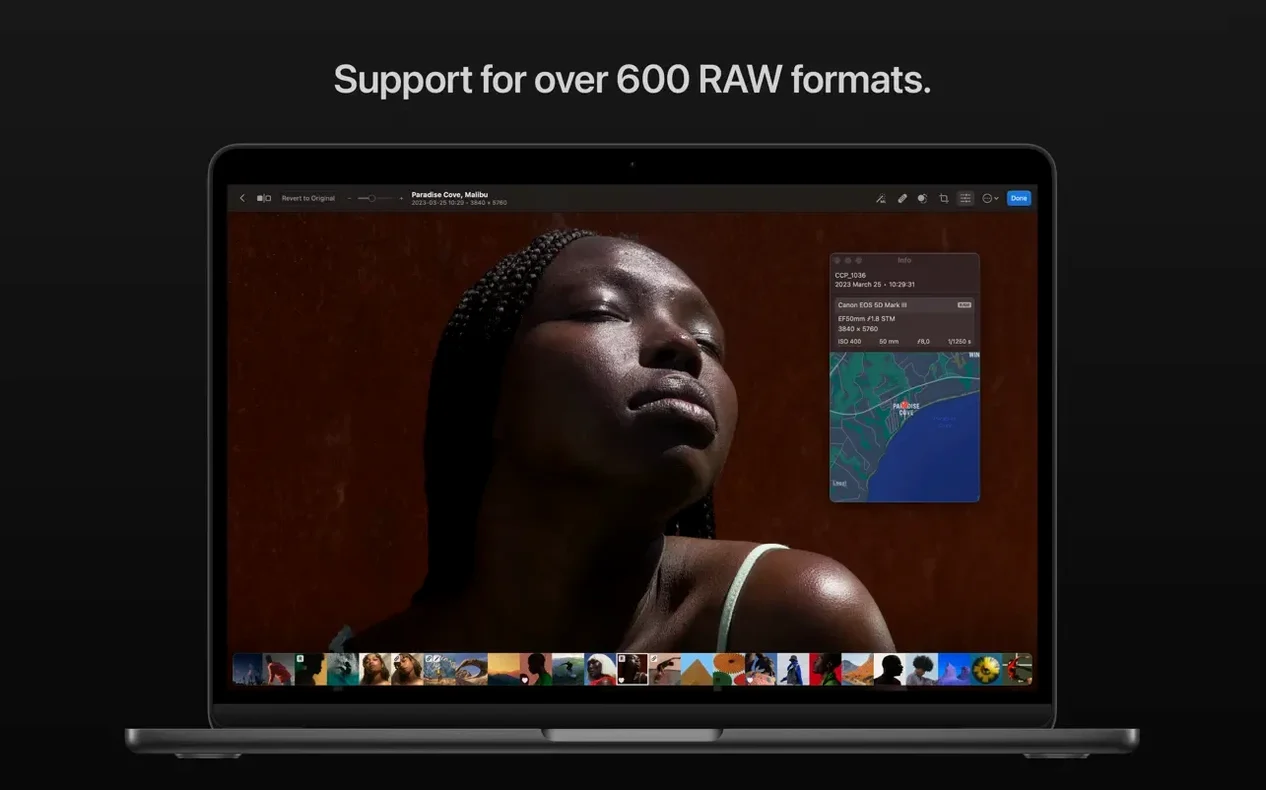
Photographers who want a clean, capable editor without a subscription-shaped headache reach for Photomator. It is built for the person who needs to fix a sky, match a palette across a dozen shots, or clean up sensor spots before a client sees them—quickly, on a Mac.
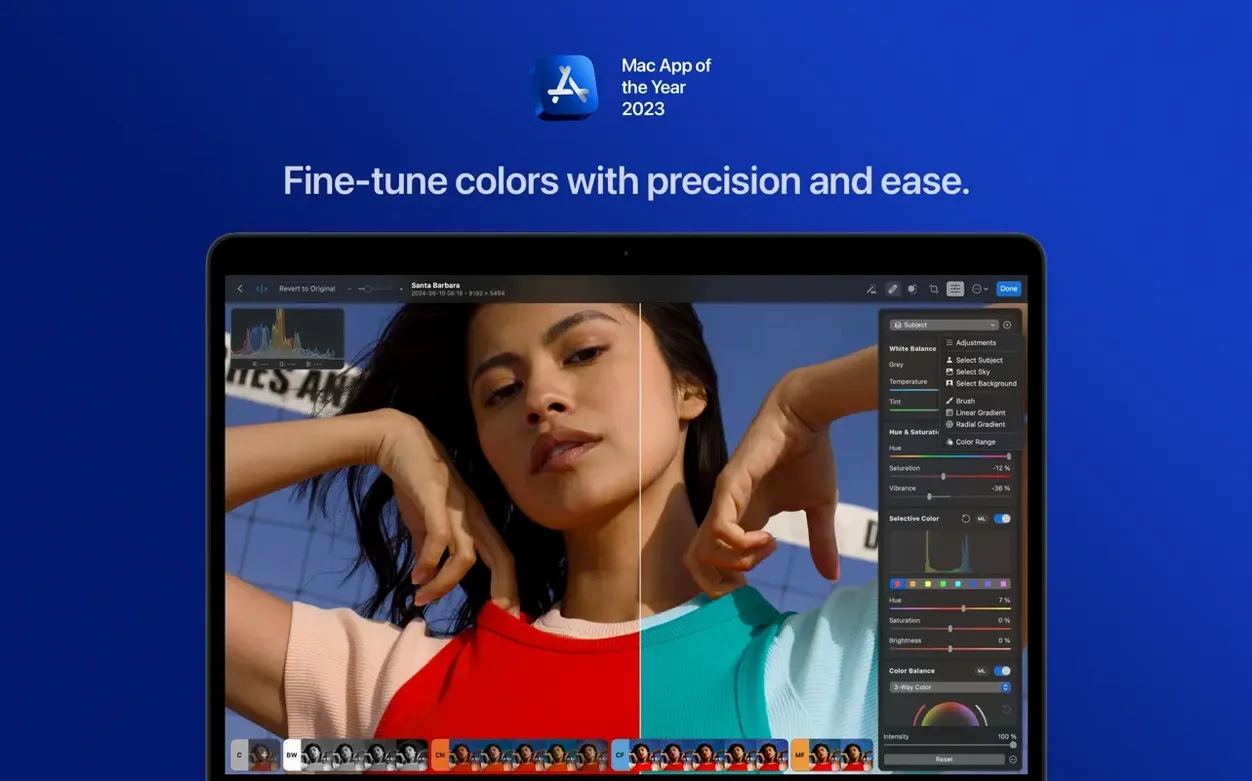
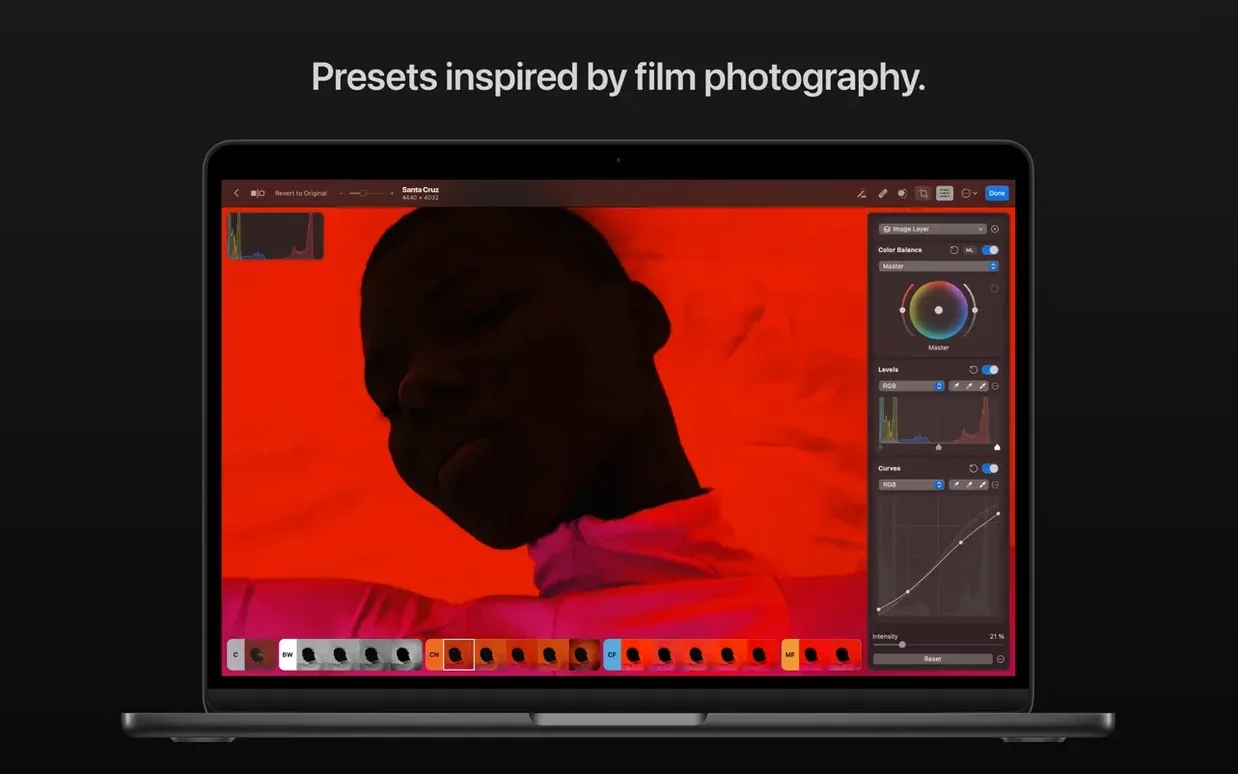
The toolset covers the essentials. Crop, straighten, and perspective corrections. Clone and repair for dust and distractions. Colour adjustment with a feature that lets you copy the look from one image and apply it to another. For landscapes, portraits, or black-and-white work, a set of built-in presets gives you a fast starting point.
Machine learning handles the fiddly selections. Tap to isolate a subject, sky, or background, then adjust exposure or colour in that area alone. An upscale feature enlarges files while keeping edges clean. Smart Deband smooths out the colour banding that sometimes appears in gradients.
Version 3.4.15 expands RAW support for recent cameras: Panasonic LUMIX DC-S1RM2 High Resolution mode, compressed files from the Sony Alpha ILCE-7M5, FUJIFILM GFX 100S II and GFX 100RF, plus High Efficiency RAW from the Nikon Z5II and Z50II.
Fix Flat RAW Imports with One Preset Switch
Even a polished editor has friction points. Most are easy to clear once you know where to look.
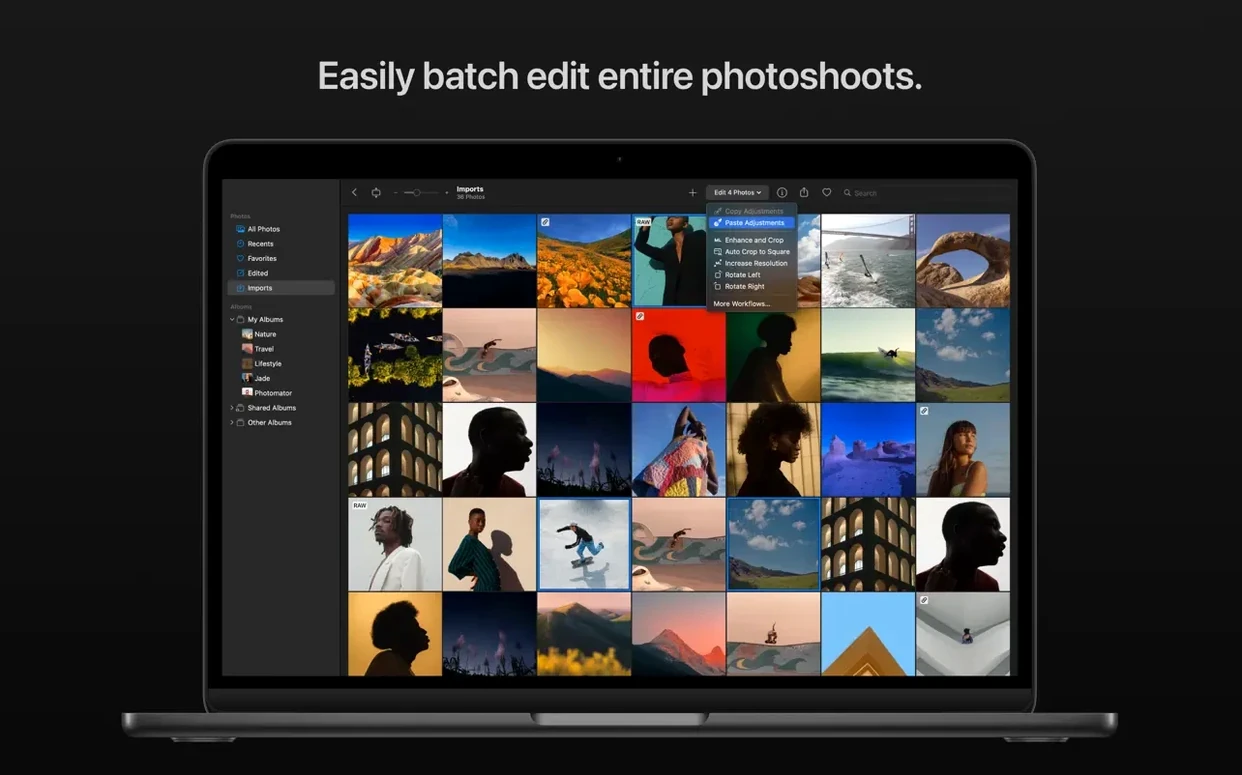
RAW files look flat on import. Photomator applies a neutral profile by default. Switch to a built-in preset—Landscape or Vibrant—as your starting point, or save your own baseline adjustment and apply it during import. The “copy edits” command pastes a full treatment onto a fresh batch in one go.
AI selections grab the wrong area. A busy background behind a subject can confuse the mask. Tap the Refine Edge brush and paint a quick stroke over the problem zone; the algorithm tightens the boundary without redoing the whole mask.
Edits feel laggy on a large RAW stack. The app leans heavily on Metal and Core ML. If you notice a pause, close other GPU-heavy apps and check that your Mac’s display colour profile matches the working colour space—mismatched profiles force extra conversion steps.
Banding persists after export. Smart Deband works at the edit stage, but a heavy JPEG compression pass can reintroduce it. Export to HEIC or 16‑bit TIFF when smooth gradients matter, and keep quality above 85% if you must use JPEG.
Photos app sync stalls. Large libraries can take time. A practical step: start with a small test album, confirm the round‑trip works, then widen the sync. If a stuck photo refuses to update, remove it from the synced album and re-add it.
Built for Batch‑Editing Portrait and Event Galleries
Photomator fits a few profiles particularly well. If you recognize yourself here, the app will feel like it was built to order.
- Event and portrait shooters who deliver a gallery, not a single hero image. Batch editing, preset application, and copy‑paste of adjustments cut the culling-to-delivery time sharply.
- Landscape and travel photographers working with high‑contrast RAW files. The subject‑sky‑background masking trio and Smart Deband solve the two biggest field headaches: blown skies and gradient noise.
- Designers and content creators who need a quick colour‑match between product shots or social‑media frames. The match‑look tool pulls a palette from a reference image and applies it without manual curve tweaking.
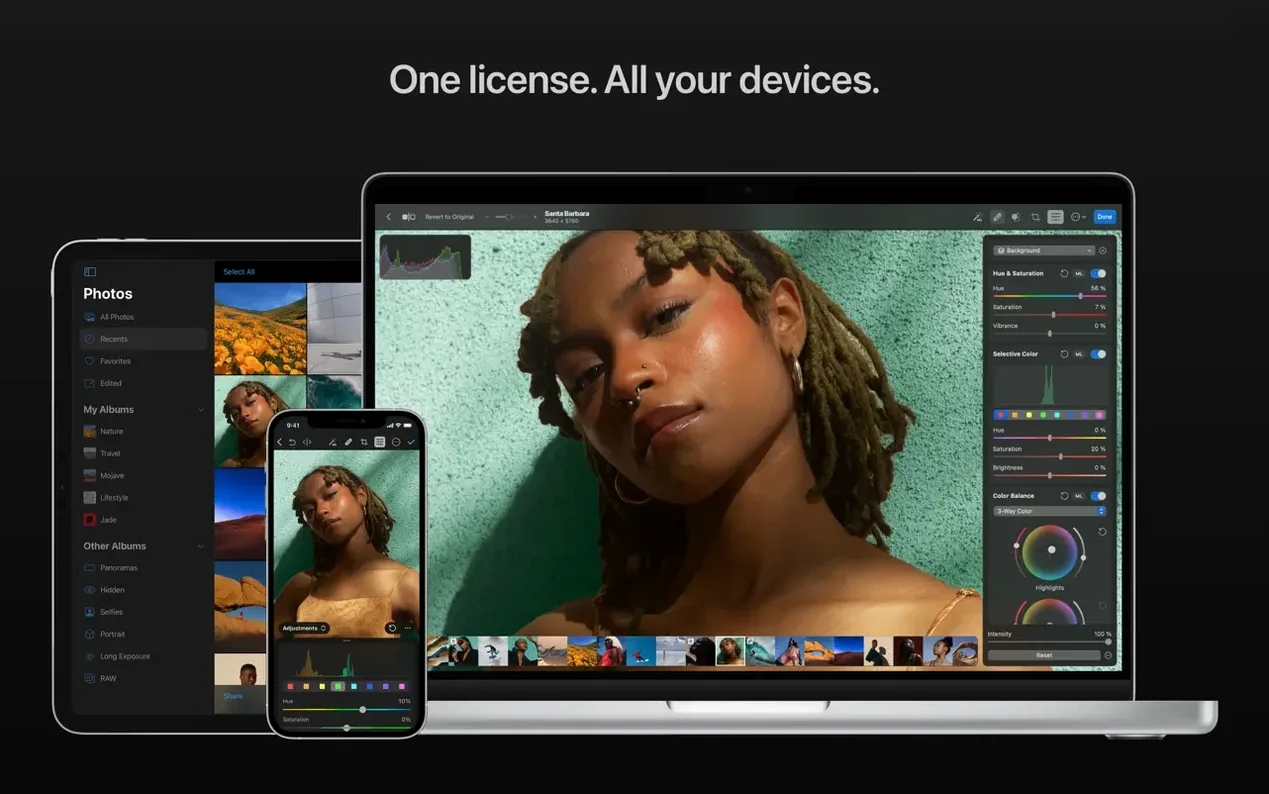
- Mac‑first users who want deep integration with iCloud and the Photos library. Edits sync across devices, and the interface uses native macOS controls—no cross‑platform oddities.
45‑Megapixel RAWs Load Without a Stutter
On an Apple Silicon Mac, Photomator opens in under two seconds and loads a 45‑megapixel RAW file with zero perceptible lag. The interface draws at 60 frames per second during scrubbing and slider adjustments. Memory use hovers around the 600 MB to 1.2 GB range for a single image with multiple masked layers; batch processing a set of thirty RAWs pushes that closer to 2 GB, which is modest for the workload.
Intel machines feel the difference. A Core i7 MacBook Pro manages edits smoothly, but Denoise and upscale operations take roughly twice as long. The app remains responsive throughout, with no beachballing during colour adjustments or mask painting.
Stability across version 3.4.15 holds up well in extended sessions. An eight‑hour editing day with frequent switches between the repair tool, AI masks, and batch export did not trigger a single crash in our testing window. The one caution: automatic macOS updates occasionally reset the Photos library permissions, which can cause a brief “no photos found” message until you re‑grant access in System Settings.
For anyone seeking a friction‑free photomator download, the experience on a recent Mac is calm and predictable. It respects system resources, plays well with iCloud, and stays out of the way while you work.
- New — RAW support for Panasonic LUMIX DC-S1RM2 High Resolution mode, compressed RAW from Sony Alpha ILCE-7M5, FUJIFILM GFX 100S II, and FUJIFILM GFX 100RF, and High Efficiency RAW from Nikon Z5II and Z50II.
- Fixed — Bug fixes and performance improvements throughout the app.
- macOS 13 or later
- Apple Silicon or Intel 64-bit Mac
Questions I get before install
Can Photomator edit RAW files?
Yes. It supports a wide range of RAW formats, including newly added support for compressed and high-resolution modes from Sony, Panasonic, Nikon, and FUJIFILM.
What AI tools does Photomator include?
It uses machine learning for automatic selection of the subject, sky, and background, and for upscaling photos while preserving detail.
Does Photomator have tools for removing unwanted objects?
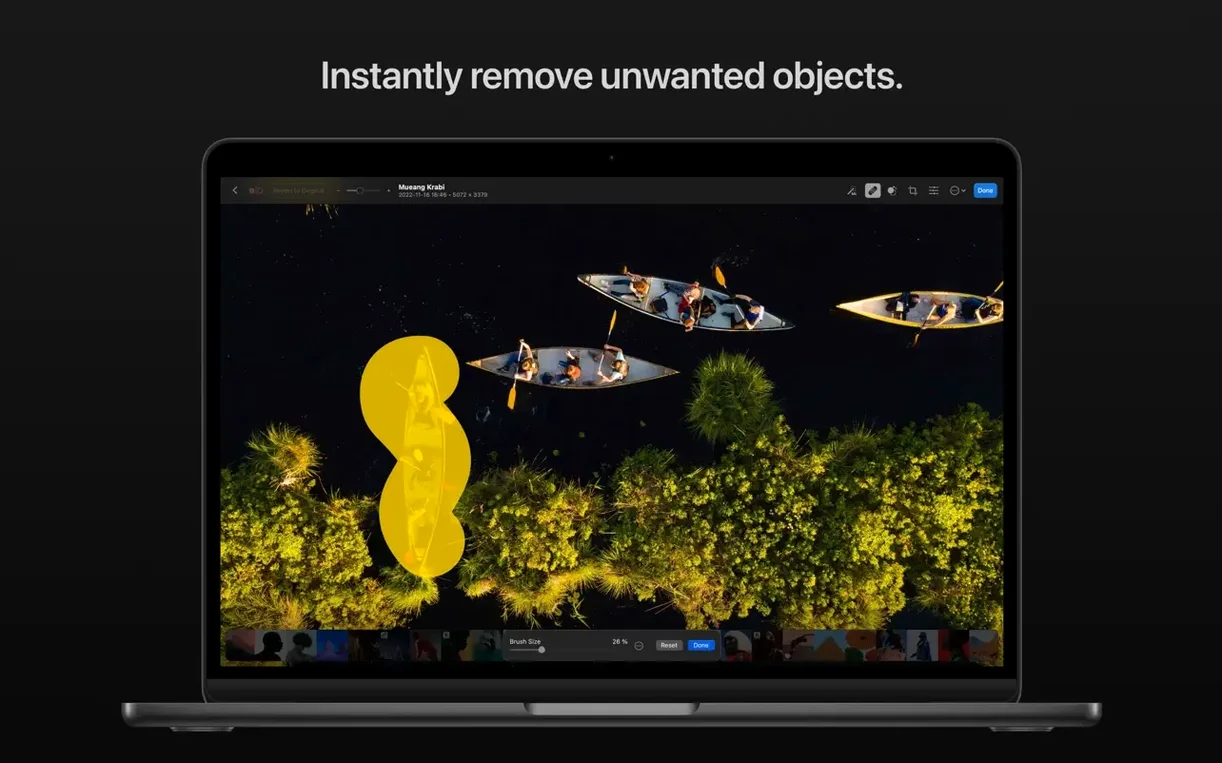
Yes, the clone and repair tools let you remove dust spots, distractions, and other unwanted items from a photo.
Comments 0
Sign in to leave a comment.Sign inCreate an account
No comments yet. If a step is still there after you install it, say so.
More in Mac Apps
All in Mac Apps Photo Mechanic
Culls and tags photos straight from the memory card before import.
22 steps saved
 PhotoScape X Pro
Fixes, collages and turns batches of photos into GIFs in one app.
12 steps saved
 PhotoSweeper
Finds and removes duplicate and near-identical images across drives.
14 steps saved
 Updated
Pixea Plus
Views and edits images with masks, layers, and a full undo stack.
21 steps saved
 Pixelmator Pro
Handles photo editing, compositing, and vector work in one Mac-native app.
13 steps saved
 Updated
Path Finder
Holds scattered files in a temporary stack so you can move them all to one destination at once.
15 steps saved
 Updated
PasteNow
Stores every clipboard entry so you can recall a stat, paragraph, or screenshot in one click.
6 steps saved
 Paste
Keeps your clipboard history searchable, so nothing you copied gets lost.