
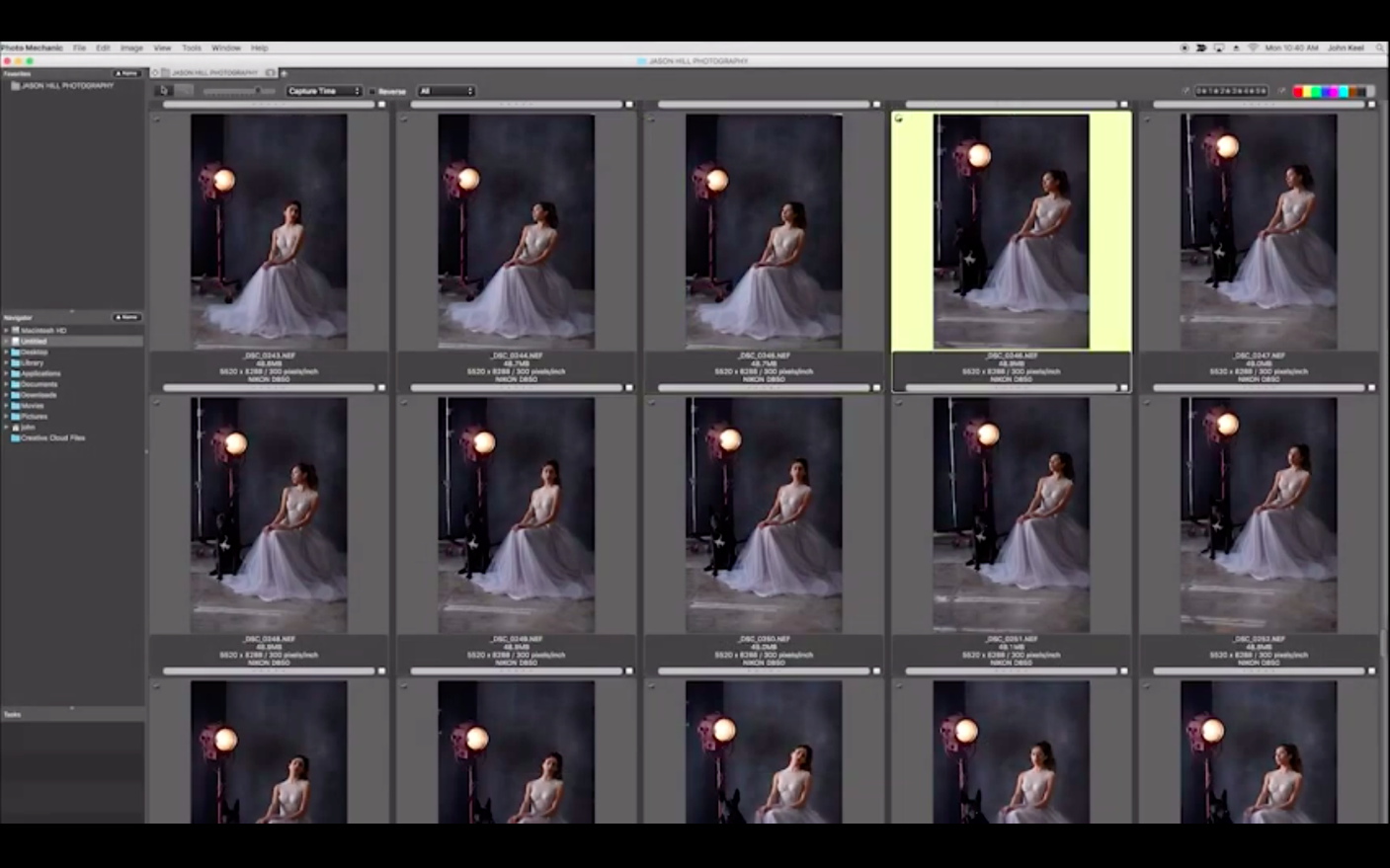
Waiting for a shoot to import into a sluggish catalogue is a drain on a tight deadline. Photo Mechanic solves this by browsing images directly from the memory card, letting you cull, tag, and caption the moment the files appear. It reads the directory structure on disk instead of building a library, so scrolling through thousands of raw files feels immediate.
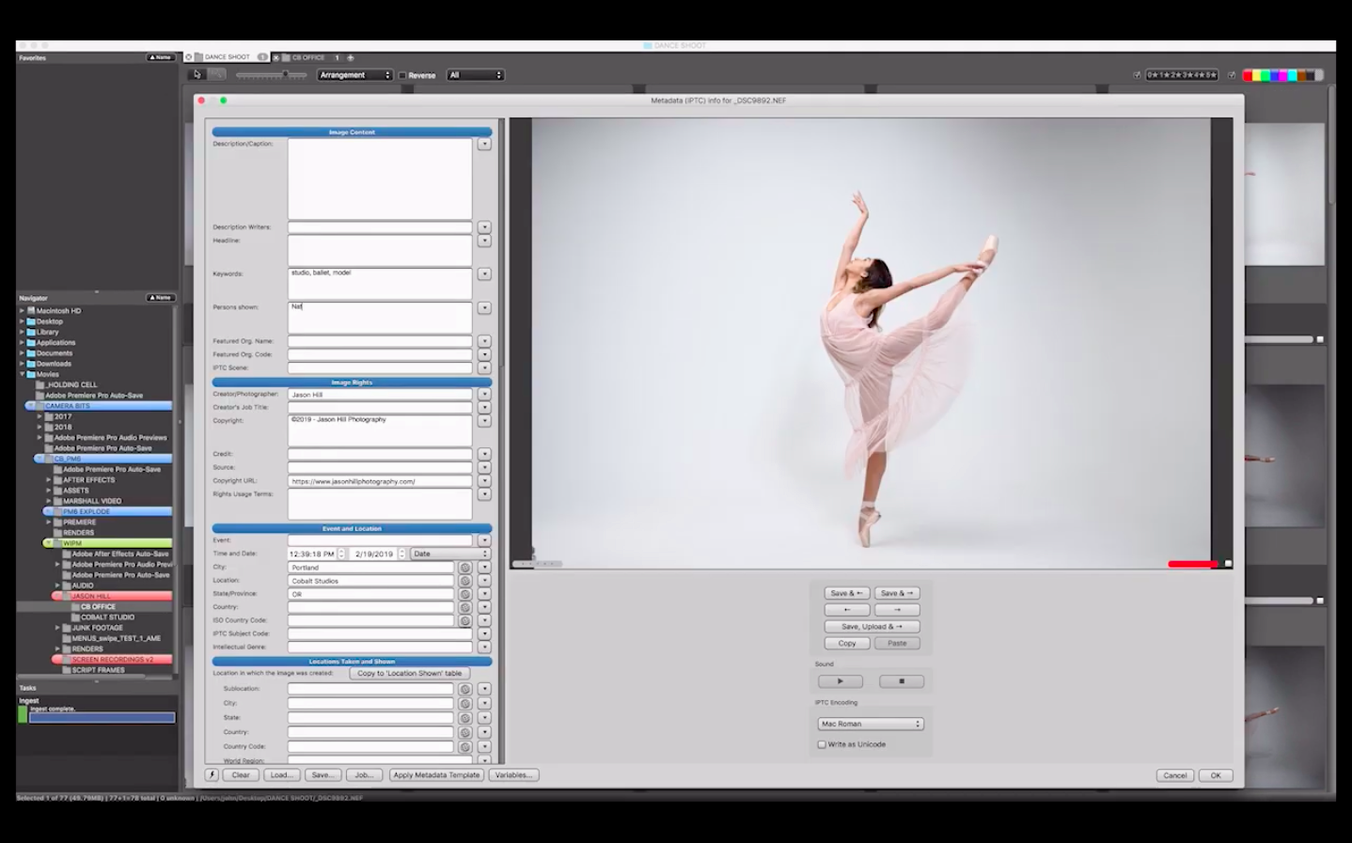
A typical ingest on deadline runs like this: mount the card, apply a pre-set IPTC template with your name, copyright, and event location, then rename the files to 2025-06-12_Assignment_001 during copy. While the transfer runs, star the keepers and colour-tag the ones destined for social, all before the first coffee cools.
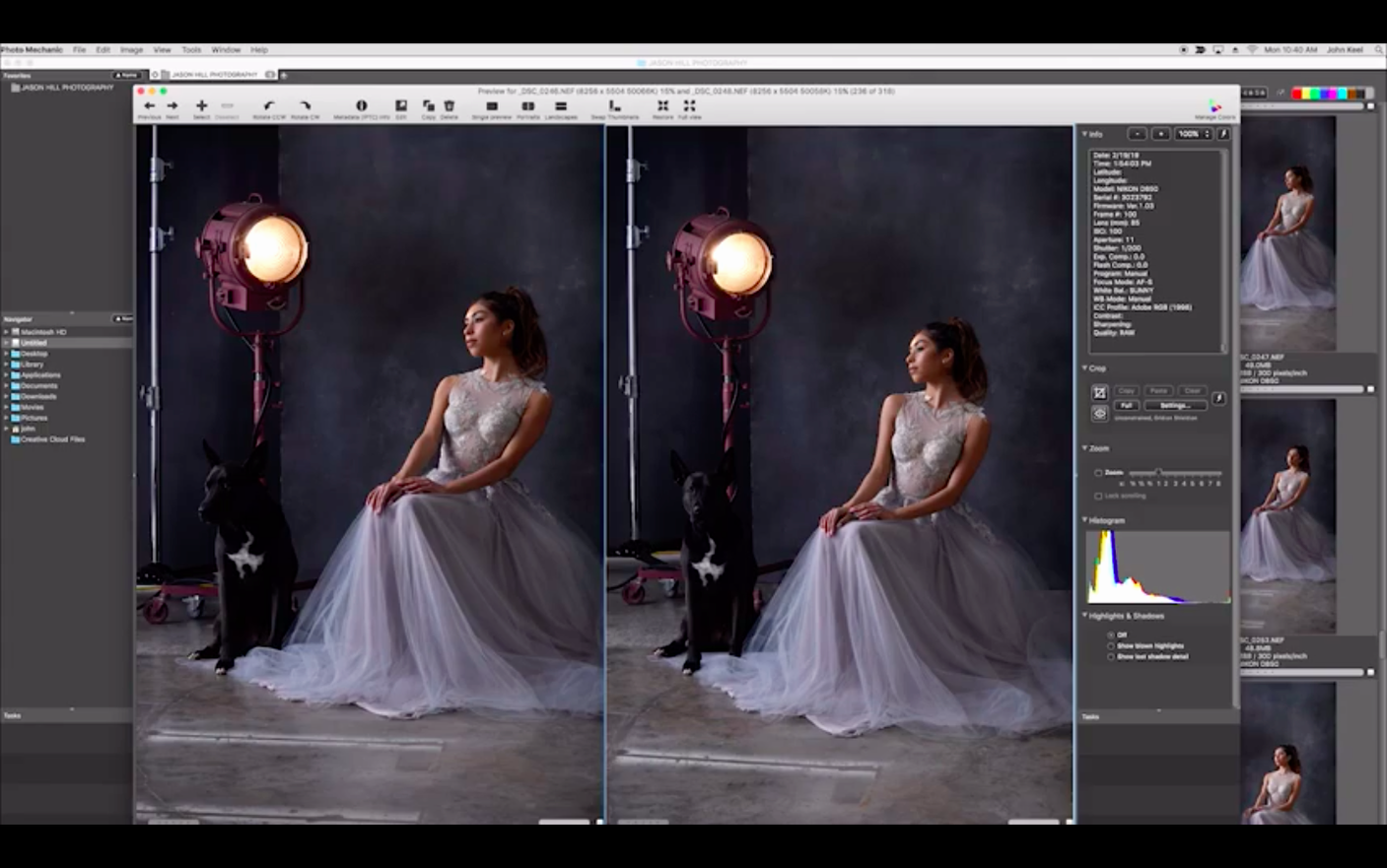
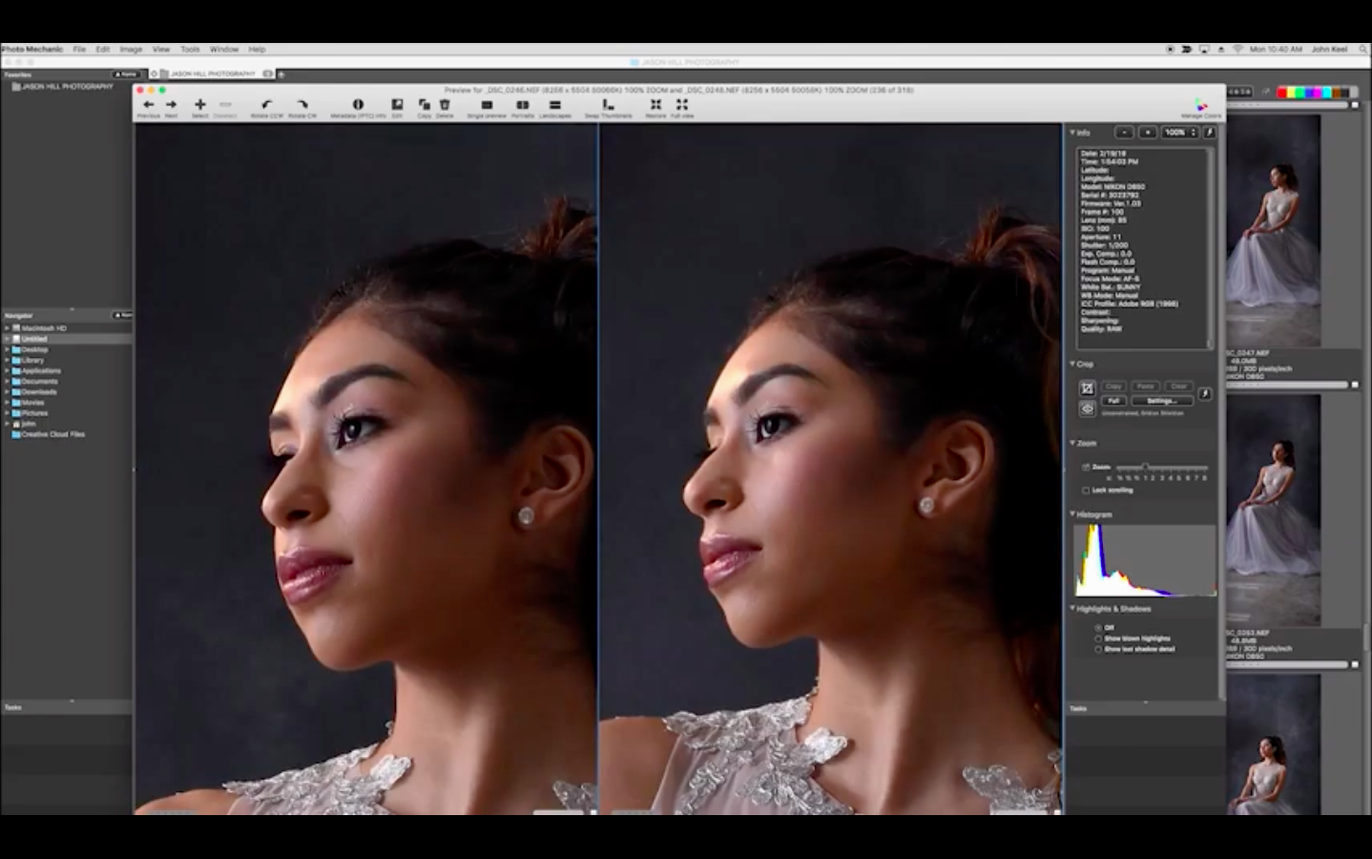
From there, batch-resize the selects to a client-proof size, adjust titles and keywords across the whole take, and drag them straight into an email or an FTP upload window. Side-by-side comparison helps pick between two nearly identical frames without second-guessing.
It also reads the full EXIF story—lens, focus mode, white balance, camera model—so technical checks happen in the same window as the edit. For a tool that doesn't lock you into a database, it handles a surprising amount of the metadata grind that eats up a morning.
Ratings Vanish When You Close a Folder
First-timers often treat Photo Mechanic like a catalogue and expect a library file that remembers everything. It doesn't. The app writes metadata into sidecar XMP files or directly into the image headers. Close the folder, and your ratings and tags vanish from view—until you open that folder again. Grasp this early and you stop panicking.
Another classic slip: ingesting with no IPTC template applied. You come back to 800 untagged frames and no way to batch-claim them except by selecting all and pasting. Build a template once—name, copyright, contact, usage terms—and set it as the default during ingest. Future you will nod gratefully.
Skipping the structured keywords panel is a quieter mistake. Typing freeform tags into the field works for a dozen shots; it falls apart across a season of work. The structured panel enforces a hierarchy: Event > Wedding > Ceremony stays consistent when three assistants tag the same job.
Beginners also trust the colour labels before setting up what each colour means. The app ships with generic names. Without defining a label set—red for "client selects", green for "portfolio", purple for "needs retouch"—the colours are just decoration.
Ingest Two Cards Into a Dated Folder on Your SSD
You come back from a Saturday assignment with two full cards. Cards go into the reader; Photo Mechanic opens to a blank contact sheet. Ingest dialog: source is the card, destination is a dated folder on the working SSD. IPTC Stationery Pad is already loaded with your template—copyright, city, event name. Renaming is set to {datesort}_{event}_{seqn}. You click ingest and pour a drink while the copy runs.
Contact sheet populates while copying. You arrow-key through the take at full screen, one finger on the number keys: 1 for a keeper, 2 for maybe, 3 for discard. A colour label lands on every frame destined for the client gallery. Ten minutes, a thousand frames culled.
Now you filter to the keepers. Select all, open the Metadata Info panel, add keywords, fill the headline and description fields. Batch-rename the keepers to a delivery-friendly sequence. Resize to 2400 pixels on the long edge, sRGB, JPEG quality 85—saved to a subfolder called proofs. The FTP uploader takes that folder straight to the client's server. You close the contact sheet. No database to compact, no catalogue to back up.
Thousands of Tiny XMP Sidecars Scattered Across Your Archive
XMP file sprawl. By default the app writes an XMP sidecar for every raw file you touch. That's correct behaviour, but it can scatter thousands of tiny files across your archive. If your raw format supports embedded XMP (DNG does; most proprietary raws don't), switch the preference to embed. Otherwise, accept the sidecars and move the folder as a whole—never split them from the raws.
Ingest freezes on one file. A corrupt frame on the card can hang the whole transfer. Cancel, set the ingest to copy only files with a specific extension, skip the bad one, or run the card through a quick copy in Finder first. Then open the folder in Photo Mechanic and tag from there.
Sort order confusion. You sort by capture time but a handful of shots sit out of sequence. One camera body had its clock set wrong. Use Adjust Capture Dates and Times on those selected frames—shift them by the offset and the contact sheet reorders correctly. Same tool fixes the mess when you forgot to change time zones mid-trip.
Colour labels vanish on another machine. Labels are stored as text strings in XMP, but the mapping between colour and text is local to your label set. Open the same files on a different Mac without syncing the label definitions and the colours won't match. Export your label set from Preferences and load it on the second machine, or share the same definitions across the team before anyone tags a frame.
FTP upload stalls halfway. The built-in uploader can trip on passive-mode settings or firewall rules. Toggle passive mode in the connection settings first. If it still hangs, break the upload into smaller batches or check that the server isn't rejecting the filename characters. Rename to plain alphanumerics with hyphens and try again.
"Where did my ratings go?" You rated a folder of JPEGs, closed the contact sheet, reopened it, and the stars are gone. The app wrote the rating into the XMP segment of the file header, but some older JPEGs carry that in a way other software can strip. Before you rely on ratings alone, verify that your downstream editor reads them. For critical picks, use a colour label or keyword as a backup marker—something that survives a round trip through a pixel editor.
- macOS 13 or newer
- Apple Silicon Mac
Questions I get before install
Can Photo Mechanic edit a photo's metadata?
Yes. It can view and edit IPTC fields such as description, title, keywords, event, shooting location, and contact information, and apply them in bulk during ingest.
Comments 0
Sign in to leave a comment.Sign inCreate an account
No comments yet. If a step is still there after you install it, say so.
More in Mac Apps
All in Mac Apps Photomator
Edits photos with AI-powered adjustments and batch tools built for the Mac.
22 steps saved
 PhotoScape X Pro
Fixes, collages and turns batches of photos into GIFs in one app.
12 steps saved
 PhotoSweeper
Finds and removes duplicate and near-identical images across drives.
14 steps saved
 Updated
Pixea Plus
Views and edits images with masks, layers, and a full undo stack.
13 steps saved
 Updated
Path Finder
Holds scattered files in a temporary stack so you can move them all to one destination at once.
21 steps saved
 Pixelmator Pro
Handles photo editing, compositing, and vector work in one Mac-native app.
15 steps saved
 Updated
PasteNow
Stores every clipboard entry so you can recall a stat, paragraph, or screenshot in one click.
6 steps saved
 Paste
Keeps your clipboard history searchable, so nothing you copied gets lost.