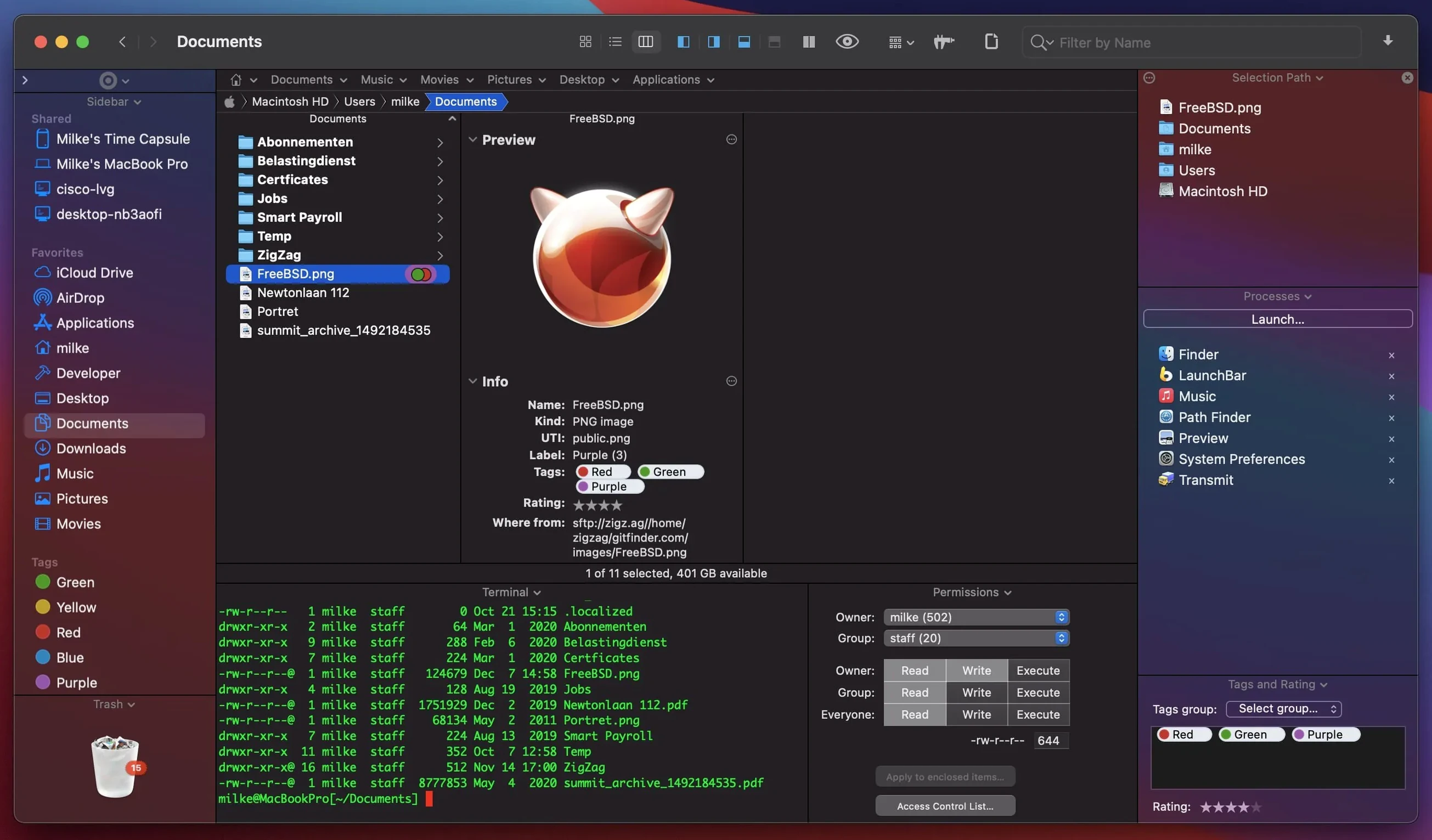
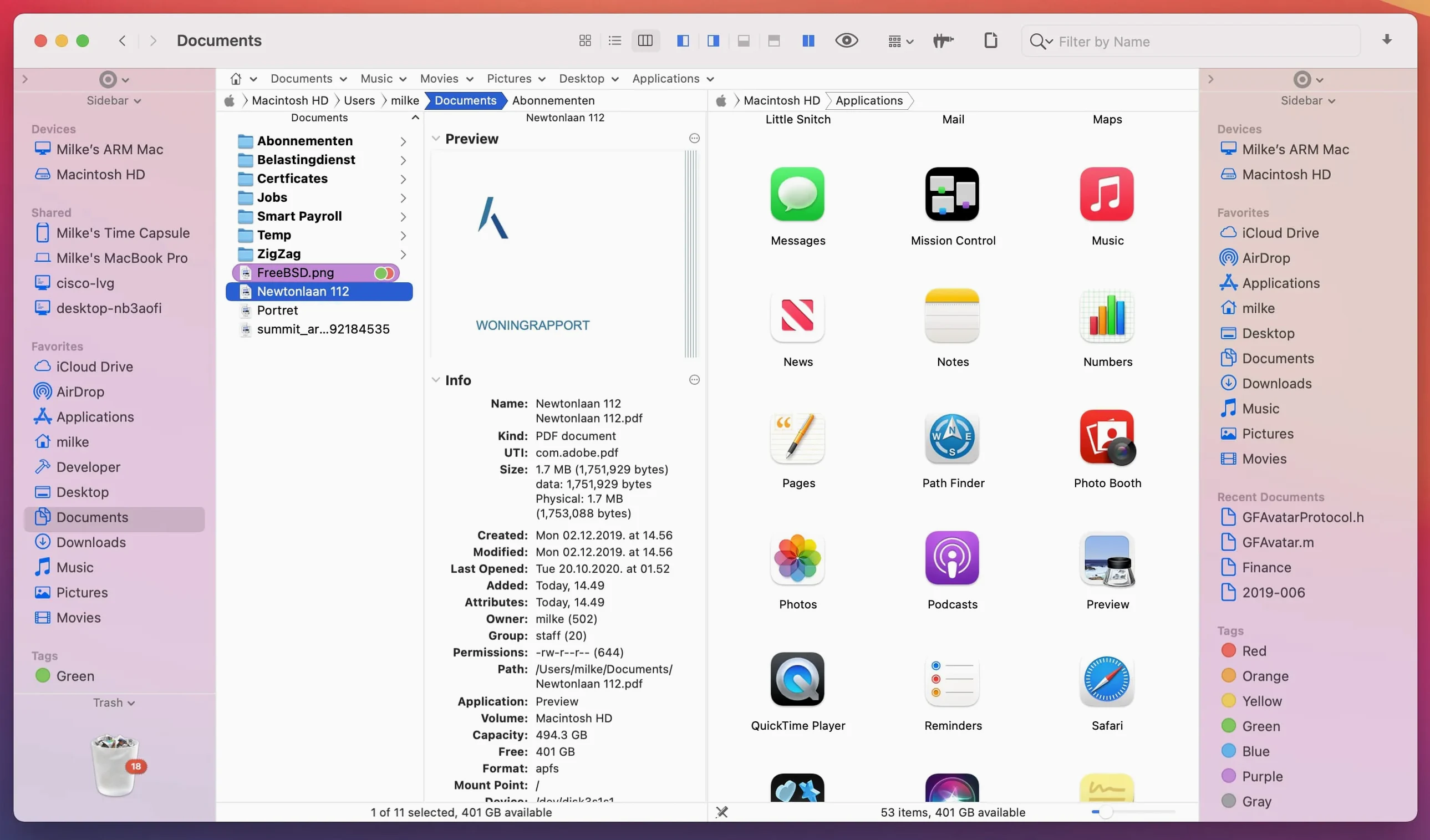
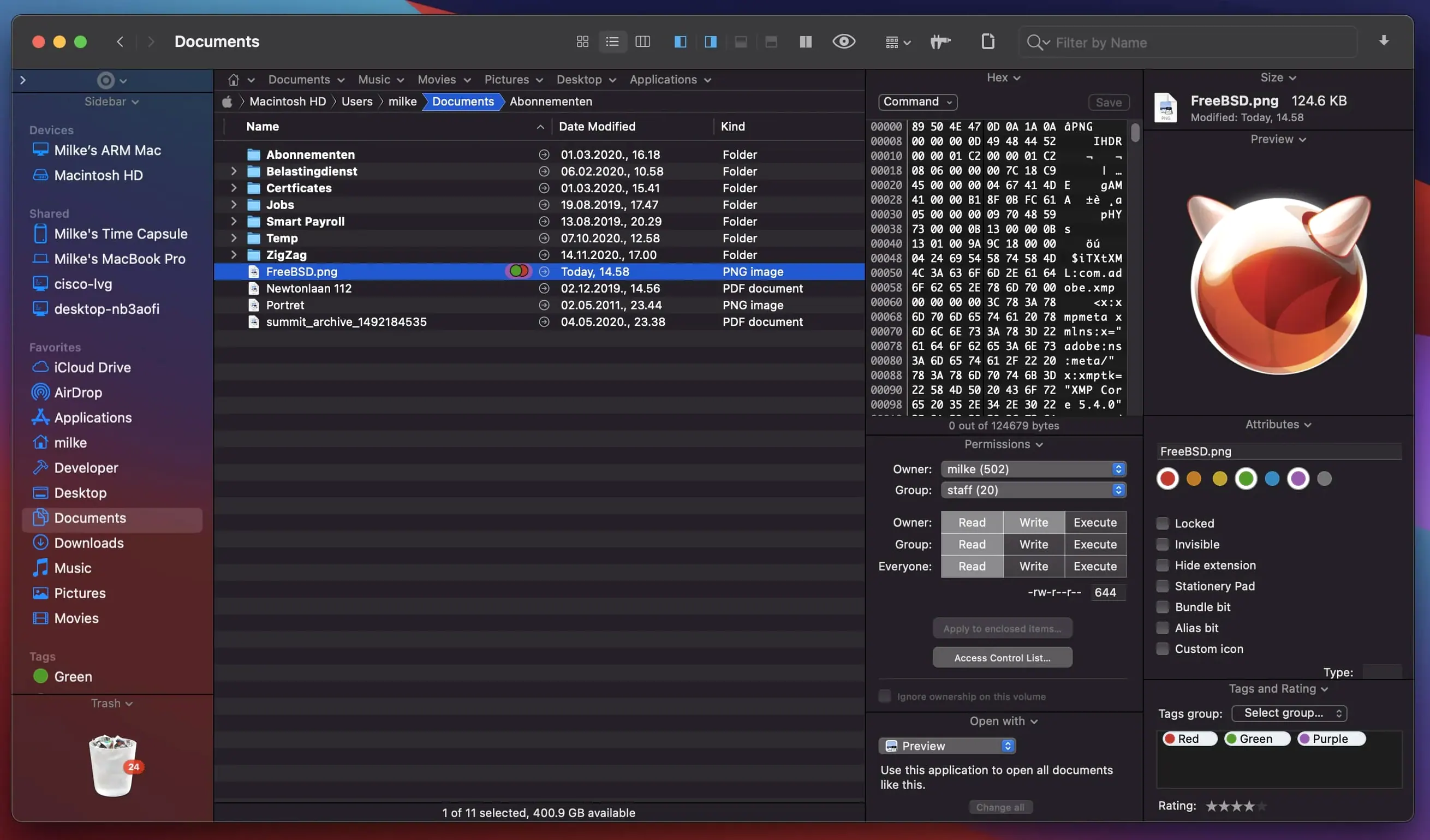
Drop Stack. That one feature tells you who Path Finder is for. You select a handful of files scattered across different folders, drop them onto a temporary holding area, then navigate to the destination and unload them all at once. No spring-loaded folders, no extra Finder windows.
- Open Path Finder in dual-pane view. Local folder on the left, remote server on the right. The internal FTP client treats connections like regular folders — drag files across panes and the transfer starts.
- Hit
Cmd+Tfor a tab. Keep a half-dozen locations open without spawning new windows. Tabs remember their view mode: list, columns, or icons, each with independent sorting. - Press Space on any file. Quick Look handles documents, audio, and video inline. No need to launch Preview or QuickTime.
- Right-click a ZIP, tarball, or RAR. Archive handling works in both directions — extract or compress without a separate utility.
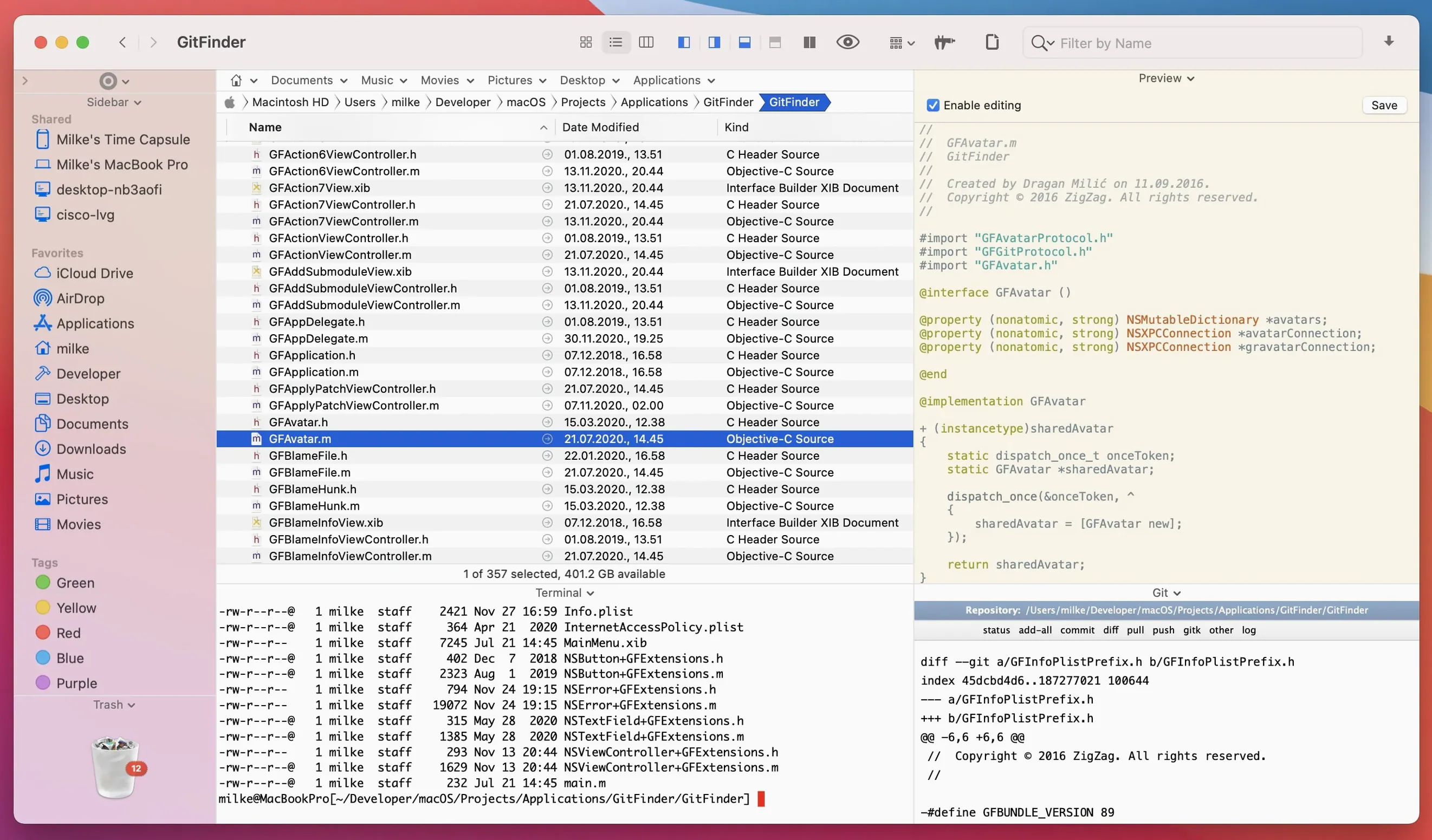
- Search by keyword, extension, or file type from the toolbar. Results appear in the active pane, ready for batch rename, move, or tag.
- Manage running processes from the sidebar. Kill a stuck app or check what is eating CPU — small convenience that keeps you out of Activity Monitor.
Path Finder positions itself as a direct Finder replacement. It handles the basics — copy, move, delete — and layers on tools for people who manage large file sets daily. Install applications, uninstall them, colour-tag batches, preview archives before expanding. The interface stays close to macOS conventions, just busier. You get more controls per square inch. That trade-off makes sense when you spend hours in a file manager and the stock one costs you extra steps.
Tags and clipboard play nice with Finder
Path Finder does not live in a bubble. It respects macOS tags, so any colour label you apply inside Path Finder shows up in Finder, Spotlight, and Save dialogs — and vice versa. The clipboard plays nicely too. Copy a file in Path Finder, paste it into a Mail message or a Final Cut Pro media bin. No translation layer.
iCloud Drive folders sync as they would in Finder. The status icons — downloaded, waiting, out of space — appear in Icons, List, and Columns views after the 26.1.9 fixes. If you use a path finder mac setup alongside ForkLift for quick server hops or DaisyDisk for space mapping, Path Finder stays the home base. It knows when another app has renamed or moved a file and refreshes without prompting.
For people who search often, the built-in search sends queries through Spotlight’s index by default. You get the speed of macOS metadata search inside a pane you can already act on — no switching contexts. Keyboard-only users will notice that path finder 2197-era muscle memory still applies: Cmd+Shift+G for “Go to Folder,” arrow keys for drill-down, Return to open.
A real session: cleaning up a project delivery
A design team hands you a mess: 400 loosely named assets spread across emailed ZIPs, a shared Dropbox folder, and a USB stick. The brief says deliver a single organized folder by end of day. Here is how that plays out with Path Finder.
Gather. Open three tabs in the left pane: the Dropbox folder, the mounted USB volume, and ~/Downloads. The right pane shows the delivery folder on the company NAS via the FTP client. Drag every candidate file into the Drop Stack from all three sources — PDFs, PNGs, a stray .afdesign file.
Filter. Use the toolbar search set to “extension” and type png. Select all results, batch rename with a project prefix, then tag them orange. Repeat for PDFs with a blue tag. The search runs inside the active tab, so you never lose sight of the NAS destination.
Prune. Sort the right pane by file size. Archive the oversized TIFFs into a .tar.gz straight from the context menu — no external archiver. Kill a hung Preview process from the sidebar without opening Activity Monitor.
Deliver. Drop the Stack contents into the sorted NAS folder. Done. The whole session stayed in one window, no spring-loaded folders, no shell commands.
Version 26.1.10 is a maintenance update. Cocoatech publishes its full change log on the official release notes page.
- macOS 13 or later
- Apple Silicon or Intel 64-bit
Questions I get before install
Can Path Finder replace the standard macOS Finder entirely?
Yes. Cocoatech designed it as a full Finder replacement with the same file operations plus dual-pane browsing, tabs, and built-in archive and FTP tools.
What file types can I preview inside Path Finder?
You can preview documents, audio, and video files directly using the built-in Quick Look integration, without opening a separate application.
Comments 0
Sign in to leave a comment.Sign inCreate an account
No comments yet. If a step is still there after you install it, say so.
More in Mac Apps
All in Mac Apps Updated
PasteNow
Stores every clipboard entry so you can recall a stat, paragraph, or screenshot in one click.
6 steps saved
 Paste
Keeps your clipboard history searchable, so nothing you copied gets lost.
15 steps saved
 Updated
Parallels Desktop
Runs Windows apps beside macOS and drags files between them without rebooting.
23 steps saved
 Paragon NTFS
Mounts Windows-formatted drives so they behave like native APFS volumes for file transfers.
7 steps saved
 Photo Mechanic
Culls and tags photos straight from the memory card before import.
15 steps saved
 Pacifist
Peers inside installer packages to inspect or extract files before you commit to running them.
23 steps saved
 Photomator
Edits photos with AI-powered adjustments and batch tools built for the Mac.
22 steps saved
 PhotoScape X Pro
Fixes, collages and turns batches of photos into GIFs in one app.