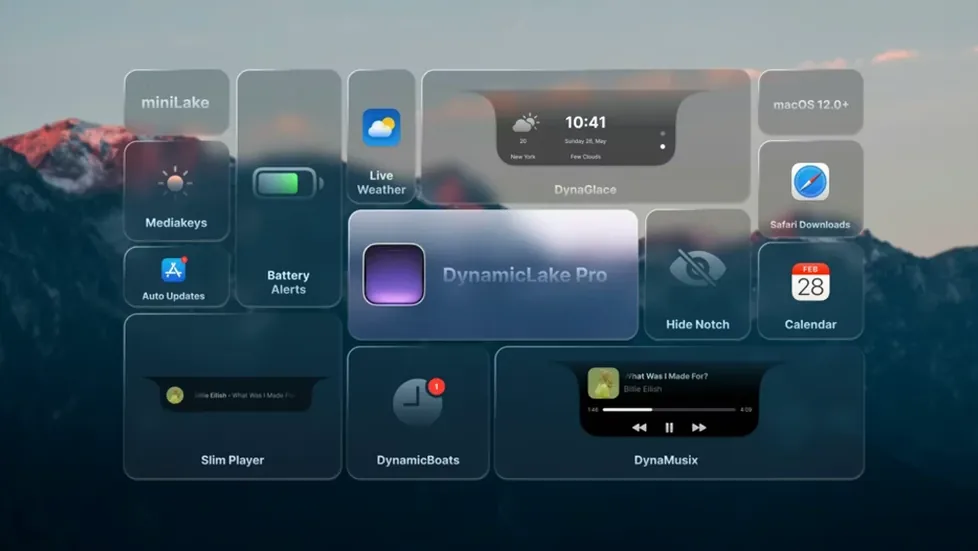
DynaGlance doesn’t just mirror your calendar. It surfaces your next meeting and local weather in a single, glanceable strip. That kind of information density — seeing what matters without opening a separate app — defines the tools in DynamicLake Pro that repay a little setup. These are the controls that go beyond basic notifications.
- macOS Clock timer sync — Timers you start in the Clock app appear inside the DynamicLake pill automatically, so you track them without switching back to the full app.
- DynaKeys — Volume, screen brightness, and keyboard backlight respond to on-screen sliders that live in the island. No need to hunt for function keys in the dark.
- App switcher — A compact list of running apps sits inside the notch area. Switch with a click instead of cycling through Command-Tab.
- DynaConnect — Bluetooth peripherals trigger a subtle connection or disconnection alert. You know the moment your headphones link up.
- Push notification replies — Several messaging apps let you answer directly from the notification that expands in the island, keeping your reply quick and inline.
These capabilities layer on top of the music animations and scheduling glance, making the utility feel less like a cosmetic overlay and more like a control surface that shortens everyday micro-tasks.
Widget Overload Breeds Friction
Most early frustration with DynamicLake Pro comes from treating it as a set-and-forget decoration. The first week usually reveals a few habits worth correcting before they become workflow friction.
- Enabling every widget at once — The island becomes a parade of alerts. Music, weather, calendar, Bluetooth, and timers all competing for the same narrow strip means nothing gets noticed. Start with two or three widgets and add more only when the current set feels calm.
- Ignoring DynaKeys positioning — The sliders for volume and brightness sit inside the notch area, but their default placement can collide with other widgets. If a slider feels cramped, reposition it before assuming the feature is broken.
- Expecting phone-style gestures — macOS doesn’t handle touch input. Clicking and dragging work; swiping from the trackpad won’t expand the island the way a finger would on iPhone. New users often miss that the interface responds to clicks, not gestures.
- Forgetting the Clock timer sync — Timers started in the macOS Clock app only appear in DynamicLake if that sync is active. Many beginners start a timer in Clock, see nothing in the island, and assume the feature failed. Check the setting first.
- Dismissing notifications too quickly — Quick replies from messaging apps need the notification expanded. A single click dismisses; a longer interaction opens the reply field. Rushing through the first few alerts teaches the wrong reflex.
Alert-Swamped Workers Tame the Noise
Not every Mac user needs an island. The people who extract real value tend to share a few patterns.
- Notification-heavy workers — Anyone juggling Slack, email, and calendar throughout the day benefits from an alert surface that doesn’t pull focus the way Notification Center does. Inline replies and glanceable meeting info reduce app-hopping.
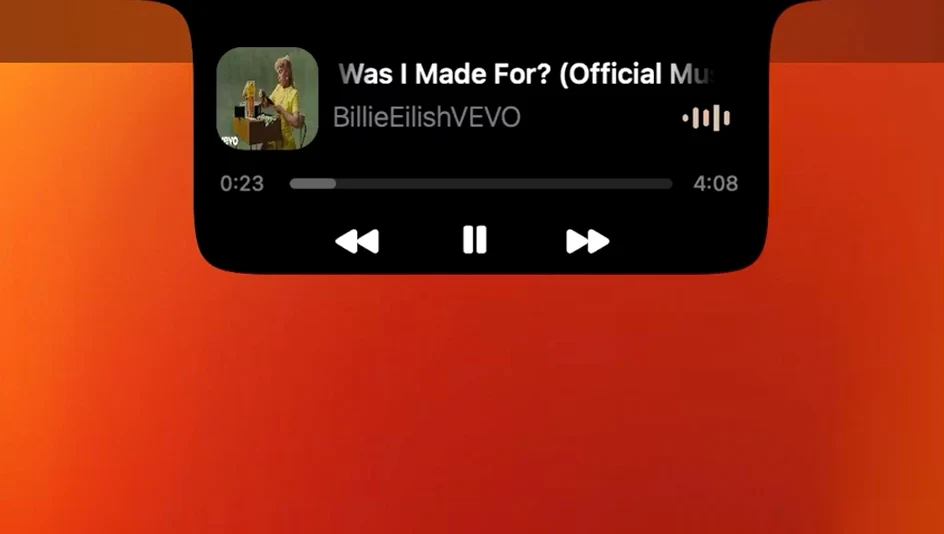
- Music-first users — DynaMusic’s animated controls suit people who keep audio running while working. Skipping tracks or adjusting volume without leaving the current app is a small but constant time saver.
- Keyboard-shortcut minimalists — If function keys feel like a stretch or you work on a laptop in low light, DynaKeys replaces physical shortcuts with on-screen sliders that sit closer to your line of sight.
- Calendar-driven professionals — DynaGlance pays off when your day is segmented by meetings and deadlines. The next event and weather strip keeps context available without opening Calendar or a weather site.
- Bluetooth peripheral hoppers — DynaConnect matters most to people who switch between headphones, speakers, and keyboards often. Knowing when a device actually connects removes a small uncertainty from every transition.
Disable Unused Widgets Immediately
A few adjustments early on make the default experience noticeably better. These aren’t hidden tricks — just the options that most affect daily feel.
- Trim the widget list — Open the widget management and disable everything you don’t use daily. A clean island is faster to read and less likely to be ignored.
- Check the Clock timer sync toggle — If you rely on macOS timers, confirm this is on before you need it. The setting exists for a reason; flipping it early saves a later debugging session.
- Set DynaSwitcher to Option+Tab — The default may not conflict, but some users already have Option+Tab mapped elsewhere. Assign it explicitly to avoid a dead shortcut.
- Choose miniLake for smaller displays — On a 13-inch MacBook, the full island can crowd the menu bar. miniLake keeps core functions visible while giving icons room to breathe.
- Position DynaKeys deliberately — Match the slider order to how often you use each control. Brightness first for daytime shifts, volume first for audio-heavy sessions, or keyboard backlight first for night work.
- macOS 11 or later
- Apple silicon or Intel processor
Questions I get before install
Does DynamicLake Pro work with Apple silicon and Intel Macs?
Yes, the app runs on both Apple silicon and Intel-based Macs that meet the macOS 11 requirement.
What music controls does DynamicLake Pro include?
DynaMusic puts playback control and album art animations inside the island, so you can skip tracks and pause without leaving your current window.
Comments 0
Sign in to leave a comment.Sign inCreate an account
No comments yet. If a step is still there after you install it, say so.
More in Mac Apps
All in Mac Apps Dynamic Wallpaper Engine
Replaces a static desktop with live wallpapers you switch via hotkey.
17 steps saved
 Eagle
Finds similar images in large reference libraries so you stay focused on design, not file wrangling.
21 steps saved
 Easy New File
Creates new files from templates right inside Finder, skipping the round trip to an app.
6 steps saved
 DxO PhotoLab
Corrects lens flaws and noise with lab-measured profiles built into the raw editor.
11 steps saved
 Updated
Duplicate File Finder Pro
Finds exact file copies by content, not name, across your Mac and external drives.
7 steps saved
 Element 3D
Imports and renders 3D objects directly inside After Effects, removing the need for external software.
8 steps saved
 Dropover
Stages scattered files on a floating shelf until you reach the destination folder.
8 steps saved
 DriveDx
Reads full drive-health diagnostics and warns you before a disk fails silently.