
Dropover runs on any Mac with macOS 12 Monterey or newer, on both Intel and Apple Silicon machines.
Stage a group of files
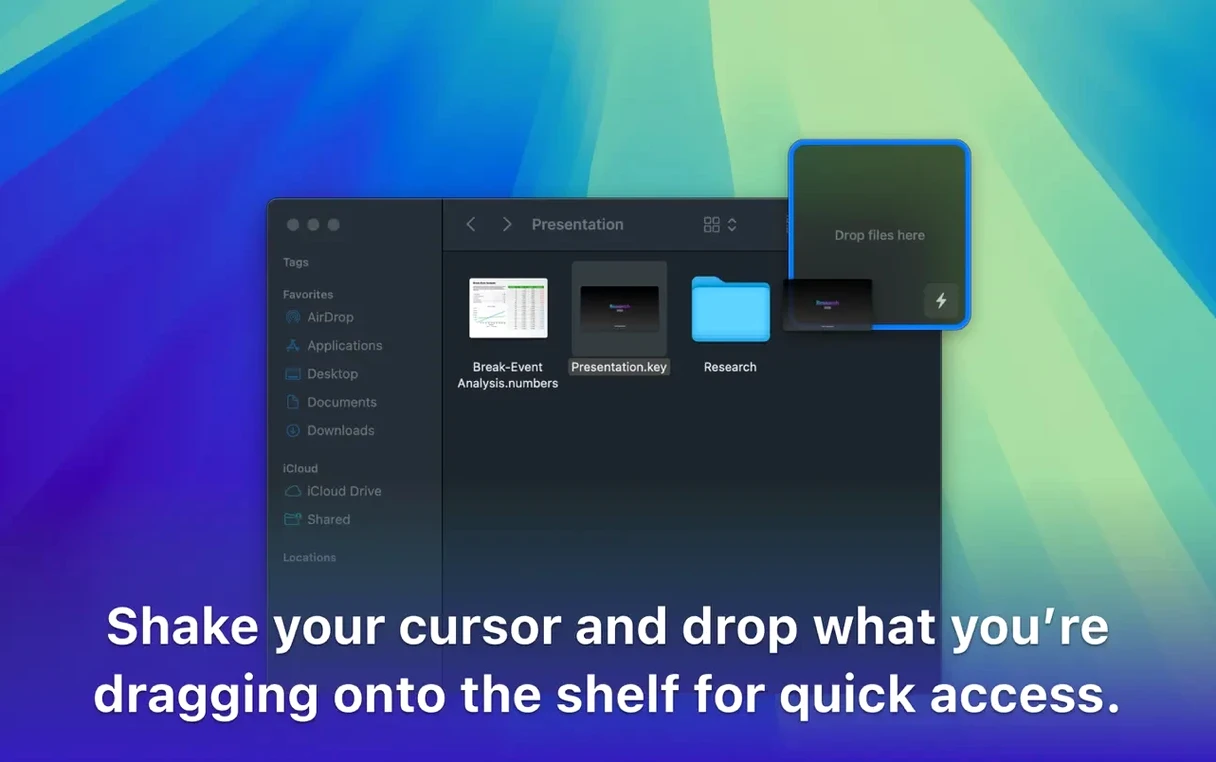
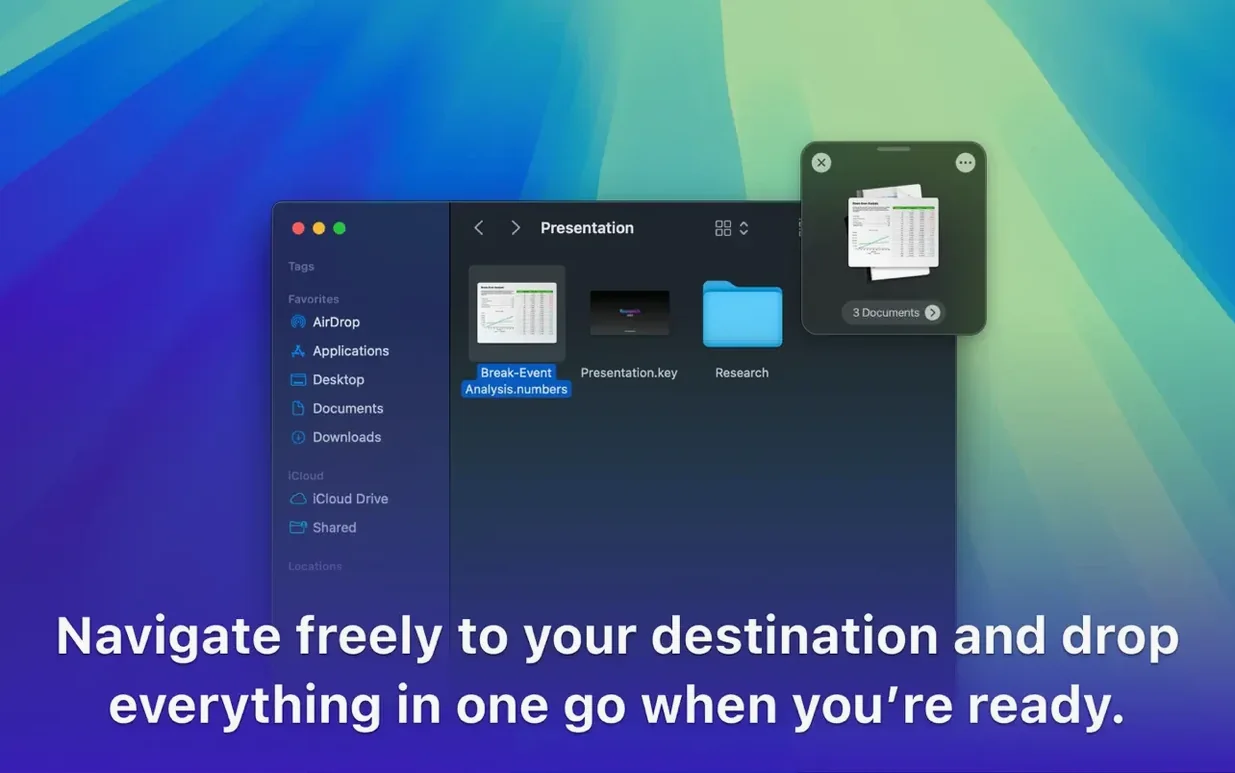
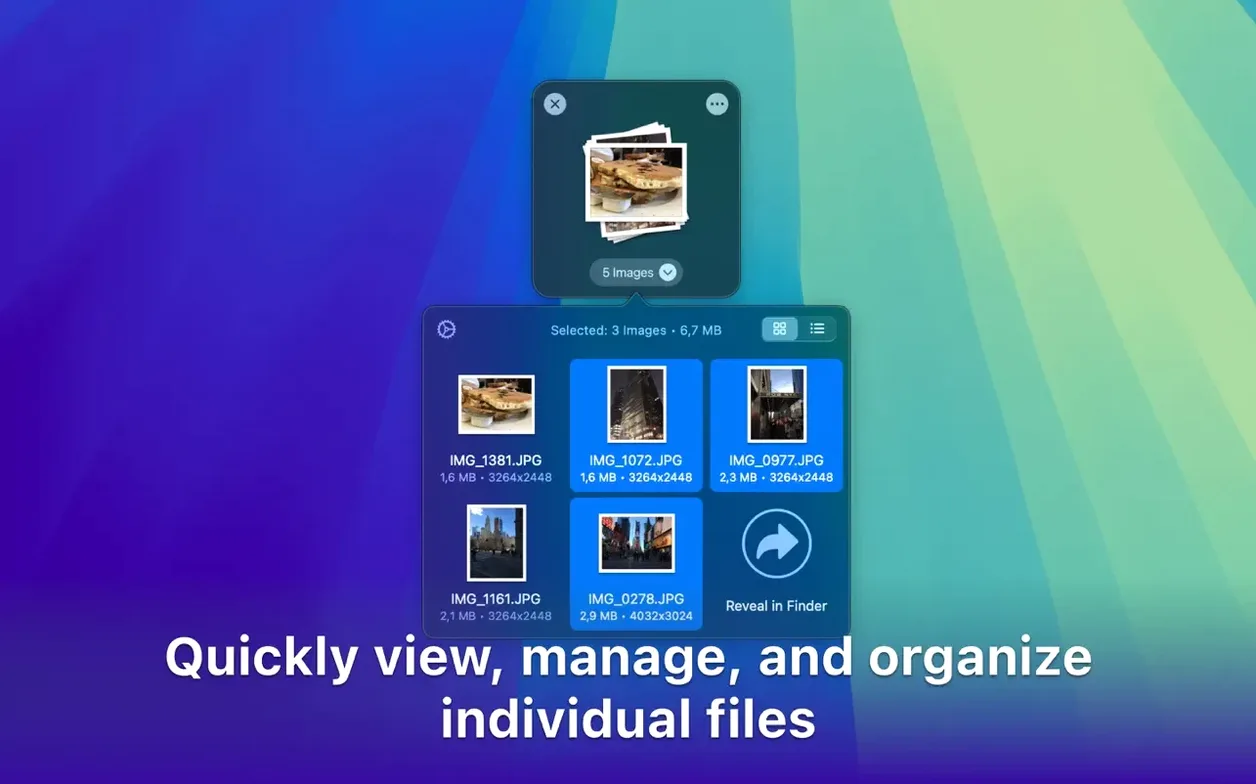
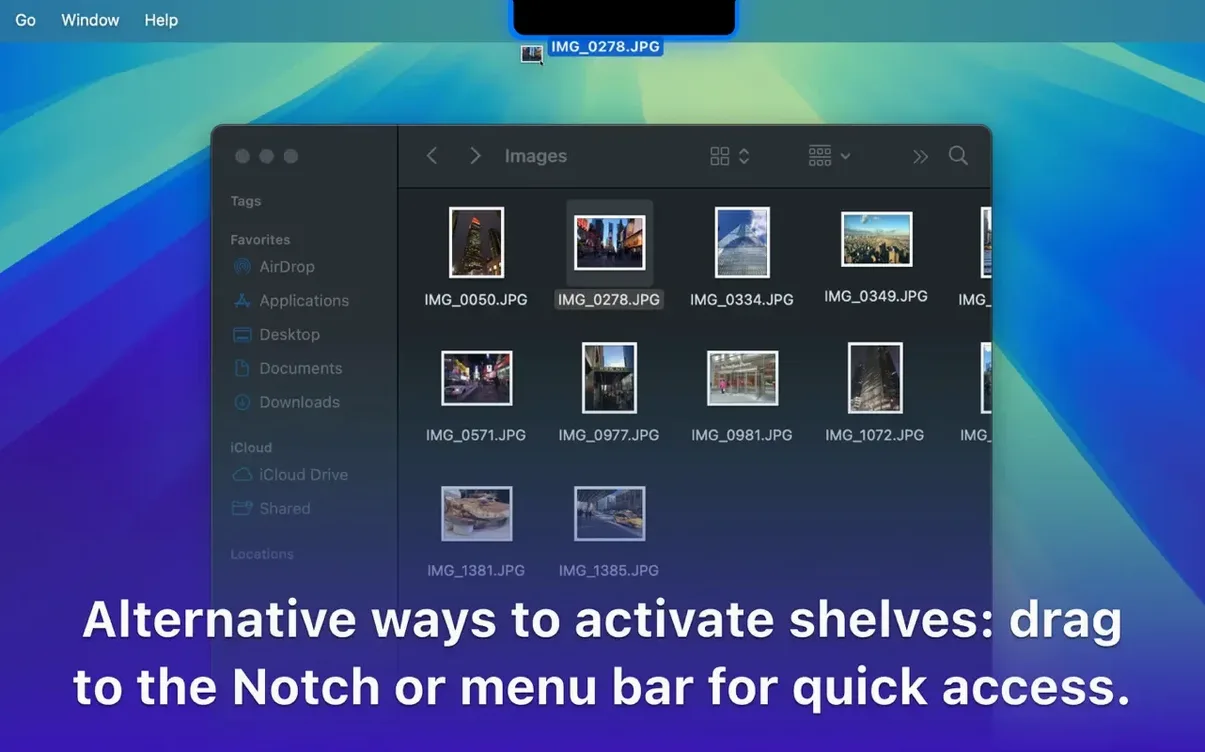
Select a handful of items from different folders, give them a wiggle with your cursor or press a hotkey, and a floating shelf appears. Pile everything there, then navigate to the destination and drag the whole lot in one move.
Share straight from the shelf
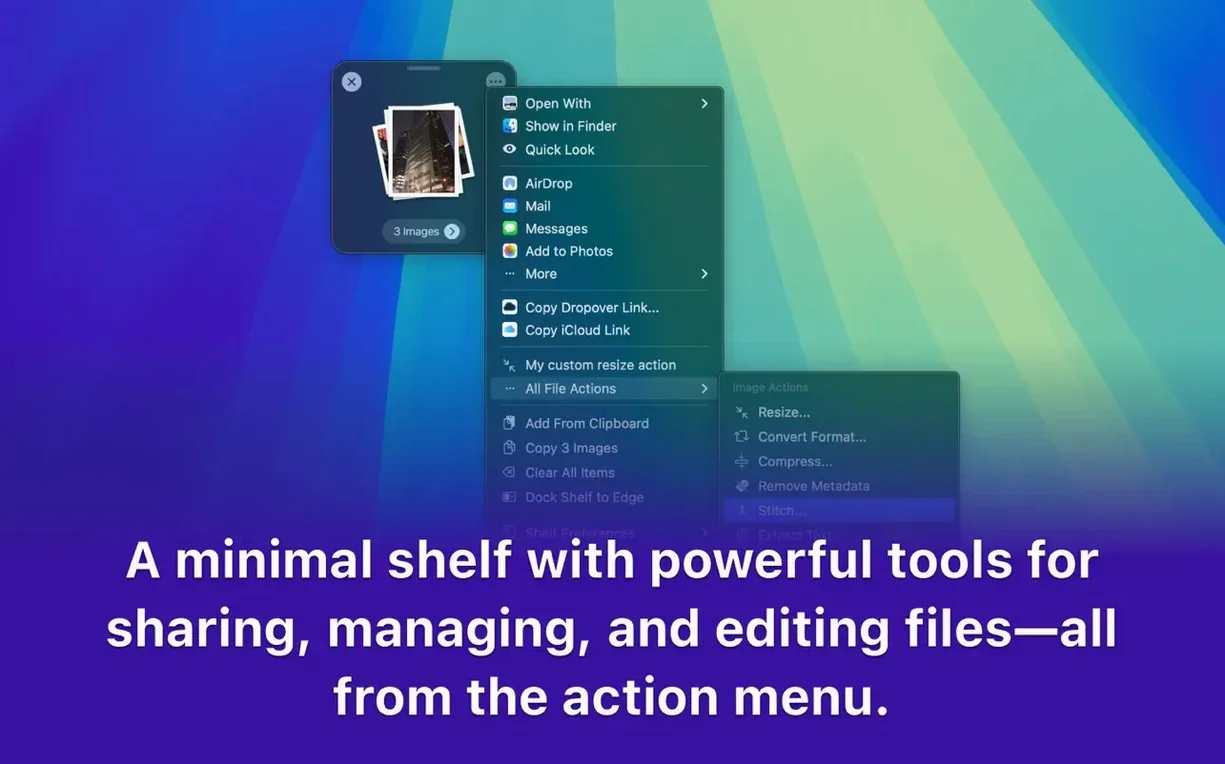
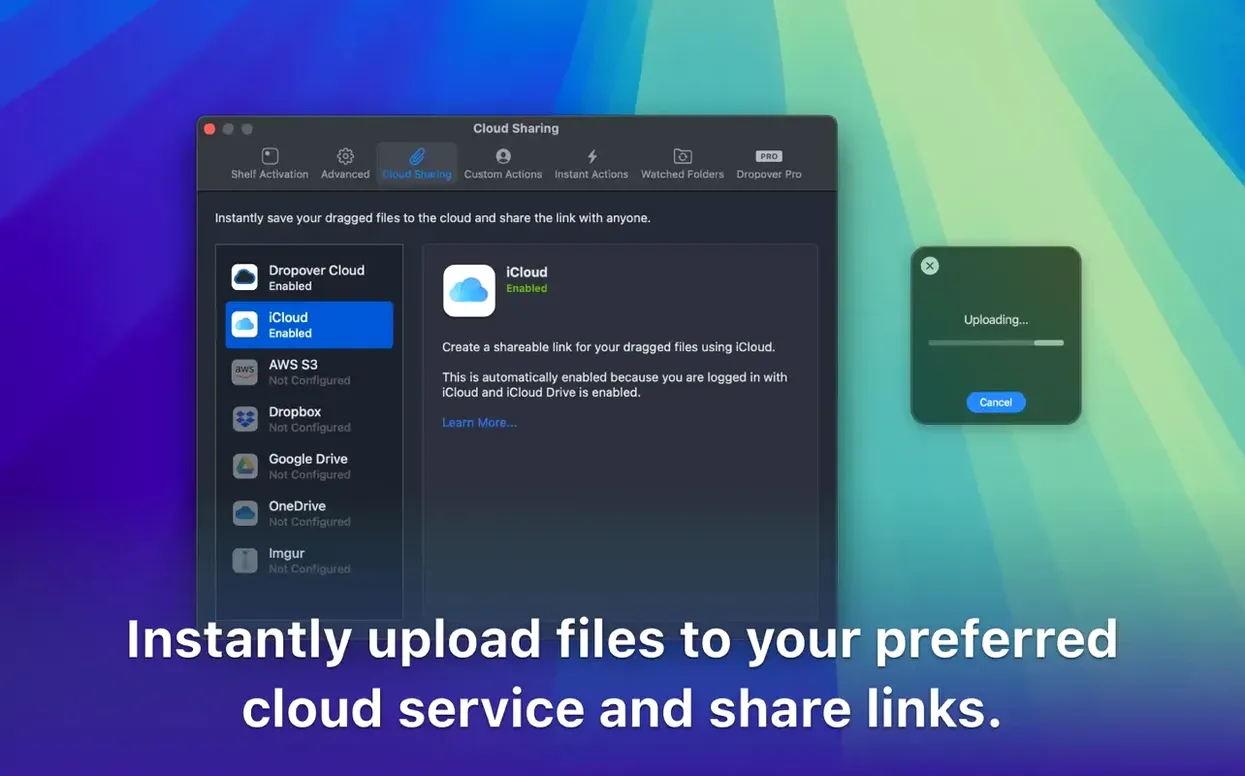
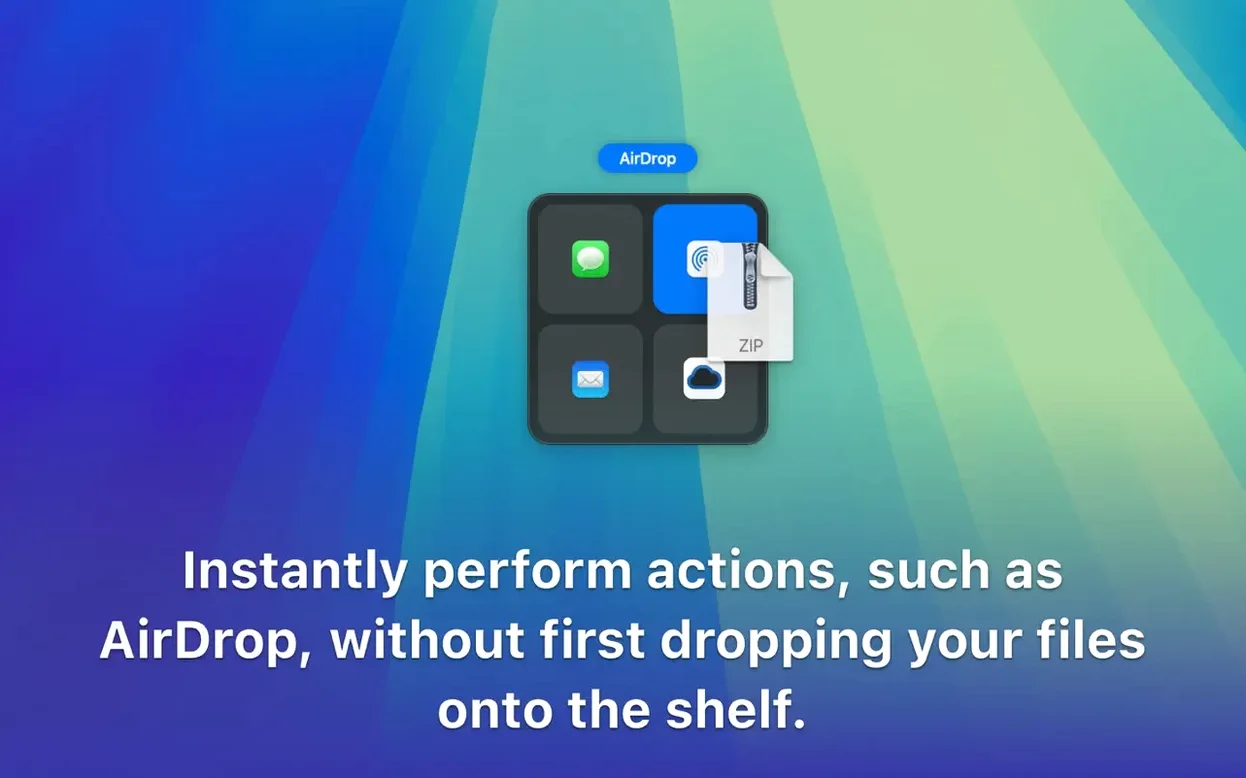
Once your files are staged, click the share button to send them via AirDrop, Messages, or a cloud service like Dropbox or Google Drive. No need to create a temporary folder first.
Rename or archive in two clicks
Highlight the items on the shelf to batch-rename them or compress them into a zip. The app also appears in your share sheets and works with Shortcuts for repeat jobs.
First days with Dropover
Let the shelf close automatically at first — the default timer gives you about ten seconds after you drop. In those early hours, resist the urge to pin every shelf. You will build a better instinct for which gatherings need to stick around and which are one-and-done transfers.
Three habits worth forming right away:
- Assign the shake gesture sensibly. The default wiggle sensitivity works for most, but if you use a trackball or a high-DPI mouse, bump it down a notch in preferences so you do not trigger shelves by accident.
- Practise the “collect from multiple sources” flow. Grab a screenshot, highlight a URL in Safari and drag it to the shelf, then add an image from Finder. Doing this deliberately a few times trains your brain to treat the shelf as a universal inbox, not just a file tray.
- Right-click any item on the shelf early on. The context menu hides a “Copy iCloud link” command for files already in iCloud Drive — a fast way to share without opening a browser.
Hovers at 120 MB of memory after a full workday
After a full workday of staging files — PDFs, large ProRes clips, dozens of images — Dropover stays quiet. Memory use hovers around 120–150 MB on an Apple Silicon Mac, with negligible CPU draw when idle. The shelf renders smoothly during Spaces transitions, and I have yet to see it freeze or lose items between drags.
File copies and uploads happen in the background. When you drop a shelf onto a cloud service shortcut, the progress indicator lives inside the shelf itself rather than spawning a separate window. Even zipping a 4 GB folder from the shelf completes without locking the interface.
If you work with apps that guard their own drag sources — some Adobe apps come to mind — dropping onto the shelf first and then into the destination avoids the cross-app drag failures that sometimes plague direct moves. It is a small buffer that makes a tangible difference in stability.
Shortcuts and conveniences you might miss
A few details hide in plain sight:
- Option-drag to copy. Dragging files off the shelf moves them by default. Hold Option during the drag, and the shelf duplicates them instead — handy when you want the originals to stay put.
- Browse shelf contents in Quick Look. Select an item and tap the spacebar. Works for images, PDFs, and text clippings, so you can verify what you gathered without opening anything.
- Drag text selections. Highlight a paragraph in Notes or a web page, shake to summon the shelf, and drop the selection there. It lands as a .textclipping you can drag into any text field later — a lightweight clipboard extender.
- Resize from any corner. The shelf is not fixed; grab any edge or corner to resize it. A wider shelf suits long filenames; a compact square works better when you just need a temporary stack.
- Keyboard shortcuts for shelf actions. With the shelf focused, Cmd-A selects all, Cmd-Delete removes selected items, and Cmd-C copies them to the system clipboard. No need to reach for the mouse.
If you installed via the dropover dmg and launched it from your Applications folder, the app registers its helper in System Settings > Privacy & Security > Accessibility on first run. Granting that permission enables the shake gesture and the global hotkey — without it, you are limited to drag-and-drop from the menu bar. A small checkbox that changes the whole feel of the tool.
- macOS 12 or later
- Apple Silicon or Intel
Comments 0
Sign in to leave a comment.Sign inCreate an account
No comments yet. If a step is still there after you install it, say so.
More in Mac Apps
All in Mac Apps DriveDx
Reads full drive-health diagnostics and warns you before a disk fails silently.
11 steps saved
 Updated
Duplicate File Finder Pro
Finds exact file copies by content, not name, across your Mac and external drives.
18 steps saved
 Drama
Turns a static screen design into a clickable prototype on a single canvas.
6 steps saved
 DxO PhotoLab
Corrects lens flaws and noise with lab-measured profiles built into the raw editor.
11 steps saved
 Dorico Pro
Engraves scores and parts with the precision a professional publisher expects.
4 steps saved
 Dynamic Wallpaper Engine
Replaces a static desktop with live wallpapers you switch via hotkey.
11 steps saved
 DynamicLake Pro
Surfaces your next meeting and local weather in a glanceable menu-bar strip.
17 steps saved
 Eagle
Finds similar images in large reference libraries so you stay focused on design, not file wrangling.