
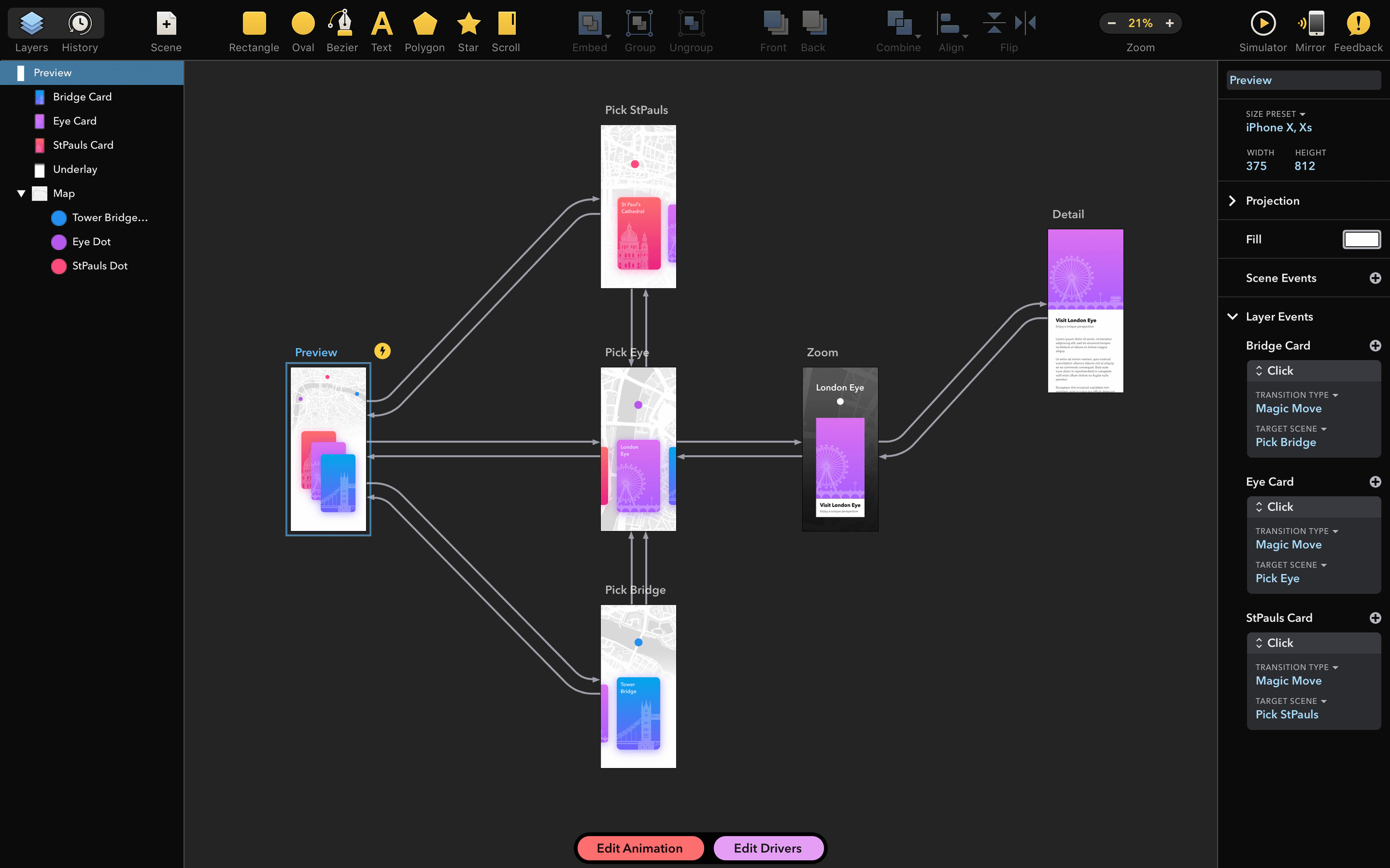
Interface designers and product teams reach for Drama when they need to move from a static screen to a working prototype without switching apps. It is a 3-in-1 tool that combines design, animation, and prototyping on a single canvas. The current version, 2.1.4, keeps that core workflow intact while addressing a specific stability issue.
Designs That Move Without Exporting to Another Tool
- Drawing clean interface mockups with vector tools
- Adding motion and transitions directly to design elements
- Building interactive prototypes you can click through
- Working without juggling separate design and prototyping apps
Stays on Intel Macs, English-Only Interface
- Runs on Intel Macs only — no native Apple Silicon support
- Requires macOS 11.5 or later
- Interface language is English only
- PixelCut, the developer, also makes PaintCode
All Three Stages Stay Inside One Drama File
Does Drama handle the prototyping alone, or do I need a companion app? The whole point of the 3-in-1 approach is that design, animation, and clickable prototypes live inside the same file. You draw a screen, set a transition, and test it right there. No export-import dance between tools, no separate player app. That said, if your team uses Sketch or Figma for final handoff, Drama is not trying to replace those — it is a self-contained prototyping stage that sits upstream.
Will it run on an M1 or M2 Mac? It will, through Rosetta, since the current build is Intel-only. Performance is fine for UI work, though you will notice the translation layer on very large canvases with dozens of animated layers. If you are on Apple Silicon, factor that in.
What about sharing prototypes with stakeholders who do not have a Mac? Drama saves self-contained HTML previews you can host anywhere. No viewer app required on their end. Send a link, they click through the flows.
A workflow from wireframe to clickable mockup
Here is a straight path through Drama for a two-screen login flow, start to finish.
- Set up the canvas. Choose a mobile frame — iPhone 14, 390×844 points. Add a second artboard for the dashboard screen that follows login.
- Draw the elements. Use the vector rectangle tool for input fields and a button. Add a text layer for the title. Group the form elements so they move as a unit later.
- Define states. Select the button, open the States panel, and duplicate the default state. Change the duplicate’s fill colour and label it “Pressed.” Drama stores that state on the same object.
- Add a tap trigger. Drag from the button on the login screen to the dashboard artboard. Choose a push transition with a 0.25-second ease-out curve. The connection line appears on the canvas — you can adjust the timing later.
- Animate the form. On the login screen timeline, add a 0.2-second opacity fade-in for the form group. Offset each field by 0.05 seconds for a staggered entrance. No code, just keyframes on the timeline.
- Test the flow. Press Space to preview. Tap the button — the prototype pushes to the dashboard. Click through the flow a few times, note what feels sluggish, and tighten the durations in the timeline inspector.
- Share the result. Export as an HTML preview. Drop it on a server or open it locally in a browser. Stakeholders click the prototype, no Mac needed.
How Drama fits with other apps and macOS
Drama is not a replacement for a full vector editor in a production pipeline. A common setup looks like this: rough sketches in Freeform or a notebook, then straight into Drama for high-fidelity screens and interaction design. Once the flow is approved, export individual assets as PNG or SVG and bring them into Xcode or a design-system tool like Sketch for final polish and developer handoff.
The app leans on several macOS frameworks that make the prototyping feel native. Quick Look previews work on saved .drama files directly in Finder — tap the spacebar to check a thumbnail without launching the app. The timeline and properties panels follow standard Mac layout conventions, so keyboard shortcuts like ⌘G for grouping and ⌘R for the preview feel familiar. Because it respects the system colour picker, you can save swatches to iCloud and pull them into other apps that use the native panel.
For teams that do their visual design elsewhere, Drama still earns its keep as the animation and prototyping layer. You can import flat PNGs or SVGs from any design tool, place them on artboards, wire up transitions, and animate layer properties without touching the original source files. When the design updates, swap the imported asset and the interactions stay in place.
On the sharing side, the HTML export is deliberately simple — a single folder with no dependencies. That makes it easy to zip and send through Messages, drop into a shared iCloud folder, or embed in a Notion page for async feedback. The prototype runs offline, so a stakeholder on a flight can still click through the screens.
- Fixed — a crash on start triggered by specific installed fonts
- macOS 11.5 or later
- Intel 64-bit processor
Questions I get before install
What does the Drama 2.1.4 update fix?
Version 2.1.4 fixes a crash that occurred on launch when specific fonts were installed on the system.
What type of Mac does Drama run on?
Drama is an Intel 64-bit application that requires macOS 11.5 or later.
Who develops Drama?
Drama is made by PixelCut, the company behind the vector drawing app PaintCode.
Comments 0
Sign in to leave a comment.Sign inCreate an account
No comments yet. If a step is still there after you install it, say so.
More in Mac Apps
All in Mac Apps Dorico Pro
Engraves scores and parts with the precision a professional publisher expects.
8 steps saved
 DriveDx
Reads full drive-health diagnostics and warns you before a disk fails silently.
8 steps saved
 Dropover
Stages scattered files on a floating shelf until you reach the destination folder.
11 steps saved
 Updated
Duplicate File Finder Pro
Finds exact file copies by content, not name, across your Mac and external drives.
13 steps saved
 Disk Drill
Recovers lost files from a disk that macOS wants to reinitialize.
6 steps saved
 DxO PhotoLab
Corrects lens flaws and noise with lab-measured profiles built into the raw editor.
21 steps saved
 Depth Scanner
Generates a depth matte from any video clip or photo directly inside After Effects.
4 steps saved
 Dynamic Wallpaper Engine
Replaces a static desktop with live wallpapers you switch via hotkey.