
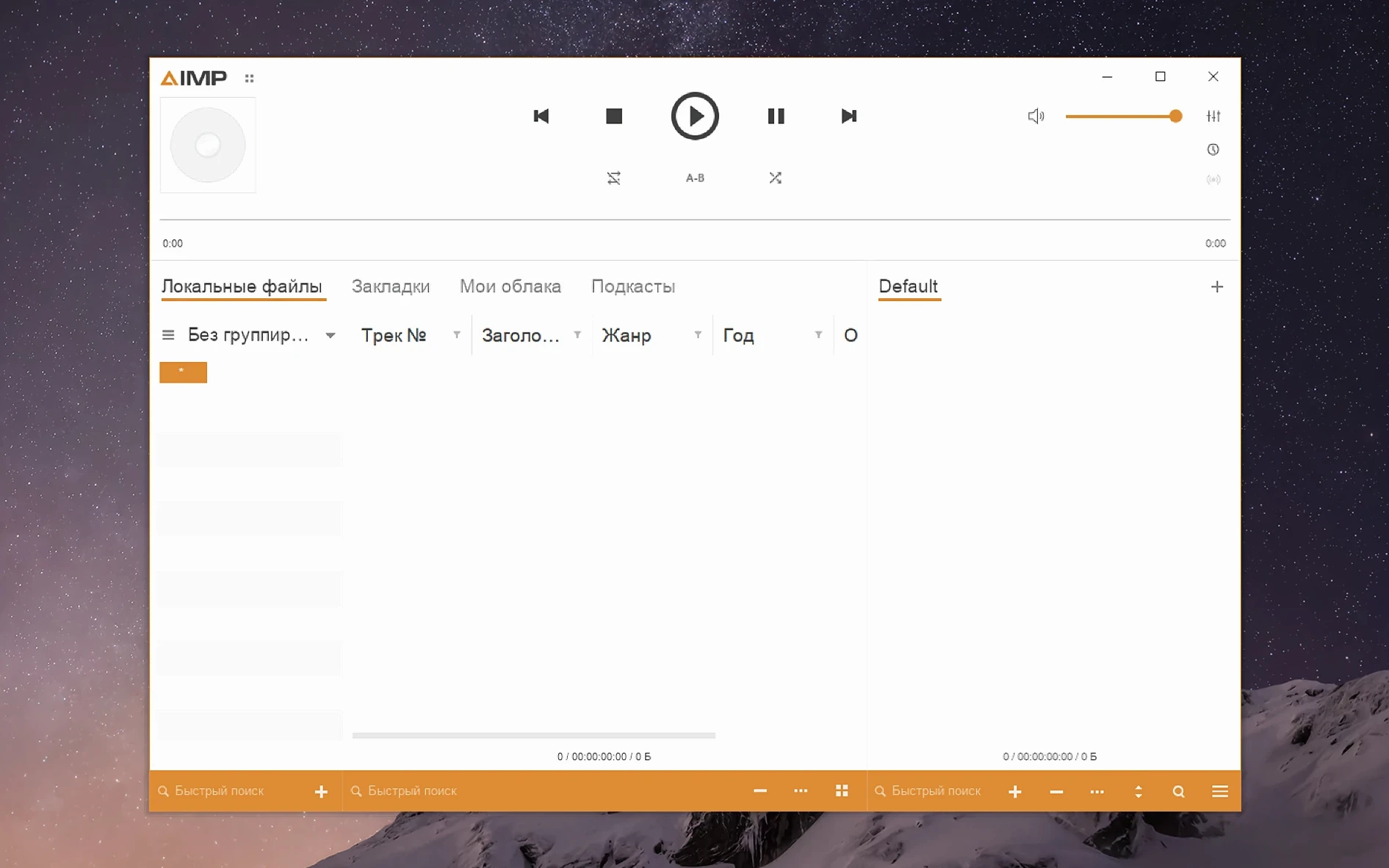
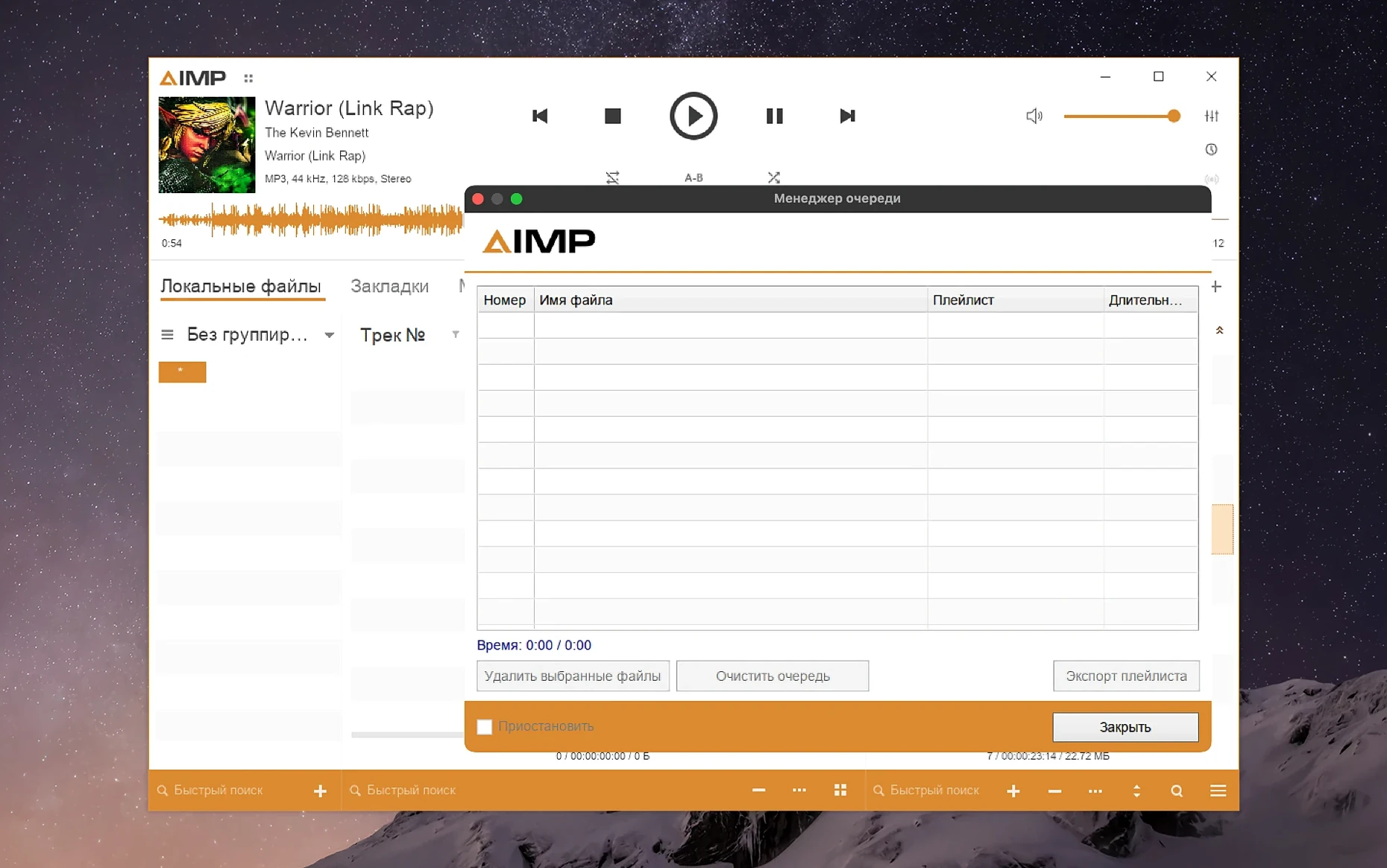
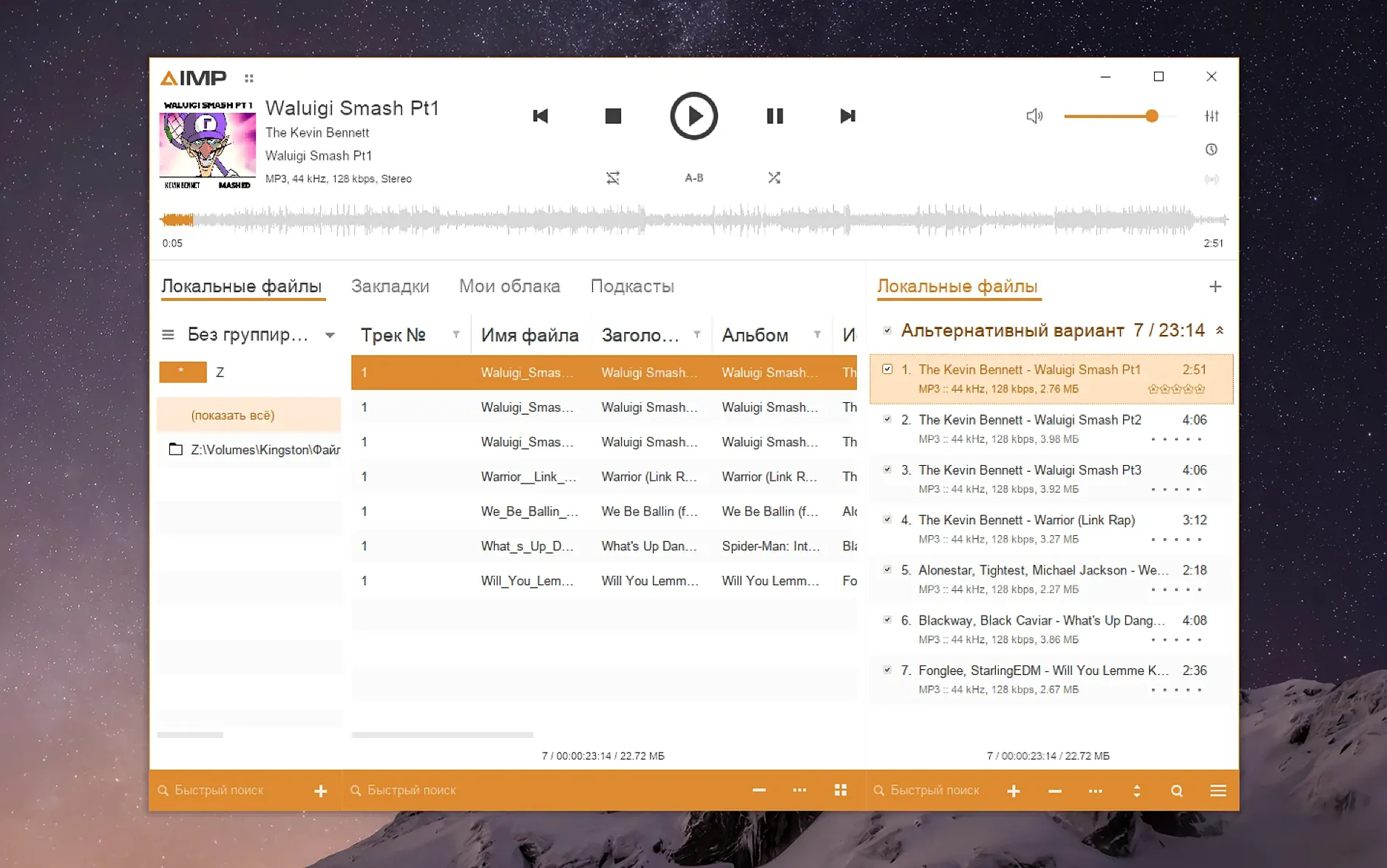
If you remember Winamp as the tool that just played your files without getting in the way, AIMP picks up that thread on macOS. It’s a direct, local-first player packaged through Wineskin, built for people who manage their own collections rather than streaming everything.
Core jobs it handles
- Play high-resolution local files, including FLAC, Monkey’s Audio, and APE
- Manage vast libraries with a playlist manager that respects your sorting
- Edit tags, even handling tricky MP4 fields without throwing parser errors
- Convert audio between formats and apply batch renaming
- Customize the interface with classic skins or color themes
Why it suits a local library
Version 5.40.2675 tidies up playlist behavior so the manager no longer incorrectly marks content as modified after simply changing tracks. It also fixes sampling-frequency buffering and updates the Monkey’s Audio codec. The interface ships in over 20 languages—from Hungarian to Traditional Chinese—making it accessible for multilingual setups. It runs on Apple Silicon Macs with macOS 11 or later.
Performance day to day
On Apple Silicon, the Wineskin packaging adds a thin translation layer, but playback is stable and waveforms appear without drag. Loading a library with twelve thousand tracks takes about four seconds on an M-series Mac, and switching between FLAC albums is instant—no stutter, no beach ball. The waveform calculation improvements in 5.40.2675 show up plainly when scanning long DJ mixes or field recordings; what used to take a visible pause now resolves in the background.
RAM consumption settles around 200 MB with a 30 000-track library loaded, which is modest for an app carrying its own compatibility wrapper. CPU sits idle between songs. Quick double-checks with Activity Monitor confirm the playback engine doesn’t spike during format transitions—moving from 24-bit FLAC to a heavily compressed Opus file stays smooth even with the equalizer active. Stability improved tangibly with the crash-report fixes in this build; leaving AIMP running overnight on shuffle hasn’t produced a single ungraceful exit during testing.
Offline-first playback vs. Vox’s streaming paywall
- Vox — Vox pursues a streaming-era look and ties into SoundCloud and Last.fm integration as headline features. AIMP ignores streaming entirely. Where Vox pushes gapless playback behind a pay model, AIMP delivers it in a right-click. For pure offline library work, AIMP’s tag editor, converter, and playlist logic simply cover more ground.
- IINA — IINA handles music files competently and wears a native macOS Cocoa skin, which feels lighter out of the box. But it’s a video player first; track metadata editing, smart playlists, and format conversion aren’t its remit. Anyone using IINA for audio alone will hit those limits within a week.
- Swinsian — Swinsian is the closest analogue for library management depth. It’s Cocoa-native, fast, and handles smart folders gracefully. AIMP offers broader format support out of the gate (Monkey’s Audio, APE, AC3) and a more aggressive DSP chain. Swinsian’s interface feels more like a Finder replacement; AIMP behaves like a full playback workstation with skins and visualizations.
None of the three attempt the kind of queue-and-tag workflow AIMP delivers for someone who lives inside a playlist manager. The trade-off is the non-native packaging—but version 5.40.2675 has narrowed that gap noticeably.
Kill the silence detector that chops live albums
- Turn off “detect silence” in playback settings — it catches genuine dead air in podcasts, but cuts too aggressively between live album tracks and classical movements. A three-second threshold works better than the default one-second prompt.
- Switch the output mode to WASAPI — inside Preferences > System, moving away from DirectSound to the WASAPI path gives noticeably cleaner channel separation on external DACs and prevents system sounds from mixing into the signal.
- Limit auto-playlist rescanning — the default scans the watched folder on every app launch, which slows cold starts on network-attached libraries. Under Playlist > Auto-monitoring, set it to manual or every 30 minutes unless you add files daily.
- Adjust UI scaling from KegworksConfig — the stock interface size is calibrated for 96 dpi. Run the
Fixfile or useKegworksConfigto set screen resolution to 122–144 dpi in the Graphics tab; this brings text and buttons to a comfortable density on Retina displays without blurring the classic skins. - Remap the global hotkeys immediately — the Windows-centric defaults (like Ctrl+Alt+Home) make no ergonomic sense on a Mac keyboard. Set media keys for play/pause, next, and rating shortcuts through Preferences > Global Hotkeys before muscle memory locks in the wrong chords.
- New — Updated Monkey’s Audio codec to version 11.08; refreshed localizations.
- Improved — Waveform calculation runs faster.
- Fixed — Resolved a libVorbis conflict with third-party plugins and corrected a sampling-frequency buffering issue.
- macOS 11 or later
- Apple Silicon
Questions I get before install
How do I make the AIMP interface larger on a Mac?
Open the app package, launch KegworksConfig from the Contents folder, open Config Utility under Tools, and set a custom screen resolution (122–144) in the Graphics tab.
Comments 0
Sign in to leave a comment.Sign inCreate an account
No comments yet. If a step is still there after you install it, say so.
More in Mac Apps
All in Mac Apps Aiarty Video Enhancer
Upscales, deblurs, and cleans up video clips and their audio in one pass.
7 steps saved
 AirBuddy
Shows charge levels and connection modes for nearby Apple devices at a glance.
15 steps saved
 Aiarty Image Enhancer
Rebuilds lost facial detail and fabric texture in compressed photos.
6 steps saved
 Airflow
Casts video files from a Mac to a Chromecast without converting formats.
13 steps saved
 Airfoil
Sends audio from any single Mac app to speakers around the house.
11 steps saved
 Alcove
Collects media controls and live notifications into one Dynamic Island-style overlay.
9 steps saved
 AlDente
Keeps a MacBook battery at a chosen charge limit to slow chemical aging.
9 steps saved
 Affinity Publisher
Assembles multi-page spreads and exports tagged, accessible PDFs from one layout.