
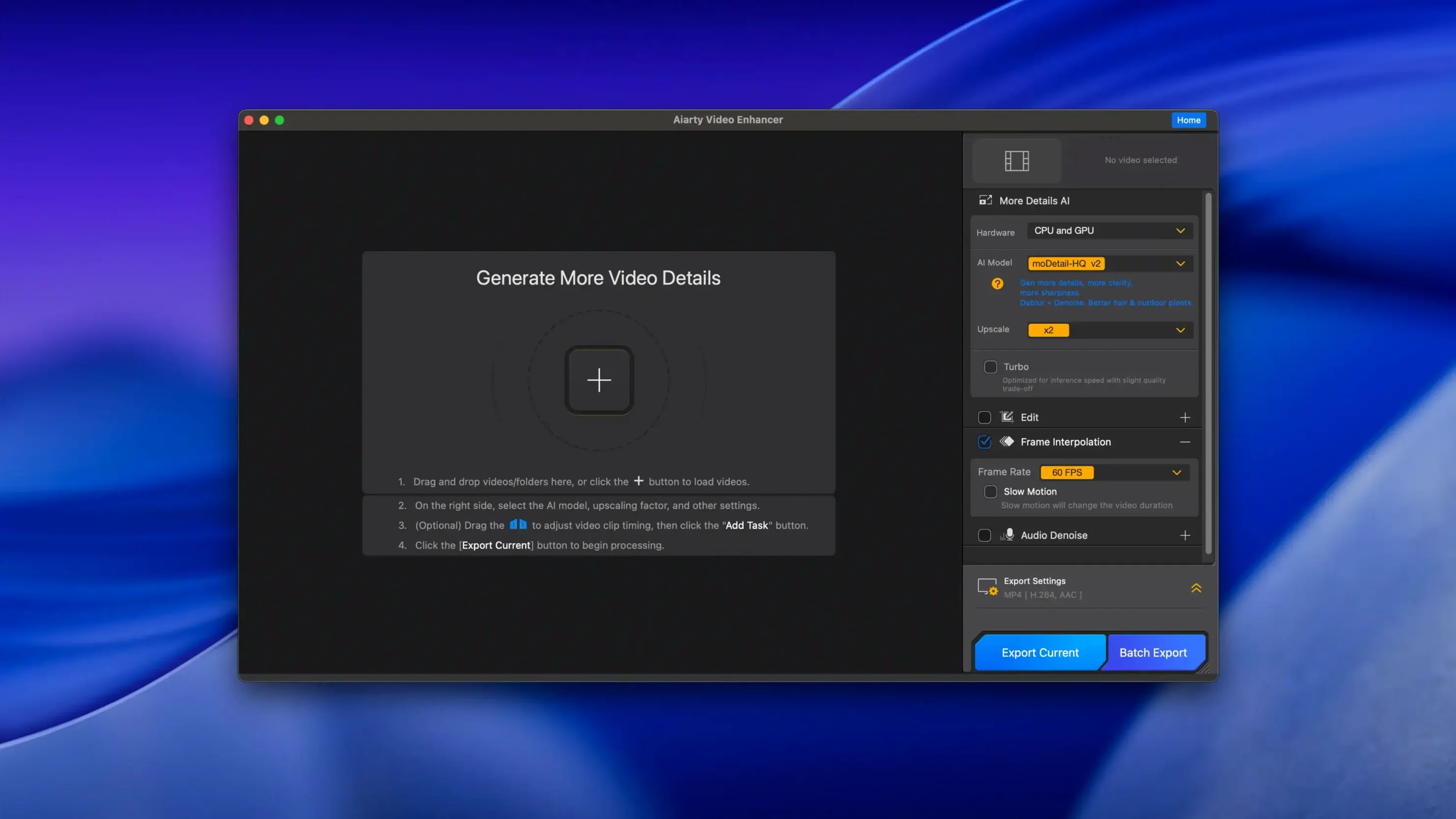
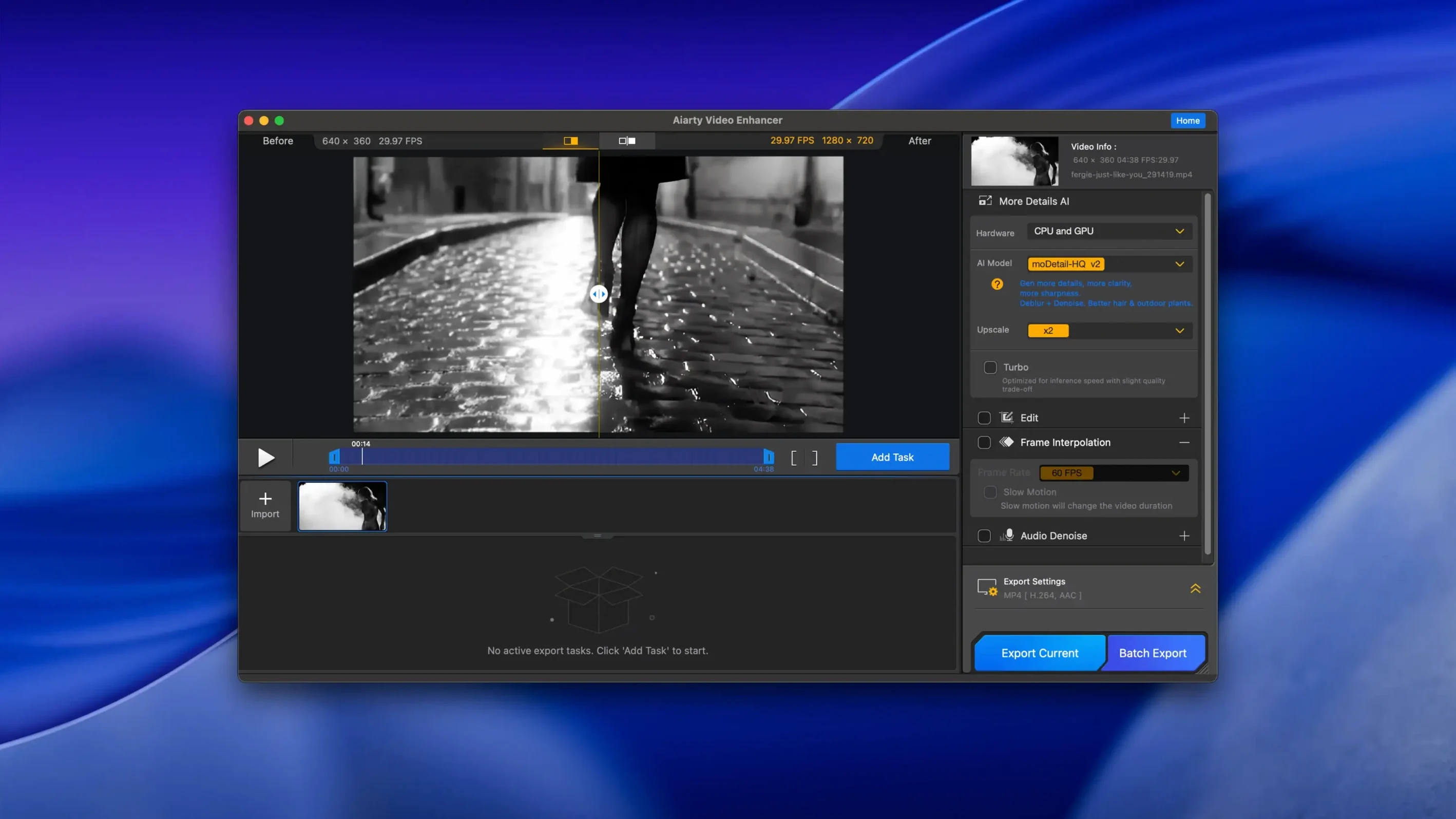
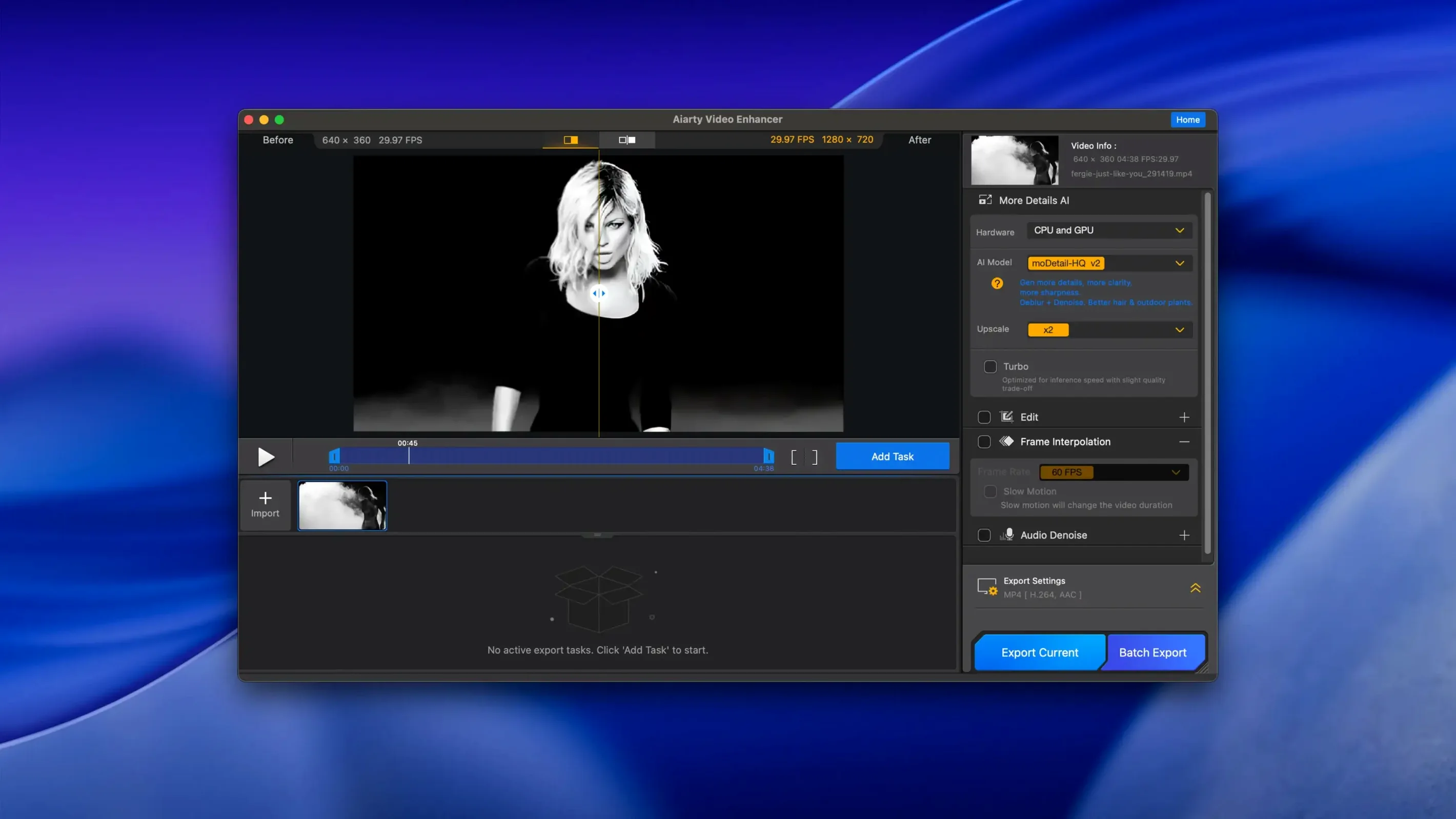
512 GB of disk space. That is the Mac requirement, and it signals intent. This is a desktop app built for heavy lifting—upscaling, deblurring, denoising, and cleaning audio without bouncing between four utilities.
Newcomer's first run
- Load a clip that stutters. A low-light phone video or an old DVD rip works. The app reads common formats and presents a preview window.
- Pick one correction at a time. Start with the Deblur model if motion smears frames. Switch to Denoise for grainy, dark footage. Upscale handles resolution bumps.
- Stack a second pass. After fixing blur, run the clip through Denoise. The output stays clean because each pass targets one problem.
- Clean the audio. Open the Audio Denoise module. One click pulls out background hum and pushes voice forward. No extra DAW needed.
- Check frame interpolation. If slow motion matters, enable interpolation for 8X or 16X output. The app generates intermediate frames to keep movement smooth.
- Export and resume. Version 3.8 added resumable exports. If a long render stops, pick it up where it left off. MKV support is also included now.
Run this sequence on one flawed video. By the end, you will know which models match your typical footage—and you will not have opened a second piece of software.
Creators blending phone, screen, and archive footage
Not every Mac user needs a four-in-one video repair tool. The ones who do tend to fall into a few clear groups.
- Creators working with mixed sources. People who cut phone clips, screen recordings, stock footage, and archive material into one timeline. Aiarty Video Enhancer normalizes the worst of it before a project starts.
- Editors restoring old or damaged footage. DVD rips, digitized tapes, compressed downloads. Deblur and denoise do most of the heavy cleanup, while upscaling brings the result closer to modern display resolutions.
- Mac users without a separate audio tool. The Audio Denoise module covers the most common need—background hiss, fan noise, room tone—without adding a dedicated audio editor to the workflow.
- Anyone who renders long videos. Resumable exports in version 3.8 matter most when a 40-minute upscale dies at 70%. Restarting from scratch is the alternative.
Intel Macs with a dedicated GPU and 4 GB of VRAM or more handle the workload well. Apple Silicon machines run the app natively, which keeps previews responsive during model switching.
macOS 11 plus 4 GB VRAM on Intel
Does it run on my Mac? Version 3.8 installs on macOS 11 or newer, on both Apple Silicon and Intel. An Intel Mac needs a dedicated graphics card with at least 4 GB of VRAM; Apple Silicon has no such extra requirement. Eight gigabytes of RAM is the baseline. Disk space matters because processed video and temporary files add up fast.
Will it replace my editor? No. It prepares and repairs footage. Cutting, titles, colour work, and final delivery still belong to a regular timeline editor. The app handles one job: making flawed source material usable.
How does it handle MKV? Version 3.8 added MKV support for both input and export. That removes a conversion step for anyone working with rips or downloaded files that arrive in Matroska containers.
What if a render stops midway? Resumable exports pick up from the interruption point. Close the app, reopen it, and continue the same job rather than starting over.
Restoring an old home video
A grainy MiniDV transfer with muffled audio and soft focus is a typical test case. The goal: a clean 4K version with intelligible voices.
- Import the clip. Drop the file into Aiarty Video Enhancer. The preview window shows the source as-is before any model runs.
- Apply Deblur first. Soft focus is the primary problem. Run the deblur model and scrub through the preview to check edge definition on faces and objects.
- Pass through Denoise. Grain from the tape transfer becomes visible after deblur. A denoise pass smooths it without flattening texture that survived the first correction.
- Upscale to 4K. With blur and grain under control, upscaling adds resolution. The AI model reconstructs detail instead of stretching pixels.
- Clean the audio track. Open Audio Denoise. Background hum from the camera motor and room noise drop away. Voices come forward.
- Enable frame interpolation if needed. For slow-motion sections, 8X interpolation creates intermediate frames that keep pans and movement steady.
- Export as MKV. Version 3.8 supports it. If the render interrupts for any reason, resume from the same point.
The result is one file—sharper, cleaner, and easier to watch than the original tape ever was.
- New — Resumable exports. Stop and restart long renders without losing progress.
- New — MKV format support for import and export.
- Improved — CUDA memory optimizations reduce GPU overhead during processing.
- macOS 11 or later
- 8 GB RAM
- 512 GB disk space
- Dedicated GPU with 4 GB VRAM or more (Intel Macs)
- Apple Silicon or Intel
Comments 0
Sign in to leave a comment.Sign inCreate an account
No comments yet. If a step is still there after you install it, say so.
More in Mac Apps
All in Mac Apps Aiarty Image Enhancer
Rebuilds lost facial detail and fabric texture in compressed photos.
18 steps saved
 AIMP
Plays and organizes a local music collection without streaming dependencies.
7 steps saved
 AirBuddy
Shows charge levels and connection modes for nearby Apple devices at a glance.
6 steps saved
 Airflow
Casts video files from a Mac to a Chromecast without converting formats.
13 steps saved
 Airfoil
Sends audio from any single Mac app to speakers around the house.
9 steps saved
 Affinity Publisher
Assembles multi-page spreads and exports tagged, accessible PDFs from one layout.
11 steps saved
 Alcove
Collects media controls and live notifications into one Dynamic Island-style overlay.
10 steps saved
 Affinity Photo
Processes RAW photos and retouches pixels non-destructively in dedicated personas.