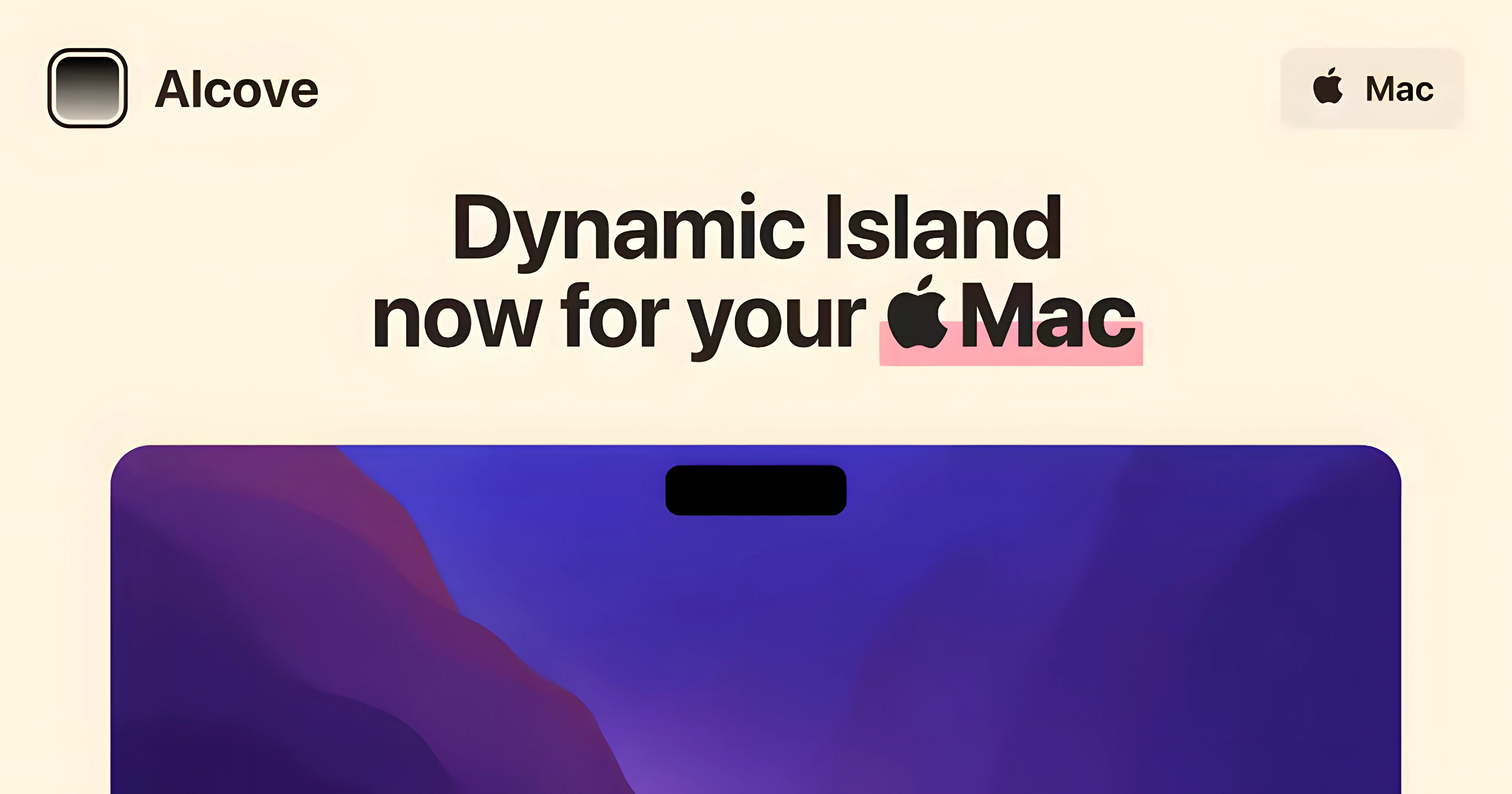
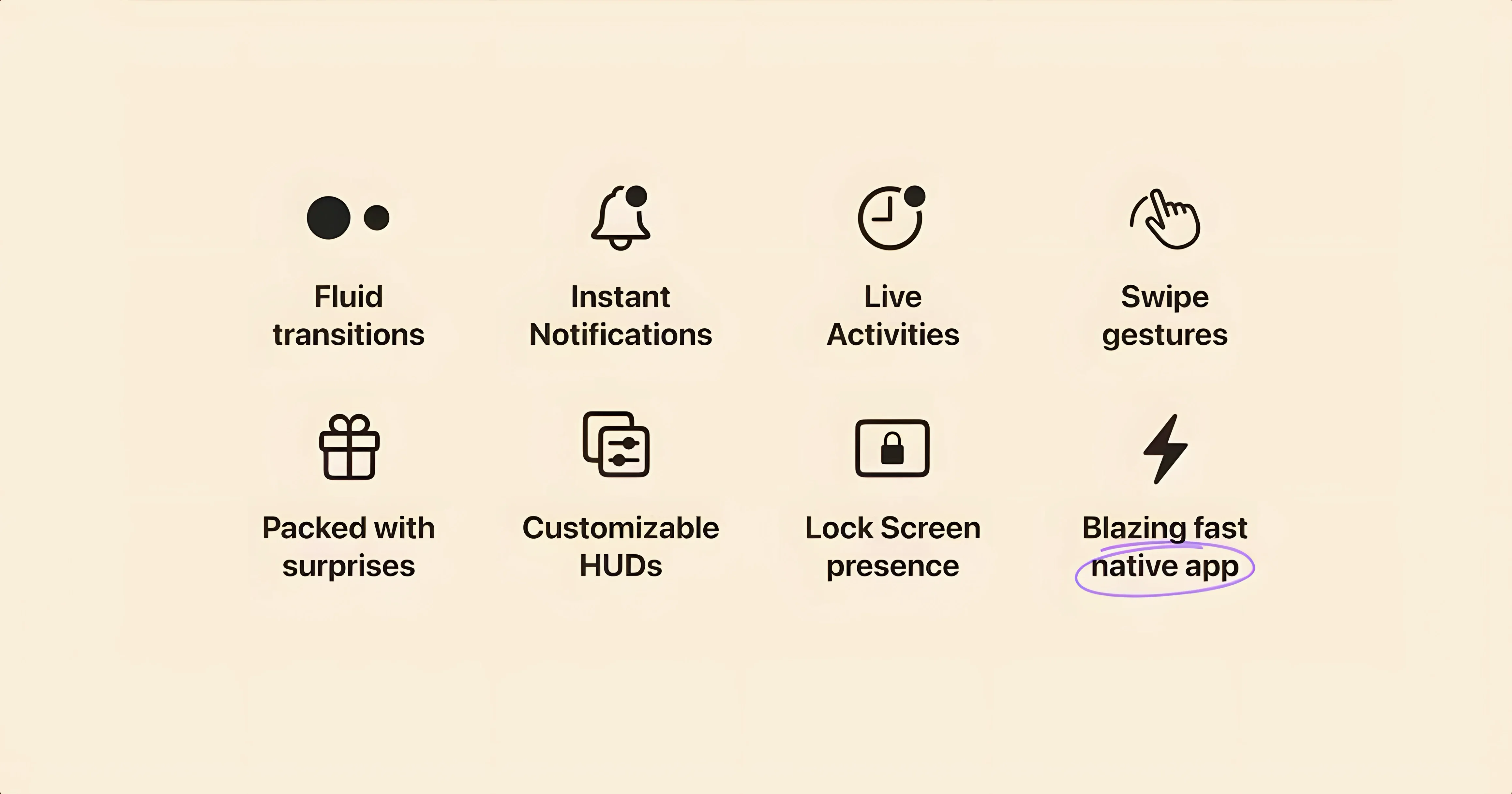
Two custom HUDs and one interactive capsule. Alcove 1.7.9 borrows the Dynamic Island concept and pins it to the top of your Mac screen. It replaces the stock volume and brightness overlays with its own, then routes media controls, notifications and Live Activities into a single pill-shaped area.
- Which macOS versions does it need? macOS 14 Sonoma or later. It runs on both Apple Silicon and Intel Macs.
- What exactly gets replaced? The system volume and brightness HUDs. Alcove draws its own sliders instead.
- What appears in the capsule? Media playback info, incoming notifications, and any active Live Activities.
- Who builds it? Henrik Ruscon. The app launched in November 2024 and the interface is English-only.
- Is it a complete Dynamic Island clone? No. It focuses on a handful of glanceable actions rather than mirroring every iOS behaviour.
Everything lives in the notch area. The capsule stays out of the way until you need it, then expands for quick taps without pulling you out of your current window.
Fixing HUDs That Still Show the Apple Style
Most issues trace back to macOS permissions or a stale install. A few minutes of checking usually clears them up.
- HUDs still show the Apple style. Open System Settings → Notifications and confirm Alcove is allowed to run. Then relaunch the app. If the stock overlays still appear, toggle Alcove’s HUD replacement off and on again in its settings.
- Capsule ignores media playback. Grant the app access to control other apps. System Settings → Privacy & Security → Automation. Find Alcove and enable the media player entries. Restart the player afterwards.
- Nothing shows on an Intel Mac. Check that automatic updates are off, as noted during setup. An auto-update can drag in a build that misbehaves on x86. Reinstall 1.7.9 from a clean copy of the disk image.
- Live Activities appear briefly, then vanish. macOS gives those events a short window. Keep the app running and disable “hide after inactivity” if the switch is present in the capsule preferences.
- The capsule overlays full-screen apps. Use the on-screen position control to nudge it left or right, or set it to hide during full-screen sessions.
If the capsule freezes after a system update, drag Alcove back over itself from the original disk image. That rebuilds the app bundle without touching your preferences.
Producer’s Setup: Volume HUD No Longer Blocking Waveforms
A podcast producer keeps three things on screen: a rough cut in Final Cut, a reference track in Music, and a rolling to-do list. The stock volume HUD used to cover her waveform view every time she adjusted monitoring levels. Alcove swaps that for a slim capsule above the notch. A quick click expands it; a drag sets the level; a tap collapses it. The timeline stays visible throughout.
While exporting, she switches to Music for a sound check. Playback details appear in the capsule — title, artist, and a pause control. A Slack notification slides in as a Live Activity, showing the sender and the first line of the message. She glances up, taps to expand, and replies without leaving the export progress screen. The capsule then settles back into a compact pill until the next event.
For anyone running alcove 1.7.9 on a busy desktop, the point is the absence of interruption. Controls surface where the eyes already go, then get out of the way. That suits editors, writers with long audio sessions, and anyone who keeps media playback running alongside focused work.
- macOS 14 or later
- Apple Silicon or Intel (x86-64) Mac
Questions I get before install
What does Alcove show in the Mac notch?
It displays a Dynamic Island-style capsule for media playback, notifications and Live Activities, plus custom sliders for volume and brightness.
Comments 0
Sign in to leave a comment.Sign inCreate an account
No comments yet. If a step is still there after you install it, say so.
More in Mac Apps
All in Mac Apps Airfoil
Sends audio from any single Mac app to speakers around the house.
9 steps saved
 AlDente
Keeps a MacBook battery at a chosen charge limit to slow chemical aging.
6 steps saved
 Airflow
Casts video files from a Mac to a Chromecast without converting formats.
17 steps saved
 Alfred 5 Powerpack
Chains file actions, searches, and scripts into automated sequences from the keyboard.
7 steps saved
 AirBuddy
Shows charge levels and connection modes for nearby Apple devices at a glance.
5 steps saved
 Updated
AltTab Pro
Switches between open windows with live thumbnails and a fully custom shortcut.
18 steps saved
 AIMP
Plays and organizes a local music collection without streaming dependencies.
11 steps saved
 Aiarty Video Enhancer
Upscales, deblurs, and cleans up video clips and their audio in one pass.