
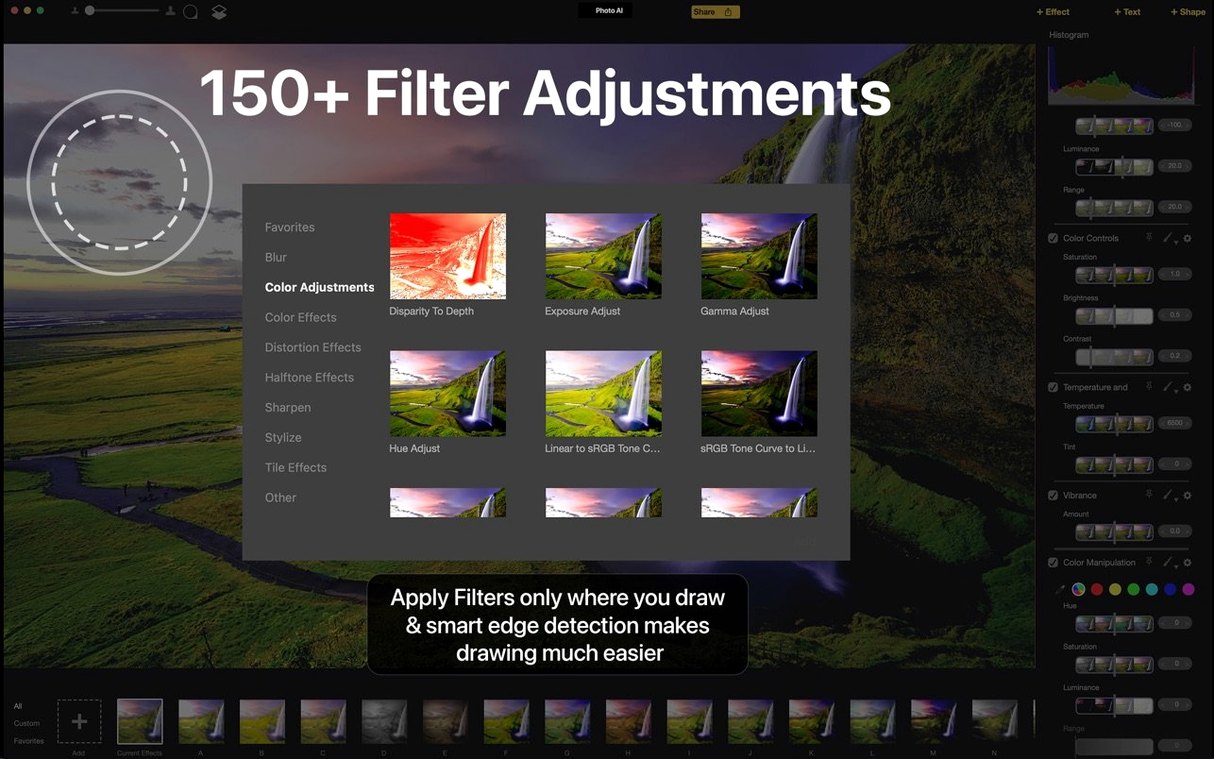
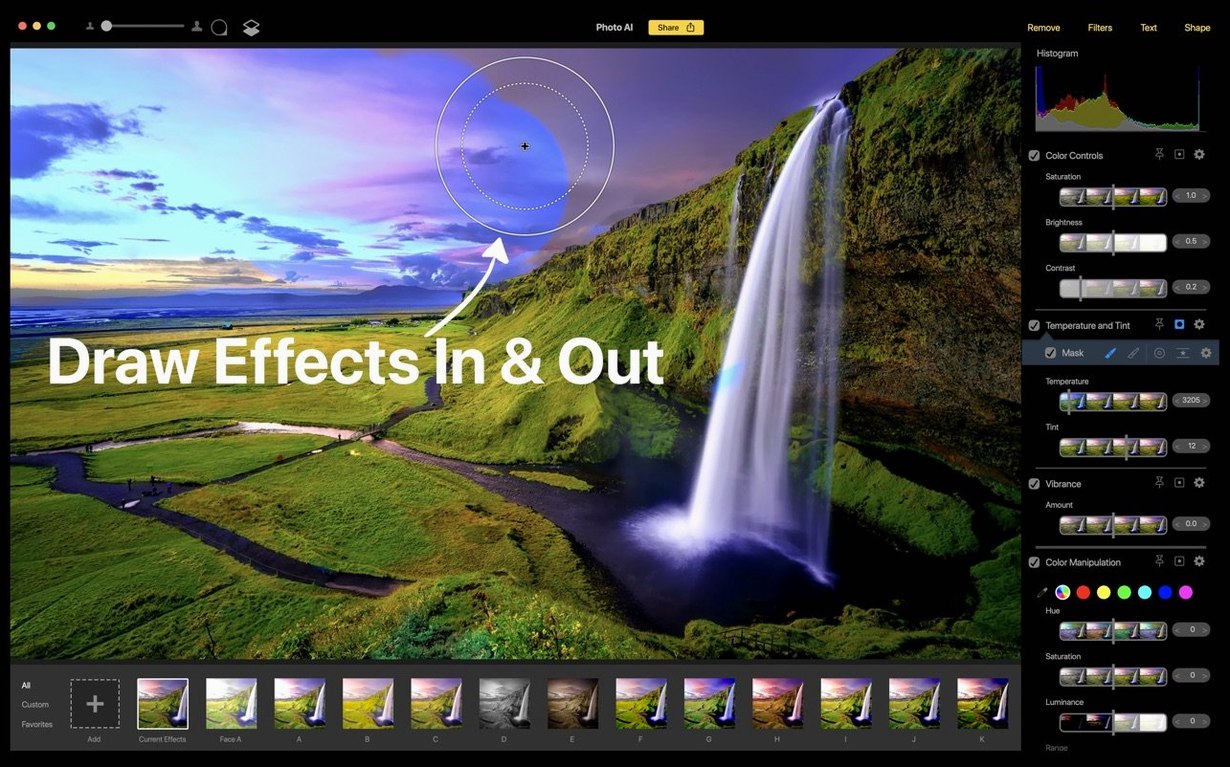
macOS 11 is the floor. Topaz Photo AI processes every pixel on your own Mac—no cloud uploads, no queues. This is the legacy Photo AI app, since replaced by Topaz Photo; the 2.1 build is Intel 64-bit.
Face-aware rescue for noisy or soft images
- Rescuing noisy or soft shots with face-aware filters
- Non-destructive real-time editing — tweak sliders, see results instantly
- Local processing: files never leave your drive
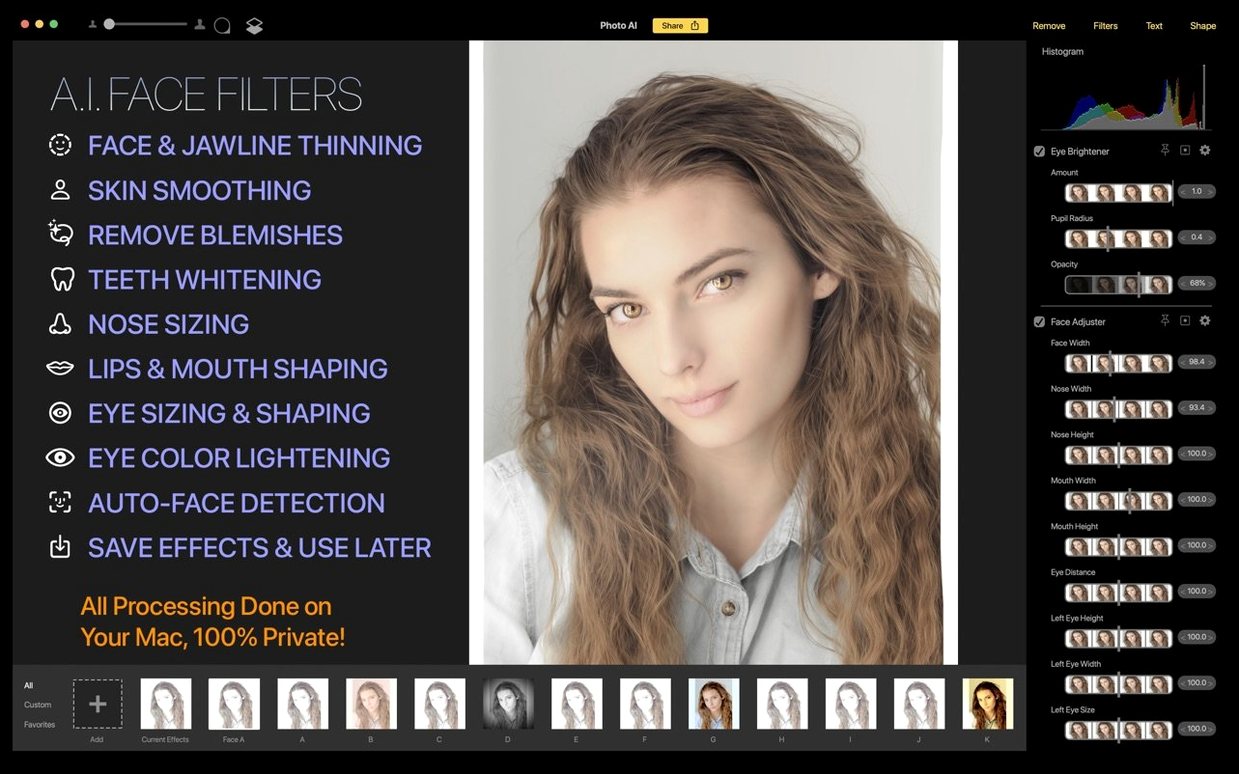
- Face filters for portraits
No native Apple Silicon support yet
- Intel 64-bit only — no Apple Silicon native build yet
- Legacy app: its successor, Topaz Photo, includes all Photo AI models plus newer ones
- Interface in English and Simplified Chinese only
Option-drag any slider to reset instantly
Most people drag sliders and call it done. A handful of shortcuts and behaviours sit one layer deeper and cut editing time noticeably.
- Option-drag a slider — resets it to default without hunting for a tiny reset arrow.
- Quick compare — tap the backslash key to flash the original; release to see your edit. No need to toggle layers or history states.
- Face filter stacking order — drag face tiles left or right in the face panel. The app processes them in that sequence, which matters when two faces sit at different distances and need different sharpening strengths.
- Spacebar pan — hold spacebar and drag to scoot around a zoomed image. Works in every module.
- Numeric input — double-click any slider value and type a number directly. Fine control without a trackpad wrestle.
- Copy-paste adjustments — right-click a processed image in the filmstrip and choose Copy Adjustments, then paste onto a batch shot under the same light. No need to re-dial settings.
Right-click in Finder to send images directly
Topaz Photo AI doesn't try to replace your editor. It works as a dedicated sharpening and noise station that feeds into whatever you edit with.
- Send from Finder — right-click any JPEG, TIFF or PNG and choose Open With > Topaz Photo AI. Quick triage without launching a heavyweight editor first.
- Export back to Apple Photos — save the processed file, then drag it into Photos. The app strips nothing from the metadata that Photos needs for organisation.
- Round-trip with Lightroom Classic — set Topaz Photo AI as an external editor in Lightroom preferences. Right-click a raw, choose Edit In, and the app hands back a rendered TIFF with your Lightroom adjustments baked in.
- Drag-and-drop from Bridge — Adobe Bridge users can select a batch and drop them straight onto the Topaz Photo AI window or dock icon.
- Services menu — after installing, macOS lists the app in the Services submenu. Highlight files in Finder, hit Finder > Services > Open with Topaz Photo AI.
- Spotlight-friendly — the app's saved files are indexed by Spotlight, so processed images appear in searches without extra steps.
Workflow: clean up a noisy event shot
Here's how a single image moves through the app, start to finish.
- Open the file. Drag a high-ISO raw or JPEG onto the app window. The autopilot model analyses noise type and subject content immediately.
- Check the autopilot suggestion. The app displays a split view with the suggested strength. If the subject is a person, confirm face detection has picked up the right faces.
- Switch to Compare view. Use the side-by-side or split-screen view to judge noise reduction against the original. Pay attention to eyelashes and fabric texture—those areas fall apart first with heavy denoising.
- Dial in sharpening separately. Move to the Sharpen module. For portraits, enable the face filter so sharpening doesn't amplify skin texture. Drag the face tile to prioritise the nearest face if depth of field is shallow.
- Mask the background. If the background needs less sharpening than the subject, paint a quick mask with the brush tool. The mask updates in real time as you paint.
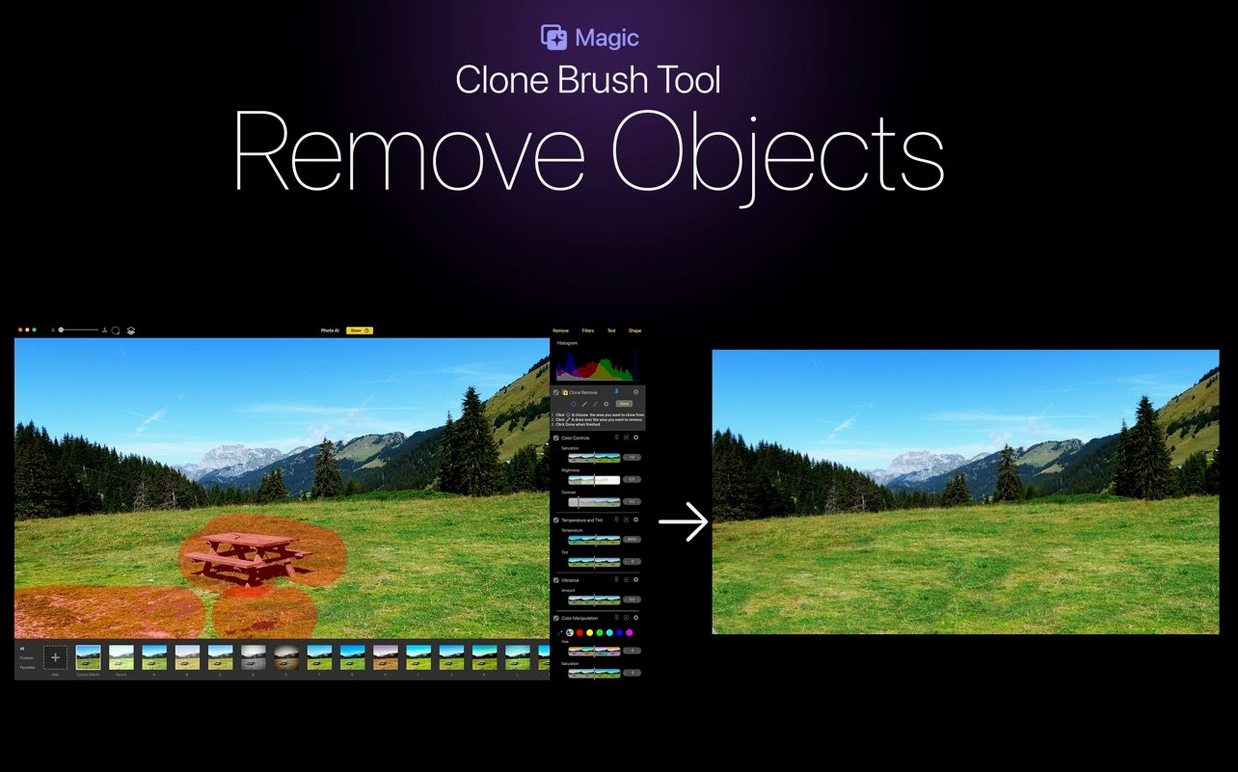
- Remove a distraction. Spot a stray object in the corner? Switch to the object removal tool, brush over the item, and let the content-aware fill do its work. The fill runs locally on your Mac.
- Export. Choose your format (TIFF for further editing, JPEG for delivery), set the colour space, and save. The original stays untouched.
A wedding photographer's Saturday night
Maya shoots 1200 frames at a dim barn wedding. The dance-floor shots are at ISO 12800, and the couple wants a preview gallery by Sunday afternoon.
She opens Topaz Photo AI and drags in a folder of 80 dance-floor selects. The autopilot analyses the first image and she copies adjustments across the batch. For the close-ups, she checks each face filter tile—the bride's face needs less sharpening than the groom's because her veil scatters the flash already.
Three frames have an exit sign glowing red in the corner. Maya uses the content-aware removal tool on each, brushing the sign out in under twenty seconds per image. The app fills the area with the dark barn wood behind it.
She exports the batch as JPEGs in sRGB, drags them into her gallery software, and sends the preview link. The total editing pass took forty minutes. The originals never left her Mac.
- Note — Version 2.1 belongs to the legacy Photo AI line; no feature changes are listed for this build.
- macOS 11 or later
- Intel 64-bit
Questions I get before install
How is this different from the old Topaz Photo AI?
Topaz Photo is the current app that replaces the legacy Topaz Photo AI. It includes all Photo AI models plus additional ones.
Does it work on Apple Silicon Macs?
The current build is Intel 64-bit only. It runs on Apple Silicon via Rosetta 2, but a native version is not available yet.
Does it need an internet connection for the AI tools?
No. All image processing runs locally on your Mac, so no uploads or connection are required.
Comments 0
Sign in to leave a comment.Sign inCreate an account
No comments yet. If a step is still there after you install it, say so.
More in AI Tools
All in AI Tools Updated
Topaz Gigapixel AI
Enlarges low-resolution shots while adding believable texture locally.
6 steps saved
 Updated
superwhisper
Transcribes speech locally into any text field without a cloud round-trip.
14 steps saved
 Whisper Mate
Transcribes audio locally on your Mac using Whisper AI with no cloud uploads.
4 steps saved
 Updated
MacWhisper
Transcribes meetings and separates speakers without sending audio off your Mac.
13 steps saved
 MacGPT
Summons a ChatGPT text field over any app with a single keyboard shortcut.
4 steps saved
 Luminar AI
Edits photos with AI templates for sky, skin and light in a few clicks.
11 steps saved
 djay Pro
Separates any track into drums, bass, and vocals for live remixing on the fly.
23 steps saved
 BoltAI
Wraps AI chat in a project-aware workspace with assistants, shortcuts, and inline commands.