
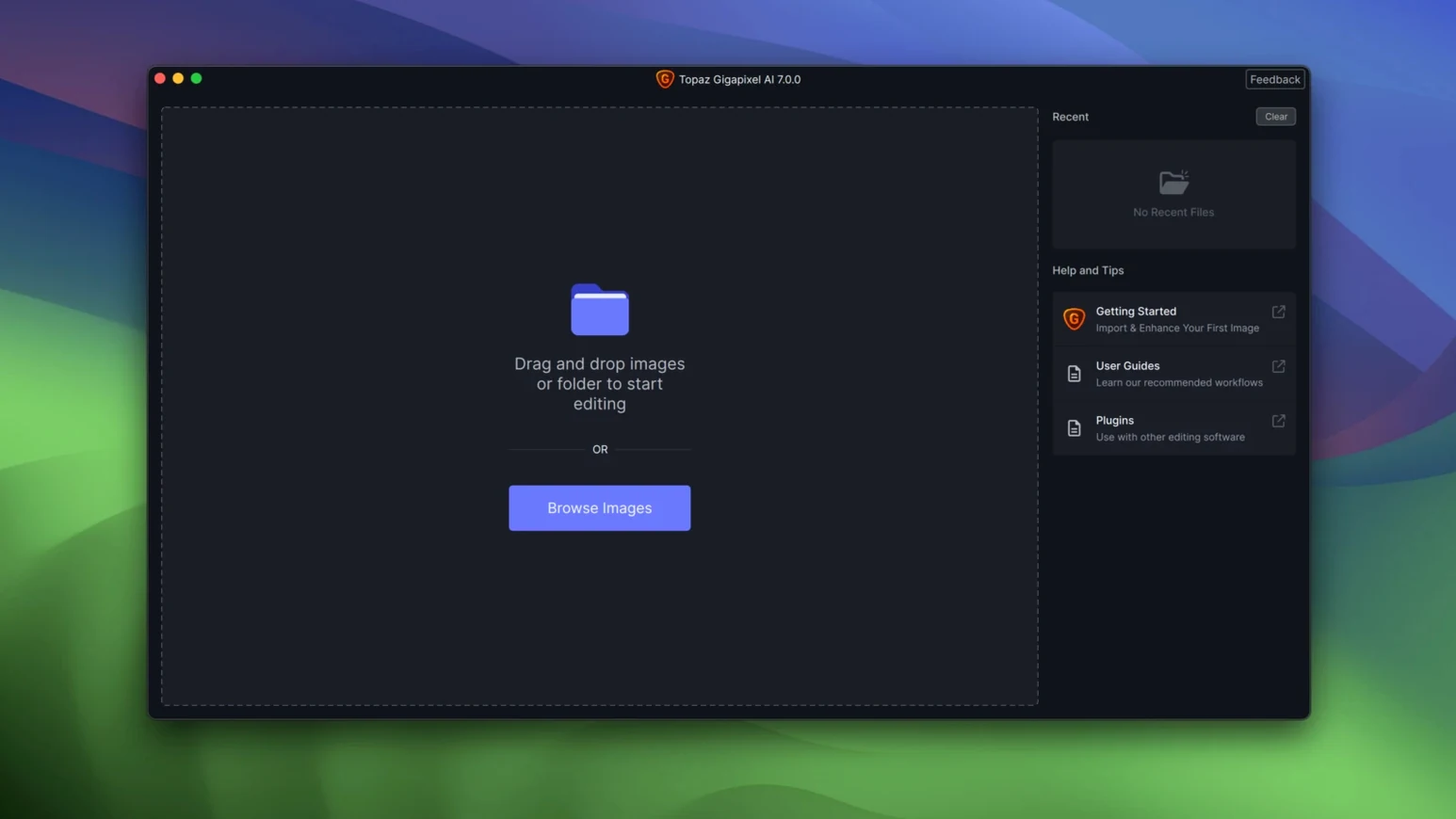
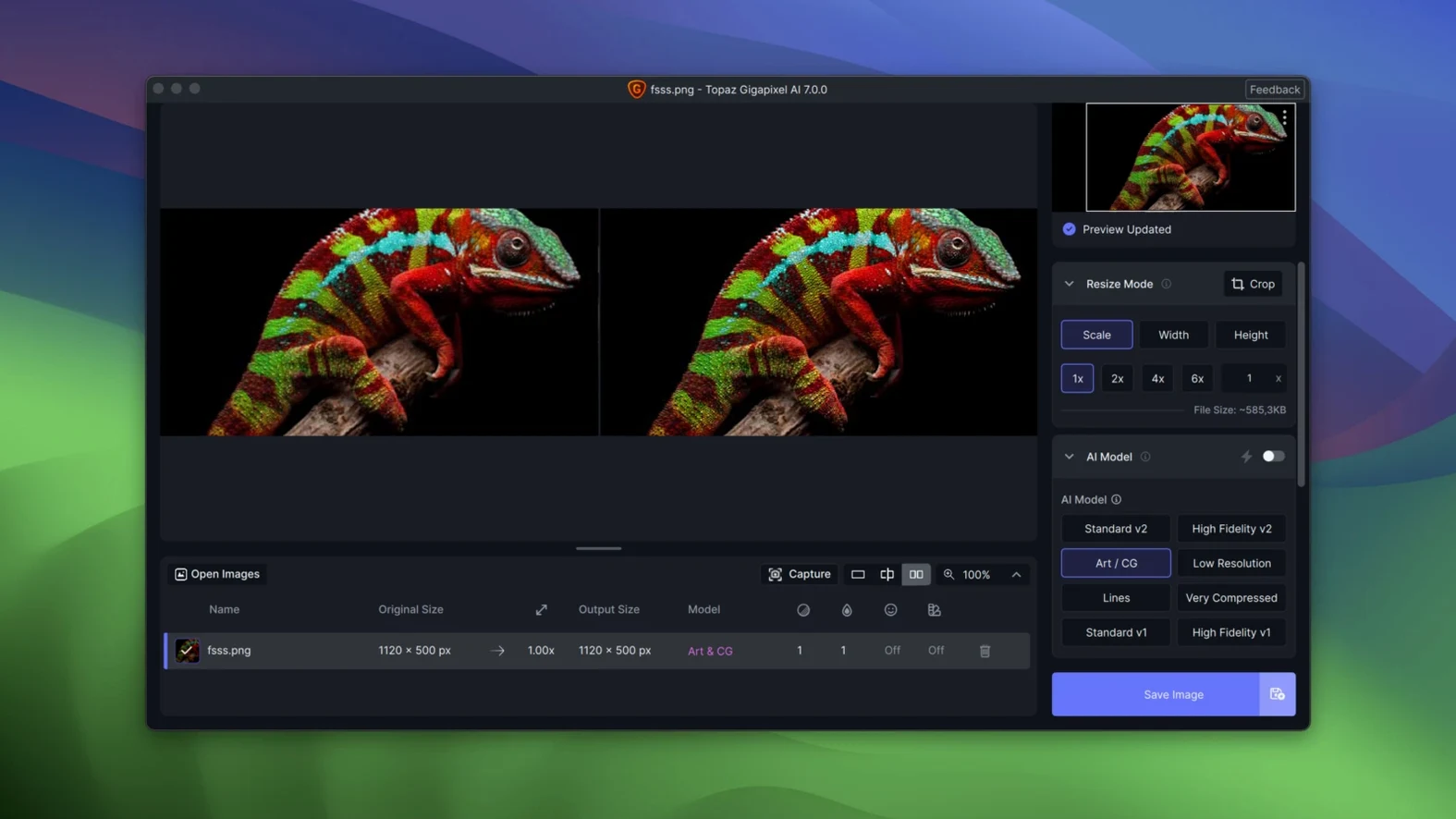
Photographers and print designers use Gigapixel AI to salvage low-resolution shots without the fuzzy, over-processed look of old-school upscaling. The desktop app runs AI models locally to enlarge images while adding believable texture. Before you spin it up, confirm it'll run on your machine.
- Supports Apple Silicon and Intel 64-bit Macs
- Requires macOS 12 or newer
- Removes pixelation and compression artifacts
- Restores detail in old, degraded photos
- Cleans up low-quality line art and PNG files
- Rebuilds low-resolution portraits with natural skin texture
The current build provides separate installers for ARM and Intel architectures, so you pick the package that matches your Mac. Version 1.3.5 marks a clean break from the legacy Gigapixel AI line, which ended at 8.4.4.
Dialing Back the Face Recovery to Stop Plastic Skin
Even a straightforward upscaler can trip you up. Here are the issues I see most often.
- Portrait mode over-smooths skin. Gigapixel AI can get overenthusiastic with the face recovery model on heavily compressed JPEGs. Dial the Suppress Noise slider down to 20–30% and switch from High Fidelity to Art & CG if you're working with a studio shot that needs to preserve texture.
- Batch queue stalls on an image. A corrupt or oddly formatted PNG can freeze the whole queue. Open the offending file in Preview, export it as a fresh PNG, and re-add it. If the filename contains special characters like em dashes or colons, simplify it.
- Output file size balloons. Upscaling a 2K JPEG to 6× and saving as PNG can produce a 300 MB file. Set output to JPEG with quality around 90% or resize in steps—4× then another 2×—to keep things manageable.
- Gigapixel AI won't launch after an OS update. macOS security sometimes quarantines helper binaries. Run the Patch.command again and grant Full Disk Access in System Settings > Privacy & Security if prompted.
- Colour shift in processed files. This can happen when working in a non-sRGB colour space like Adobe RGB. Convert to sRGB before importing, or check that your display profile matches your export intent.
Eleven Phone JPEGs to 3200 px Hero Banners in One Drop
You get an email from a client. Eleven product photos shot on a phone, JPEGs at 800 × 600, slightly noisy. They need them at 3200 px wide for a web store hero banner. You drag all eleven onto the Gigapixel AI window.
The app auto-detects the content type and picks a model. You switch the first image from Standard to Lines because it's a close-up of packaging with sharp text. You set Scale to 4×, tick Remove Noise, and place a face recovery box over a tiny logo in the corner. Processing takes eight seconds on the Apple Silicon build.
You copy settings to the remaining ten shots, hit Start All, and walk away. Two minutes later, the queue is done. You open the output folder, spot-check three files for colour accuracy, and package them for the client. Nothing crashed, nothing hung.
Workflow: Rescuing a Low-Resolution Portrait for Print
You're handed a 1200 × 1800 portrait scan from a 2006 family album page. It needs to become a 10-inch print at 300 DPI—that's 3000 × 4500 pixels.
Open the file in Gigapixel AI. The app suggests the Face Recovery model automatically because it detects a human subject. You zoom into the eyes and notice JPEG blocking from the original scan compression. Switch from Auto to Manual mode and set Remove Compression Artifacts to around 60 on the slider.
Set Scale to 2.5× to hit the target pixel dimensions exactly. Tick Suppress Noise at 25% to clean the background texture without erasing the fabric weave on a shirt collar. Place a face selection box over the subject and a second one over a small dog visible in the corner—Gigapixel AI handles faces in separate regions independently.
Preview the result at 100%. The iris gains structure instead of blurring; the skin keeps fine pores rather than turning to plastic. Save as TIFF, 16-bit, Adobe RGB. The file lands in InDesign without further adjustment.
- macOS 13 or later
- Apple Silicon & Intel 64-bit
Questions I get before install
Does version 1.3.5 work on Intel Macs?
Yes. Topaz Labs provides separate installer packages for Intel 64-bit and Apple Silicon Macs. Download the build that matches your processor.
What macOS version does Gigapixel AI 1.3.5 need?
It requires macOS 12 or later. Older operating systems will need the legacy Gigapixel AI line, which ended at version 8.4.4.
Can Gigapixel AI fix old, grainy photos?
Yes. The AI models are trained to restore details in old photographs by removing noise, pixelation, and compression artifacts while preserving faces and textures.
Comments 0
Sign in to leave a comment.Sign inCreate an account
No comments yet. If a step is still there after you install it, say so.
More in AI Tools
All in AI Tools Topaz Photo AI
Rescues noisy or soft images with face-aware filters on your own Mac.
6 steps saved
 Updated
superwhisper
Transcribes speech locally into any text field without a cloud round-trip.
14 steps saved
 Whisper Mate
Transcribes audio locally on your Mac using Whisper AI with no cloud uploads.
4 steps saved
 Updated
MacWhisper
Transcribes meetings and separates speakers without sending audio off your Mac.
13 steps saved
 MacGPT
Summons a ChatGPT text field over any app with a single keyboard shortcut.
4 steps saved
 Luminar AI
Edits photos with AI templates for sky, skin and light in a few clicks.
11 steps saved
 djay Pro
Separates any track into drums, bass, and vocals for live remixing on the fly.
23 steps saved
 BoltAI
Wraps AI chat in a project-aware workspace with assistants, shortcuts, and inline commands.