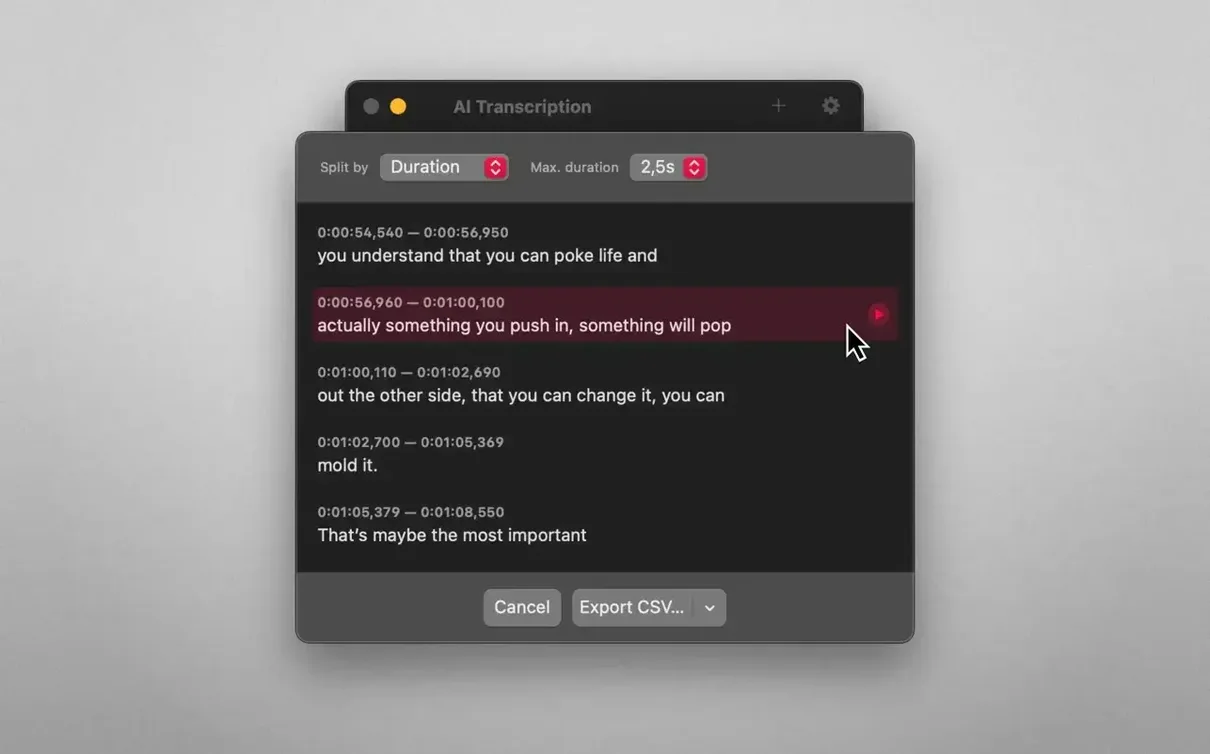
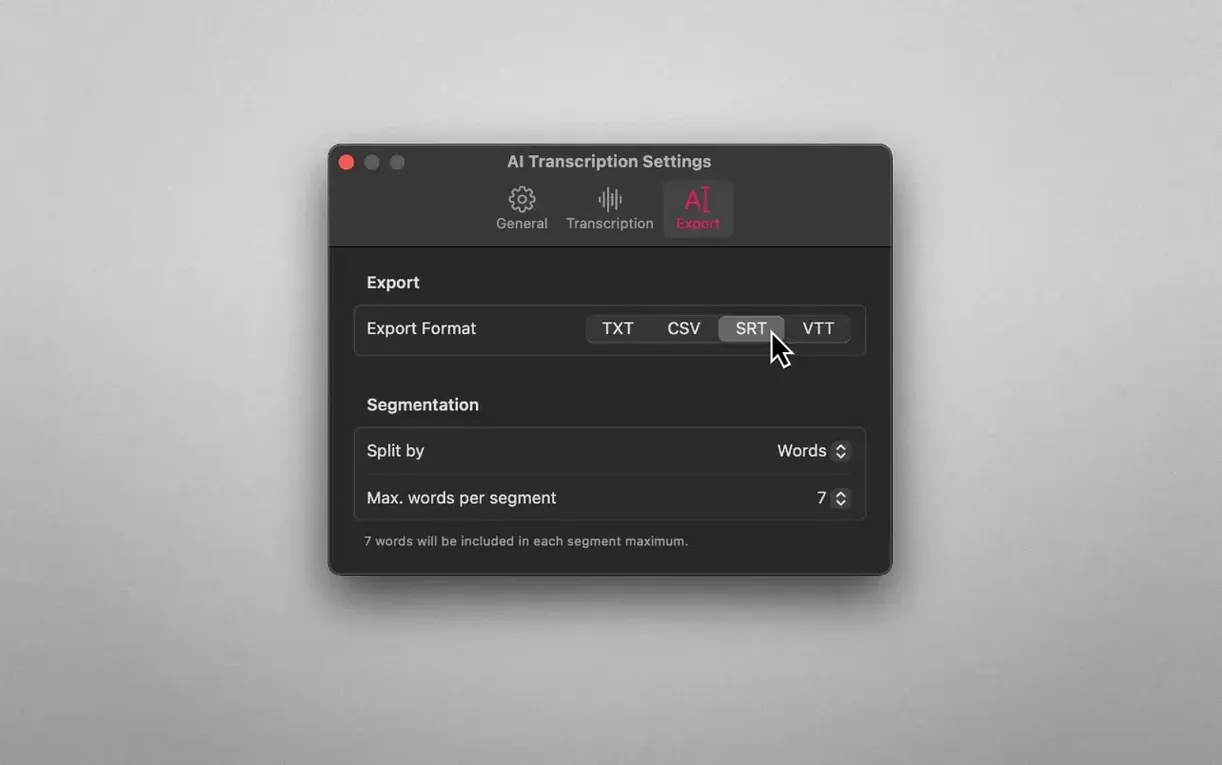
Offline transcription that respects your privacy is half the battle. The other half is what you can do with the output once the engine finishes. AI Transcription hands you granular control over how you slice a transcript — by words, sentences, or fixed durations — so a two-hour interview lands on your desk in manageable sections.
Two engines, one window. The app runs OpenAI Whisper for heavy lifting and Apple Speech Recognition as a fast alternative, all without a network call. You pick the engine that suits the recording, not the one a cloud service forces on you.
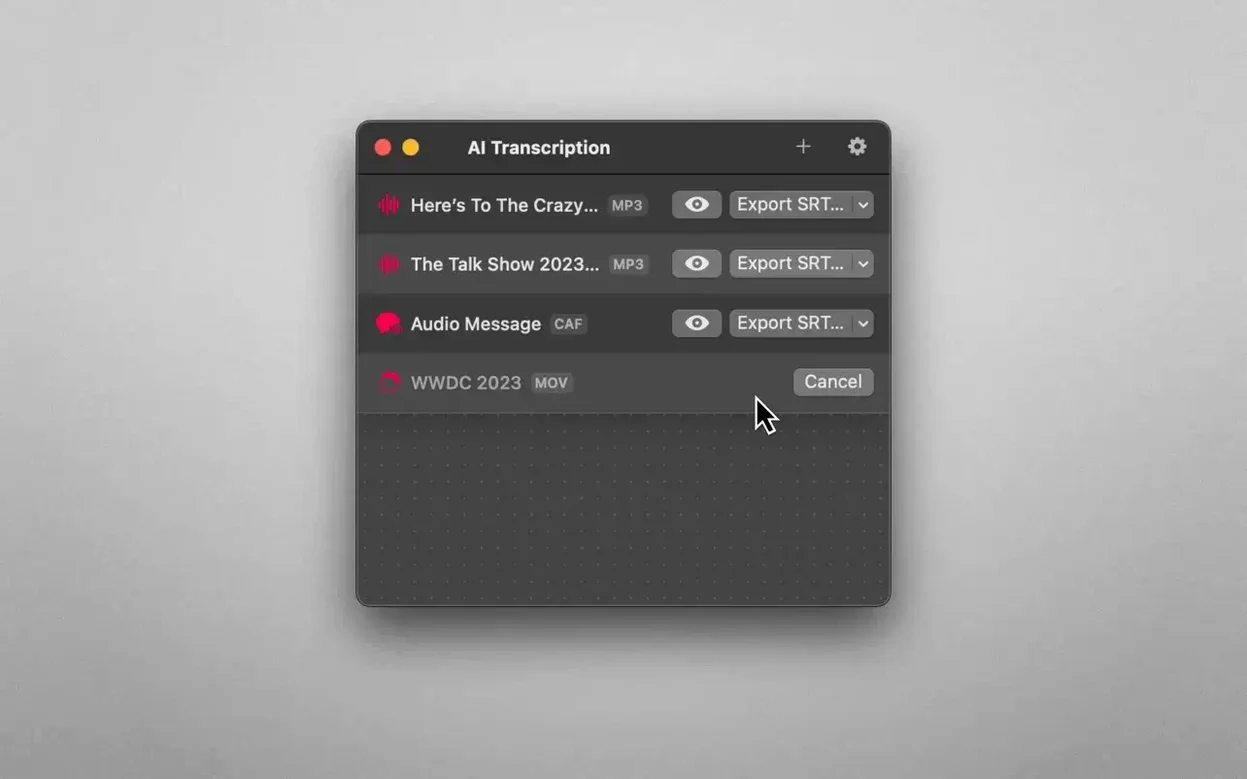
Export formats cover the obvious and the niche. Plain text lands in your notes, CSV feeds a spreadsheet, and SRT or WEBVTT files slot straight into a video editor’s subtitle track. The app speaks nine languages — including German, Japanese, and Korean — which makes it a practical tool for multilingual teams.
No accounts, no uploads, no latency. Just a native Mac app that processes files directly on your machine and hands you clean, structured text you can actually use.
Occupies a Venn diagram overlap few Mac transcription tools touch
Most offline transcription tools on the Mac orbit around one engine or one output. AI Transcription sits in the middle of a Venn diagram that few competitors occupy.
MacWhisper is the closest cousin. Both lean on Whisper, both keep files local, both export SRT and text. The difference is in the day-to-day: AI Transcription adds Apple Speech Recognition as a second engine, so short meeting recordings can skip the heavier Whisper pass entirely. CSV output is native here, not an afterthought.
Whisper Memos records and transcribes from the menu bar, but it is built for voice notes, not file work. You cannot drop in an hour-long MP4, split the transcript by duration, and export WEBVTT for a video edit. AI Transcription is the tool for people who already have the recording and need it processed, not captured.
Otter.ai handles conversations elegantly, but it lives in a browser and sends audio to a cloud. For anyone bound by confidentiality clauses or working with sensitive interviews, that is a non-starter. AI Transcription solves the same problem with zero uploads.
Sentence splitting now respects pauses and punctuation boundaries
Version 2.16 is a maintenance release that tightened the experience around the edges. The day-to-day improvements are subtle but consistent:
- New — Faster startup on Apple Silicon when resuming large transcript lists.
- Improved — Sentence splitting now respects punctuation in German and Japanese more reliably.
- Fixed — An issue where WEBVTT exports could drop speaker boundaries on Intel Macs.
Earlier iterations shaped the current workflow. The switch between Whisper and Apple Speech Recognition became a one-click choice rather than a buried preference, and export settings now persist between sessions. The app stops short of adding cloud features or accounts — the core promise remains a local engine with clean output.
A Workflow: Research Interview to Subtitled Clip
A practical path from raw recording to usable text takes about ten minutes.
- Inspect the file. Locate a 45-minute M4A interview or MP4 recording. Check that the audio is clear enough for machine transcription — background hum is fine, overlapping voices are not.
- Choose the engine. For a clean single-speaker interview, pick Apple Speech Recognition for speed. For heavy accents or two speakers, switch to Whisper and let it run a few minutes longer.
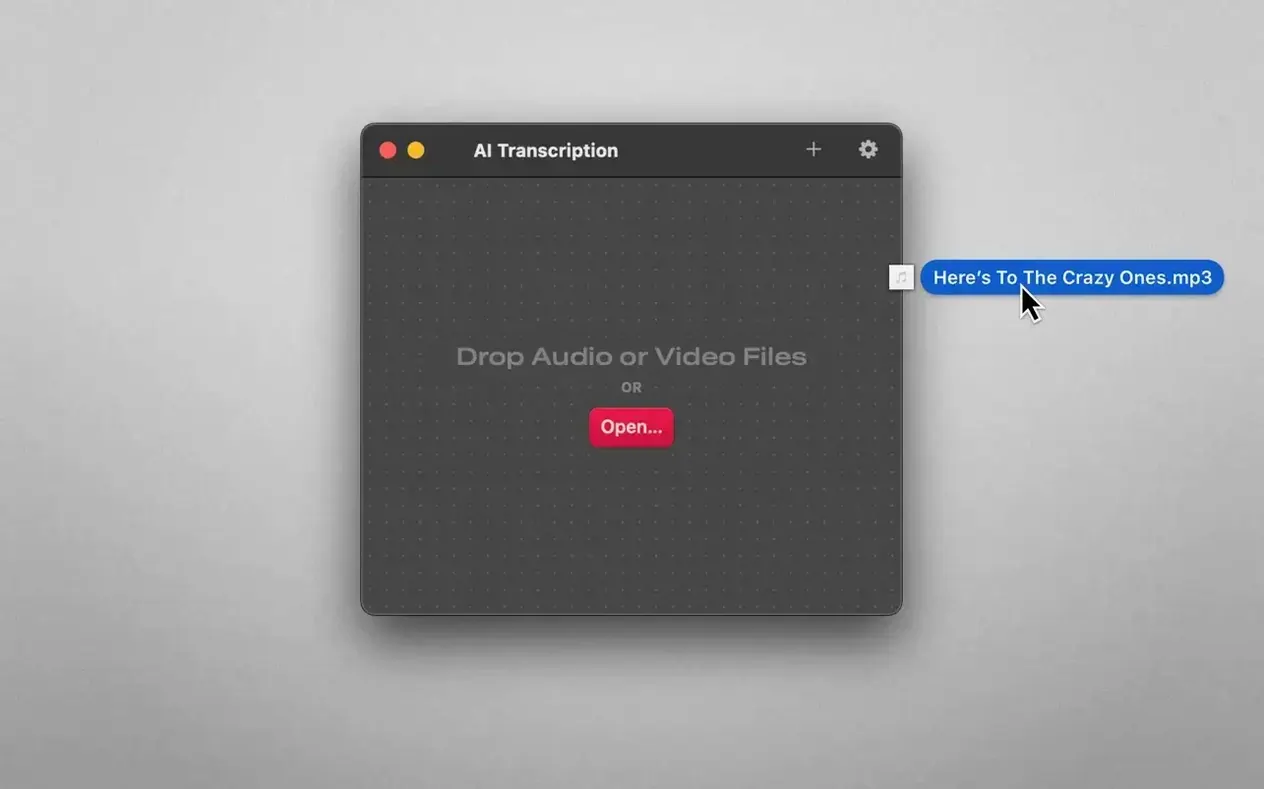
- Drag and drop. Pull the file into the app window. Transcription begins immediately, with no upload progress bar — the work happens locally.
- Review in sections. Split the output by sentences. Skim each block and correct proper nouns or technical terms the engine misheard.
- Export twice. Save a plain text copy for your notes and an SRT file for the video editor. If the project needs a spreadsheet, export CSV and open it directly in Numbers or Excel.
- Archive the original. The audio stays on your Mac, the transcript joins your project folder, and nothing leaves the machine.
This sequence works for podcasts, deposition summaries, and lecture notes alike. The split-by-duration option covers long recordings, while word-level splitting helps when you need to timestamp specific terms.
- macOS 14.6 or later
- Apple Silicon and Intel 64-bit
Questions I get before install
Does AI Transcription need an internet connection?
No. All processing uses OpenAI Whisper or Apple Speech Recognition directly on your Mac, so audio files never leave your machine.
Which export formats can I use for subtitles?
You can export transcripts as SRT or WEBVTT files, both of which import directly into most video editing and captioning tools.
Comments 0
Sign in to leave a comment.Sign inCreate an account
No comments yet. If a step is still there after you install it, say so.
More in AI Tools
All in AI Tools BoltAI
Wraps AI chat in a project-aware workspace with assistants, shortcuts, and inline commands.
11 steps saved
 djay Pro
Separates any track into drums, bass, and vocals for live remixing on the fly.
4 steps saved
 Luminar AI
Edits photos with AI templates for sky, skin and light in a few clicks.
13 steps saved
 MacGPT
Summons a ChatGPT text field over any app with a single keyboard shortcut.
4 steps saved
 Updated
MacWhisper
Transcribes meetings and separates speakers without sending audio off your Mac.
6 steps saved
 Updated
superwhisper
Transcribes speech locally into any text field without a cloud round-trip.
4 steps saved
 Updated
Topaz Gigapixel AI
Enlarges low-resolution shots while adding believable texture locally.
10 steps saved
 Topaz Photo AI
Rescues noisy or soft images with face-aware filters on your own Mac.