
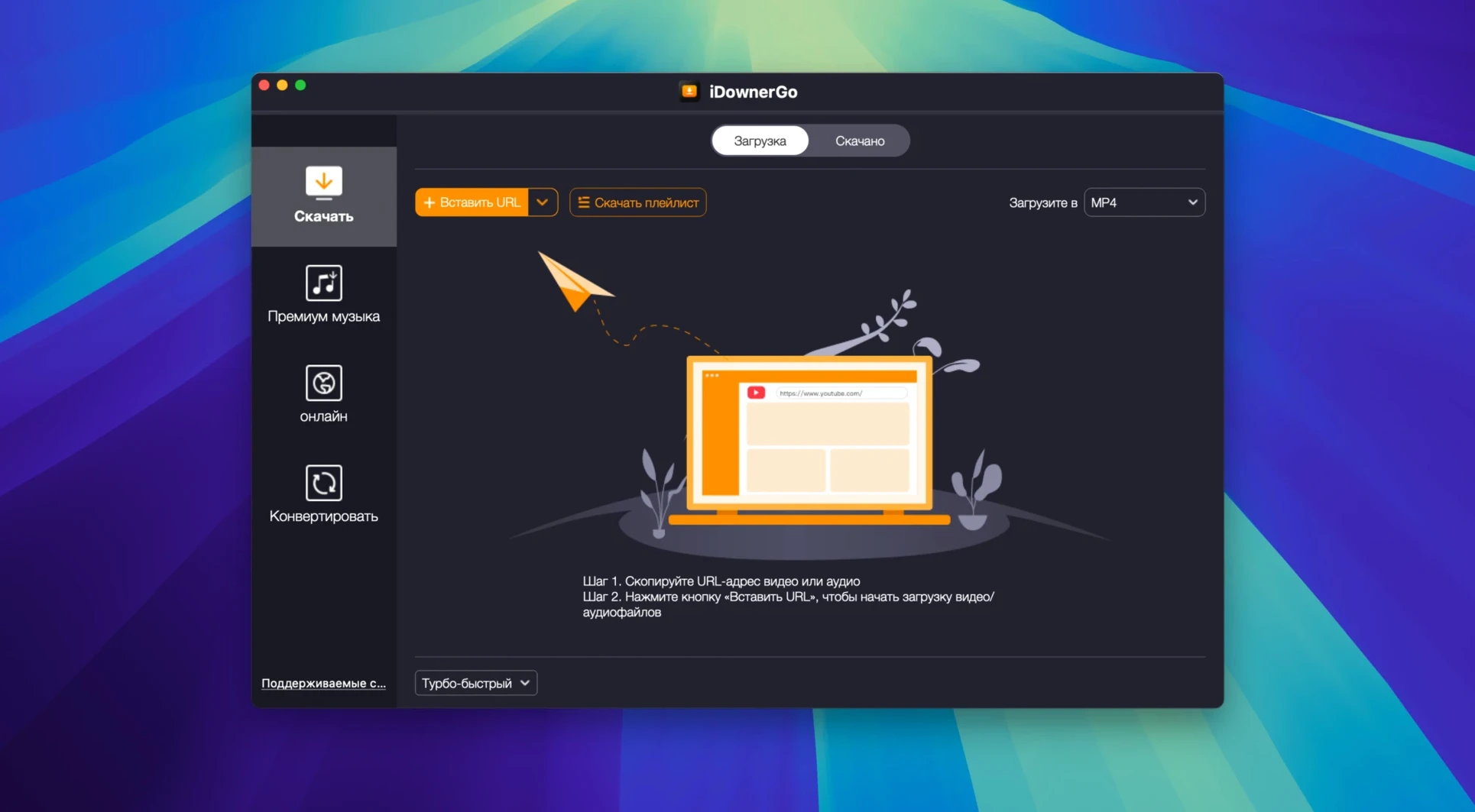
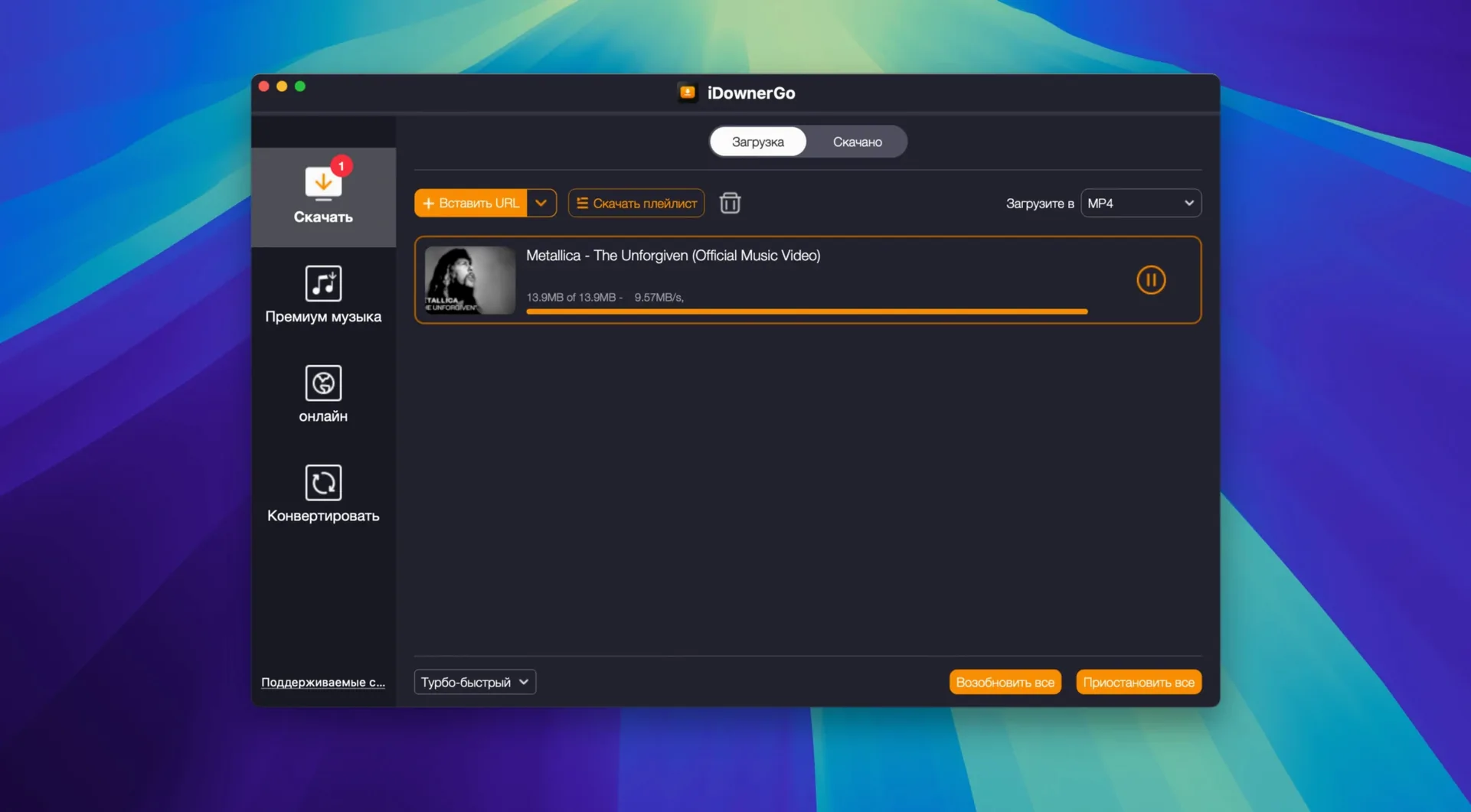
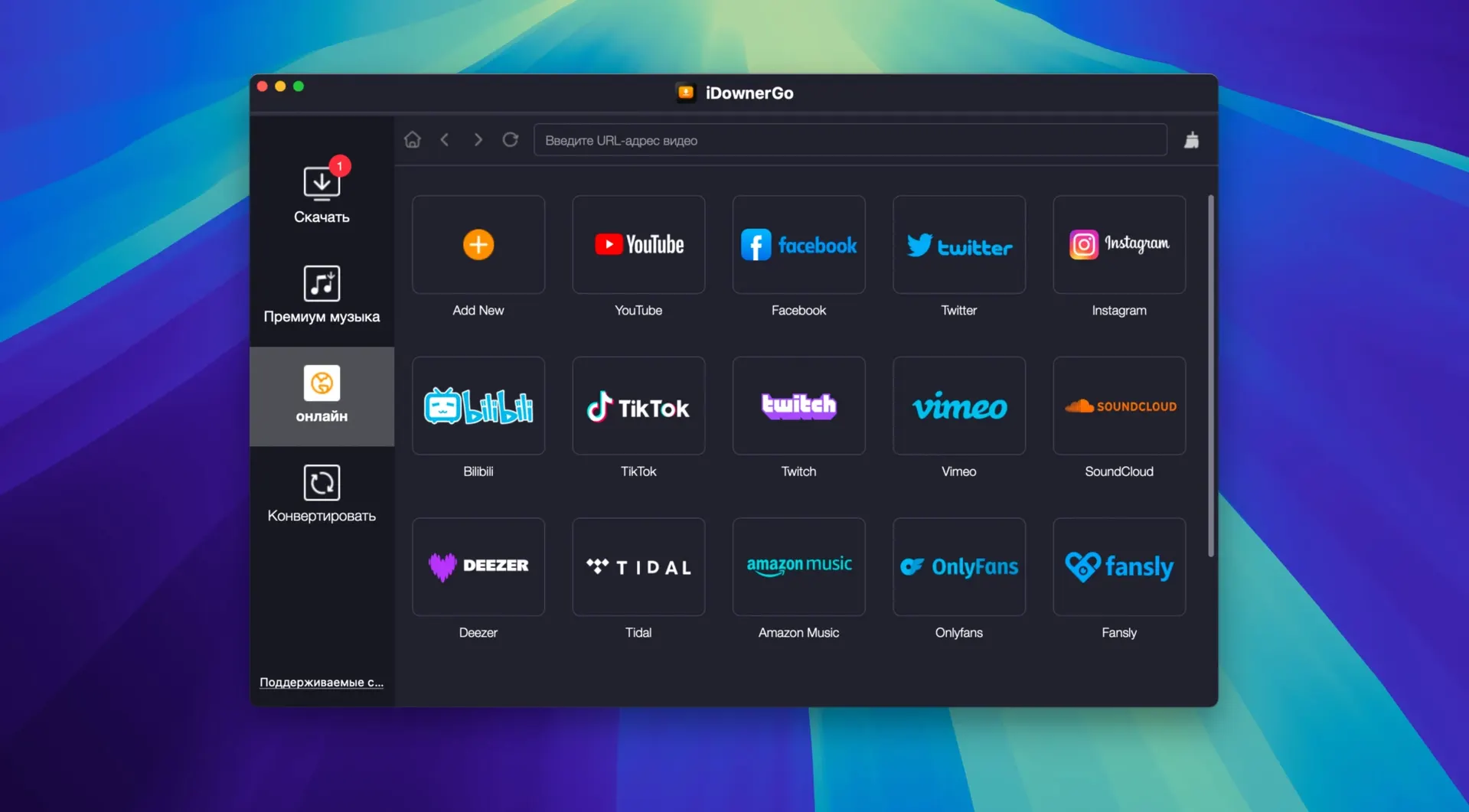
The real-time capture engine sits in the background and grabs media as it plays, so you do not have to hunt for a direct download link. That alone changes where iDownerGo fits in a Mac user's toolkit. It works next to a browser that cannot save a stream, a media player that cannot extract audio, or a video editor that needs clean source files in the right format.
| Detail | Note |
|---|---|
| Type | Universal video downloader & music converter |
| Works on | Intel Macs, macOS 10.10+ |
| Sibling apps | Site-specific downloaders in the same product line |
When a browser extension feels too heavy or a site blocks conventional downloading, iDownerGo steps in as a stand-alone alternative. Convert downloaded videos to audio, pull media from a playlist while you work on something else, and keep the file formats you already use in iTunes or Finder. It does not try to replace your media library or your editor — it hands off clean, playable files to the apps you already organize your work around.
A podcast researcher’s afternoon
Someone compiling interview clips for a documentary podcast works differently from someone archiving a favourite band’s live set. The first user needs short audio excerpts, named sensibly, in a folder that an editor can scan in seconds. The second wants full video files at the highest resolution available. iDownerGo handles both without changing its basic shape.
A researcher working on a three-part series might pull a Dailymotion panel discussion, two Instagram clips from an artist’s page, and a Bandcamp track that only exists as a stream. Each lands in the same queue, each converts to MP3, and each keeps its original title. By the time the browser has fifteen tabs open, the Downloads folder already holds the six files the editor asked for.
Workflow: saving a video and extracting the audio
Here is a repeatable process for a single source file, from open browser tab to finished MP3.
- Copy the video URL from the address bar while the page is still open.
- Switch to iDownerGo and paste the link into the main field.
- Choose MP3 as the output format instead of keeping the original video container.
- Set the destination folder to the project directory, not the default Downloads location.
- Start the download and let the real-time capture engine handle the stream.
- Check the result in Finder — the file should carry the video’s original title with an
.mp3extension.
The whole sequence takes under a minute once the app is already open. Batch work follows the same path; paste several links, pick one output format for all of them, and walk away while the queue runs.
Redirect downloads to a dedicated working folder
- Default output folder — point it at a working directory instead of letting files scatter into Downloads.
- Default format — set MP3 if most of your work is audio extraction; switch back to original video when you need 4K or 8K source material.
- Queue behaviour — keep simultaneous downloads low if you are on a slower connection; the real-time engine performs better with fewer parallel captures.
- Interface language — the app ships with over twenty localizations, so set yours before you build muscle memory around menu positions.
- OS X 10.10 or later
- Intel 64-bit processor
Questions I get before install
Does iDownerGo work on Apple Silicon Macs?
The current version is built for Intel 64-bit Macs. It requires OS X 10.10 or later.
What can iDownerGo do besides download video?
It works as a music converter, letting you extract and save audio from downloaded video files.
Comments 0
Sign in to leave a comment.Sign inCreate an account
No comments yet. If a step is still there after you install it, say so.
More in Video Downloaders
All in Video Downloaders iTubeGo
Grabs entire playlists at speed and converts each file in the background queue.
5 steps saved
 HarborDrop
Resumes partial downloads so a dropped packet doesn't scrap the whole file.
7 steps saved
 Folx Pro
Splits downloads into parallel threads to reduce wait times.
17 steps saved
 Downie
Downloads a video from any major site to your desktop after you paste the link.
20 steps saved
 Musify
Downloads full playlists from music sites and saves them as MP3 files.
5 steps saved
 PullTube
Saves online video and audio in the quality you pick, with trimming built in.
16 steps saved
 AmpliTube
Stacks amps, cabs, and stompboxes into a record-ready guitar rig on your Mac.
11 steps saved
 SiteSucker Pro
Downloads an entire website, including embedded videos, for offline viewing.