
A cluttered Downloads folder full of unreliable bookmarks and expired streams is a productivity tax. 4K Video Downloader clears that debt by turning online media into local files you can organize, edit, or archive.
One download, from clipboard to file
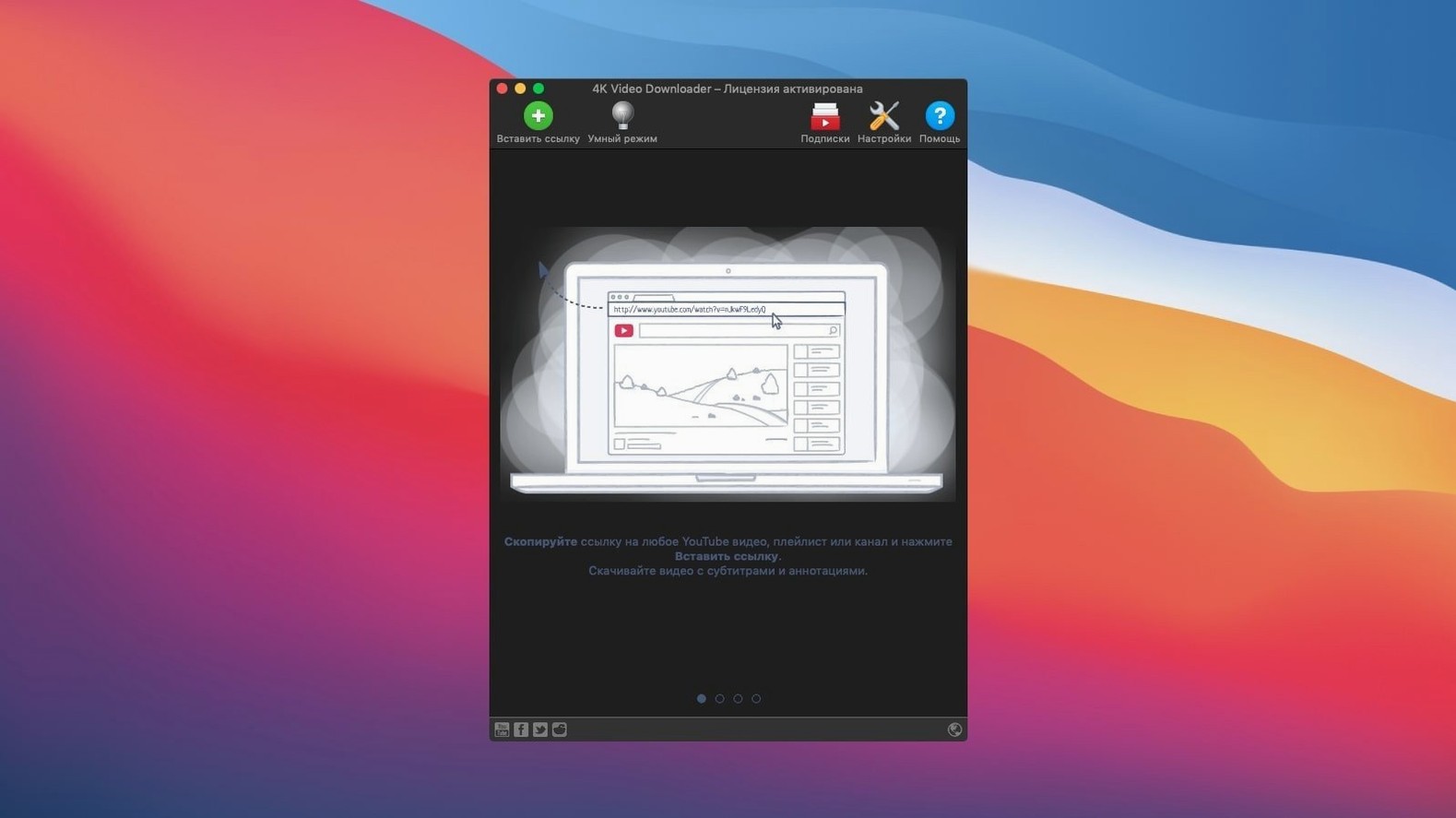
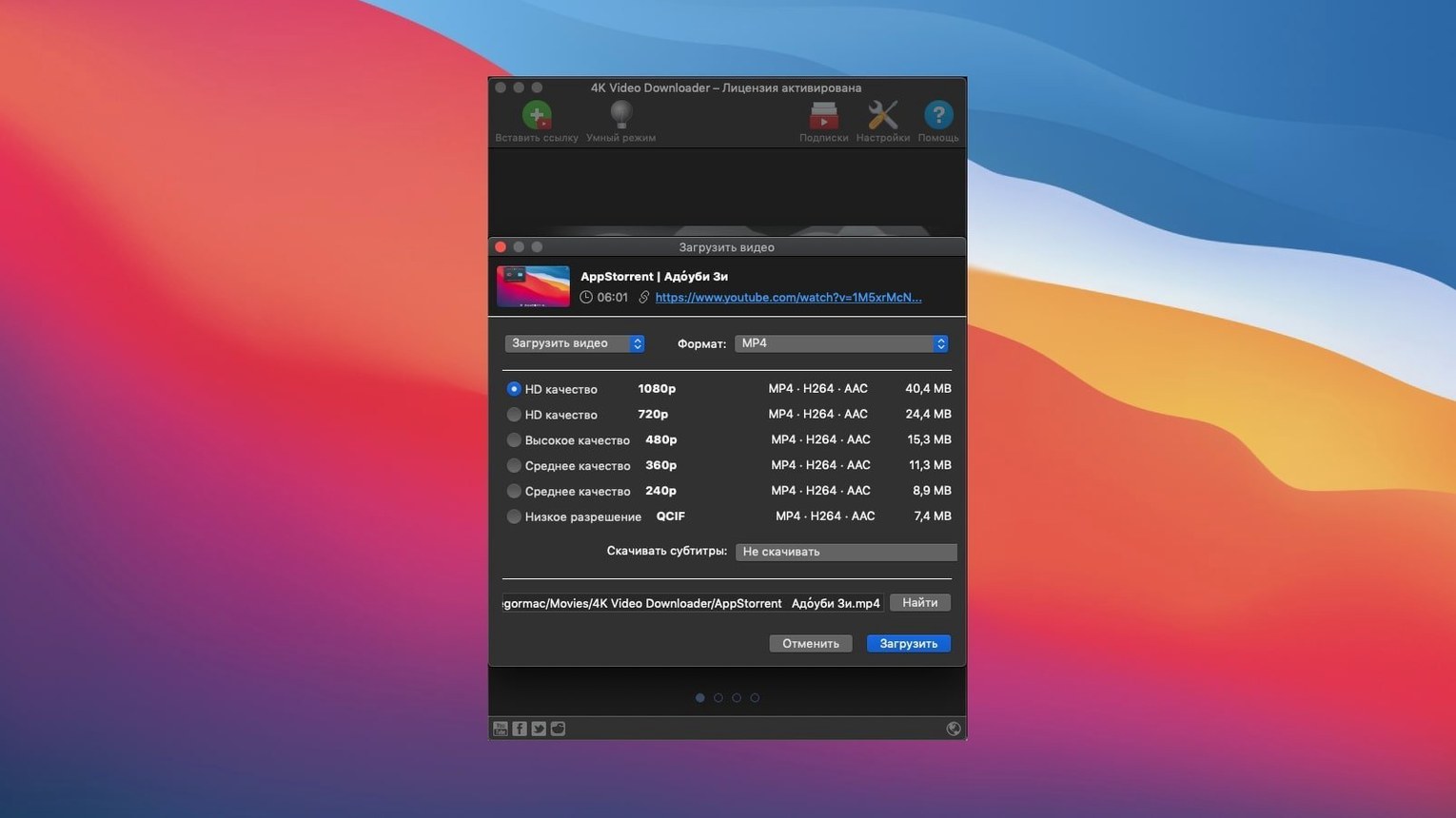
Copy a video link to your clipboard and the app picks it up immediately. Paste the URL, pick a format — MP4, MKV, M4A, MP3, FLV, or 3G — and choose your quality. Check the subtitle option to pull an SRT file or embed captions directly into the video. For a playlist, tick the M3U box and you get a ready-made index alongside the files. The same flow works for 3D videos too, with no extra configuration.
Format control and subtitle handling
Output decisions sit right in the download panel. Grab a talk as MP3 for a commute, pull a tutorial in MKV with embedded subtitles for reference, or save a clean MP4 for a presentation. The app handles sixteen interface languages, so team members can work in their preferred localization without friction. No playback gimmicks — this is a pure downloader that delivers organized files exactly as specified.
Choosing a true 4K stream in the format picker
Does it download 4K content from YouTube? Yes — choose 4K quality in the format picker and the app grabs the highest available stream. The name isn’t marketing fluff. It works identically for 1080p and 720p. The limiting factor is the source upload, not the tool.
How is this different from a browser extension that rips video? Extensions live inside the browser, slow down page loads, and break when sites update their player. 4K Video Downloader runs as a standalone Mac app. Its parsing engine updates independently, so a YouTube layout change doesn’t kill your workflow mid-afternoon.
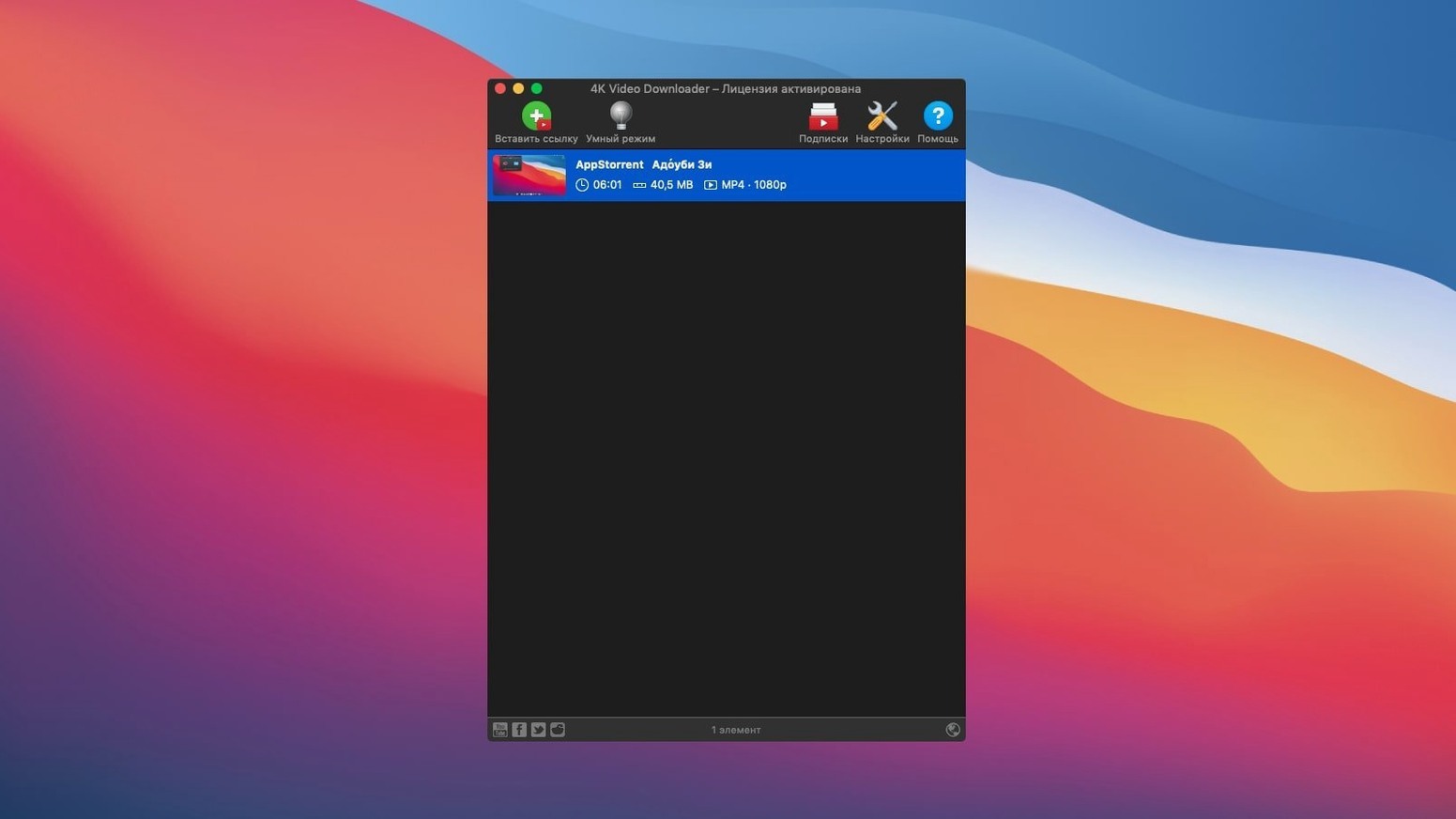
Will it handle a full channel or just single videos? Paste a channel or playlist URL and the app parses every entry. You set the format once; it applies the decision across the batch. Large playlists queue sequentially — no parallel chaos that trips rate limits.
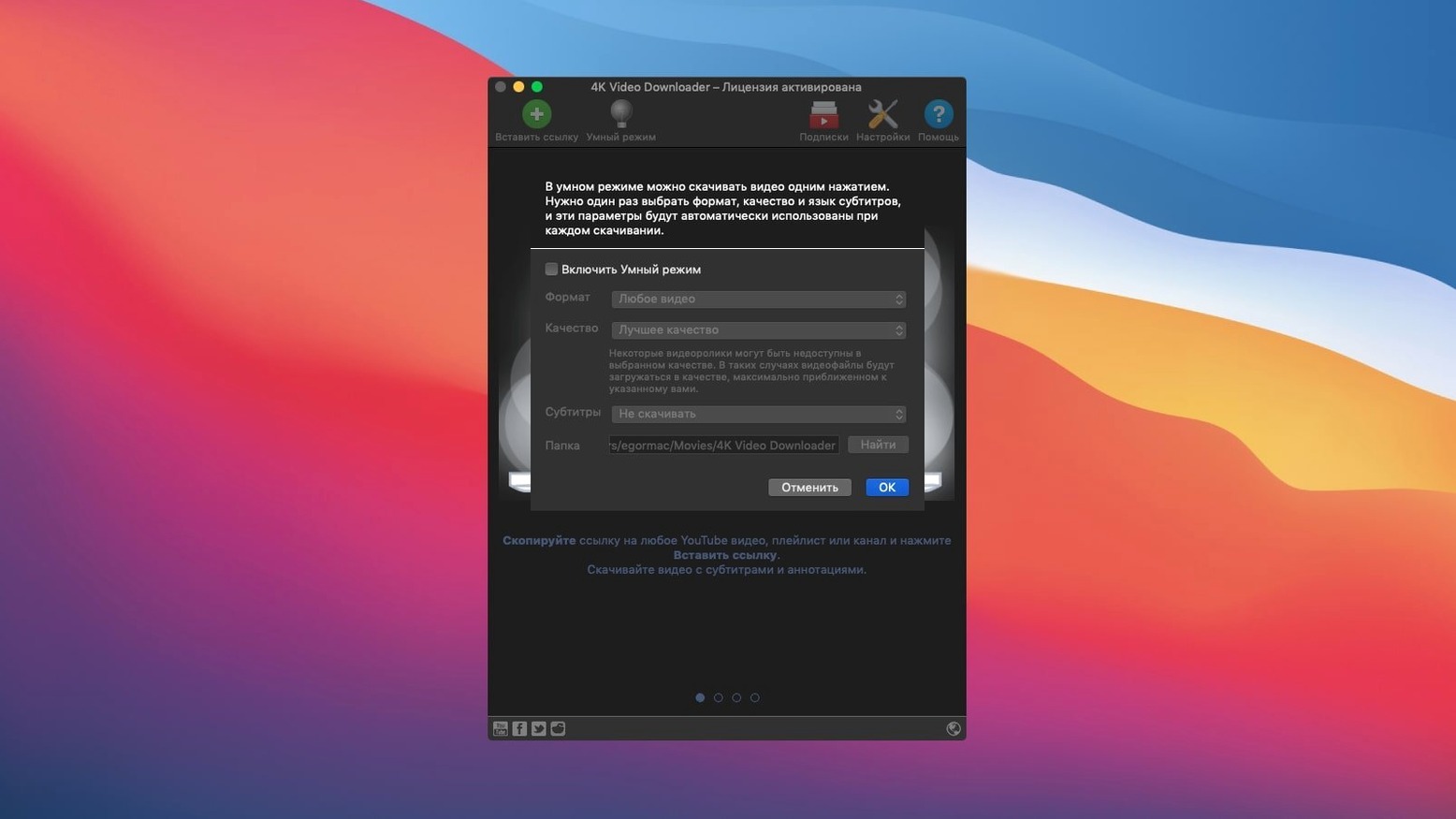
Does Smart Mode lock me into one preset forever? No. Smart Mode remembers your last-used format, quality, and subtitle preference, then applies it to every new download until you toggle it off. You can switch presets between sessions — MP3 for a podcast morning, 4K MKV for an edit session later.
What about sites beyond YouTube? Vimeo, SoundCloud, Flickr, Facebook, DailyMotion, and Instagram are all supported. The clipboard monitor catches a link from any of them and offers the same format panel. The workflow doesn’t change just because the source does.
Bypassing the format panel with Smart Mode presets
- Turn on Smart Mode immediately. Pick your most common output — say, 1080p MP4 with embedded subtitles — and let the app bypass the format panel for every single URL. You save two clicks per download. For a twenty-video playlist, that’s forty clicks you never make.
- Create a dedicated download folder before you start. Point the app at
~/Downloads/4Kor a project folder on an external drive. A clean target makes post-download sorting trivial, especially when you pull a channel with sixty files. - Test subtitle extraction on a short clip first. Not every uploader formats captions the same way. Run a thirty-second test, check the SRT file in TextEdit, then commit to the full playlist. The setting sticks for the session.
- Use the M3U option for any playlist over five items. The index file gives you a single clickable list for VLC or IINA. It’s faster than navigating a folder of sequentially numbered MP4s.
- Paste links in batches of ten to fifteen. The queue handles larger sets, but small batches let you verify the first download before the rest race through. If a source format changed overnight, you catch it early.
Pulling 4K source clips into a timeline via MKV
Content editors and motion designers who need reference clips, stock footage, or client approvals offline. They pull 4K source material, drop it into a timeline, and work without buffering. The MKV container preserves the high-bitrate stream they actually need.
Language learners and researchers who collect talks, lectures, and interviews. They download with SRT subtitles, load the file into a note-taking app, and search transcripts. An offline archive means no algorithmic recommendations steering them off-topic mid-session.
Musicians and DJs pulling audio from SoundCloud or YouTube. They set Smart Mode to M4A or MP3, paste a playlist, and walk away. The files land in a folder ready for Serato or Traktor, named and tagged by the source.
Travellers and commuters who face patchy connections. They queue a week’s worth of content — tutorials, documentaries, podcasts — on fast Wi-Fi, then work through the files on a train or plane. The app’s single-purpose design means the queue completes without browser-tab bloat.
Clipboard monitor grabs the first YouTube URL
You open the app on a Tuesday morning. A client Slack channel has three YouTube links: a product demo, a competitor walkthrough, and a playlist of user-testing clips. You copy the first URL — the app’s clipboard monitor flashes a parse notification in the menu bar.
Smart Mode is already on, set to 1080p MP4 with embedded subtitles. You paste the link, and the download starts without a dialog. The file lands in ~/Projects/Client-Name/Research, named exactly like the video title. You copy the second link. Same rhythm: paste, parse, download. No clicks wasted.
For the playlist, you toggle Smart Mode off — these clips need MKV containers and separate SRT files for the UX team. You paste the playlist URL. The app loads all twelve entries in a queue panel. You select MKV, 4K quality, tick “Separate SRT file,” and hit download. The queue runs sequentially. You switch to email while the progress bar ticks.
Twelve minutes later, the folder holds labeled MKV files and matching SRTs. You drag the M3U index into VLC, scan three clips for the afternoon meeting, and close the app. The whole session took under fifteen minutes, most of it unattended. The files are local, organized, and independent of any streaming platform’s uptime.
- macOS 12 or later
- Intel processor
Comments 0
Sign in to leave a comment.Sign inCreate an account
No comments yet. If a step is still there after you install it, say so.
More in Video Downloaders
All in Video Downloaders 4K YouTube to MP3
Pulls clean audio from video links so you can listen without the screen.
16 steps saved
 AmpliTube
Stacks amps, cabs, and stompboxes into a record-ready guitar rig on your Mac.
17 steps saved
 Downie
Downloads a video from any major site to your desktop after you paste the link.
7 steps saved
 Folx Pro
Splits downloads into parallel threads to reduce wait times.
5 steps saved
 HarborDrop
Resumes partial downloads so a dropped packet doesn't scrap the whole file.
4 steps saved
 iDownerGo
Captures streaming media in the background without hunting for a download link.
10 steps saved
 iTubeGo
Grabs entire playlists at speed and converts each file in the background queue.
20 steps saved
 Musify
Downloads full playlists from music sites and saves them as MP3 files.