
Multiple archives arrive at once, and the default Mac unarchiver chokes on the password or scatters files across the folder. RAR Extractor replaces that friction with a single-purpose tool that reads the archive, shows the contents, and unpacks everything where you want it — without extra dialogs.
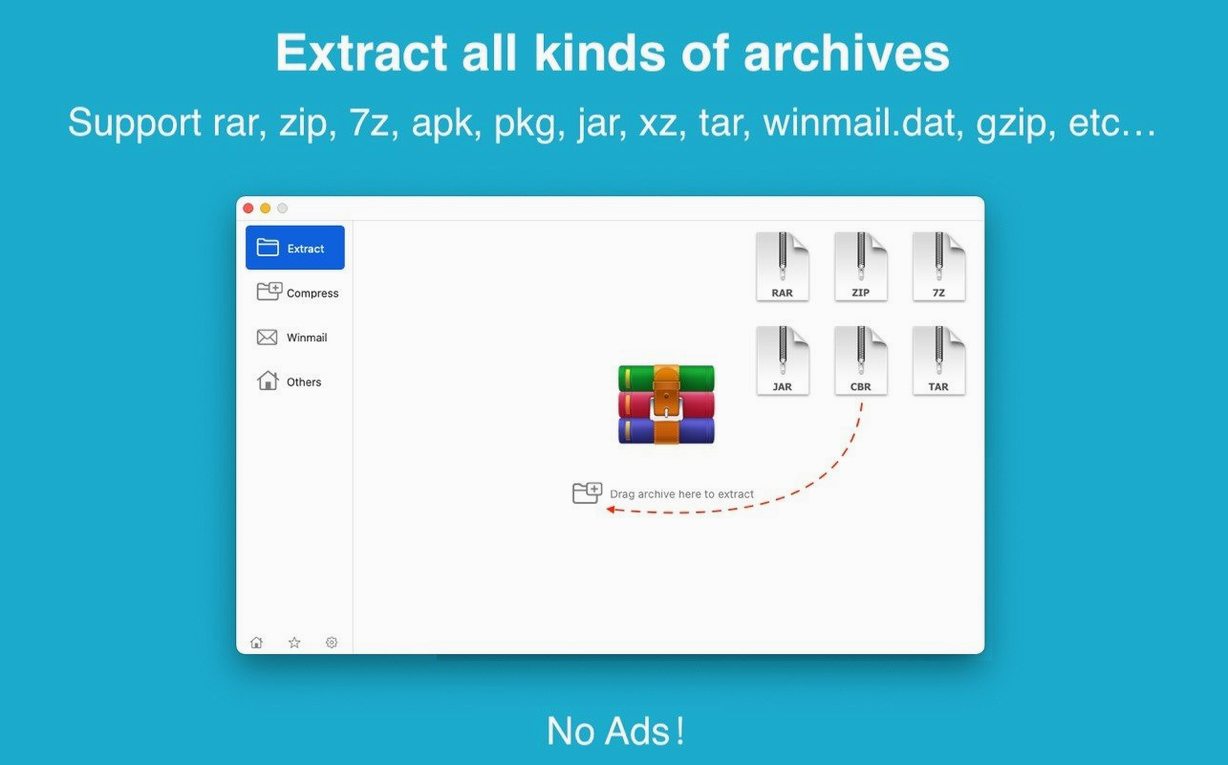
Batch unpacking is central. Select a dozen archives, drag them onto the window or the Dock icon, and extraction begins immediately. The file list lets you check contents before unpacking, which saves time when you only need one file from a compressed folder. Encrypted archives are supported — you supply the password once per session.
You can drag an archive straight to the desktop for direct extraction, or set RAR Extractor as the default archive app so double-clicking any supported format opens it here. The interface stays out of the way, showing just the file tree and a progress bar.
Built for Apple Silicon and Intel 64-bit Macs running macOS 11.5 or later, the app installs quickly once you bypass Gatekeeper through the provided terminal command. Languages: English and Simplified Chinese.
Makes .winmail.dat Attachments Viewable Inside Preview
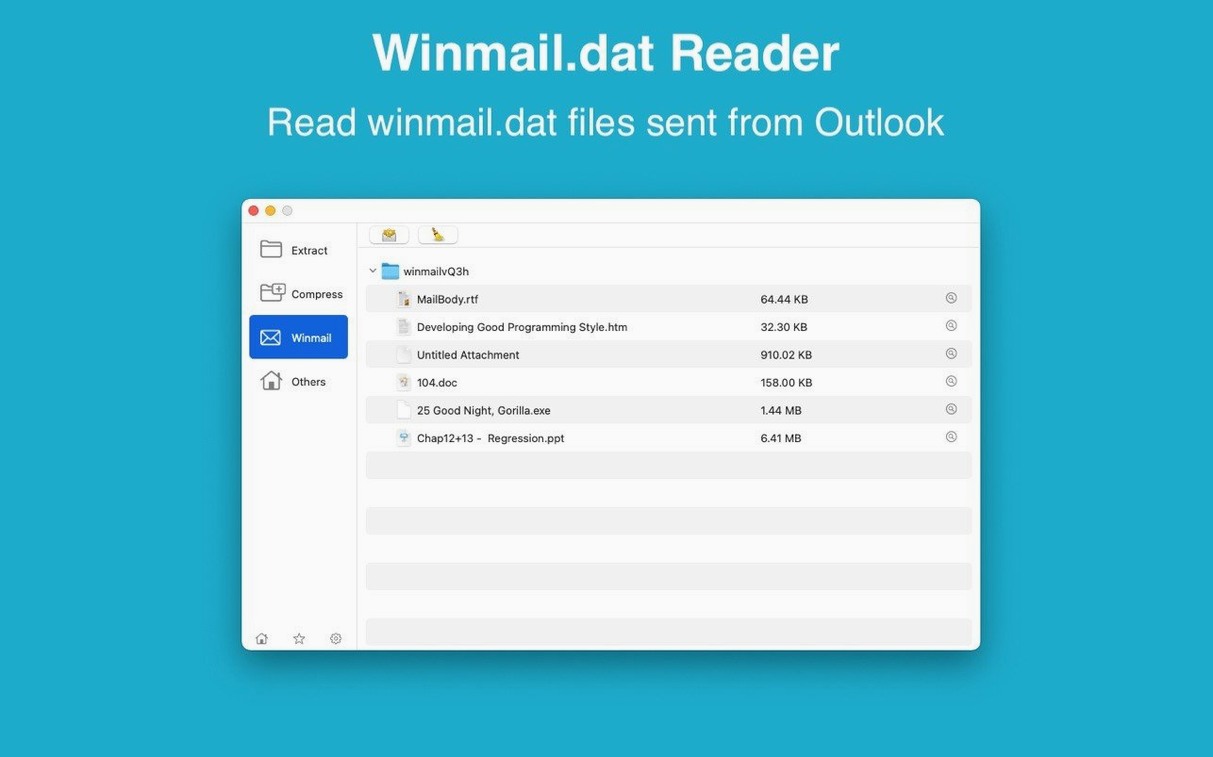
RAR Extractor works alongside Finder rather than around it. After extraction, files land in the folder you chose, ready for whatever app normally opens them. A .winmail.dat attachment from Outlook becomes viewable inside the preview pane, saving a round trip through Mail or a dedicated TNEF tool. Compressed .apk files drop their contents as regular folders, which you can then inspect in Android Studio or a file manager.
macOS services like Spotlight and Quick Look stay out of the loop — archives open in RAR Extractor when you set it as the default handler, and the rest of the system keeps working as before. The dual-window display helps when you want to compare an archive's contents against an already-extracted folder side by side, without opening a second app.
Workflow: pulling one file from a large archive
Say a client sends a .rar with forty project files inside, and you only need the contract PDF. Here's the full path:
- Drag the archive onto the RAR Extractor window or Dock icon.
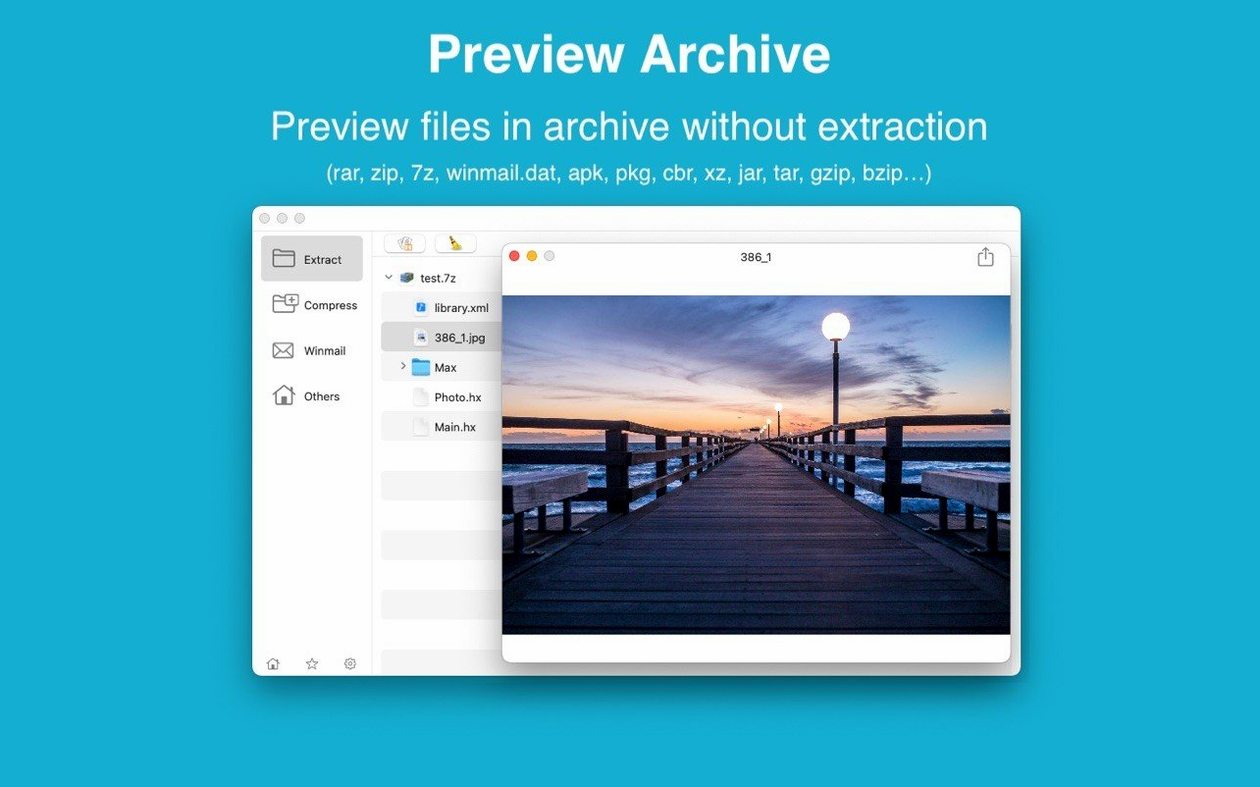
- Wait for the file list to populate — the preview shows names, sizes and folder structure before anything is unpacked.
- Select the single PDF you need. Skip the rest.
- Click extract. Choose the destination folder, or drag the selected file directly to the desktop.
- Open the PDF from its new location. The other thirty-nine files never left the archive.
The same sequence works for a folder inside an archive. Select the folder in the file tree, extract, and the app recreates only that branch of the structure in your target location.
Set Double-Click to Open Archive List, Not Auto-Extract
- Default archive app — set RAR Extractor as the handler for RAR, 7Z and ZIP so double-clicking opens the archive list instead of triggering a full automatic extraction.
- Extraction destination — pick a fixed folder if you prefer everything landing in one place; leave it on "ask" if each project goes to its own directory.
- Password session behaviour — for a batch of encrypted archives that share one password, decide whether the app should remember it for the session or prompt each time. Remembering it speeds up multi-part downloads.
- Window mode — switch to dual-window if you regularly compare archive contents against existing folders, or keep single-window for a cleaner view when batch unpacking.
- macOS 11.5 or later
- Apple Silicon or Intel 64-bit
Questions I get before install
Does RAR Extractor work on Apple Silicon Macs?
Yes, it runs natively on both ARM (Apple Silicon) and Intel 64-bit Macs with macOS 11.5 or later.
Can it handle password-protected archives?
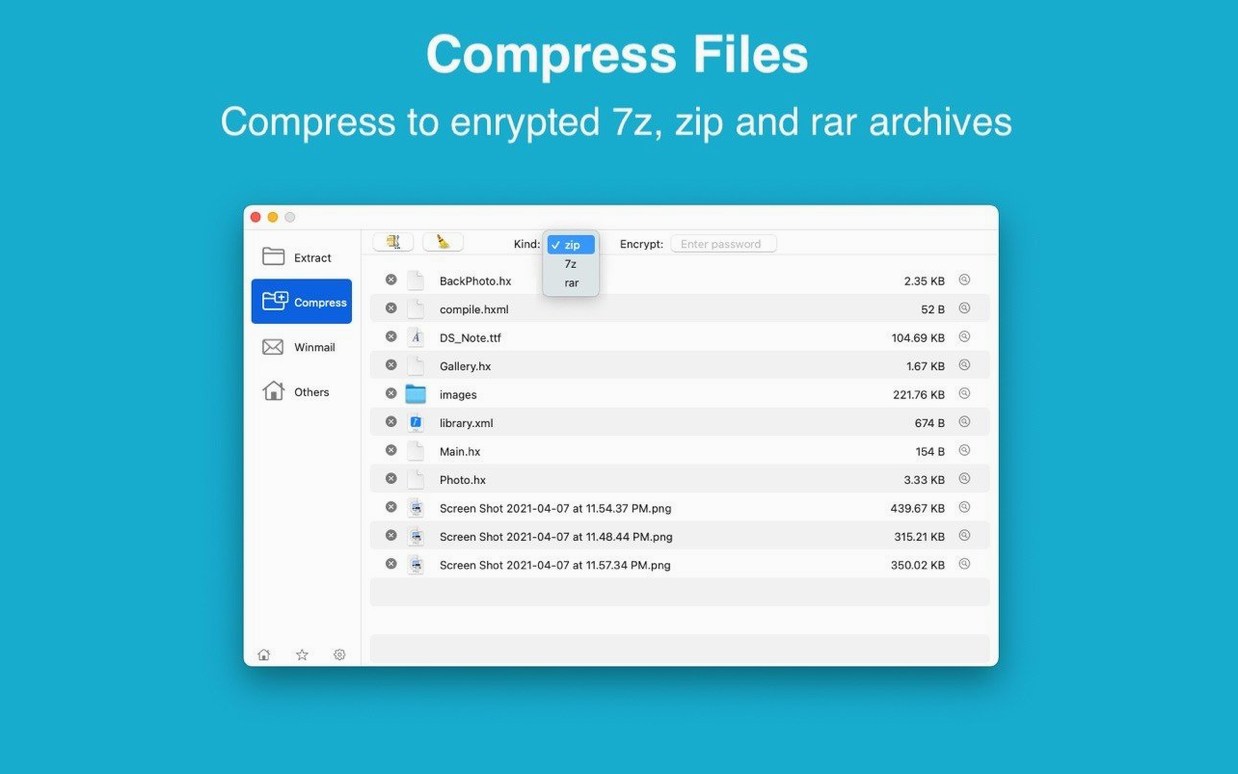
Yes, extraction of encrypted archives is supported. You enter the password when prompted.
How does batch extraction work?
Select multiple archives and drag them onto the app window or its Dock icon. RAR Extractor unpacks them all sequentially.
Comments 0
Sign in to leave a comment.Sign inCreate an account
No comments yet. If a step is still there after you install it, say so.
More in Mac Apps
All in Mac Apps RapidWeaver 9
Builds websites visually with themes and add-ons, no coding required.
11 steps saved
 Raycast Pro
Launches apps, runs commands and searches everything from one keyboard bar.
18 steps saved
 Radio Silence
Cuts off internet access for the apps you select, then stays quiet.
16 steps saved
 QuarkXPress
Sets automatic layout rules that respond as you type.
22 steps saved
 Updated
QLab
Puts every show cue under one roof so the operator sees a single timeline.
23 steps saved
 PyCharm
Catches type errors and syntax problems before you run the script.
19 steps saved
 RightFont
Lets you preview and activate fonts without opening Font Book.
22 steps saved
 ProPresenter
Runs multi-layer slides, video, and audio for venues where the show cannot stop.