
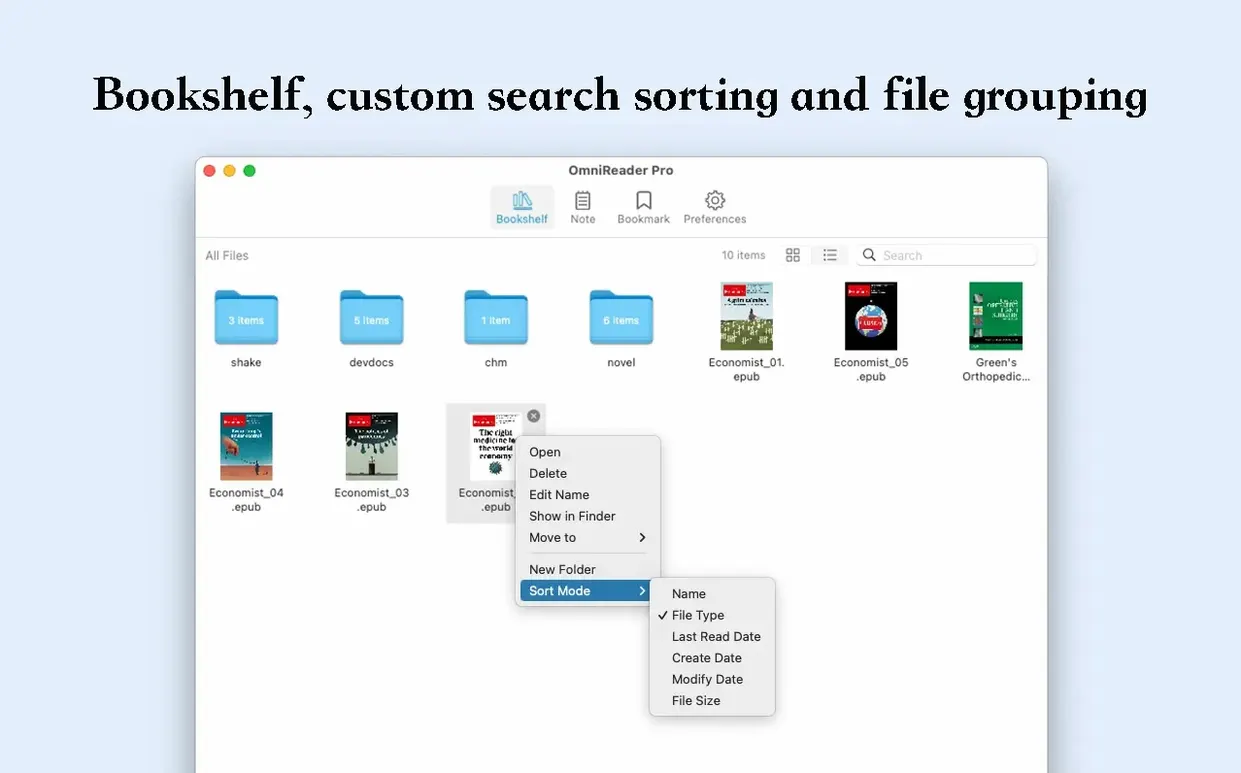
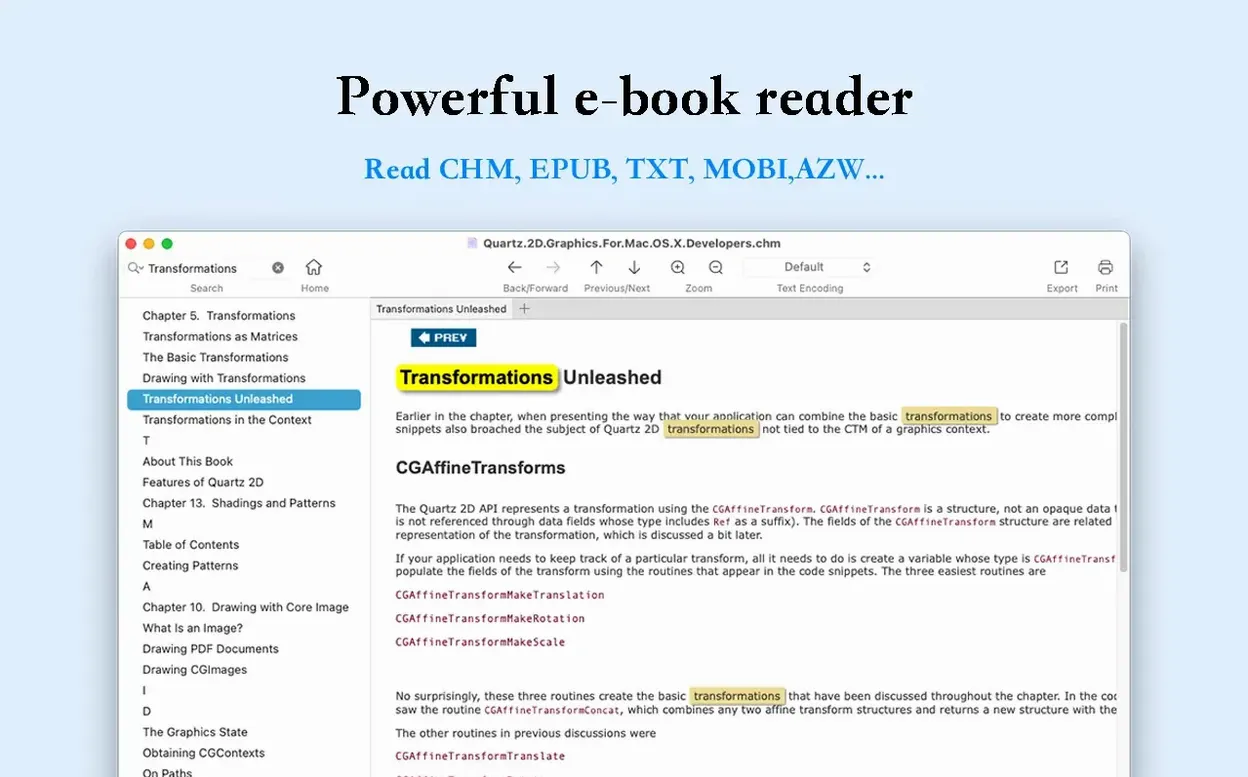
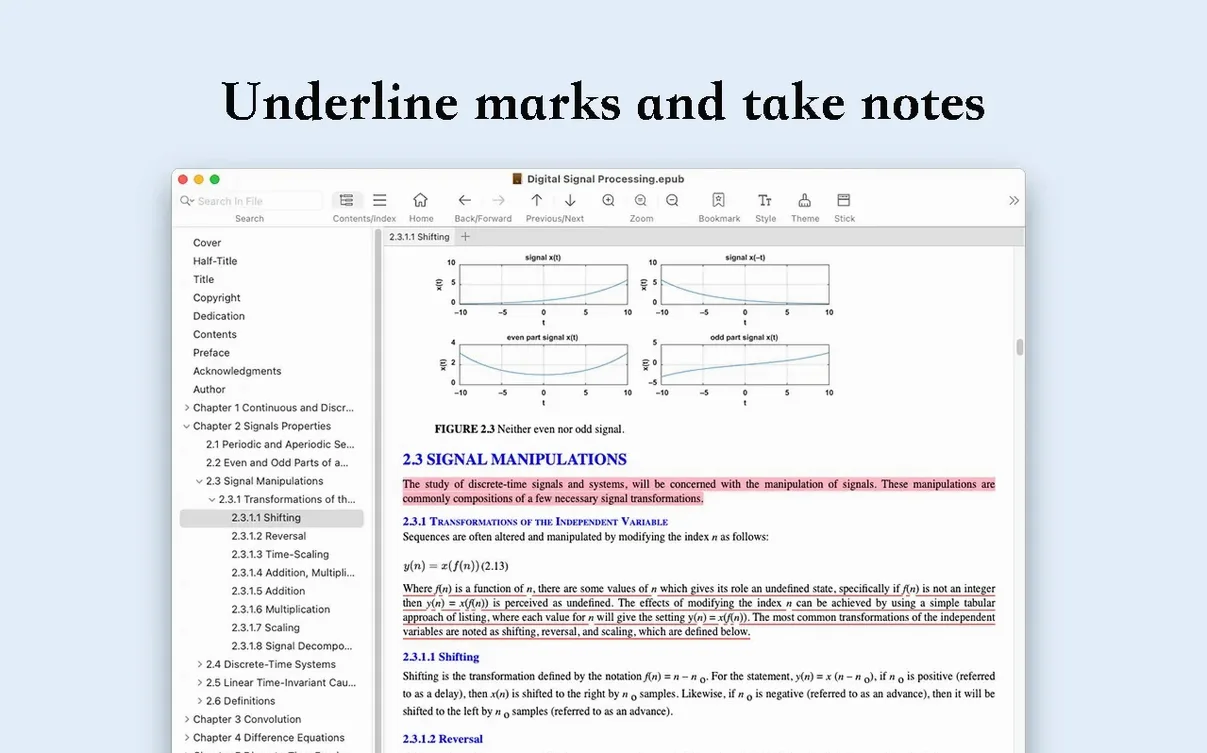
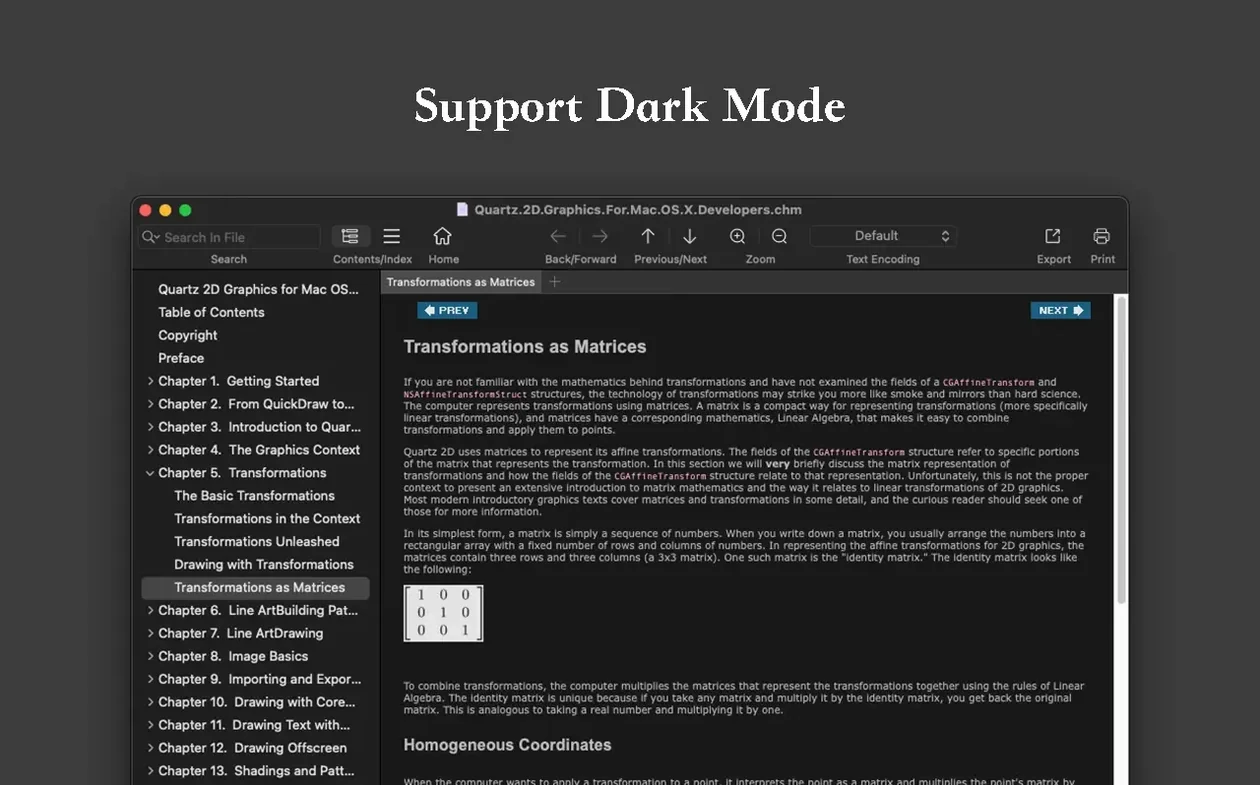
A research PDF lands on your desktop with scrambled characters. A Kindle book needs a quote extracted for a report. And the CHM help file from a legacy tool won't open cleanly. OmniReader Pro handles all three from a single shelf-like sidebar. Drop the files in and the app lists title, author, and format at a glance.
| Detail | Note |
|---|---|
| Formats | EPUB, CHM, Kindle |
| Export | EPUB, PDF |
| Core fix | Encoding repair for garbled text |
With the print command you send a clean chapter straight to paper, no extra formatting step. For the garbled PDF, switching the file encoding restores readable text. Zoom and page-turn controls keep long documents comfortable to read, and collapsing the sidebar frees the full screen for focused work. When a file needs to travel, export it as a standard PDF or a reflowable EPUB right from the current view.
Collapse the Sidebar Instantly with ⌘⇧S
The sidebar collapses with one keystroke, not just a toolbar click. Tap ⌘⇧S and the shelf disappears; same shortcut brings it back. While reading, ⌘← and ⌘→ step through your page history — forward and back — so checking a reference earlier in the chapter never means losing your place. That history survives chapter jumps inside EPUBs, which most readers don't bother persisting.
Three more worth knowing:
- Drag a folder full of CHM files onto the dock icon. Each lands as a separate title in the sidebar, already sorted by name. You skip the "open file" dialog fifteen times over.
- The image extractor isn't hidden in a menu. Right-click any open book and choose Extract All Images. It dumps every figure, diagram and cover into a dated folder on your desktop, no export wizard.
- Full-text search across all loaded books works from ⌘⇧F. Type a term once, see matches in every open title grouped by chapter, not just the active file. Click a hit to jump to that exact paragraph.
Fix the Blank Kindle Page by Switching Encoding
The "blank page" opener. A Kindle file loads but every page shows white. Almost always the encoding picker has defaulted to the wrong table. Open File → Encoding, try UTF-8 first — if that fails, shift to the Chinese or Western set that matches the book's source. The display snaps back on the second attempt.
Search highlighting won't stick. The yellow bar marks hits in the current view only. When you click a different chapter in the sidebar, highlights clear. The workaround: leave the search panel open and tap Enter again after the chapter loads. It re-runs the query in the new context instantly.
Print cuts off right-hand text. Some CHM files carry oversized internal margins inherited from Windows help viewers. Before printing, set zoom to Fit Width from the view menu — that recalibrates the page width to your paper size. Then print; the right edge lands inside the printable area every time.
- macOS 10.13 or later
- Apple Silicon or Intel 64-bit
Comments 0
Sign in to leave a comment.Sign inCreate an account
No comments yet. If a step is still there after you install it, say so.
More in Office
All in Office OmniPlan Pro
Breaks a complex initiative into trackable tasks linked by dependencies and resources.
7 steps saved
 OmniFocus Pro
Flattens vague plans into tagged, location-aware actions you can actually complete.
21 steps saved
 QuickBooks Mac Plus
Gives a small business a clean, guided path from setup to daily tracking.
8 steps saved
 Microsoft Word
Writes and reviews documents with tracked changes that open the same anywhere.
11 steps saved
 Microsoft PowerPoint
Builds presentation decks that move past static bullet points.
13 steps saved
 Microsoft Outlook
Puts mail and calendar in one window so you stop switching apps.
11 steps saved
 Microsoft Office
Gives a team six tools for documents, spreadsheets, and presentations.
19 steps saved
 Microsoft Excel
Builds budgets, forecasts and reports in spreadsheets the whole team can edit.