
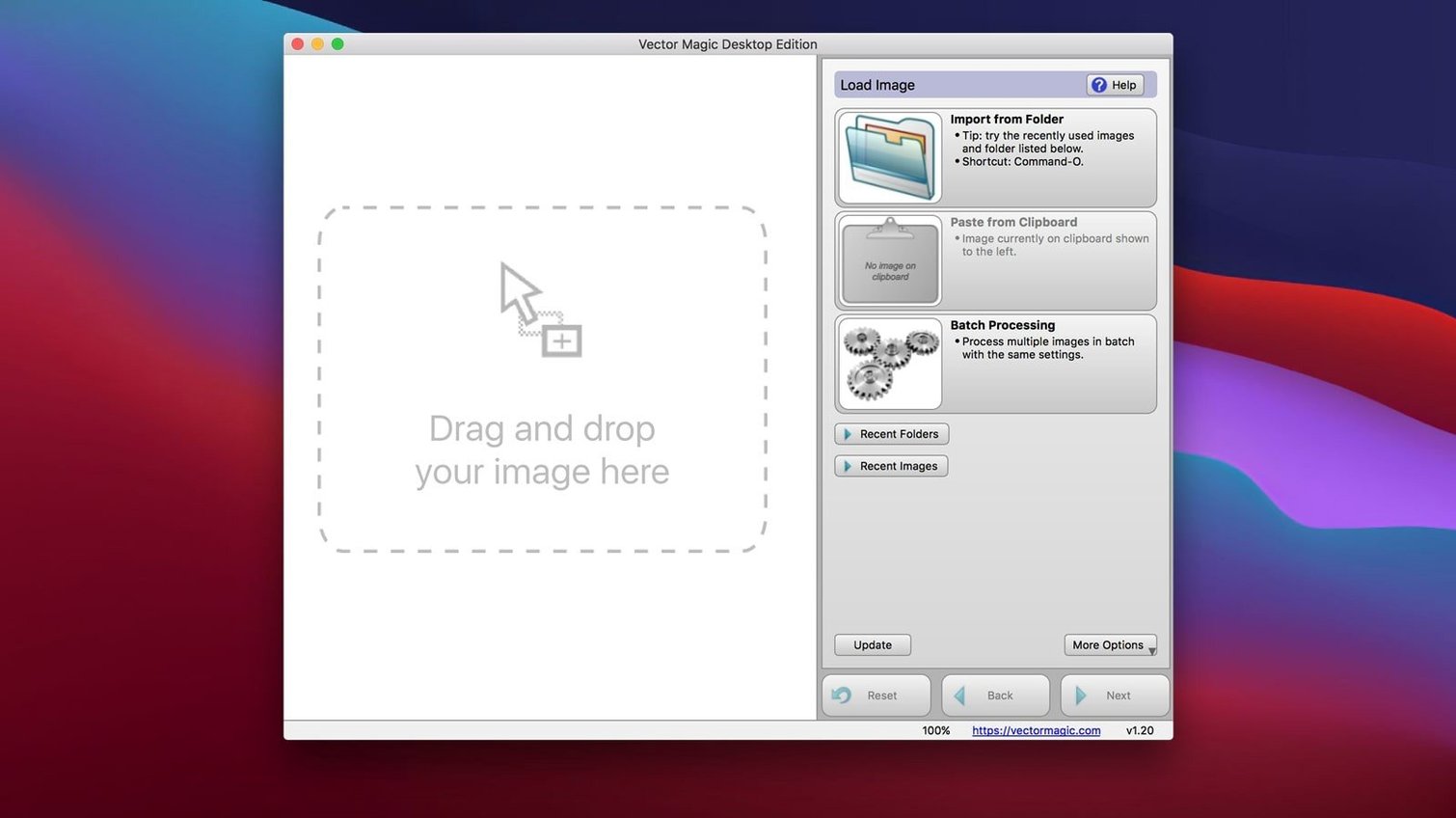
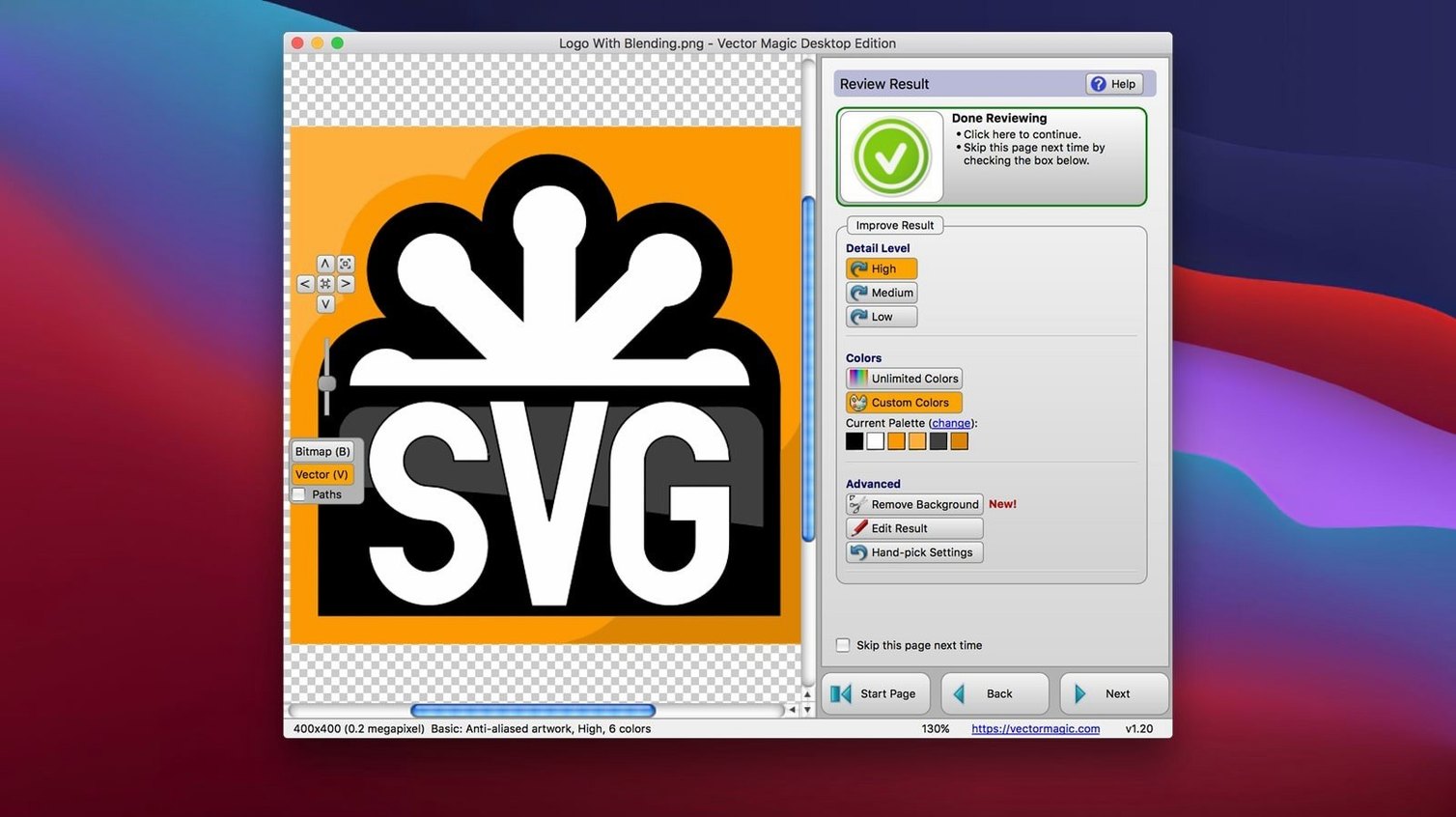
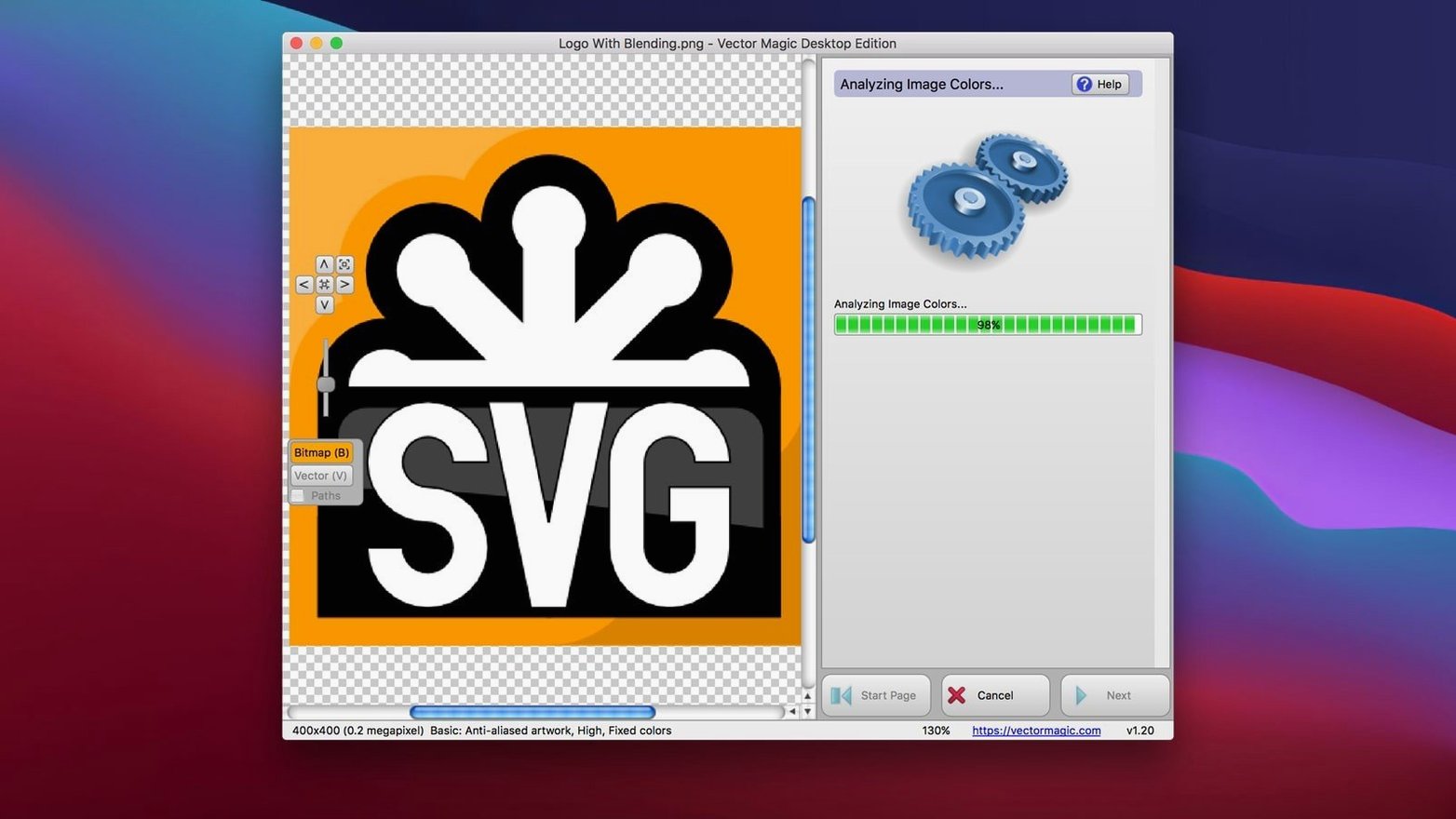
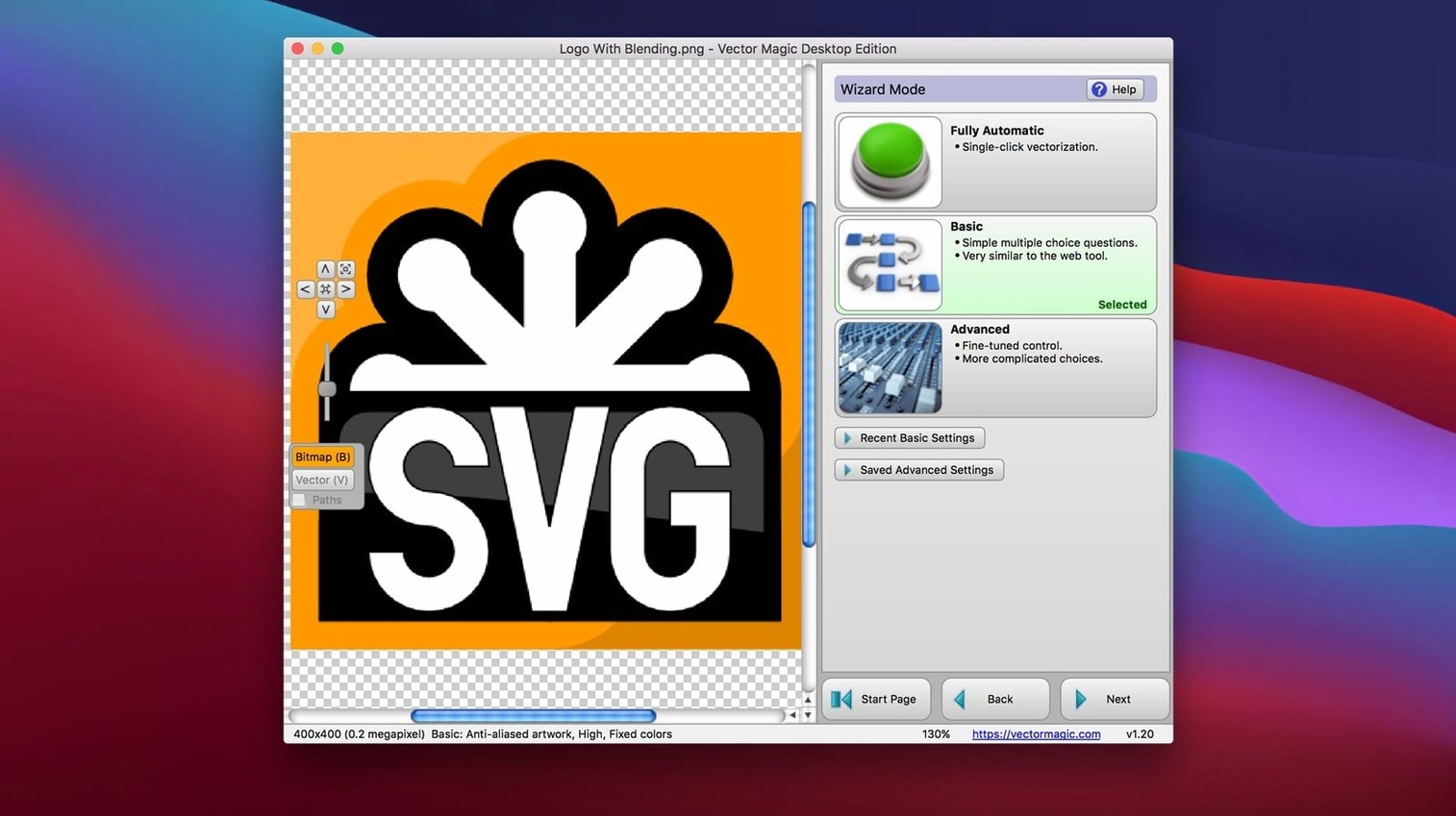
Vector Magic is a desktop tool that turns raster bitmaps into clean vector artwork. You feed it a JPG or PNG and it traces the shapes, giving you a scalable SVG, PDF or EPS back — no online upload needed.
A realistic task is prepping a client logo pulled from a website. You drag the 0.5 MB PNG onto the interface. The automatic mode runs immediately, separating the mark, the wordmark and the tagline into three colour layers. You toggle the segmentation view to check edges, then click on the background to remove it in one go.
Where automatic mode guesses wrong — say it merges two letters — you switch to manual. You adjust the detail slider, watch the preview redraw, and break the segment with the edit tool. Once the paths look tight, you pick a vector format and save. The whole process stays offline, and you can drag the result straight into Illustrator or copy-paste into CorelDRAW to keep working.
Workflow: Restoring a Scanned Line-Art Sketch
Old scanned drawings rarely trace clean on the first pass. Start with a 600 dpi black-and-white scan of a pen sketch, saved as a 2.8 MB TIFF. Drop it onto Vector Magic’s window. The automatic mode fires, but the result looks wobbly — thin lines break where the scanner picked up paper texture.
Switch to Advanced mode. Set the palette to two colours and crank the detail slider to high. The preview tightens. Click the segment editor and manually join a broken outline on the jawline: drag across the gap, release, and the two fragments fuse. Use the background removal brush on a dusty corner the auto-trace misread as a grey smudge. Next, smooth the curve nodes on the sleeve fold by reducing the vertex count in the settings panel. The preview snaps to a cleaner contour.
Export as SVG with transparency enabled. Open it in Illustrator — the path is sharp, ready for stroke-width adjustments or fill. Total time: under four minutes for a sketch that would take twenty minutes to redraw by hand with the pen tool.
Switch to Custom Palette So It Never Invents Colours
Three defaults slow you down. Change them once and the app behaves for the rest of the day.
- Default palette mode — set it to “custom” instead of “automatic.” Auto sometimes invents colours that were never in the original.
- Output format — pick SVG or PDF as your fallback, not AI. AI files from version 1.20 open cleaner in older Illustrator releases and other editors.
- Preview quality — bump it to high. The default low-res preview hides edge artifacts you only spot after export.
Also worth enabling: the segmentation highlight overlay. It colour-codes each traced region before you commit to an export. A quick check catches merged letters or fused background blobs while they are still one click away from fixed.
Overlapping Curves No Longer Snap in the Segment Editor
Version 1.20 shipped a quieter set of fixes than the jump from the old online service days, but two adjustments changed everyday use. The segment editor handles overlapping curves more predictably: where earlier builds occasionally snapped a shared edge to the wrong shape, v1.20 respects your drag direction. The difference is easy to miss until you edit a complex graphic with nested cutouts — fewer manual node deletions.
Batch processing also got tighter memory handling. Feed it forty product photos and the queue no longer balloons RAM after the twelfth file. It still caps at 10 megapixels per image, but the app releases memory between exports, which matters on older Intel Macs still running OS X 10.7. Users running a Vector Magic torrent or an outdated Vector Magic torrent can get the same stable throughput by ensuring the build includes the v1.20 memory release patch; that version handles sustained loads cleanly. The copy-paste bridge to Illustrator also stabilised: dragging a result into a CorelDRAW artboard now preserves layer names that earlier versions flattened.
- OS X 10.7 or later
- Intel 64-bit processor
- Maximum source file size: 10.0 MB
- Maximum source image size: 10.0 megapixels
Questions I get before install
What vectorization modes does Vector Magic offer?
It provides automatic, basic, and manual modes, with manual mode allowing individual parameter adjustments and an instant preview.
Does Vector Magic support transparent backgrounds?
Yes, it supports transparency, letting you remove a bitmap background and save the vector with a transparent backdrop.
Can I use Vector Magic with other graphics software?
Yes, you can copy-paste vector results directly into apps like Illustrator and CorelDRAW, or use drag-and-drop.
Comments 0
Sign in to leave a comment.Sign inCreate an account
No comments yet. If a step is still there after you install it, say so.
More in Mac Apps
All in Mac Apps Viaduct
Converts an unpacked Chrome extension into a signed Safari extension.
16 steps saved
 Updated
Vibe Island
Lets you approve agent actions from the Mac notch while coding.
15 steps saved
 Updated
Typeface
Replaces Apple’s Font Book with fast browsing and comparison of every installed font.
7 steps saved
 VMware Fusion Pro
Runs Windows and Linux virtual machines in a window beside macOS.
18 steps saved
 Tuxera NTFS
Lets you read and write NTFS drives on a Mac without workarounds.
19 steps saved
 TunesKit iPhone Unlocker
Removes screen passcodes, Apple ID and MDM locks from a locked iOS device.
23 steps saved
 Wallspace
Replaces static desktop images with a catalogue of live 4K wallpapers.
19 steps saved
 WALTR PRO
Converts and places any media file into the right Apple app on the target device.