
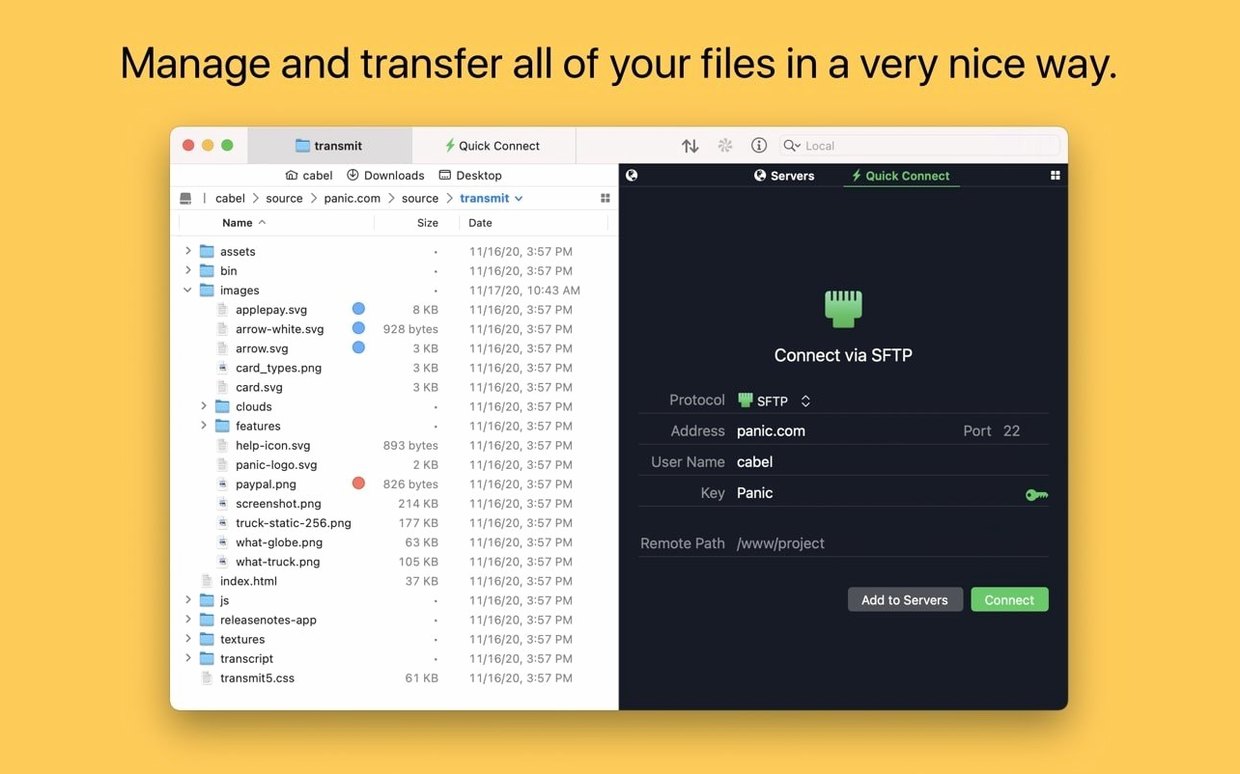
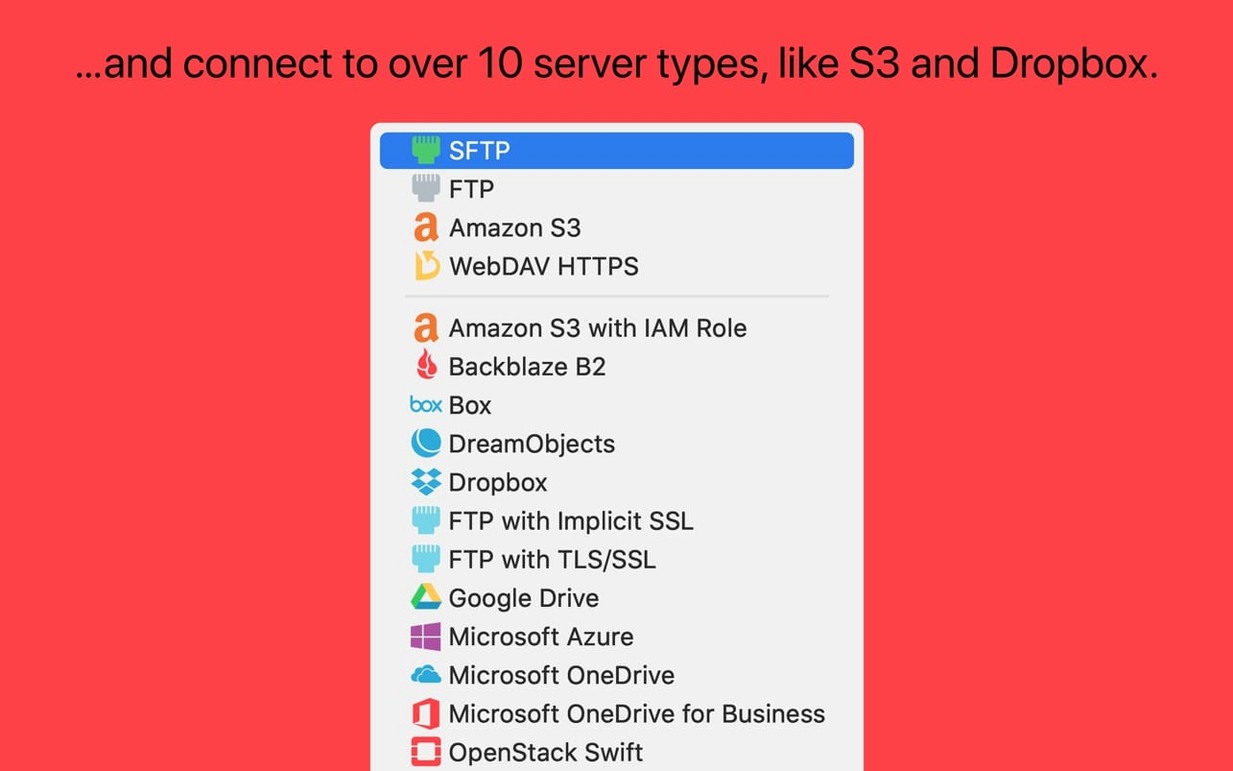
A designer sends a 2 GB folder to a client’s server while updating an S3 bucket for the dev team. Transmit handles both connections in a split view without switching apps. It’s a macOS file transfer client from Panic that talks FTP, SFTP, S3, and WebDAV.
- Connect to multiple servers at once and drag files between them in a tabbed or split interface.
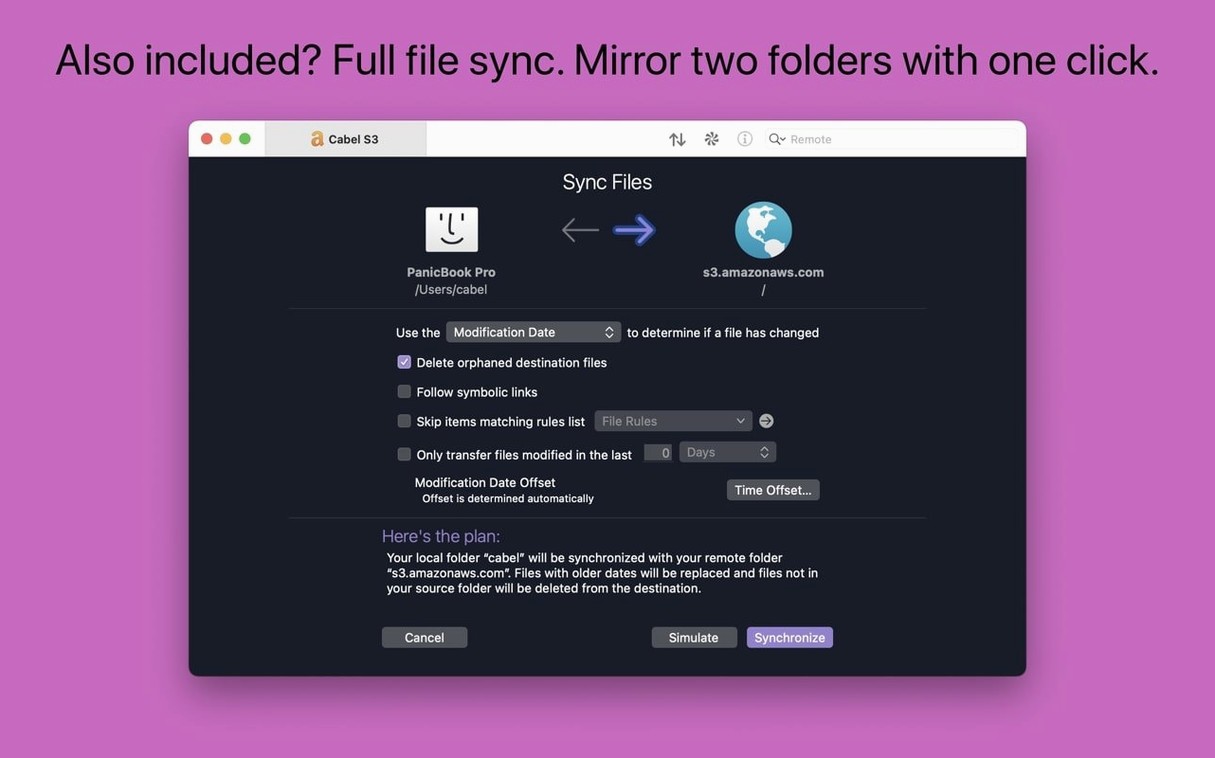
- Sync local and remote folders with a single click — compare, review, then mirror changes.
- Generate and manage SSH keys inside the app instead of reaching for Terminal.
- Rename a batch of files locally or on a server with flexible patterns.
- Open any remote directory straight in Terminal for quick scripting work.
- Keep connections and passwords in sync across Macs with Panic Sync.
It replaces a handful of separate tools with one clean workspace. The Places Bar gives you one-click access to favourite folders, and tags help organize a growing list of servers. Transmit suits anyone who treats file transfer as part of the job, not an interruption.
Dragging files before you check the pane direction
Most early frustration comes from three habits.
- Dragging before checking direction. In split view, the left pane is local and the right is remote — until you flip them. A quick glance at the pane header saves you from uploading the wrong folder over a live site.
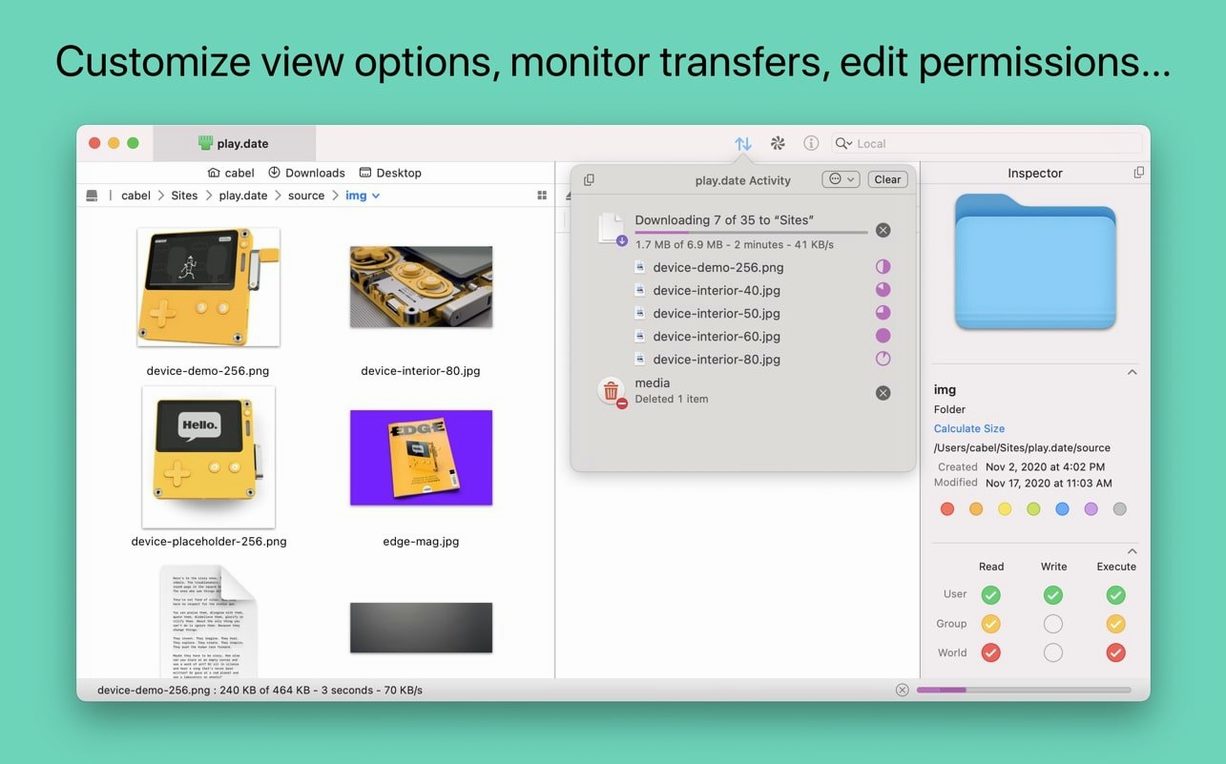
- Ignoring the transfer queue. Transmit queues operations by default. Beginners often start a second upload while the first still runs, then wonder why bandwidth tanks. Let the queue do its job, or pause one transfer before starting another.
- Skipping the sync preview. Local-to-remote sync is not a blind mirror. Transmit shows you exactly which files will be added, replaced, or deleted. Review that list once and you avoid wiping server files by accident.
Server drops during large uploads and how to steady them
Connection drops on large uploads. Some servers close idle or long-running connections. Reduce the number of simultaneous transfers in Transmit’s preferences, or split very large batches into smaller ones. For S3, the improved error reporting in version 5.11.6 tells you immediately when a file exceeds the platform limit.
Key authentication fails after moving Macs. If you generated keys inside Transmit and then switched to a new Mac, export the private key from the old machine or regenerate the pair and re-add the public key on the server. Panic Sync keeps connection settings but does not always carry every key.
SFTP connects but the file list is empty. Check the remote path field. Some hosts drop you in a root directory without read permissions. Set the correct default folder in the connection settings and reconnect.
Workflow: staging a small site update
A practical routine for pushing a handful of changed files to a web server without touching the rest of the site.
- Open your saved SFTP connection and wait for the remote directory to load.
- Switch to split view so local files sit on the left and the server on the right.
- Sort both panes by modification date. The files you edited today rise to the top.
- Select the three or four changed files locally and drag them to the matching remote folder.
- Let Transmit confirm the overwrite prompt, then check the transfer queue for failures.
- Open the remote folder in Terminal if you need to verify permissions or run a quick script after upload.
For teams that share server credentials across Macs, Panic Sync keeps this connection ready on every workstation. The whole routine takes under a minute once the connection is saved.
Transmit 5.11.7 tidies up lingering connection snags and improves reliability across cloud services.
- macOS 13 or later
- Apple Silicon or Intel 64-bit
Questions I get before install
Can Transmit synchronize folders between my Mac and a remote server?
Yes, it supports local and remote file synchronization so you can mirror changes between locations.
Comments 0
Sign in to leave a comment.Sign inCreate an account
No comments yet. If a step is still there after you install it, say so.
More in Mac Apps
All in Mac Apps Traktor Pro
Isolates drums, bass or vocals live while mixing across four decks.
14 steps saved
 Tower PRO
Puts Git branches, history and merges into a clear visual client.
19 steps saved
 TunesKit iPhone Unlocker
Removes screen passcodes, Apple ID and MDM locks from a locked iOS device.
18 steps saved
 Tuxera NTFS
Lets you read and write NTFS drives on a Mac without workarounds.
15 steps saved
 Updated
Typeface
Replaces Apple’s Font Book with fast browsing and comparison of every installed font.
4 steps saved
 Updated
Topaz Video AI
Upscales, denoises, and stabilizes video footage using local AI models.
18 steps saved
 Updated
Topaz Photo
Sharpens, denoises, and upscales photos by targeting the real cause of softness.
17 steps saved
 Vector Magic
Converts a pixelated logo into a clean SVG or PDF without an online upload.