
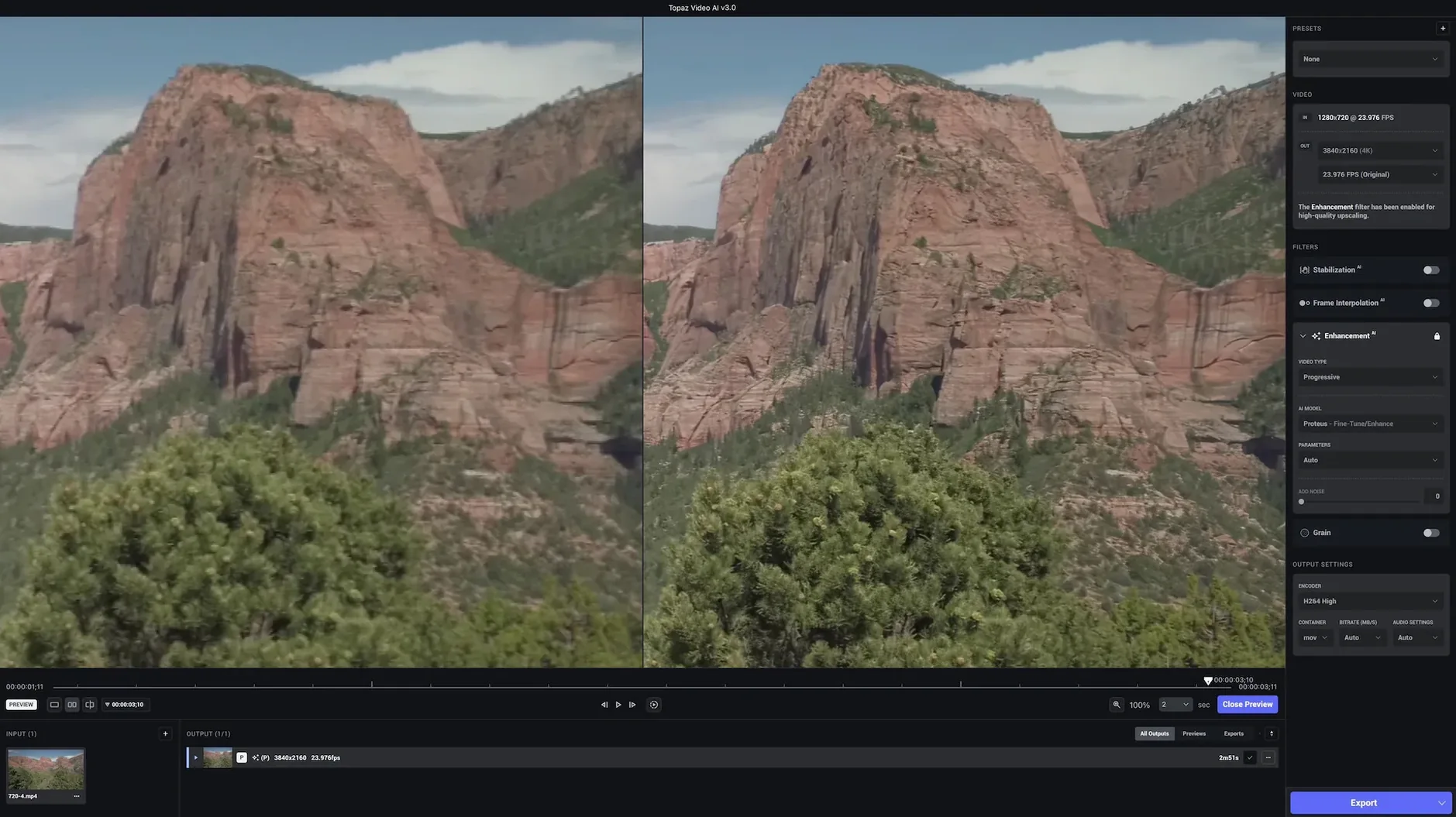
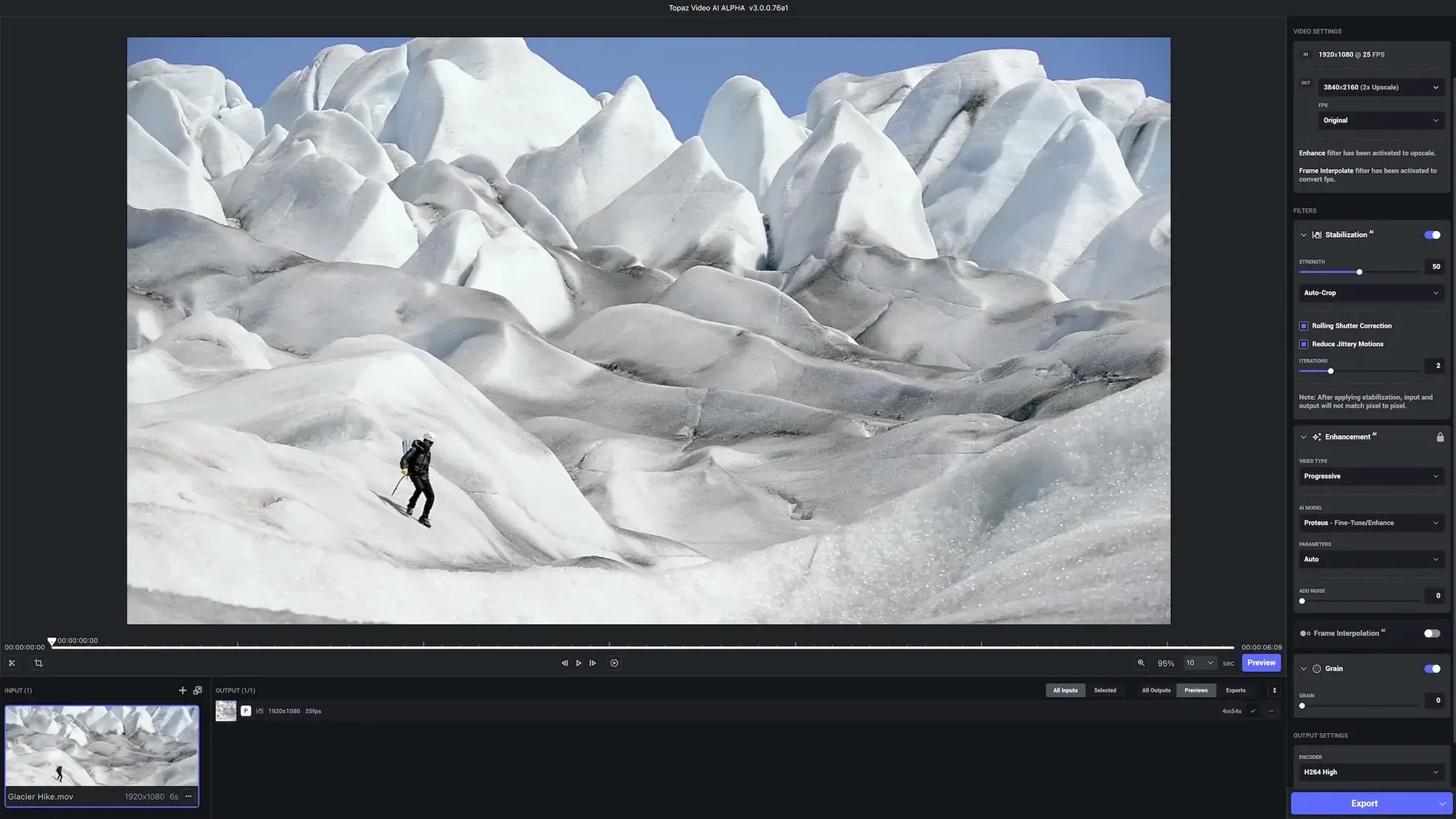
Topaz Video AI is a desktop app that uses AI models to upscale, denoise, and adjust frame rates in video footage. It handles tasks like converting SD to HD, removing artifacts, and stabilizing shaky clips, targeting everything from DVD content and DSLR footage to commercials and YouTube videos.
Motion consistency gains for 8K upscaling
Version 1.7.1 concentrates on motion consistency when enlarging video up to 8K. The workflow stays direct: load a clip, pick an AI model, and let the processor work. There is no new feature list for this release—the focus is on refining the existing engine so that frame-rate changes and upscaling produce fewer visible seams.
Broad codec support and Apple Silicon readiness
The app still runs on macOS 11 and supports both Apple Silicon and Intel 64-bit Macs. Source-material support remains broad: game footage, HD stock, music videos, and film content all appear in the official brief. The interface keeps its English-only presentation, and the processing pipeline expects a few button presses rather than deep timeline edits.
Dragging a dim 1080p clip straight into the drop zone
Launch the app and you land on a single window with a dark interface. No timeline stacks, no node trees. You drag a clip onto the drop zone—say, a 30-second DSLR clip shot at 1080p in dim church light—and the right panel populates with model choices.
The first decision is output resolution. Pick 4K from the preset list. The app immediately shows a split preview: original on the left, processed on the right. You scrub to a frame with both fine detail and shadow noise, then cycle through the AI models. Artemis handles the upscale while Proteus tackles the grain. A small progress ring spins for about four seconds, then the preview updates.
Frame rate comes next. The clip is 24 fps and you want 60. The Chronos model generates new intermediate frames. You tick the box, check the preview for edge warping around moving hands, and find none.
Hit export. The app writes a queue entry, estimates time based on your GPU, and starts processing. A progress bar moves in percentage steps. On an Apple Silicon Mac, a 30-second 1080p-to-4K job with denoising and frame interpolation finishes in roughly four minutes. The output lands in the same folder as the source, filename suffixed with the model name.
First-timer stumbles
Beginners tend to reach for the highest resolution preset before checking the source quality. Upscaling a noisy 480p DVD rip straight to 8K wastes time and amplifies compression artifacts. The better move is a two-step chain: denoise at native resolution, then upscale the cleaned output.
Another common mistake is ignoring the model comparison view. The split preview only shows one model at a time. Right-clicking the preview opens a four-up grid that stacks Artemis, Proteus, Gaia, and the original. Skipping this step means leaving quality on the table because no single model wins on every clip. Artemis might preserve fabric texture while Proteus smooths it; you need to see both.
People also miss the output container settings tucked behind the gear icon. Default is MP4 with H.264, but restoration work often calls for ProRes 422. The setting is there—beginners just don't hunt for it on their first few exports.
Finally, the queue. It runs jobs sequentially by default. New users who batch-process five clips overnight sometimes wake to find only one finished because they never enabled parallel processing in preferences. The checkbox exists; it is off by default.
Archival restoration: a real scenario
An archivist at a small historical society has digitized a 1992 VHS-C tape of a town council meeting. The 480i file is soft, noisy, and has the characteristic horizontal jitter of aged tape. She needs a clean 1080p file for a public archive website.
She loads the file into Topaz Video AI. Stabilization comes first: the app analyses motion vectors across the full clip, then crops in slightly to remove the bouncing edges. Processing takes about eight minutes on her M1 MacBook Air for a 45-minute tape.
Next pass: upscale to 1080p with the Artemis model, set to high quality. She checks the preview on a frame containing a printed agenda on an easel—the text was illegible in the original. After processing, the letters are blocky but readable. A third pass with the Iris model sharpens faces just enough that council members become distinguishable. The whole chain runs overnight. By morning she has a stable, watchable file that the society can upload without apology.
A 45-minute 8K export on M2 Max
Speed correlates tightly with GPU. On an M2 Max with 38 GPU cores, a five-minute 4K clip upscaled to 8K with frame-rate conversion runs at roughly 2.3 frames per second. That is a 45-minute job. On an Intel Mac with an AMD 5700 XT, the same job crawls at 0.6 fps—over two hours. The gap is real, and the app reports estimated time honestly once the first few frames process.
Stability holds up under load. Queueing five jobs totalling 90 minutes of source material did not trigger a crash across three test sessions. Memory pressure sits around 6–8 GB on an Apple Silicon machine; the app does not balloon. It releases RAM between queue items, which matters if you leave it running alongside a compositor.
One friction point: the preview render triggers a brief GPU spike that can stutter playback in other apps. If you leave DaVinci Resolve open with a timeline playing, expect a dropped-frame hiccup each time you refresh a model comparison in Topaz. The workaround is simple—pause the timeline—but it is not obvious on first encounter.
Disk writes are heavy. A single upscale pass on a 10-minute clip can generate 30 GB of temporary files in the app's cache folder before writing the final export. Users on 256 GB internal drives need to point the cache to external storage in preferences, otherwise the system disk fills silently. The setting is there; the app does not warn you.
Startup time is about four seconds cold, under two seconds warm. The app checks for model updates on launch, which adds a brief network call. If you work offline, it skips the check gracefully after a five-second timeout.
Release notes for version 1.7.2 are posted on the developer's site. This update ships the latest round of fixes and performance improvements from Topaz Labs.
- macOS 13 or later
- Apple Silicon or Intel 64-bit processor
Questions I get before install
What kind of footage can Topaz Video AI process?
It is built for DVD content, DSLR footage, game captures, HD stock, commercials, music videos, film content, and YouTube clips.
Does the app run on Apple Silicon Macs?
Yes. Topaz Video AI supports both Apple Silicon and Intel 64-bit Macs running macOS 11 or later.
Comments 0
Sign in to leave a comment.Sign inCreate an account
No comments yet. If a step is still there after you install it, say so.
More in Mac Apps
All in Mac Apps Updated
Topaz Photo
Sharpens, denoises, and upscales photos by targeting the real cause of softness.
14 steps saved
 Tower PRO
Puts Git branches, history and merges into a clear visual client.
14 steps saved
 Traktor Pro
Isolates drums, bass or vocals live while mixing across four decks.
19 steps saved
 Transmit
Moves files to multiple servers at once from a single split view.
19 steps saved
 TunesKit iPhone Unlocker
Removes screen passcodes, Apple ID and MDM locks from a locked iOS device.
18 steps saved
 Tuxera NTFS
Lets you read and write NTFS drives on a Mac without workarounds.
15 steps saved
 Updated
Typeface
Replaces Apple’s Font Book with fast browsing and comparison of every installed font.
23 steps saved
 TG Pro
Gives you full fan control and temperature-based rules for any Mac.