
Runs on any Mac with macOS 14.6 or later, on both Intel and Apple Silicon hardware.
What Smooze Pro controls
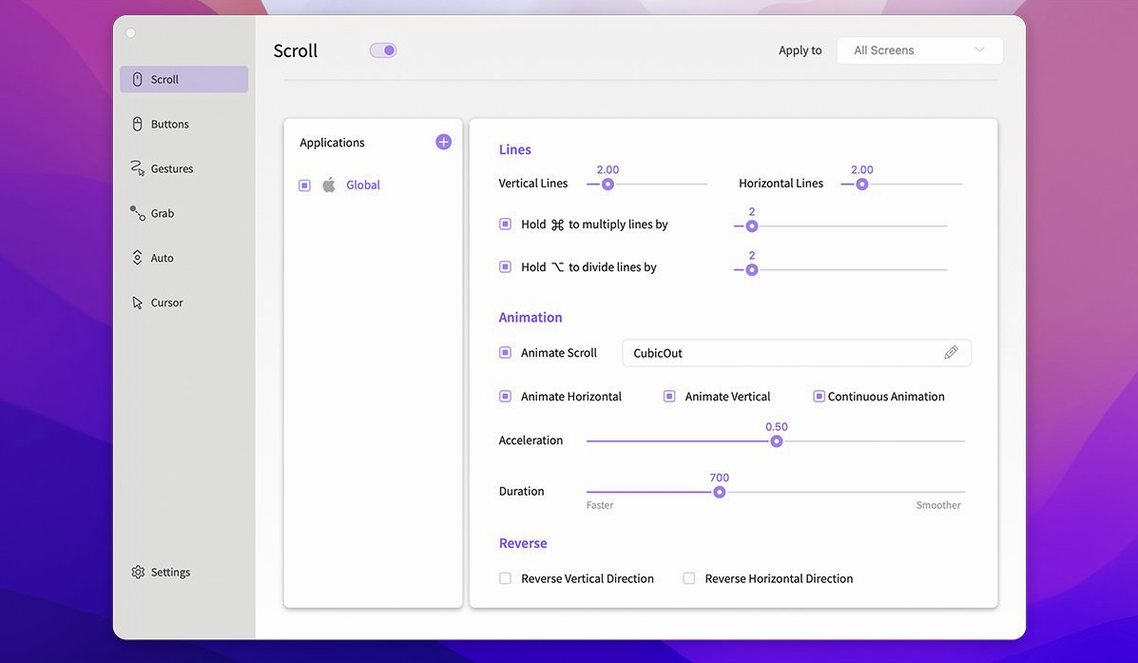
Scrolling behaviour — The number of lines moved per tick, plus grab, drag, and throw scrolling modes that standard macOS does not offer.
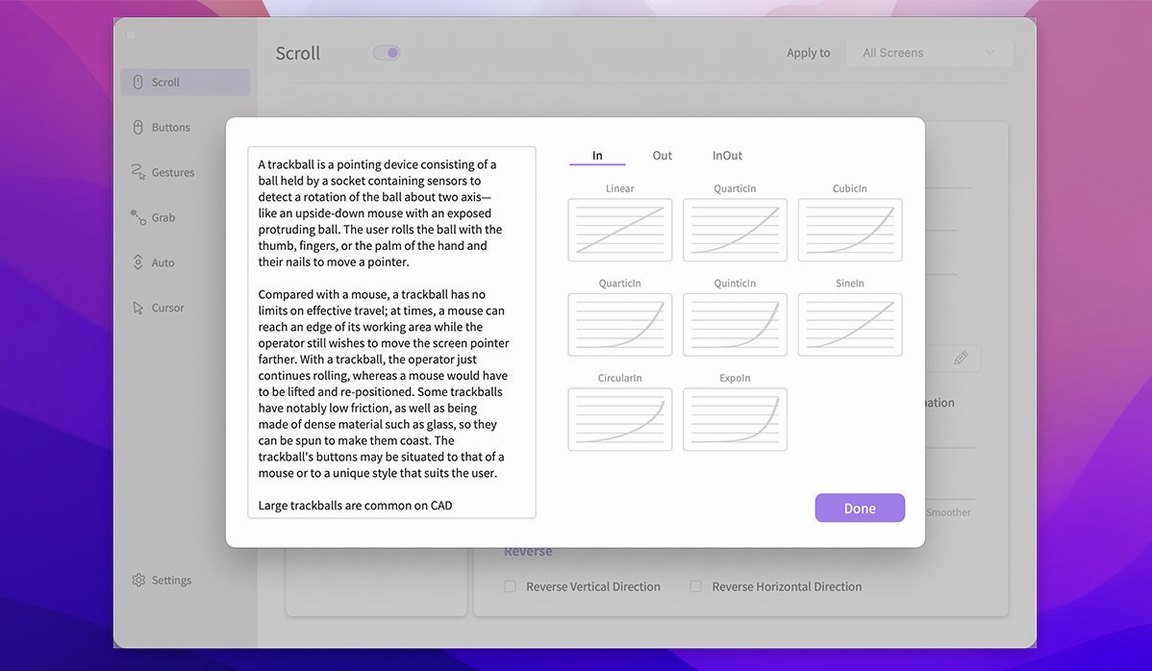
Application scrolling — Adds smooth, animated scrolling to apps that normally scroll in coarse jumps.
Mouse buttons — Assign actions to extra mouse buttons beyond what the built-in mouse pane allows.
Gestures — Mouse gestures you can trigger anywhere on the screen, including auto-scrolling controlled by a gesture.
Per-display settings — Separate scroll profiles for different monitors connected to the same Mac.
How Smooze Pro compares
Smooze Pro vs. Mac Mouse Fix — Mac Mouse Fix focuses on making third-party mice behave like Apple’s trackpad: smooth scrolling, button remapping, and some pointer acceleration tweaks. Smooze Pro goes further with gestures, grab-and-throw scrolling, and per-display profiles. If you only want a generic mouse to feel native, Mac Mouse Fix does the job. If you want custom gestures and display-aware scroll settings, Smooze Pro covers more ground.
Smooze Pro vs. BetterTouchTool — BetterTouchTool is a deep automation toolbox that happens to include mouse and gesture controls. For someone who already uses it for trackpad customisation or window snapping, its mouse features may be enough. Smooze Pro does less overall, but it stays focused on scrolling and mouse actions. That focus means fewer menus to dig through and a simpler setup when all you need is precise scroll control.
Smooze Pro vs. SteerMouse — SteerMouse shines with multi-button mice and chorded button combos. Smooze Pro lacks chord support but adds gesture zones, auto-scrolling, and animated scrolling for apps that lack it. Choose SteerMouse for button-chord muscle memory; choose Smooze Pro when scrolling smoothness and on-screen gestures matter more.
Kill scroll acceleration for linear wheel distance
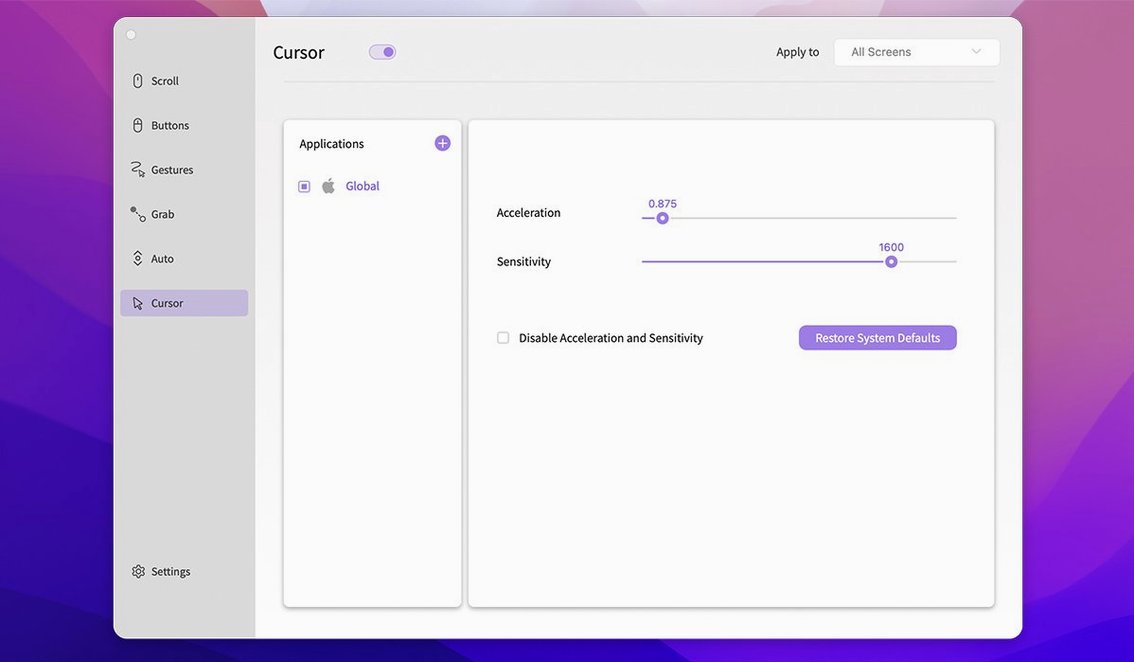
- Disable scroll acceleration — Found under the Scrolling tab. Turn this on if you want linear, predictable scroll distance per tick. It removes the speed-up effect macOS applies when you flick the wheel quickly.
- Set lines per tick — The default value of 3 often feels jumpy on high-resolution displays. Try 4 or 5, then adjust per app if needed.
- Create a per-app profile for your browser — Browsers handle scrolling differently from code editors or file managers. A profile with animated scrolling enabled and a lower line count makes long pages easier to read.
- Assign a gesture to auto-scroll — Hold a modifier key and trace a direction to start auto-scrolling without touching the wheel. Useful for reading long documents hands-free.
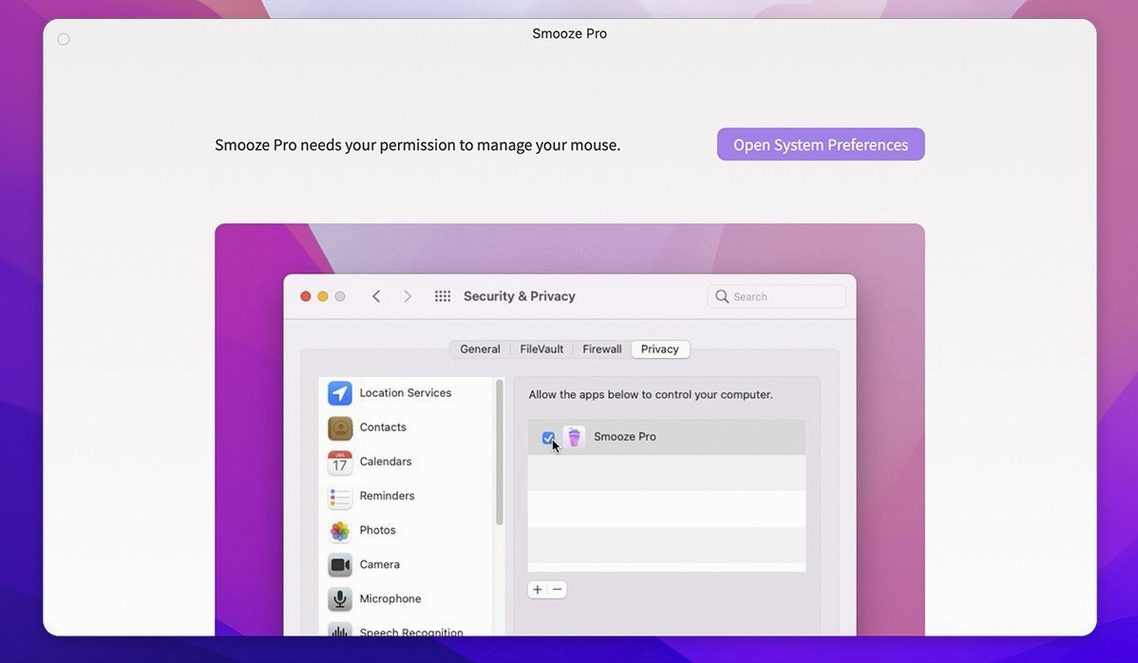
The app lives in the menu bar after launch. Set it up once, and the rules you define stay active across restarts.
- macOS 14.6 or later
- Apple Silicon or Intel 64-bit processor
Questions I get before install
Can I set different scrolling speeds for my trackpad and mouse?
Yes, Smooze Pro supports per-display settings, so you can configure a different scroll profile for each screen setup.
Does the app add smooth scrolling to every Mac application?
It adds smooth, animated scrolling to applications that lack native smooth scrolling, but the result can vary depending on how the app was built.
What is auto scrolling in Smooze Pro?
Auto scrolling lets you scroll anywhere on the screen by holding a modifier key or using a mouse gesture, without needing to click a scroll bar.
Comments 0
Sign in to leave a comment.Sign inCreate an account
No comments yet. If a step is still there after you install it, say so.
More in Mac Apps
All in Mac Apps Slidepad
Keeps web apps accessible in a slide-over panel that hides at the screen edge.
12 steps saved
 Updated
SoundSource
Routes every app's audio to a different output from the menu bar.
15 steps saved
 SlapMac
Triggers a custom action when you tap your MacBook with a set sensitivity.
15 steps saved
 Sketch
Moves a design from a blank artboard to reusable, scalable components.
23 steps saved
 Steinberg Nuendo
Provides a dedicated audio post-production workstation built for dialogue, Atmos, and game audio.
19 steps saved
 Shottr
Floats a fast, local markup tool over your screen without switching contexts.
19 steps saved
 Shadowrocket
Routes your Mac's network requests through different proxies based on custom rules.
23 steps saved
 Studio One
Records, arranges and mixes music in a fast drag-and-drop DAW.