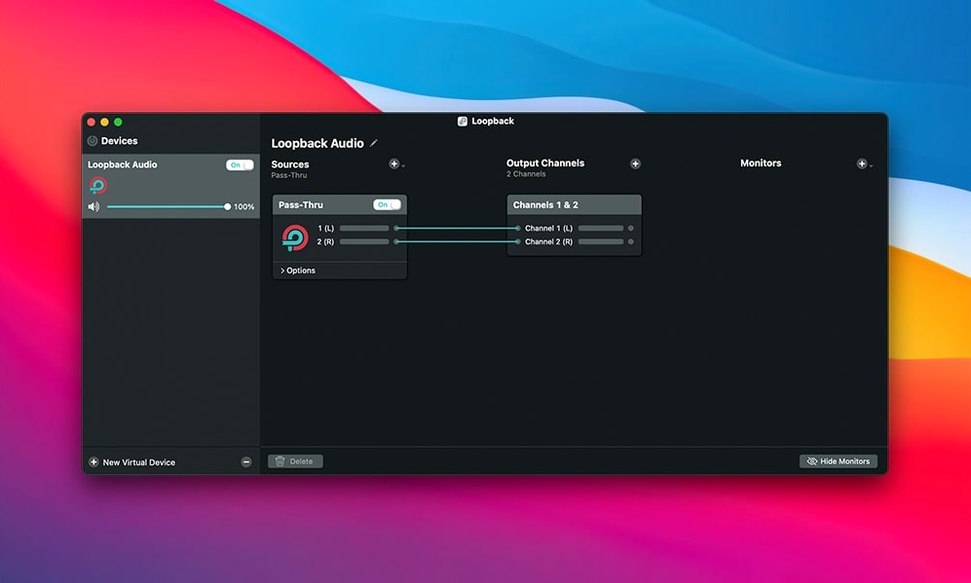
Loopback runs on any Mac with macOS 11 or later, including Apple Silicon and Intel machines. The current build, version 2.5.0, also supports macOS 27.
| Detail | Note |
|---|---|
| Current version | 2.5.0 |
| Developer | Rogue Amoeba |
| Works with | Audio Hijack, Elgato Game Capture |
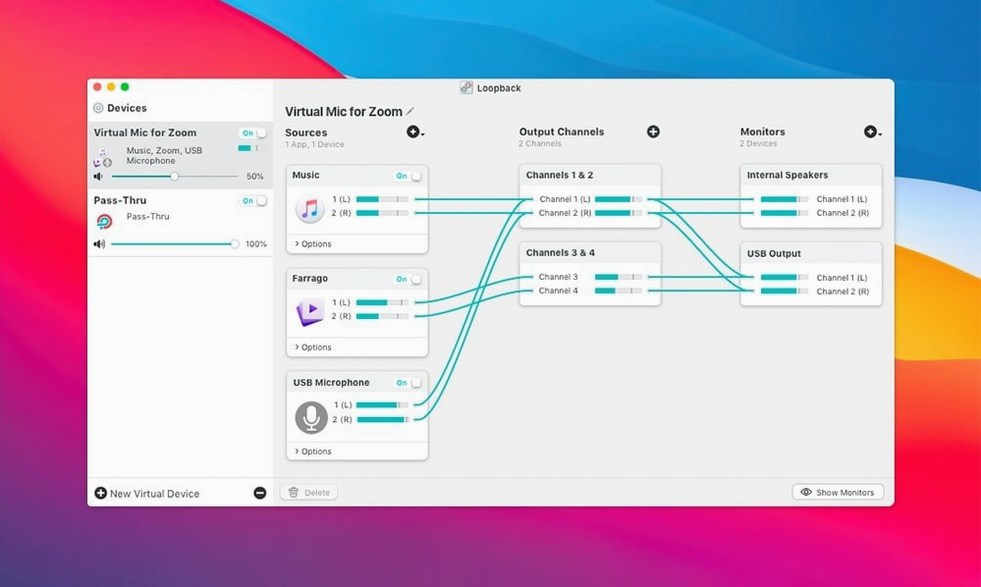
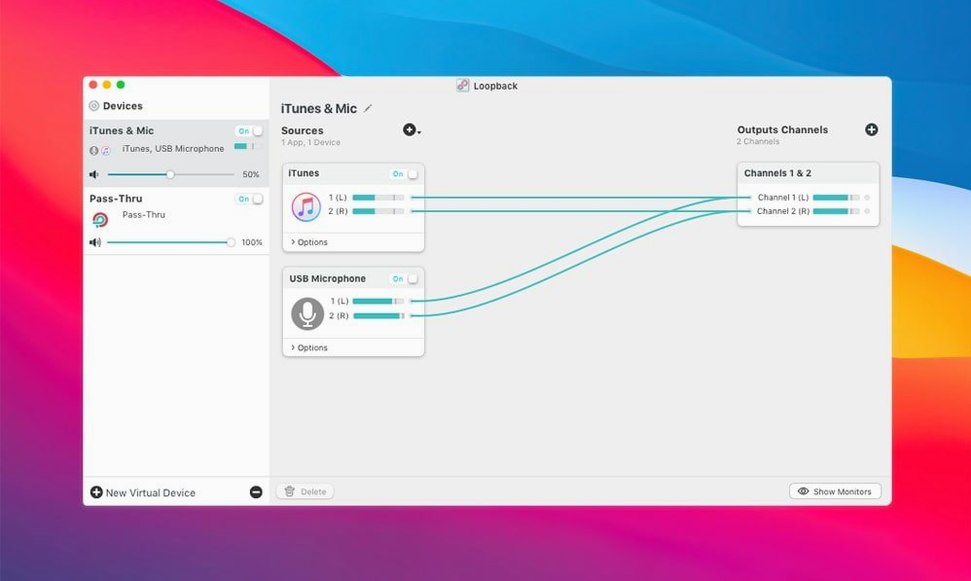
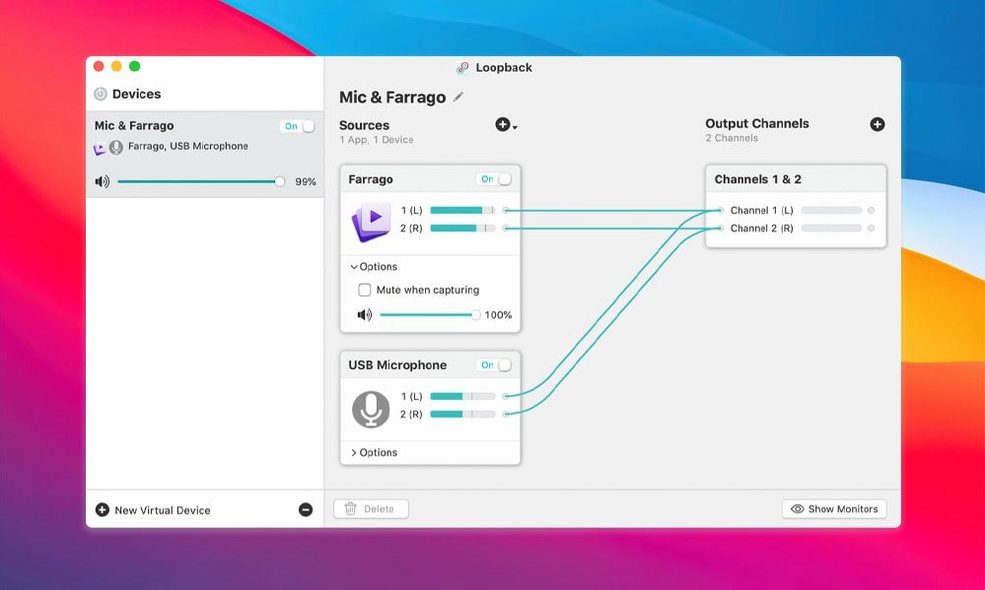
People look for a loopback torrent because they want to combine a microphone with app audio before committing to a licence. The app creates a virtual device that merges sources—say, your voice and a guest on a call—so screen recorders and streaming tools see one clean input. You can also send system audio to Audio Hijack for more complex capture chains, or feed a mixed microphone-and-game track directly into Elgato hardware.
Set Stereo Default Output Before You Wire Anything
Open Loopback and the wiring canvas stares back, ready for a new device. Before you build anything, pull up Preferences and set the base behaviour.
- Default output channels — Set to Stereo unless you work with surround capture. Mono is available but rarely what you want for a combined feed.
- Hide Loopback from audio menus — Untick this. You want to see your virtual devices everywhere, from Zoom to QuickTime.
- Passthrough device — Pick your main speakers or headphones. When Loopback runs, audio passes through its engine; choosing the right output here avoids silence after you first launch.
- Launch at login — Enable if your daily setup depends on a virtual device being present before anything else opens. Podcasters and streamers benefit most.
Inside a device config, one setting changes the feel of daily use: monitoring. Each source has a volume slider with a headphone icon. Enable monitoring on your microphone source so you hear your own voice with zero latency. Disable it on application sources—nobody needs Firefox piped back into their ears twice.
Also, name your devices immediately. “Loopback Audio” tells you nothing. Call it “Mic + Music” or “Screen Record Mix” and every app’s audio menu becomes readable.
Tutorial Creators Fusing Voice and App Audio Instantly
Loopback solves a specific frustration: macOS treats each app and input as a separate audio stream, and you need them fused. Three groups feel the relief fastest.
Screen recorders and tutorial creators. You want your voice plus application audio in one QuickTime or OBS track. Loopback builds that virtual device once; every recording app sees it as a single input. No post-production sync, no recording system audio on a second device.
Live streamers using Elgato hardware. A console’s HDMI carries game audio; your USB mic carries commentary. Loopback merges both before the signal hits the capture card software. The result is a combined stream feed without extra mixers on the desk.
Remote presenters and panel hosts. You run a call in Zoom, play sound clips from Music, and speak into a condenser mic. Loopback bundles all three into one virtual output. Select it as Zoom’s microphone and every participant hears everything, no screen-share-audio workarounds needed.
Casual users who only need to switch between a headset and speakers gain little. macOS’s built-in output switching handles that without an extra audio engine. Loopback earns its place the moment you need two or more sources combined into one consistent stream.
ARK Plugin Idles at 0.2% CPU on Apple Silicon
The ARK plugin at Loopback’s core is lightweight. On an Apple Silicon Mac, the background process sits around 0.2–0.5% CPU during active routing. Memory use hovers near 50 MB with one or two devices defined. Intel machines show slightly higher numbers but nothing that disrupts a recording session.
Latency is imperceptible in monitoring mode. Tap a key on a MIDI controller routed through a music app, and the sound arrives as fast as a direct connection. Voice monitoring through a USB mic adds no detectable delay—critical for live commentary.
Stability on the 2.5.0 build is uneventful in the best way. The app can run for days across sleep-wake cycles without dropping its virtual devices. Crash logs are rare in normal use. Most hiccups trace back to other software changing the system’s default audio device while Loopback holds a passthrough chain open. The fix is quick: reselect your output in Sound preferences.
There is no fan spin, no beach ball, no memory creep over hours. It behaves like the system utility it aims to be.
Fix Silent Passthrough After a Fresh Install
Loopback is straightforward until something in the audio chain shifts. These are the situations people run into, and what actually resolves them.
No sound after installation. The passthrough device inside Loopback’s preferences is likely set to a disconnected output. Open Preferences, pick your active speakers or headphones, and sound returns instantly. Also check that the virtual device volume slider inside Loopback is not muted—it defaults to 100%, but a stray click can pull it down.
App audio not appearing as a source. Loopback can only capture from apps that are already running and producing sound. Launch the target app first, play audio, then open the source menu. If it still does not appear, the app may be using exclusive audio mode—some DAWs do this. Route it through Loopback by setting the DAW’s output to a Loopback virtual device instead.
Virtual device vanishes from system menus. Occasionally macOS fails to register the device after a reboot. Open Loopback, toggle the device off and on with the power button in the top-left corner of its block, and it reappears across all apps within seconds.
Audio crackles or pops. This almost always points to a sample rate mismatch. Check Audio MIDI Setup: the Loopback device, your hardware interface, and the app you are routing should all use the same rate—44.1 kHz or 48 kHz. Match them and the distortion clears.
Loopback license key queries. Some people search for a loopback audio mac free workaround or a loopback license key because they want to test the full routing engine before committing. The app installs with all features present; nothing is locked behind a second download. The virtual device approach works identically whether you are evaluating the software or using it long-term. A search for loopback audio mac often leads people here because the app solves a pain point no built-in macOS tool addresses—combining sources without extra hardware.
- macOS 11 or later
- Apple Silicon or Intel 64-bit
Questions I get before install
Can Loopback combine my microphone with music playing in another app?
Yes. You create a virtual device that mixes the physical mic and the application output, then select that virtual device as the input in your voice chat or recording app.
Does version 2.5.0 work on the latest Mac operating system?
It does. Support for macOS 27 was added in this release, and the app no longer shows a warning when launched on that system.
Comments 0
Sign in to leave a comment.Sign inCreate an account
No comments yet. If a step is still there after you install it, say so.
More in Mac Apps
All in Mac Apps Loop Mash Up Pro
Triggers loops and samples alongside Logic Pro without touching the arrangement.
16 steps saved
 Logic Pro
Puts a full studio of instruments, loops and mixing tools into one Mac app.
12 steps saved
 Luminar Neo
Edits photos with layers and AI tools for sky, light and object removal.
19 steps saved
 Lunar Pro
Syncs every external display’s brightness to the room, just like a MacBook screen.
16 steps saved
 Little Snitch
Watches every connection and lets you decide which apps get to call home.
5 steps saved
 MacBooster
Clears junk, scans for malware, and frees up memory from a single panel.
4 steps saved
 Updated
MacCleaner Pro
Finds exactly what ate your disk space and removes leftover app clutter.
21 steps saved
 LilyView
Opens images straight from folders in a chromeless window that stays out of your way.