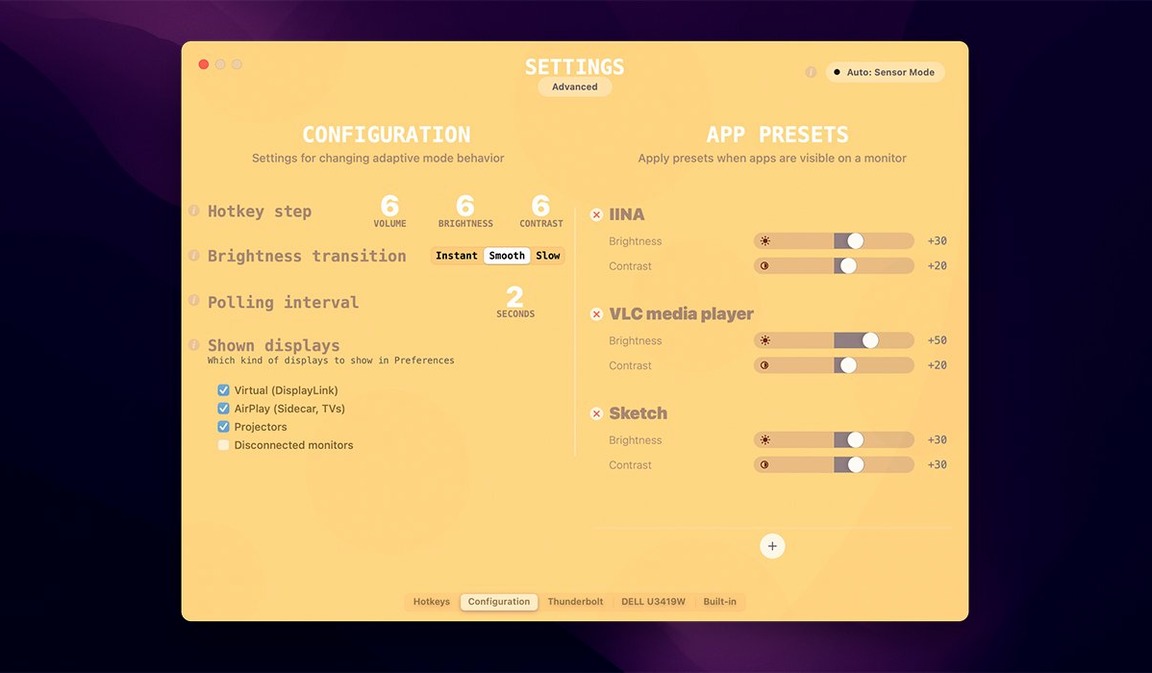
Photographers grading images, developers staring at dark-mode IDEs all day, and anyone with a multi-monitor setup typically juggle manual OSD adjustments. Lunar Pro brings the ambient-light smarts of your MacBook’s internal screen out to every external display on your desk.
Built-in sensor and Apple Silicon compatibility
| Compatibility | Sensor source |
|---|---|
| Apple Silicon & 64‑bit Intel | Built-in ambient light sensor |
Per-display brightness curves tuned to panel type
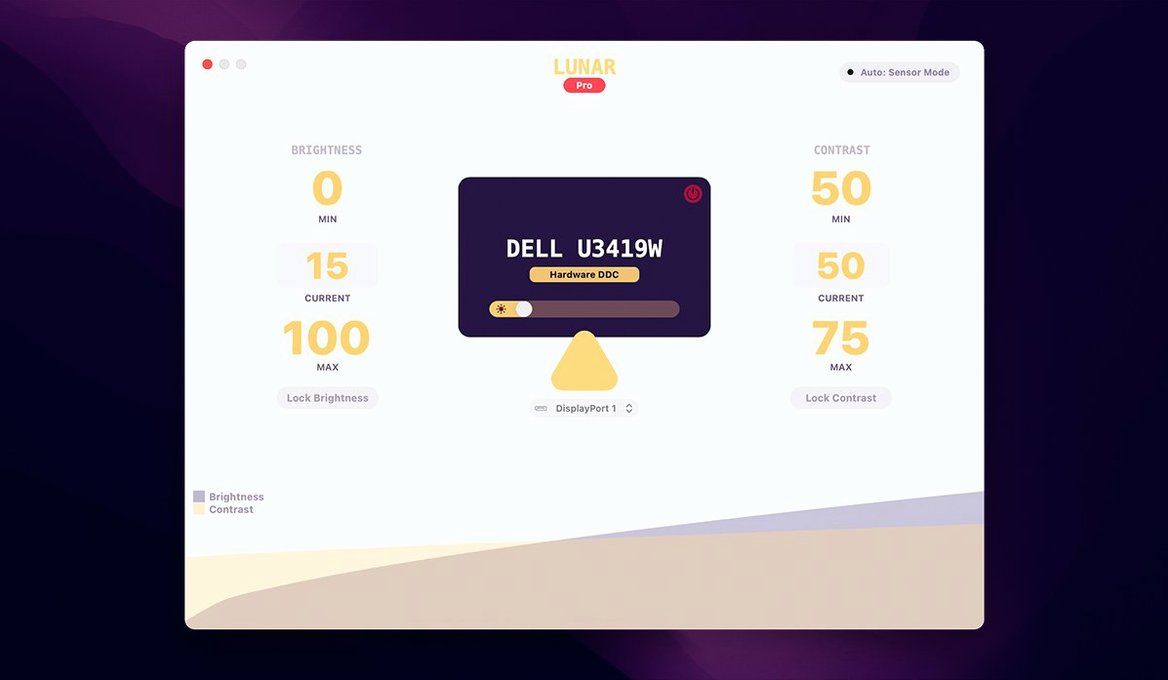
Per-display fine-tuning. Every monitor gets its own brightness and contrast curve. A glossy LG on the left can react faster than a matte Dell on the right—Lunar Pro keeps them readable without manual fiddling.
Coexists with Apple’s stack. The app does not hijack the internal display; it extends the same adaptive logic to externals. True Tone, Night Shift, and even f.lux keep working because Lunar Pro uses hardware DDC controls instead of software overlays.
Smooth DDC dimming. Instead of jarring jumps, brightness transitions happen in small, fluid steps. The result is less eye fatigue when ambient light shifts gradually during a long work session.
Picking one sensor source before layering adaptive modes
Turning on every adaptive mode at once is the quickest route to a screen that flickers between moods. Pick one sensor source—built‑in ambient light or location‑based scheduling—and tune it before layering on a second.
Another common slip: setting the minimum brightness floor to zero on a DDC‑controlled monitor. Some panels interpret zero as “standby,” not “dim.” Keep the floor at 5–10% so the screen stays awake during late‑night sessions.
Forgetting to exclude full‑screen video apps also trips people up. VLC or IINA playing a dark film will trigger a brightness dip unless you add them to the exclusion list early.
First days with Lunar Pro
Spend the first afternoon calibrating one display at a time. Unplug the others temporarily, set your preferred min and max bounds under direct office light, then repeat in evening conditions. The per‑display profiles you build now save hours of tweaking later.
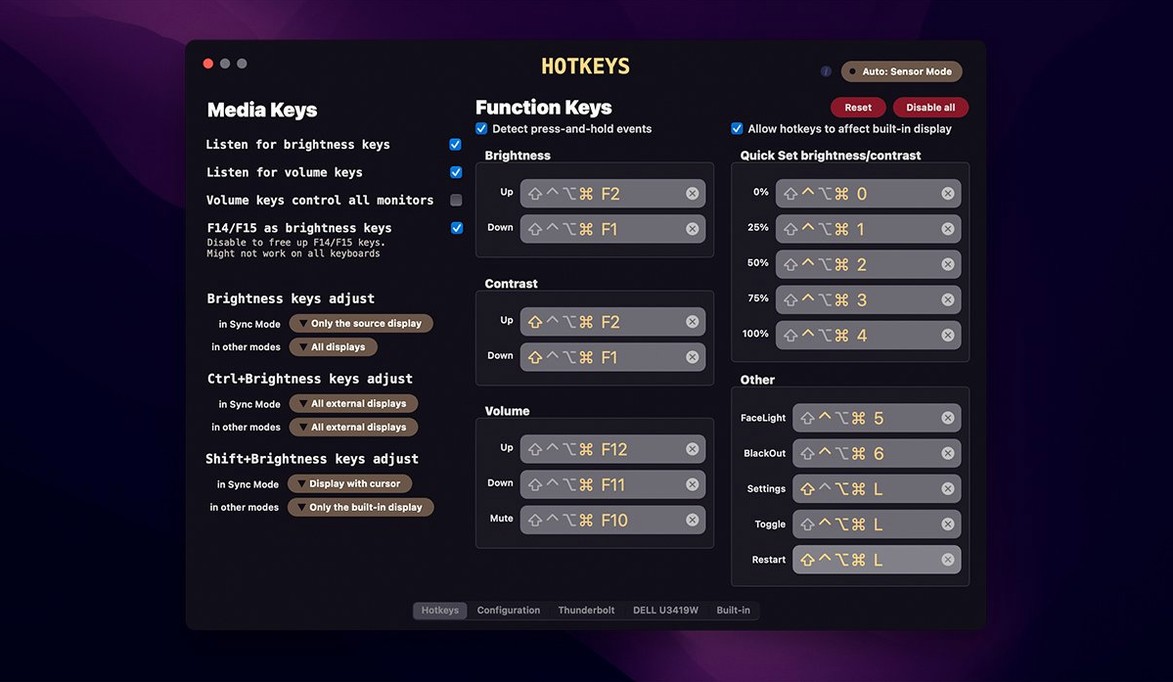
Bind manual override hotkeys before the adaptive engine takes over. A quick ⌃⌥⌘+ and ⌃⌥⌘- pair lets you nudge brightness without opening the menu bar panel—handy when a cloud passes or a client leans over your shoulder.
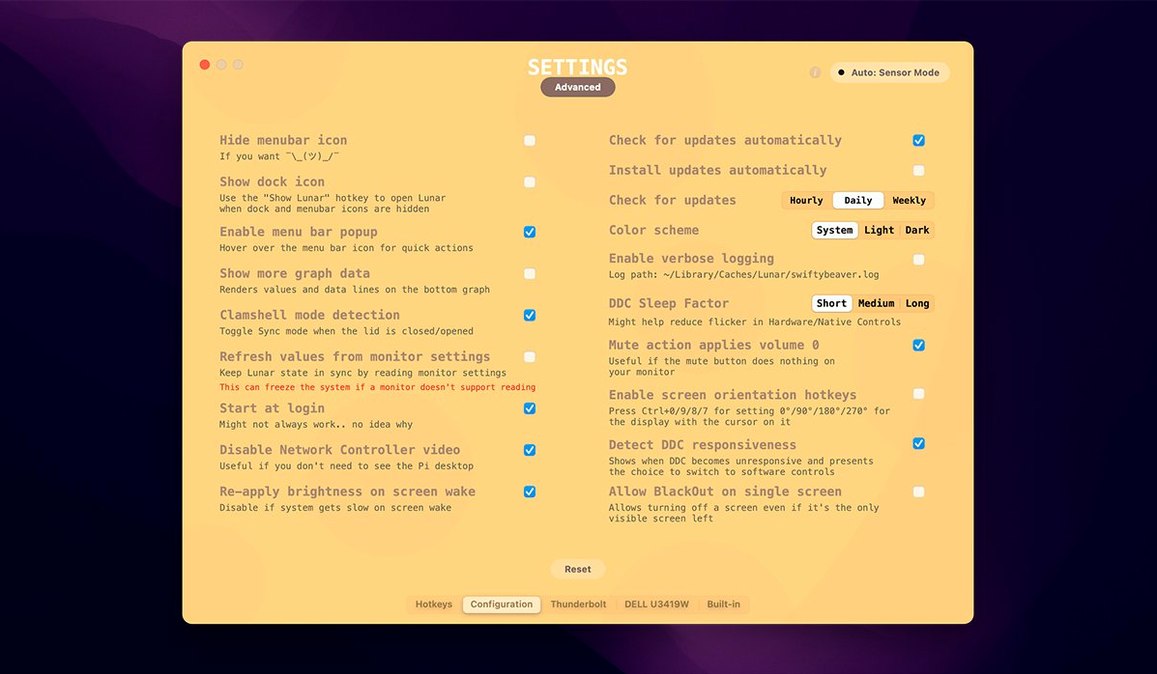
If you plan to download Lunar Pro for mac and run it alongside f.lux, stick to DDC controls only. Software‑based gamma adjustments will fight each other; hardware dimming keeps the truce intact.
- macOS 11 or later
- Apple Silicon or 64‑bit Intel Mac
Comments 0
Sign in to leave a comment.Sign inCreate an account
No comments yet. If a step is still there after you install it, say so.
More in Mac Apps
All in Mac Apps Luminar Neo
Edits photos with layers and AI tools for sky, light and object removal.
5 steps saved
 MacBooster
Clears junk, scans for malware, and frees up memory from a single panel.
4 steps saved
 Updated
MacCleaner Pro
Finds exactly what ate your disk space and removes leftover app clutter.
22 steps saved
 MacDroid Pro
Mounts an Android phone as a writable Mac disk, no cloud upload needed.
21 steps saved
 Updated
Loopback
Routes audio between any apps and devices on your Mac without cables.
5 steps saved
 Updated
MacFamilyTree
Manages evidence and citations to build a family history that holds up to scrutiny.
15 steps saved
 Loop Mash Up Pro
Triggers loops and samples alongside Logic Pro without touching the arrangement.
16 steps saved
 Logic Pro
Puts a full studio of instruments, loops and mixing tools into one Mac app.