
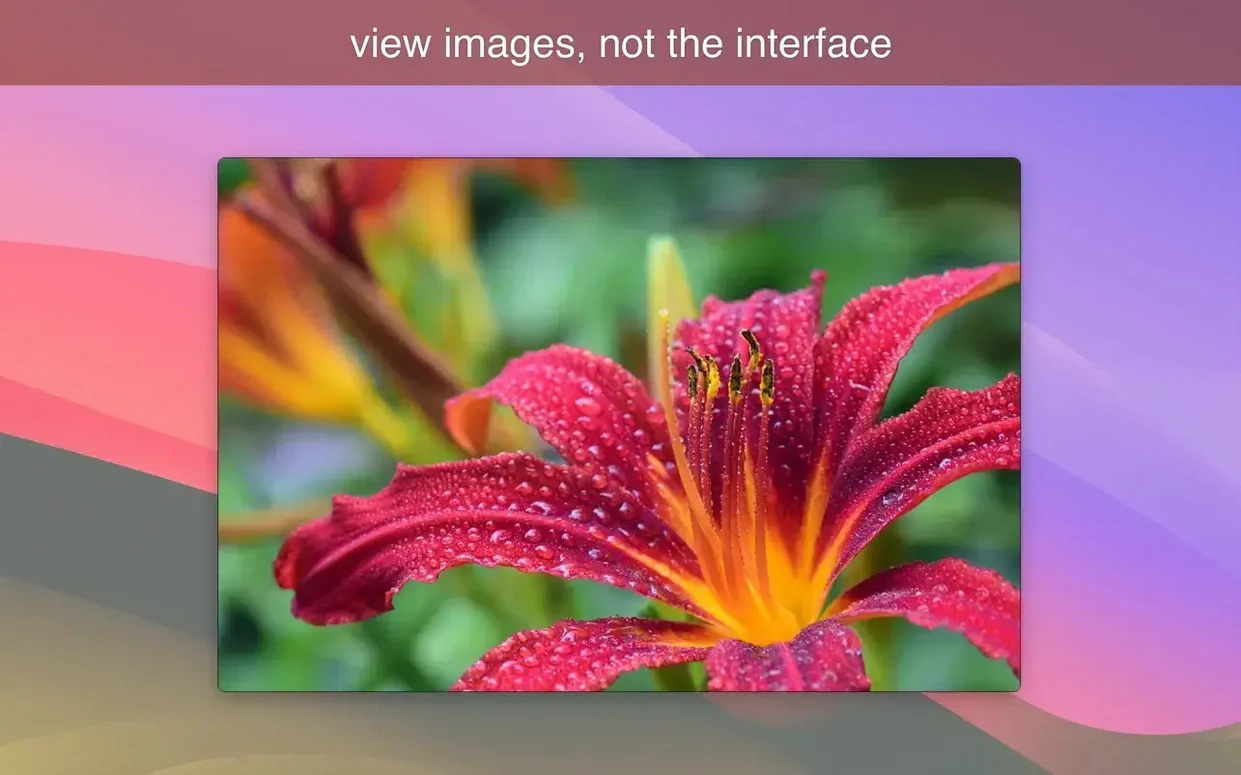
LilyView is an image viewer that reads pictures straight from your folders—no libraries, no imports. Double-click a file and you get the photo, nothing else. It’s a chromeless window that stays out of your way until you need a control.
Jump to native resolution and back with one command
- Original size toggle — one command to see the photo at its native resolution, then back to fit.
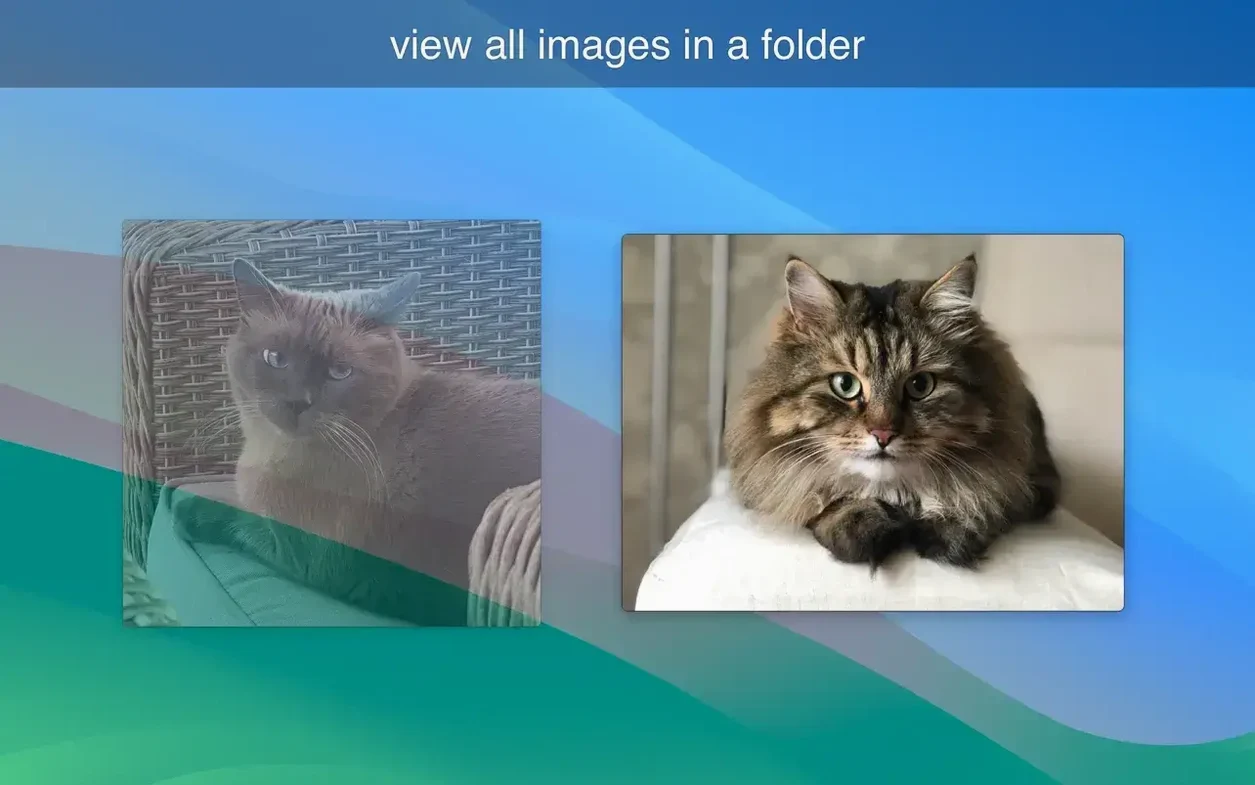
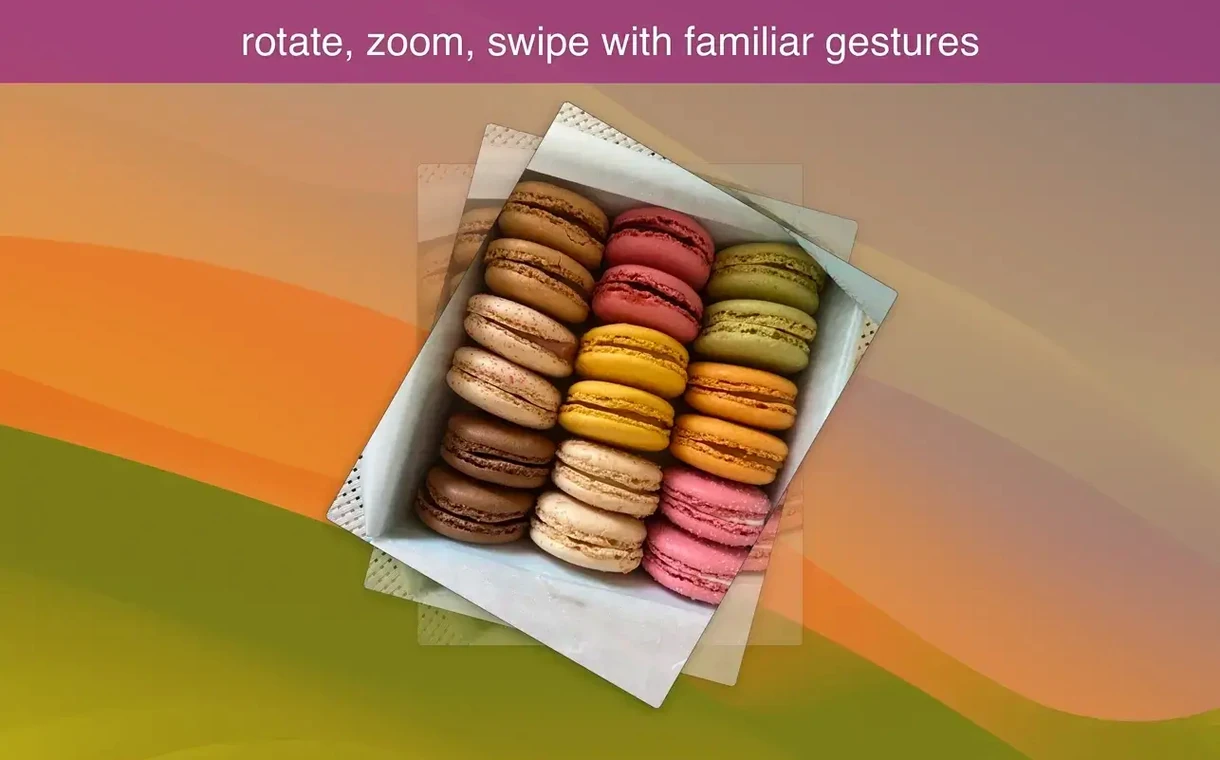
- Gesture-driven browsing — swipe through a folder of images with trackpad gestures; keyboard and mouse input work just as well.
- Format coverage — handles JPEG, PNG, TIFF, and animated GIFs without plugins.
- True chromeless mode — the window frame disappears, leaving only the image on screen.
A focused alternative to Preview
Preview is a document viewer that happens to open images. LilyView does one job. It skips the sidebar, the markup toolbar, and the document thumbnails to give you a clean view of a photo. For anyone who works through folders of images regularly, that focus means less friction between opening a file and seeing it properly.
First days with LilyView: quick wins
Install, then pick a folder with mixed formats—JPEGs, a few PNGs, maybe an animated GIF. Double-click the first image. Immediately, the window frame vanishes. That’s the default state, not a mode you hunt for.
Three habits worth forming early:
- Set automatic zoom to width — under the Browse tab, pick the fit‑to‑width option. Photos fill the window horizontally on first open; no more squinting at a tiny default size.
- Learn the right‑edge hover — move your pointer to the right side of the screen in full‑screen view. Image attributes slide into view without covering the photo. It’s the quickest way to check dimensions or file name mid‑browse.
- Jump to ends — when a folder holds hundreds of shots, use the Browse tab’s first/last commands instead of swiping through every image. Saves minutes on the first pass.
If you currently rely on Preview for image browsing, give LilyView a dedicated folder for a day. The absence of a sidebar and toolbar feels odd for about ten minutes, then it feels faster. That’s the point.
Borderless window from first launch on any Mac
The 1.7.0 update tightened the chromeless behaviour. Earlier builds sometimes showed a thin title bar on launch; the current release opens directly into a borderless window on both Intel and Apple Silicon Macs running macOS 10.13 or later.
Gesture responsiveness improved noticeably. Swiping through a folder of high‑resolution TIFFs used to pause on the first frame—now the next image appears during the swipe, not after it. Double‑tap to full‑screen also registers more reliably on trackpads that previously needed a firmer press.
Under the hood, the app gained proper ARM support. On Apple Silicon machines, image decoding runs natively, which keeps the app cool and responsive even when flipping through large RAW‑converted JPEGs. The interface languages remain English and Russian, and the format list—JPEG, PNG, TIFF, animated GIF—stays the same, with no new plug‑in dependencies.
New
- "Fit to Screen" view option. Smaller images now stretch to fill the available screen space automatically.
Improved
- The previous non-stretching view is renamed "Actual Size Limited by Screen."
- macOS 12 or later
- Apple Silicon or Intel 64-bit processor
Questions I get before install
Does LilyView require importing photos into a library?
No. It browses images directly in a folder, so you see exactly what’s on disk without building a library or catalog.
What image formats does LilyView support?
It opens JPEG, PNG, TIFF, and GIF files, including animated GIFs.
Can I view a photo without any on-screen controls?
Yes. LilyView can display an image in a chromeless window that shows only the picture and hides all interface elements.
Comments 0
Sign in to leave a comment.Sign inCreate an account
No comments yet. If a step is still there after you install it, say so.
More in Mac Apps
All in Mac Apps LightBurn
Designs artwork and controls laser cutters from a single layout, editing, and output tool.
16 steps saved
 Little Snitch
Watches every connection and lets you decide which apps get to call home.
16 steps saved
 Logic Pro
Puts a full studio of instruments, loops and mixing tools into one Mac app.
6 steps saved
 LaunchOS
Replaces the default app launcher with a grid you arrange on your own terms.
15 steps saved
 Loop Mash Up Pro
Triggers loops and samples alongside Logic Pro without touching the arrangement.
21 steps saved
 Updated
Loopback
Routes audio between any apps and devices on your Mac without cables.
6 steps saved
 LanScan
Scans every active network interface and lists connected devices automatically.
12 steps saved
 Luminar Neo
Edits photos with layers and AI tools for sky, light and object removal.