
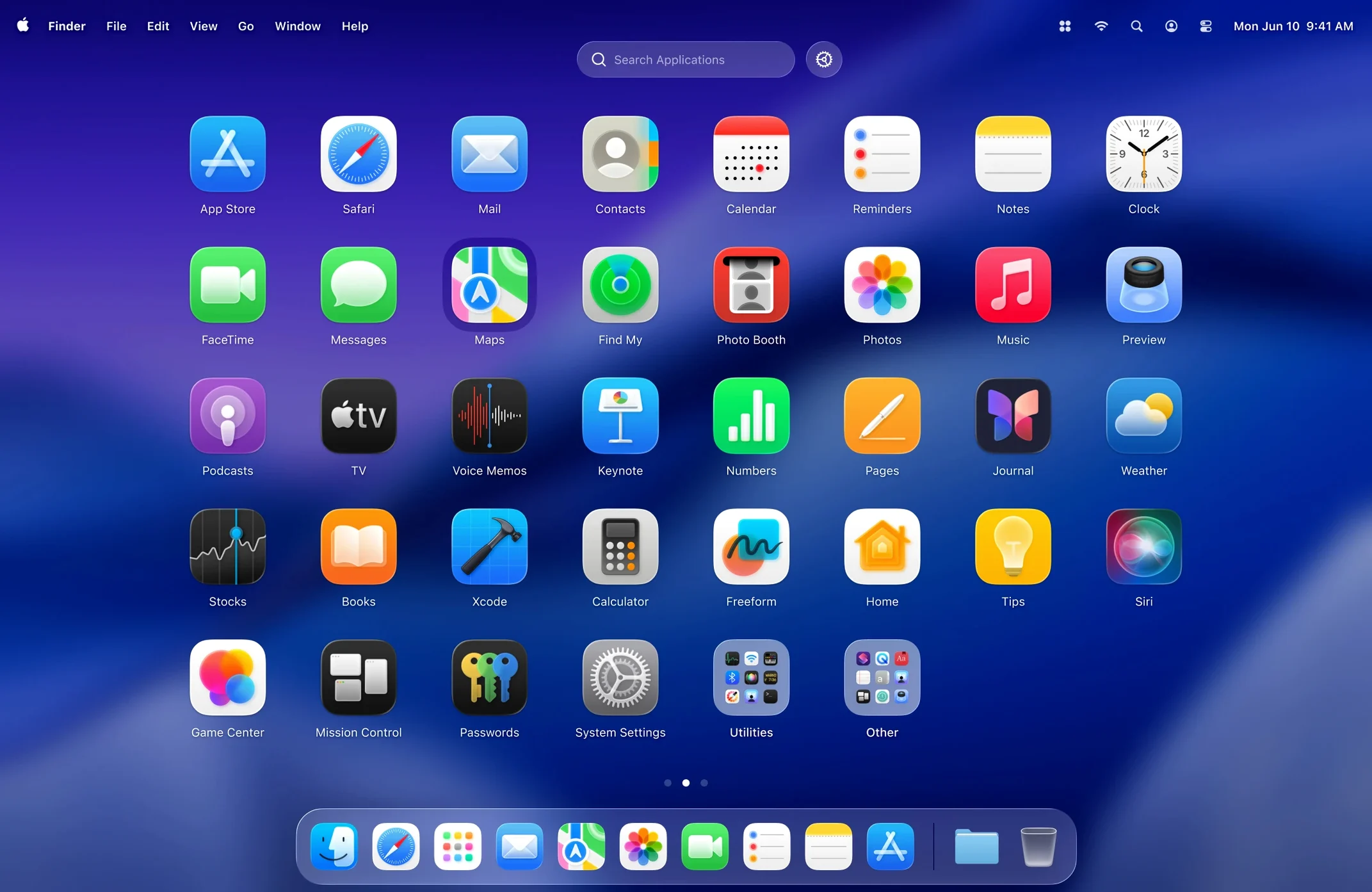
Anyone who has stared at Launchpad’s sprawling, inflexible grid knows the frustration of hunting for a rarely used utility. LaunchOS brings back that familiar app-launcher shape but hands control over to you. It replaces the default Launchpad workflow with one that organizes software on your terms, not Apple’s.
- Organize apps by hiding the ones you never launch from a grid.
- Adjust the grid size to fit more or fewer icons on screen.
- Launch any app with a customizable gesture.
- Uninstall unwanted apps directly from the launcher with a long press or right-click.
- Restart the launcher from the status bar menu or a right-click context menu.
- Work in Russian, English, German, Spanish, Italian, Traditional Chinese, Simplified Chinese, Korean, French, or Japanese.
After you drag the app into Applications and launch it once, the familiar icon grid appears, now entirely yours to edit. The tool restores the original Launchpad’s appearance and behaviour while adding the editing controls Apple left out.
A focused workflow: declutter and launch
Most Mac setups accumulate apps that sit unused in the default launcher. Here is a repeatable clean-up routine that takes under two minutes.
- Open LaunchOS with a four-finger pinch gesture, or press your assigned keyboard shortcut.
- Long-press any icon that should never appear in the grid. Choose Hide from the quick menu that appears. Repeat for utilities, uninstallers, and any app you launch only through Spotlight or the Dock.
- Decide on your ideal grid density. Open preferences and adjust the column and row count — fewer icons for a focused set of daily apps, more if you prefer everything visible at a glance.
- Drag the remaining icons into logical groups. Keep communication apps in the top-left corner and creative tools along the bottom row, or whatever arrangement matches your muscle memory.
- Right-click any app you no longer need and select Uninstall. Confirm the removal. LaunchOS triggers the standard macOS uninstall procedure without a trip to the Finder.
The result is a launcher that shows only the software you actually open, arranged in a pattern you control. When you later install something new, it appears in the grid, and you repeat step two or four once.
A freelance designer’s morning routine
A brand identity designer starts her day with the same six apps: a vector tool, a font manager, a project tracker, a colour picker, a messaging client, and a file browser. The default Launchpad scatters them across three pages, mixed in with system utilities and one-off tools she opened once last quarter.
She sets LaunchOS to a 5×3 grid and hides every app outside her core set. One three-finger swipe down opens a single page of six large icons. No scrolling, no visual noise. She launches her vector tool, then returns to the grid for the font manager a moment later. The launcher stays open only long enough to click an icon, then disappears. When a client sends a reference image, she right-clicks an old annotation app she no longer uses and uninstalls it on the spot. The grid stays lean without a separate cleanup session.
Because LaunchOS supports macOS 26’s Liquid Glass effect, the translucent background and icon shapes blend into her desktop aesthetic rather than interrupting it. The visual continuity matters when she shares her screen during client calls.
Built-in app uninstaller replaces Finder drag
The June 2026 update turned LaunchOS from a launcher into a light app manager. Two additions matter most in practice.
App uninstallation. Before 2.1.0, removing an app meant closing the launcher, opening Finder, navigating to Applications, and dragging the file to the Trash. Now a long press or right-click on any icon offers an Uninstall command. The change removes a context switch that broke the flow of cleaning up software. It also makes the launcher feel like the single place to manage what lives on the Mac, not just a way to open things.
Restart command. The status bar menu and right-click context menu both gained a Restart option. If the launcher ever slows down after installing a batch of apps or after the Mac wakes from sleep, restarting it takes a single click without quitting and relaunching manually. It is a small quality-of-life fix that keeps the tool responsive during long work sessions.
Both features reinforce the same idea: LaunchOS works best when you treat it as your app command centre, not as a cosmetic layer over the default Launchpad.
- New — Uninstall apps directly from the grid with a long press or right-click.
- New — Restart option added to the status bar menu and right-click context menu.
- macOS 26 or later
- Apple Silicon and Intel Macs
Questions I get before install
Can I hide stock Apple apps I never use?
Yes. LaunchOS lets you hide any selected app from the grid without deleting it from your Mac.
Does it work with trackpad gestures?
Yes. The app supports gestures for launching software, so you can open your most-used tools with a swipe or pinch.
Comments 0
Sign in to leave a comment.Sign inCreate an account
No comments yet. If a step is still there after you install it, say so.
More in Mac Apps
All in Mac Apps LanScan
Scans every active network interface and lists connected devices automatically.
10 steps saved
 LightBurn
Designs artwork and controls laser cutters from a single layout, editing, and output tool.
19 steps saved
 Updated
Kontakt
Hosts sampled instruments with deep editing, a wavetable engine, and direct MIDI manipulation tools.
21 steps saved
 LilyView
Opens images straight from folders in a chromeless window that stays out of your way.
16 steps saved
 Little Snitch
Watches every connection and lets you decide which apps get to call home.
16 steps saved
 Logic Pro
Puts a full studio of instruments, loops and mixing tools into one Mac app.
15 steps saved
 Loop Mash Up Pro
Triggers loops and samples alongside Logic Pro without touching the arrangement.
21 steps saved
 Updated
Loopback
Routes audio between any apps and devices on your Mac without cables.