
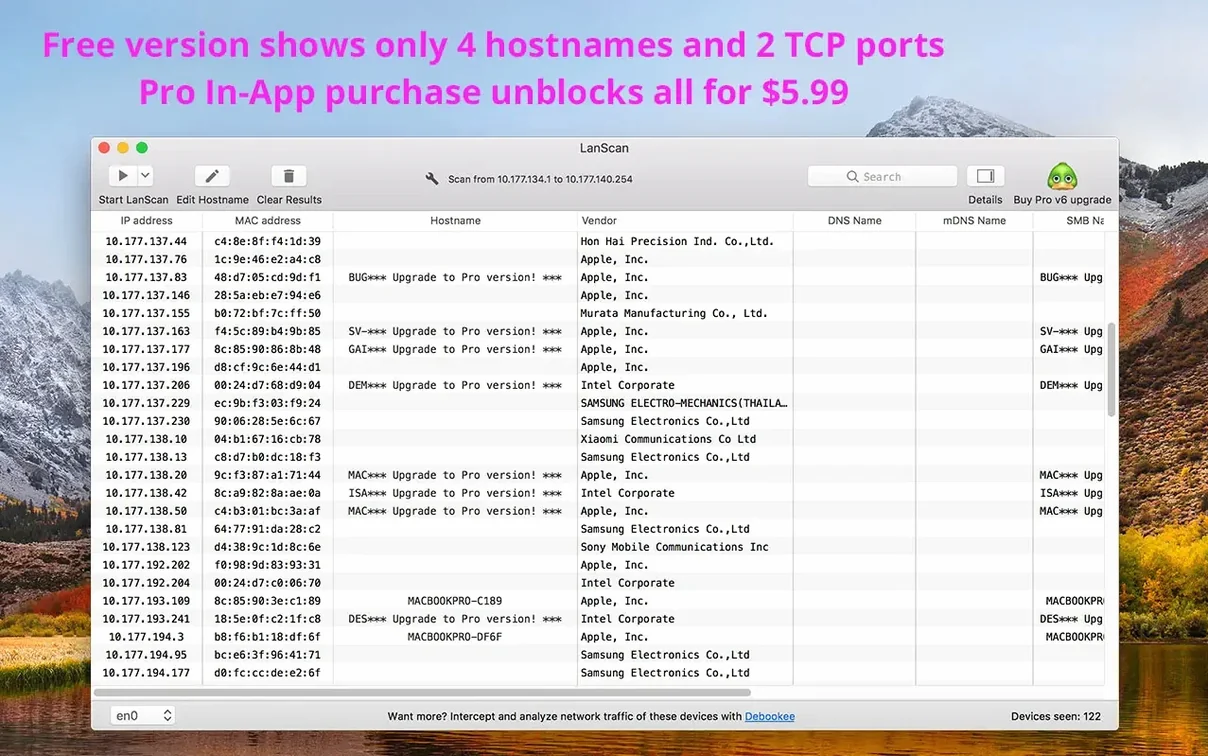
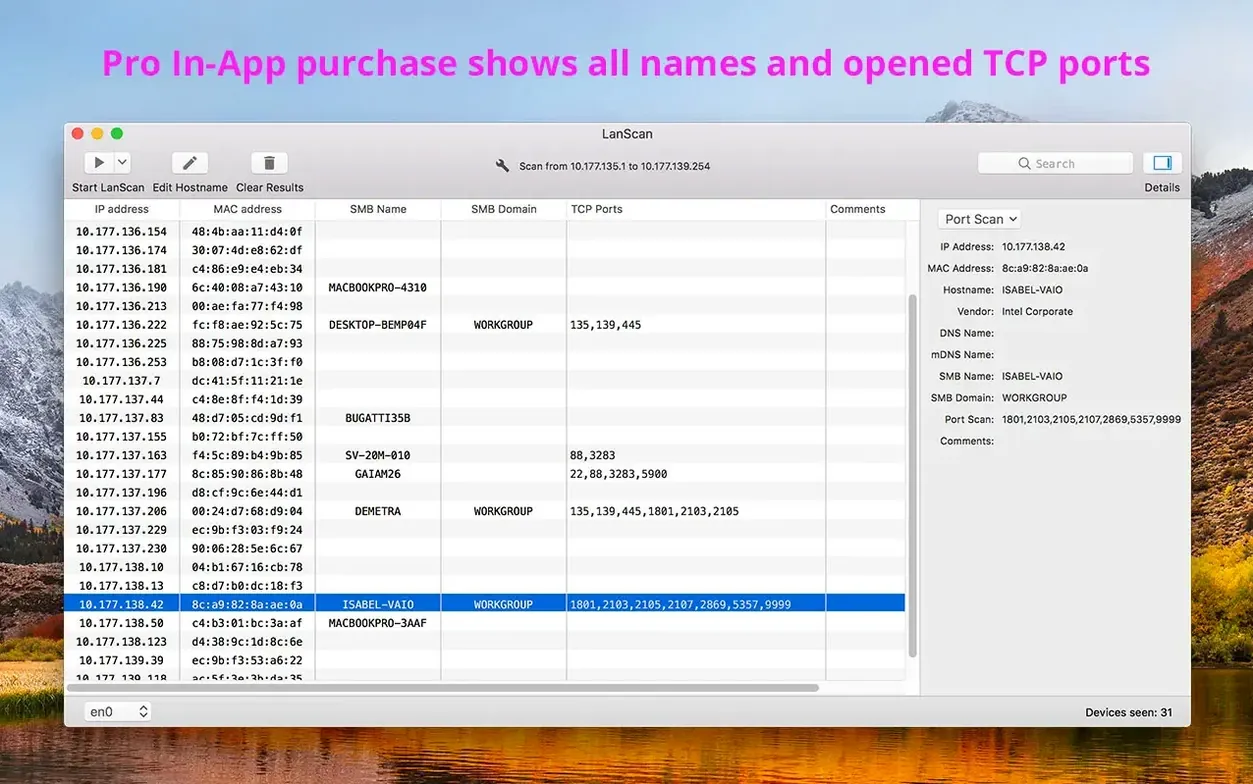
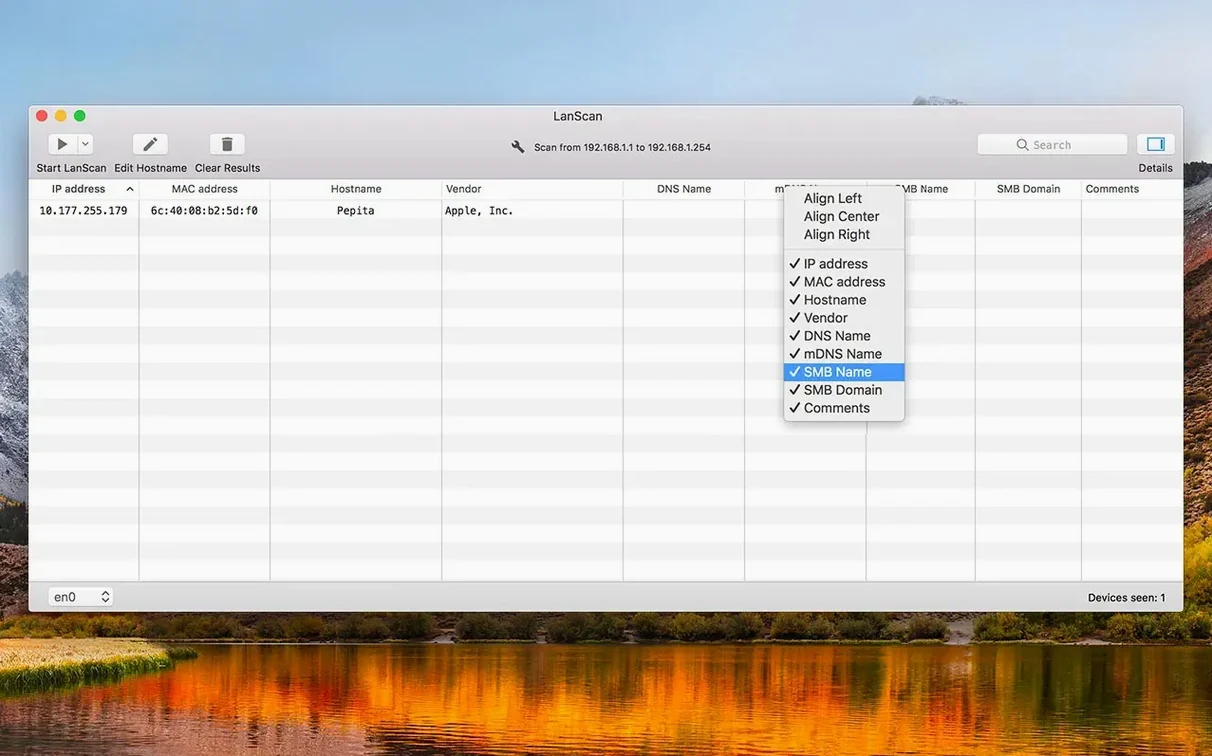
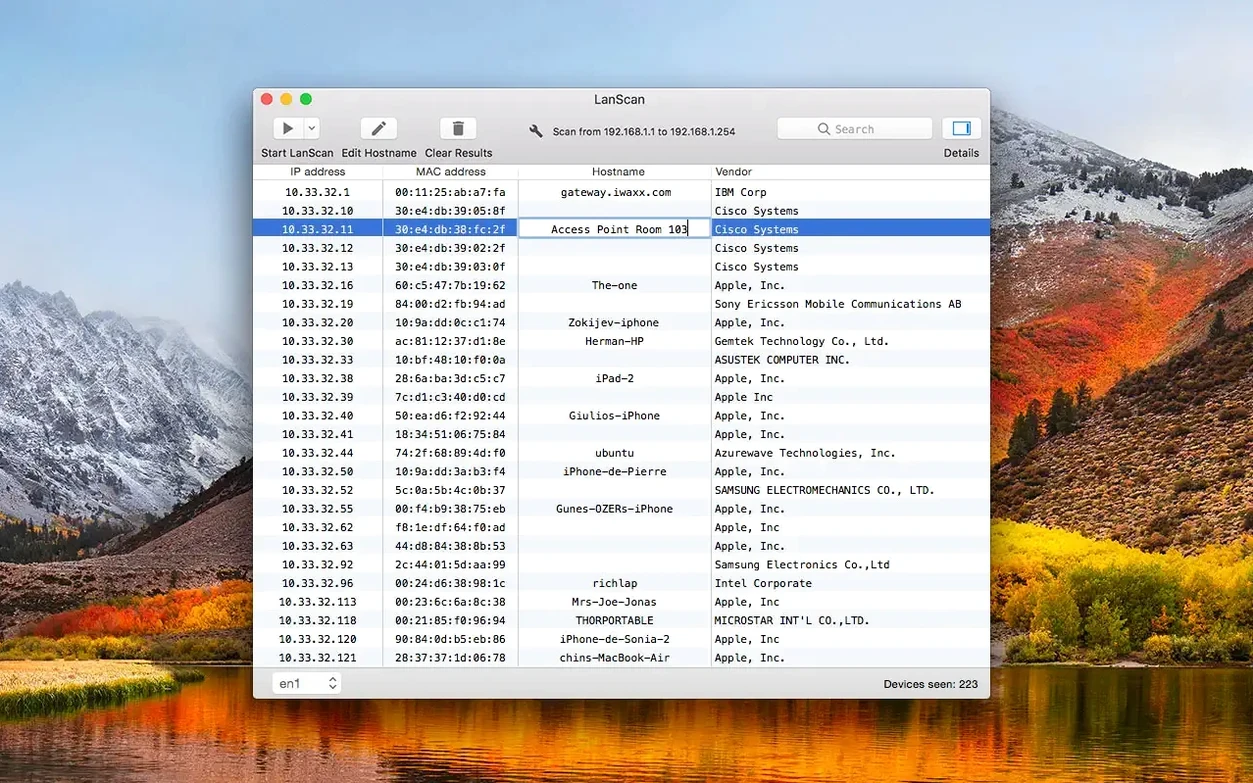
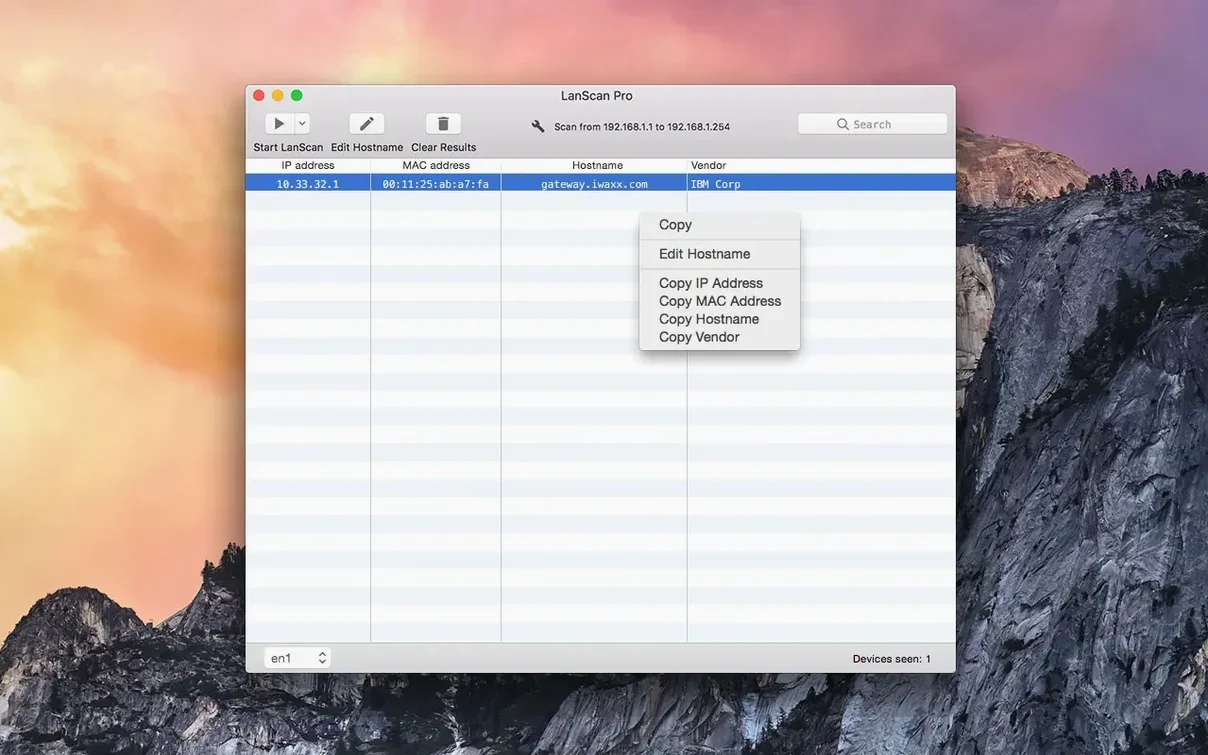
LanScan runs on any Mac with macOS 11 or later, on both Apple Silicon and Intel processors. It automatically detects configured interfaces — Ethernet, AirPort, and virtual interfaces — so you don't have to point it in the right direction before a scan.
| Detail | Value |
|---|---|
| Developer | iwaxx Sarl |
| Current version | 8.2.17 |
| macOS | 11 or later |
| Architecture | Apple Silicon / Intel |
| Export format | CSV |
The scan itself covers both IPv4 and IPv6 networks with no artificial limit on the number of devices found. On local subnets, LanScan uses ARP packets for fast, quiet discovery. For public ranges, it combines Ping, SMB, and mDNS packets to pull out IP addresses, MAC addresses, host names, and hardware vendors. A single device can show up to four associated host names, which helps when a machine runs multiple services or virtual hosts. Results can be exported to a CSV file for documentation or further analysis.
Where LanScan fits in your tool stack
LanScan is not trying to replace a full monitoring suite. It sits alongside tools like Wireshark for packet inspection, Terminal for arp -a quick checks, and your MDM dashboard for managed devices. The difference is speed: when you need a complete inventory of what's on a subnet right now, LanScan gets out of your way.
Integration points that matter day-to-day:
- CSV export — Drop results straight into Numbers or Excel for asset tracking spreadsheets, or feed them into a Python script that compares today's scan against last week's baseline.
- Custom URLs — Configure a per-device URL template (like a router web admin or a monitoring dashboard), then open it directly from the scan results. No copy-paste of IP addresses.
- macOS sharing — Highlight a row and use the system Share menu to send a single device's details to Notes, Reminders, or a team chat app.
- Network preference pane — LanScan picks up whatever interface is active in System Settings, including VPN tunnels and VLAN virtual interfaces, so it mirrors the Mac's actual routing state.
Instant Device Census Without Network Docs
Three groups stand out.
IT support staff in mid-sized offices — They walk into a site with no documentation and need a device census in under a minute. LanScan's vendor column (pulled from MAC address OUI lookups) tells them whether that unknown IP is a printer, an access point, or a rogue Raspberry Pi someone plugged in under a desk.
Home lab and homelab-adjacent users — People running Proxmox, Docker hosts, or a stack of Raspberry Pis on a flat network. They spin up containers and VMs constantly. A quick LanScan scan confirms which services came up on which IPs after a reboot, without logging into a router interface.
Field technicians and AV installers — Setting up a temporary network for an event with media servers, Dante audio devices, and control surfaces, all on static IPs. LanScan verifies that every device is reachable before doors open. The CSV export becomes the as-built documentation handed to the venue.
Workflow: Mapping a new client's office network
Here's a real scenario an IT consultant might run through on their first visit to a small office.
- Connect to the main switch — Plug the Mac into an open port on the office switch, or join the primary Wi-Fi SSID. Open System Settings briefly to confirm the assigned subnet (e.g., 192.168.1.0/24).
- Launch LanScan — It auto-detects the active interface. The default scan range covers the local subnet, so no configuration is needed for a first pass.
- Run the scan — ARP packets flood the subnet. Within 15–30 seconds, every responsive device appears: workstations, the NAS, three printers, a forgotten IP camera, and the ISP router.
- Sort and annotate — Sort by vendor column to group devices by type. Add comments: "Reception printer — toner low" or "NAS — admin pw unknown." Edit host names for machines that report only generic mDNS names like
MacBook-Pro.local. - Export and hand off — Export the full table to CSV. Open it in Numbers, add a second sheet with the client's floor plan notes, and save the file to a shared folder. The client now has a network map they didn't have an hour ago.
Later visits reuse the same CSV as a baseline. A new LanScan export compared against it reveals devices that appeared or disappeared — useful for spotting shadow IT or hardware that failed silently.
- macOS 12 or later
- Apple Silicon or Intel 64-bit
Questions I get before install
Does LanScan work on public IP ranges, or only the local network?
It works on both. It scans the local subnet with ARP packets and configured public ranges with a combination of Ping, SMB, and mDNS.
How many devices can LanScan discover in one scan?
There is no hard limit. It finds all active devices on the subnet or range you configure.
What information does LanScan show for each device?
It displays the IP address, MAC address, host name (up to four per device), and the hardware vendor.
Comments 0
Sign in to leave a comment.Sign inCreate an account
No comments yet. If a step is still there after you install it, say so.
More in Mac Apps
All in Mac Apps LaunchOS
Replaces the default app launcher with a grid you arrange on your own terms.
19 steps saved
 Updated
Kontakt
Hosts sampled instruments with deep editing, a wavetable engine, and direct MIDI manipulation tools.
10 steps saved
 LightBurn
Designs artwork and controls laser cutters from a single layout, editing, and output tool.
21 steps saved
 LilyView
Opens images straight from folders in a chromeless window that stays out of your way.
16 steps saved
 Little Snitch
Watches every connection and lets you decide which apps get to call home.
16 steps saved
 Logic Pro
Puts a full studio of instruments, loops and mixing tools into one Mac app.
18 steps saved
 Updated
KeyKey
Adjusts typing drills to focus on the keys that slow you down most.
15 steps saved
 Loop Mash Up Pro
Triggers loops and samples alongside Logic Pro without touching the arrangement.