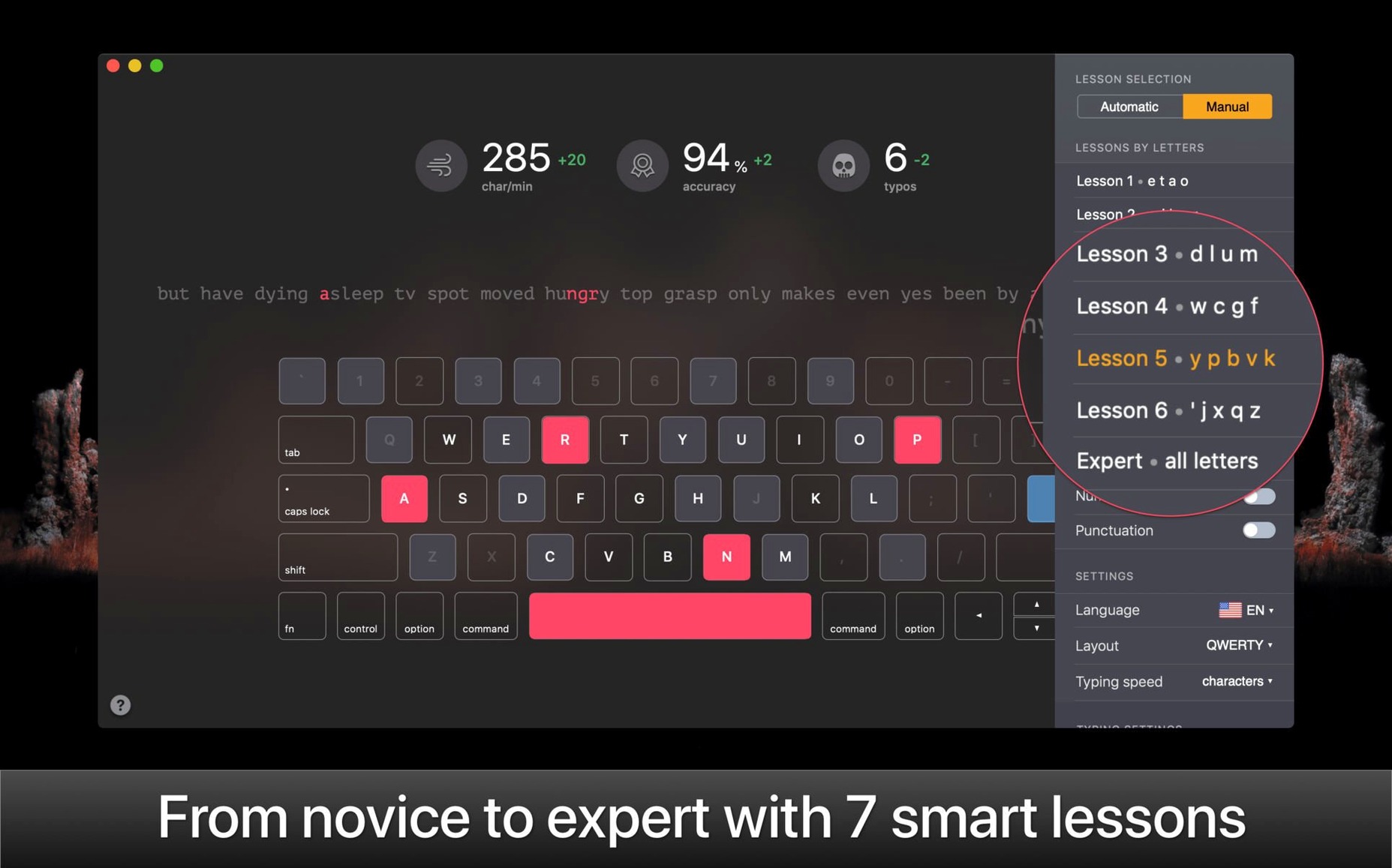
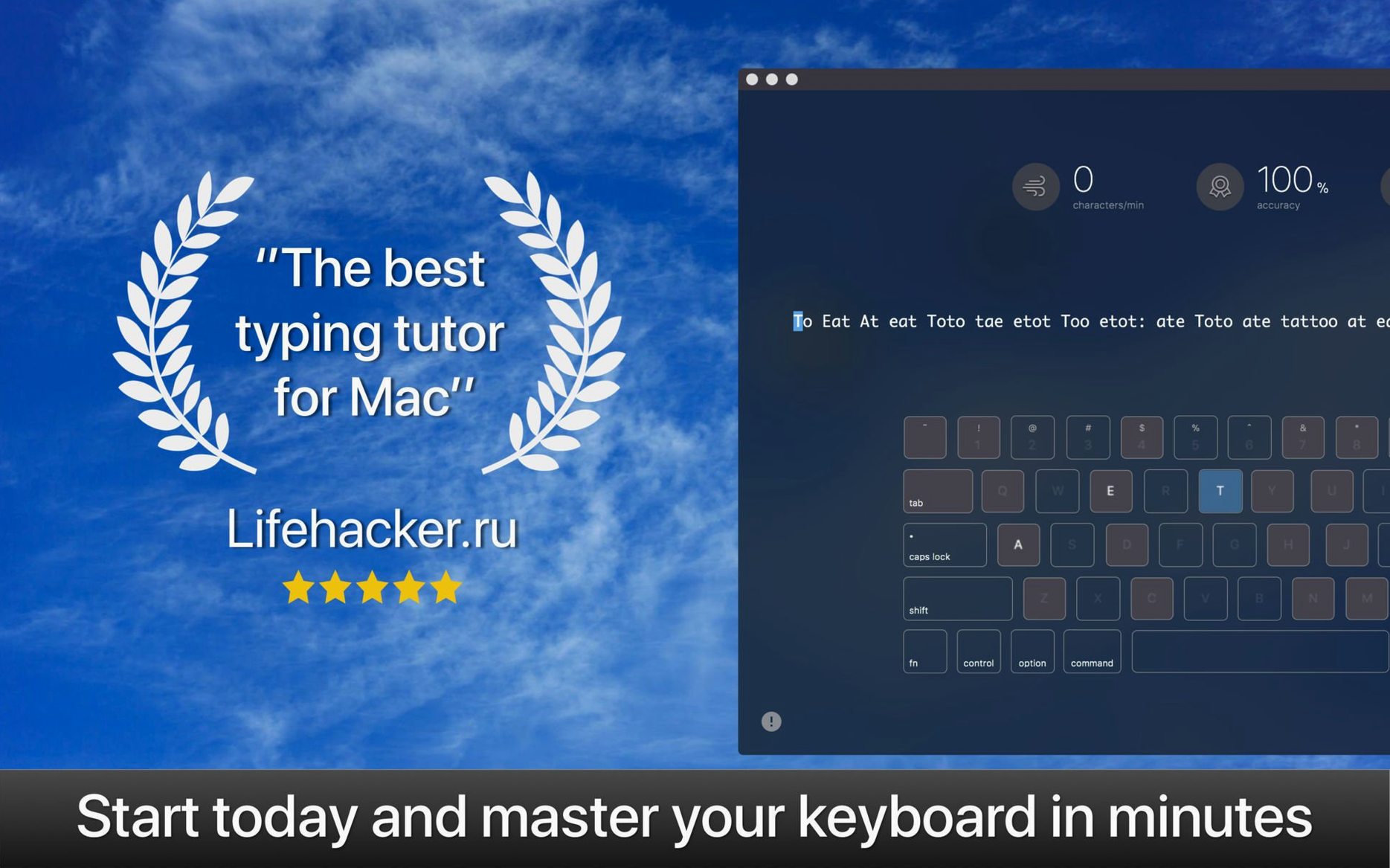
Smart Line adaptation is how KeyKey keeps the challenge just right. The lesson text adjusts to your current typing level, feeding you the keys that need more work instead of a flat, one-size-fits-all drill. It teaches both lowercase and uppercase letters, with an all-letters mode that isolates specific letters, numbers, or punctuation marks for targeted practice.
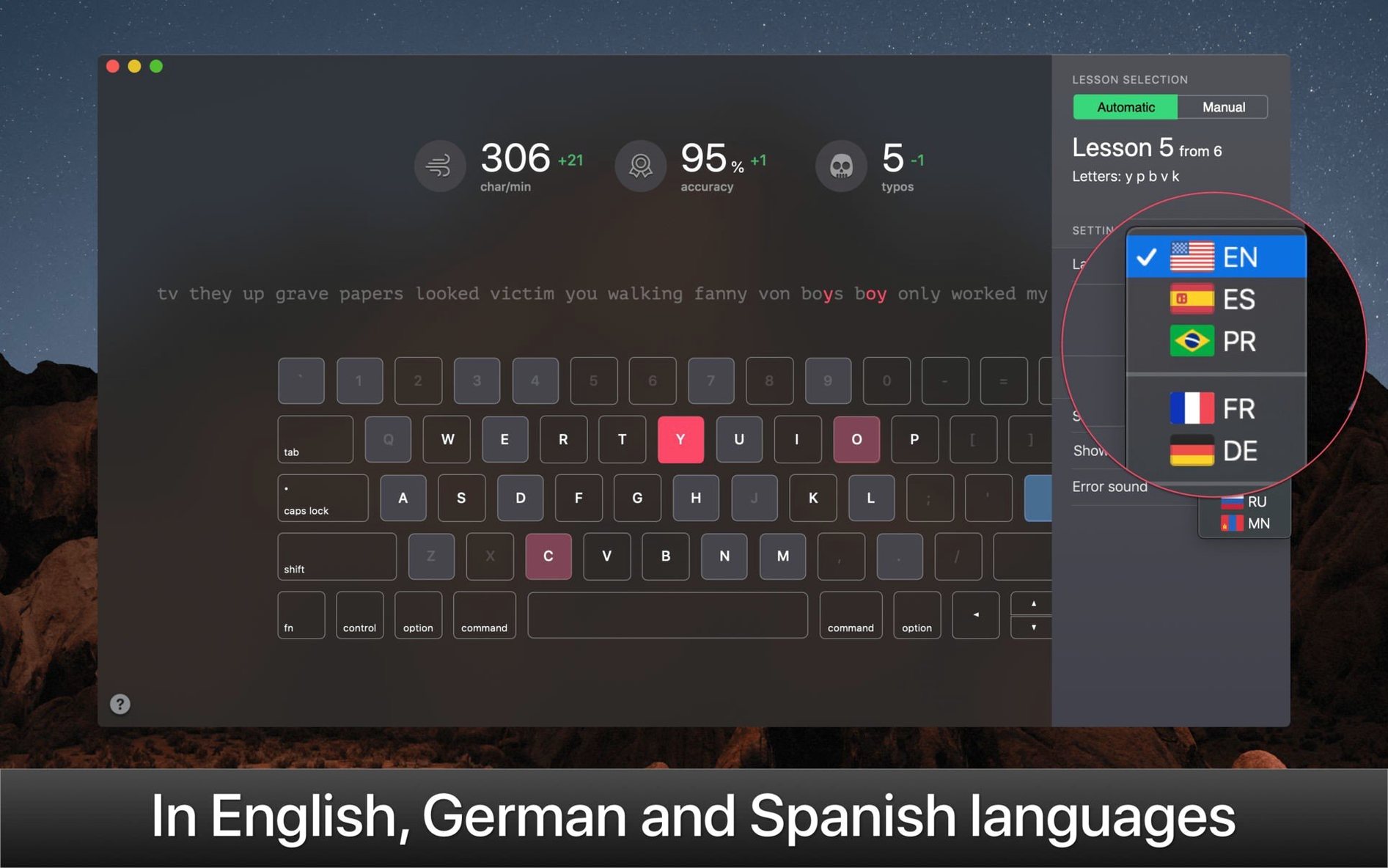
Switching between languages is a single action. The app supports Russian, Ukrainian, English, Spanish, Portuguese, French, Italian, German, Turkish, Greek, and Mongolian keyboard layouts, and you can train in any of them without reconfiguring the rest of your Mac.
First days with KeyKey: what to tweak right away
Install, skip the tour, and start hammering keys—most people do. A few small adjustments turn the first week from frustrating into productive.
- Set a realistic daily goal. Ten minutes of deliberate practice beats an hour of flailing. KeyKey tracks streaks, and a short goal is easier to protect.
- Start with the all-letters mode, not the Smart Line. Pick five letters you fumble most and drill them for two sessions. The Smart Line works better once you have a baseline it can read.
- Turn off the mechanical keyboard click sound if it distracts you. It ships enabled after the 2.9.31 update, but not everyone wants a typewriter soundtrack.
- Train in your actual working layout first. Build muscle memory in the language and keyboard you use daily before adding a second layout. Chasing two at once muddles progress.
Scenario: a programmer cleans up symbol typing
A developer who touch-types words fluently but still glances down for brackets, pipes, and backticks. Those half-second looks add up across a long editing session.
She opens KeyKey, switches the layout to her usual U.S. English, and enables all-letters mode. She deselects every letter and ticks only the symbol row: { } [ ] | \ ` ~. The lesson line generates repetitive symbol clusters. Within four short sessions the reach for curly braces feels automatic. She then toggles numbers on and off separately, cleaning up top-row accuracy without retraining the alphabet.
Because KeyKey runs offline, she practises on the train with a MacBook Air, earbuds in, no tethering required. The larger two-line practice text—new in version 2.9.31—makes the symbol shapes easier to track than the old cramped single line. By Friday, bracket blindness is gone and the typing tutor has earned a permanent spot in the dock.
Everything runs locally. Progress tracking and daily training work offline, so a patchy connection never interrupts a session.
Version 3.0.3 tidies up the practice experience.
- New — Manual lessons now filter strictly to the letters you chose. No more stray characters creeping into a drill.
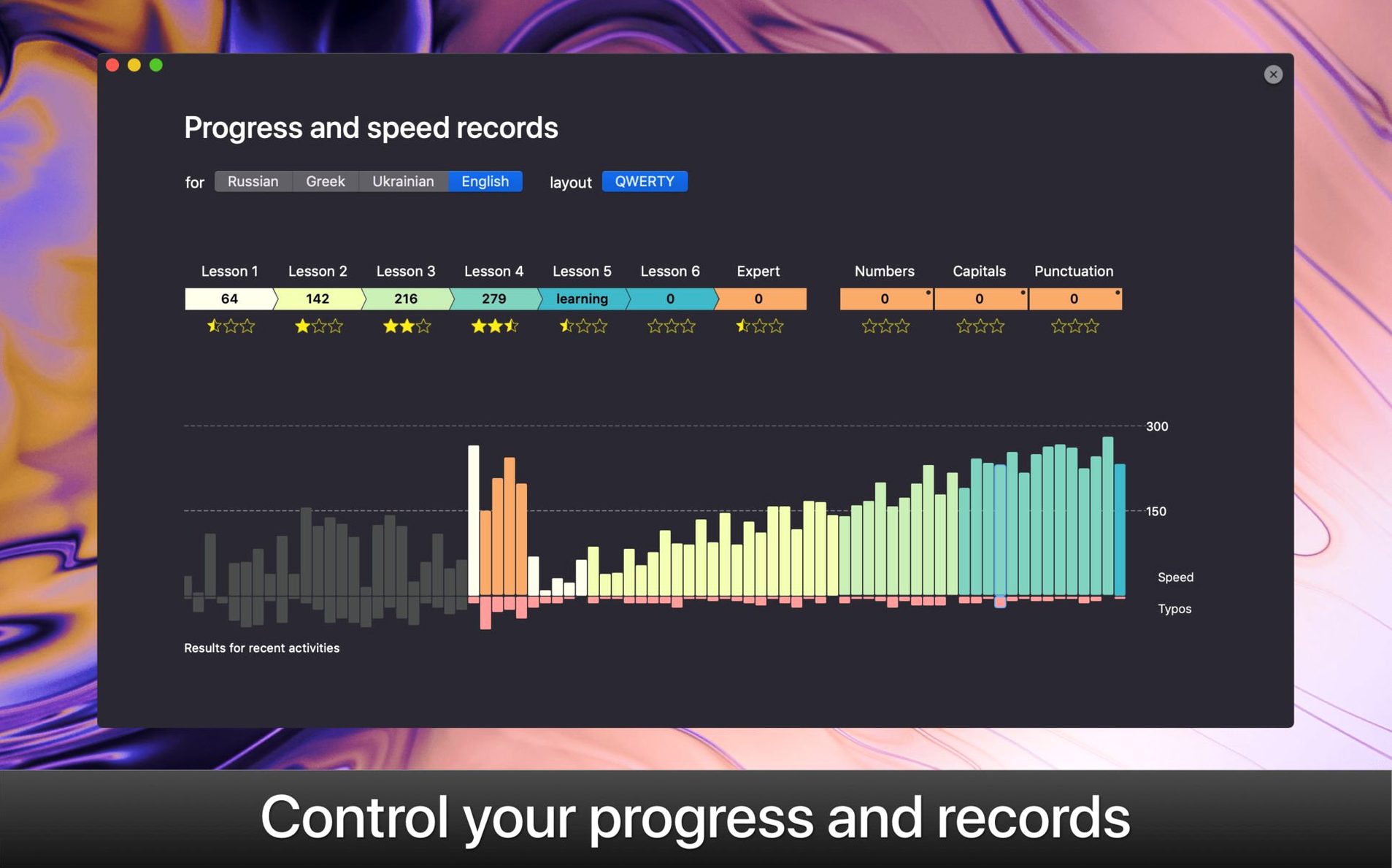
- Improved — The Statistics chart supports horizontal scrolling, so you can swipe through your full lesson history without squinting.
- macOS 13 or later
- Apple Silicon or Intel 64-bit Mac
Questions I get before install
Does KeyKey support keyboard layouts other than QWERTY?
Yes. It includes layouts for Russian, Ukrainian, English, Spanish, Portuguese, French, Italian, German, Turkish, Greek, and Mongolian.
Can I practice typing without an internet connection?
Absolutely. All training modules and progress data are stored locally, so no internet is required to use KeyKey.
Comments 0
Sign in to leave a comment.Sign inCreate an account
No comments yet. If a step is still there after you install it, say so.
More in Mac Apps
All in Mac Apps Keyboard Maestro
Builds macros that resize windows, control apps, and chain repetitive steps into one trigger.
15 steps saved
 Jump Desktop
Connects to remote screens with a protocol that adapts encoding to keep sessions responsive.
12 steps saved
 Juicy: Battery Alerts & Health
Surfaces battery health and cycle count in the menu bar before the service warning appears.
19 steps saved
 Updated
Kontakt
Hosts sampled instruments with deep editing, a wavetable engine, and direct MIDI manipulation tools.
23 steps saved
 iZotope Ozone
Reshapes a mix into a finished master using genre-specific tonal targets.
6 steps saved
 LanScan
Scans every active network interface and lists connected devices automatically.
6 steps saved
 LaunchOS
Replaces the default app launcher with a grid you arrange on your own terms.
6 steps saved
 iStat Menus
Puts CPU, memory, and network graphs in your menu bar to catch issues early.