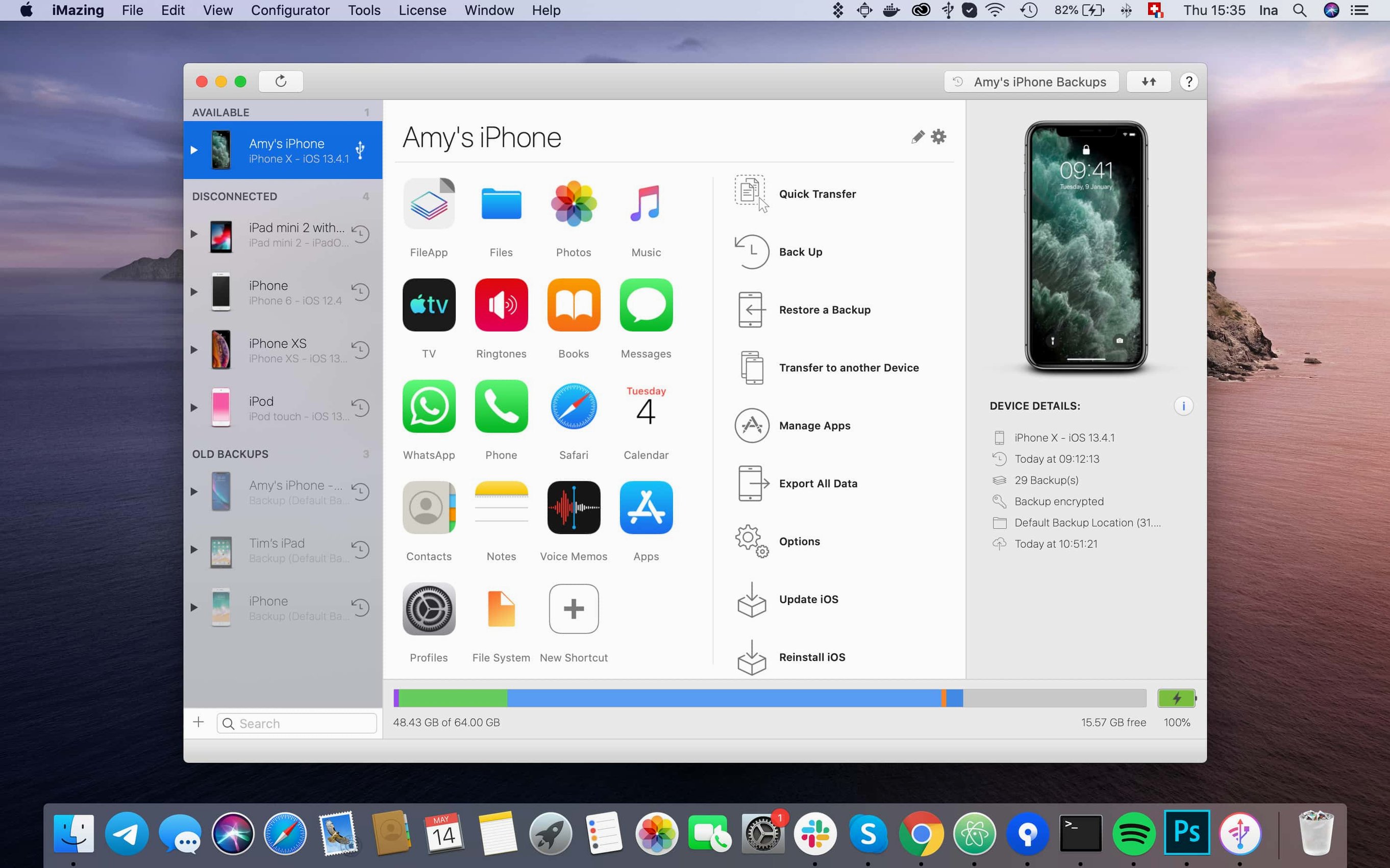
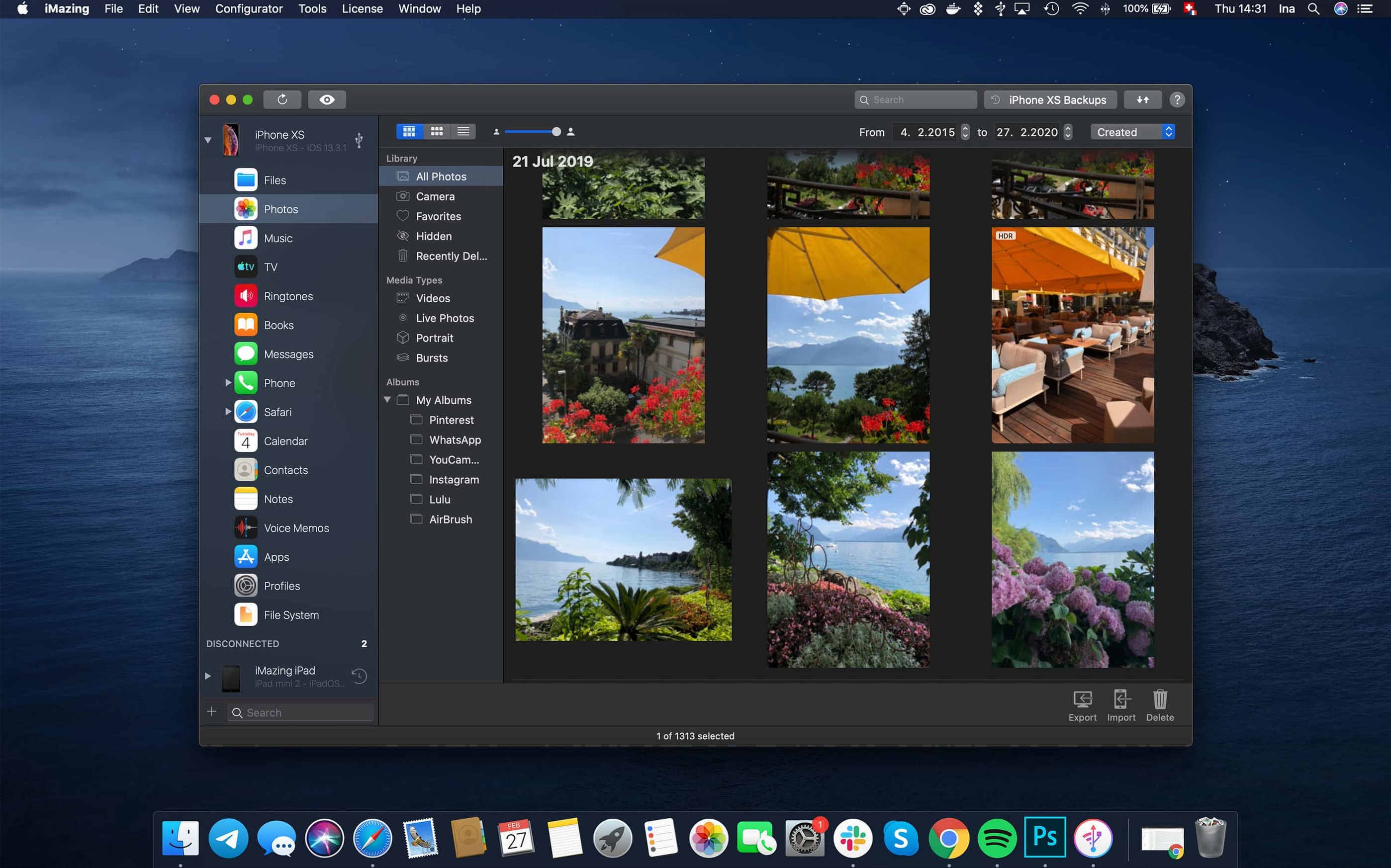
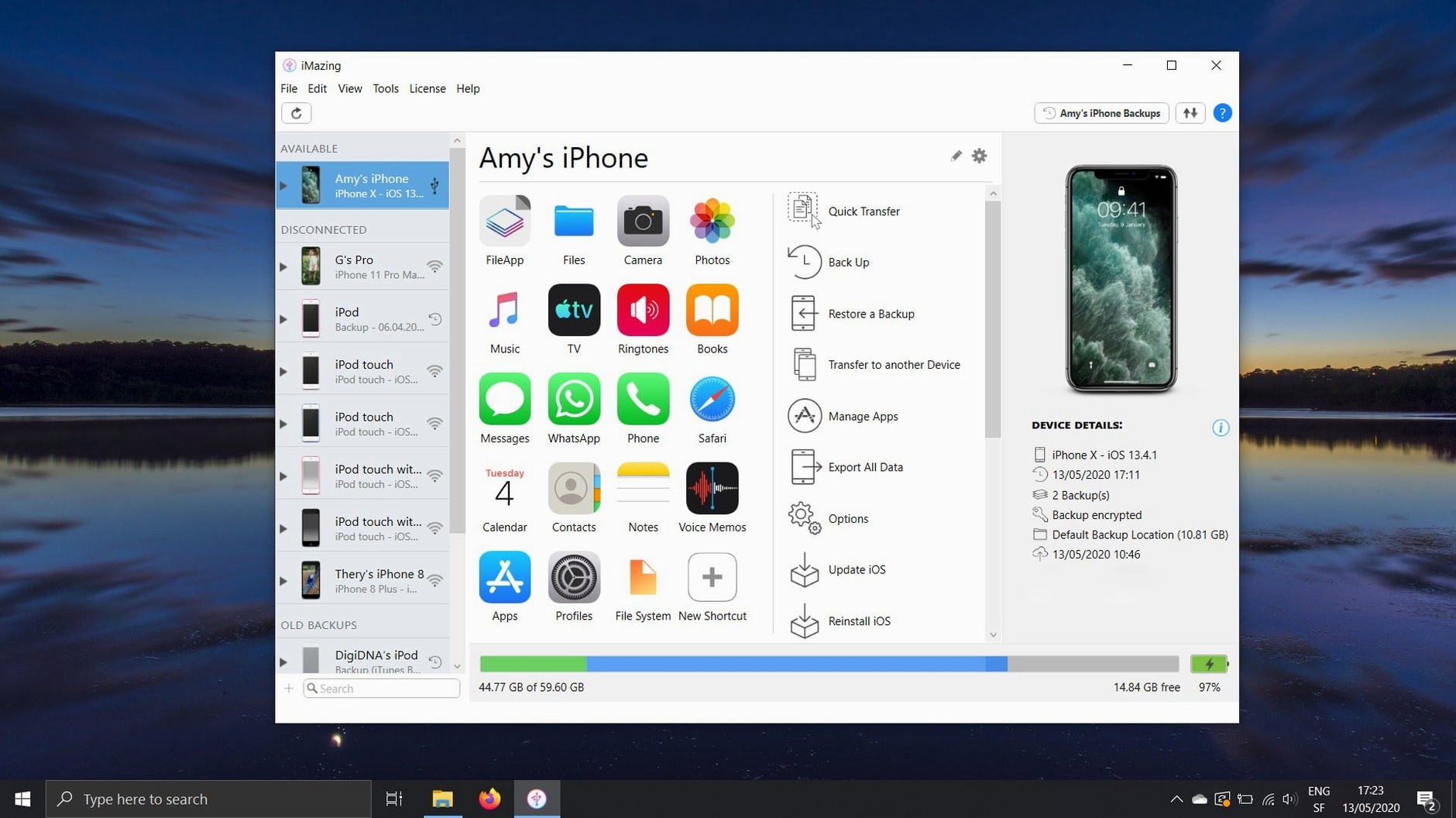
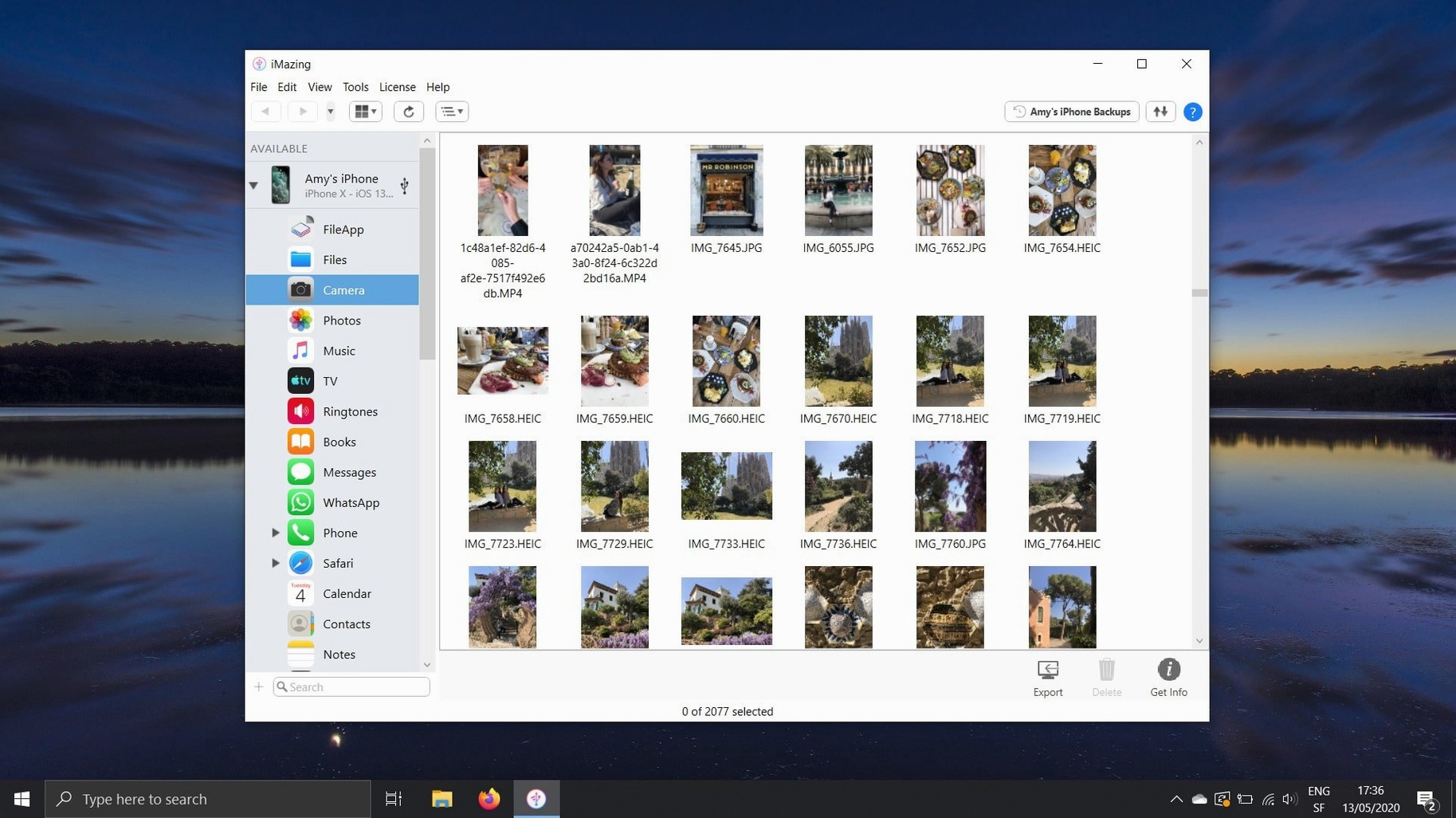
A log archive export now sits right inside the unified logs viewer. That and support for the newest iPhone and Watch hardware landed with version 3.6.5, alongside a quick link to the iMazing Chatbot in the toolbar. For an experienced user, though, the real draw is the toolkit beneath the surface — workflows that let you move data Apple prefers to lock down.
- Pull a clean app archive. Locate an .ipa in the Manage Apps screen and copy it to your Mac. Use it to reinstall a removed app or archive a specific build.
- Export a call log. Select the device, open Call History, and export the whole list as a CSV. No intermediary, no sync.
- Move books without a store. Drag an ePub or PDF straight into the Books section. iMazing hands it to Apple Books on the device. Reverse the direction to pull a book back to your desktop.
- Grab a log archive. Open the unified logs view and export the complete archive. Useful when diagnosing a misbehaving app or sharing details with a developer.
- Ship out calendars. Export any calendar as an ICS or CSV file from the device, bypassing cloud accounts entirely.
These paths sit alongside the wireless backup engine, media transfers that ignore iTunes, and the device-to-device migration tool. The app reads the filesystem directly, so you handle photos, music, and app data as regular files rather than managed library items.
A full workflow: moving an old iPhone to a new one
Start with both devices connected over USB, or at least on the same Wi-Fi network. In iMazing, select the old iPhone, open Transfer to Another Device, and pick the new model from the list. The app copies contacts, photos, messages, app data, call logs, and settings in one pass.
What you get on the other side is a working device, not a restore that forces you through iCloud. App .ipa files travel along, so you are not redownloading everything from the App Store. For large photo libraries, a USB 3 cable cuts the wait noticeably.
After the transfer finishes, open the new iPhone and check the home screen. Apps that require fresh sign-ins will prompt you. Everything else — game saves, offline maps, voice memos — lands where it should. If a specific app misses its data, return to iMazing, open Manage Apps on the old device, and export that app’s container as an .imazingapp file. Then drag it onto the new device.
This is the same path people use when an imazing mac download is driven by a hardware upgrade rather than a backup question. The transfer works device-to-device, so no intermediate archive eats disk space on your Mac.
Full hardware IDs arrive for iPhone 18 Pro and Apple Watch Ultra 4
Version 3.6.5 narrowed the gap between iMazing and current Apple hardware. Owners of an iPhone 18 Pro, iPhone 18 Pro Max, iPhone Duo, Apple Watch Series 12, or Apple Watch Ultra 4 now get full device recognition instead of a compatibility warning. That means backups, photo exports, and log access work on day one.
The unified logs change matters more than it sounds. Previously you could inspect logs but not package them for someone else. Now the export button hands you a complete archive. If a developer asks for logs, you send one file instead of a stack of screenshots.
Scanned documents from iOS 26 render correctly past the first page, which fixes a frustrating preview bug for anyone who relies on iMazing to pull multipage PDFs off an iPhone. The shared app group container change is quieter: .imazingapp files exported from backups now include data that lives outside the app’s own sandbox. For messaging apps or productivity suites, that is where a surprising amount of state hides.
The toolbar link to iMazing Chatbot is a small addition. It puts documentation and troubleshooting one click away, which helps new users who would otherwise dig through menus. Existing workflows are untouched.
When a charge-only cable blocks your device from appearing
- Device not showing up. Unplug, unlock the iPhone, and tap Trust This Computer. Then reconnect. If it still does not appear, try a different cable — charge-only cables are a frequent culprit.
- Backup stalls at 90%. This is usually a single large app writing data. Wait it out for ten minutes before cancelling. If the stall repeats, exclude the largest app from the backup, run it, then add the app back.
- Photos missing after export. Check whether iCloud Photos is on. iMazing exports what is physically on the device. Originals stored only in iCloud will not be included unless you enable Download and Keep Originals in iOS settings first.
- Error code 429 on app downloads. That rate-limit error from earlier builds is fixed in 3.6.5. If it appears anyway, wait a few minutes and retry — the server is throttling requests.
- Wireless backup not firing. The iPhone must be charging and locked on the same Wi-Fi network. If either condition is missed, the scheduled backup skips without a warning.
- ePub not appearing in Apple Books. Some books carry DRM or malformed metadata. Strip the DRM first, or convert to PDF and import that instead.
For anything deeper, the log archive export from 3.6.5 is the right tool. Export the unified logs, attach them to a support message, and the picture is usually clear. The same archive helps when an iMazing 3 torrent build needs a quick settings review after a macOS update — the current release runs clean on OS X 10.11 and later, on both Intel and Apple Silicon.
- New — iPhone 18 Pro, iPhone 18 Pro Max, iPhone Duo, Apple Watch Series 12, and Apple Watch Ultra 4 support.
- New — Export complete log archives from the unified logs view.
- New — iMazing Chatbot link added to the main window toolbar.
- macOS 10.11 or later
- Intel and Apple Silicon Macs
Questions I get before install
Can iMazing transfer apps and data from an old iPhone to a new one?
Yes. You can copy apps, media, and personal data directly from one iPhone or iPad to a new device without using iCloud or iTunes.
Comments 0
Sign in to leave a comment.Sign inCreate an account
No comments yet. If a step is still there after you install it, say so.
More in Mac Apps
All in Mac Apps Imagenomic Portraiture
Replaces manual skin retouching with an automated mask-based smoothing engine.
17 steps saved
 Infuse Pro
Plays nearly any video format natively across Mac, iPhone, iPad, and Apple TV.
8 steps saved
 Imagenomic Plugin Suite
Consolidates skin retouching, noise reduction, and resizing under one installer.
9 steps saved
 iExplorer
Mounts an iPhone or iPad on your Mac for direct file browsing without a jailbreak.
16 steps saved
 iReal Pro
Generates a backing band from chord charts so you can rehearse like a full ensemble.
15 steps saved
 IDA Pro
Picks apart executables with a guided disassembler, decompiler, and debugger.
6 steps saved
 iStat Menus
Puts CPU, memory, and network graphs in your menu bar to catch issues early.
17 steps saved
 Updated
Hopper Disassembler
Disassembles and decompiles binaries so you can trace logic or audit code.