
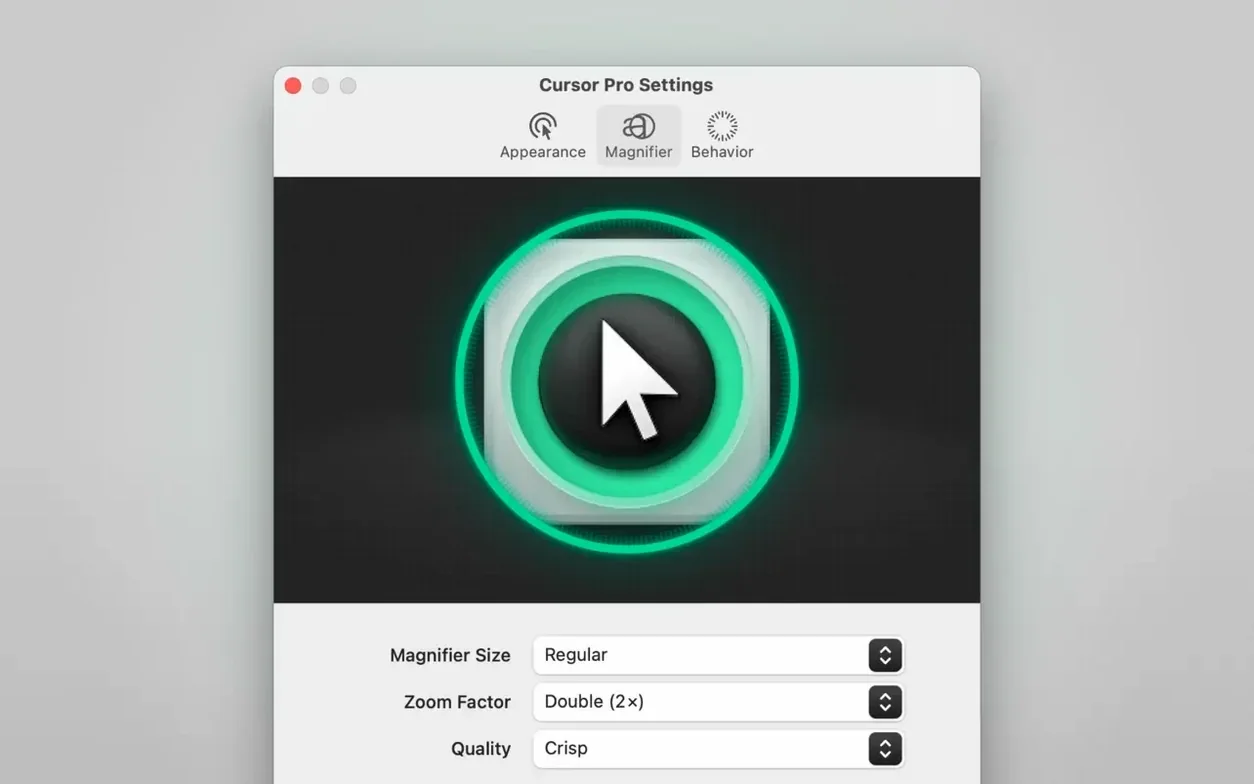
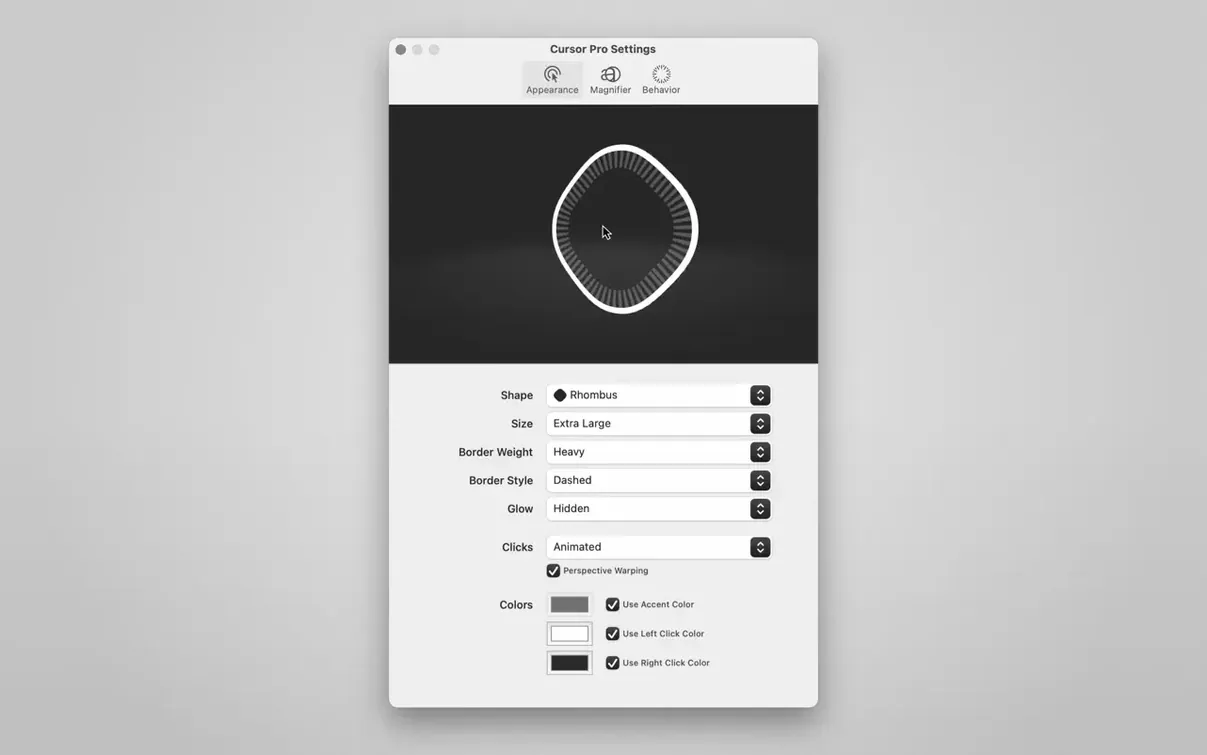
You set up the projector, click Share Screen, and start your walkthrough. Everyone squints at the display, searching for a tiny arrow lost in a sea of windows. The pointer disappears, the room loses focus, and your point gets lost. Cursor Pro stops that in a moment.
Followable Cursor for Presentations, Calls, and Magnifier Zoom
- Professional screen presentations where the audience must follow your cursor.
- Screen sharing during remote calls, provided you share your entire screen.
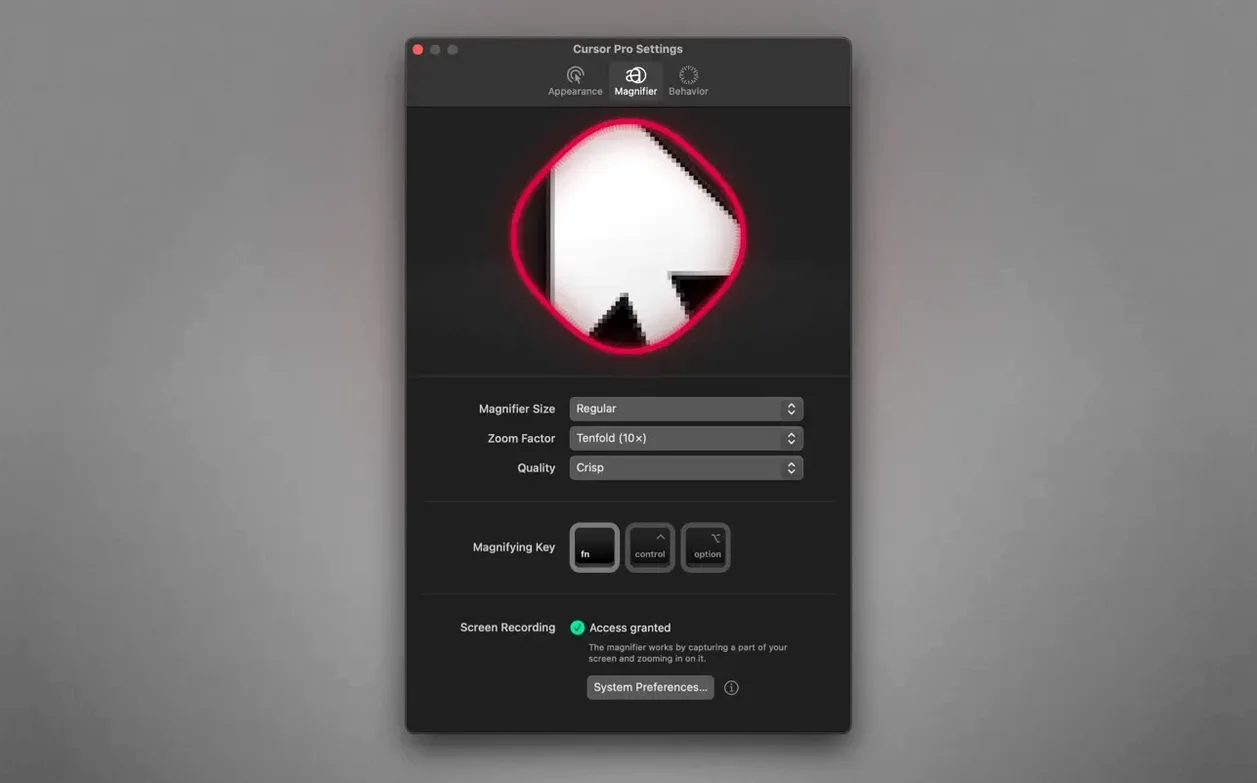
- Visual accessibility — the magnifier zooms screen content with a configurable zoom factor.
Menu Bar Access, Global Hotkey, and Cursor Look Customization
- The app lives in the macOS menu bar; it can also appear in the Dock, or both.
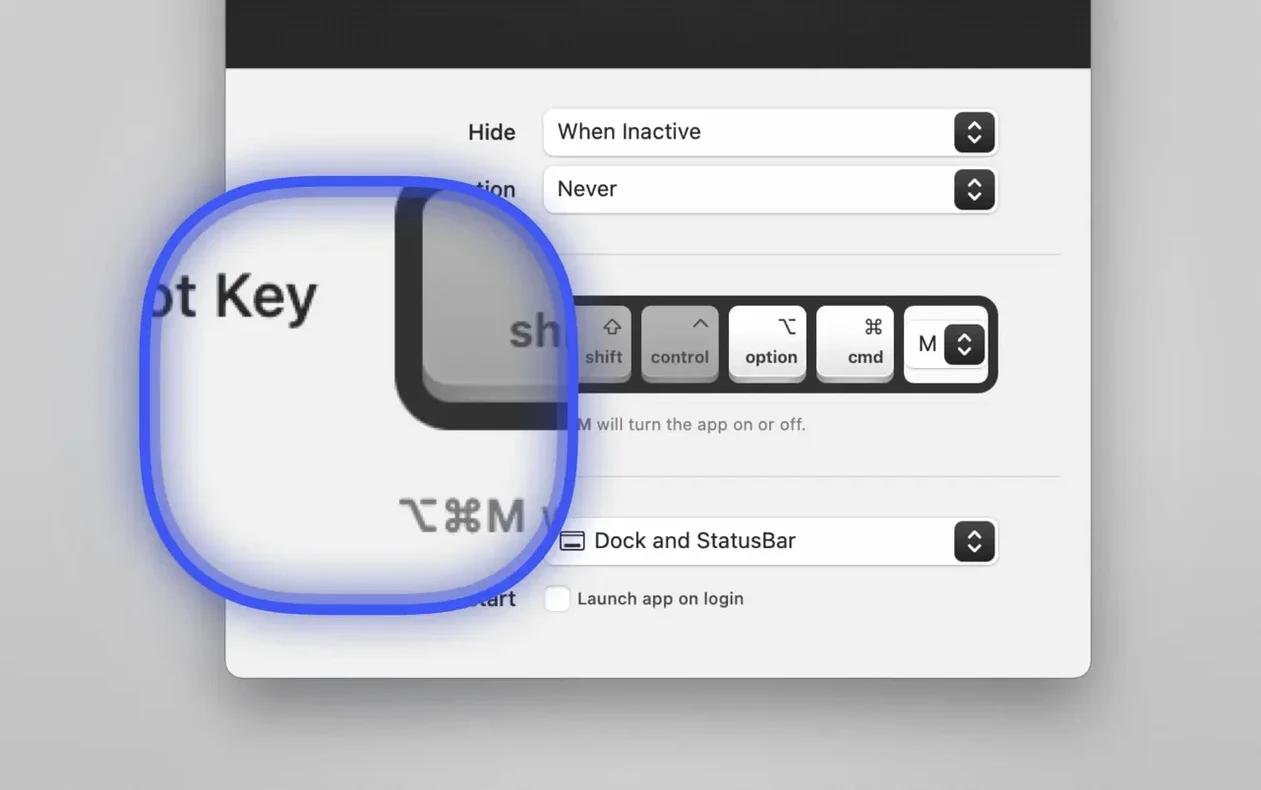
- A global hotkey triggers the highlight and magnifier.
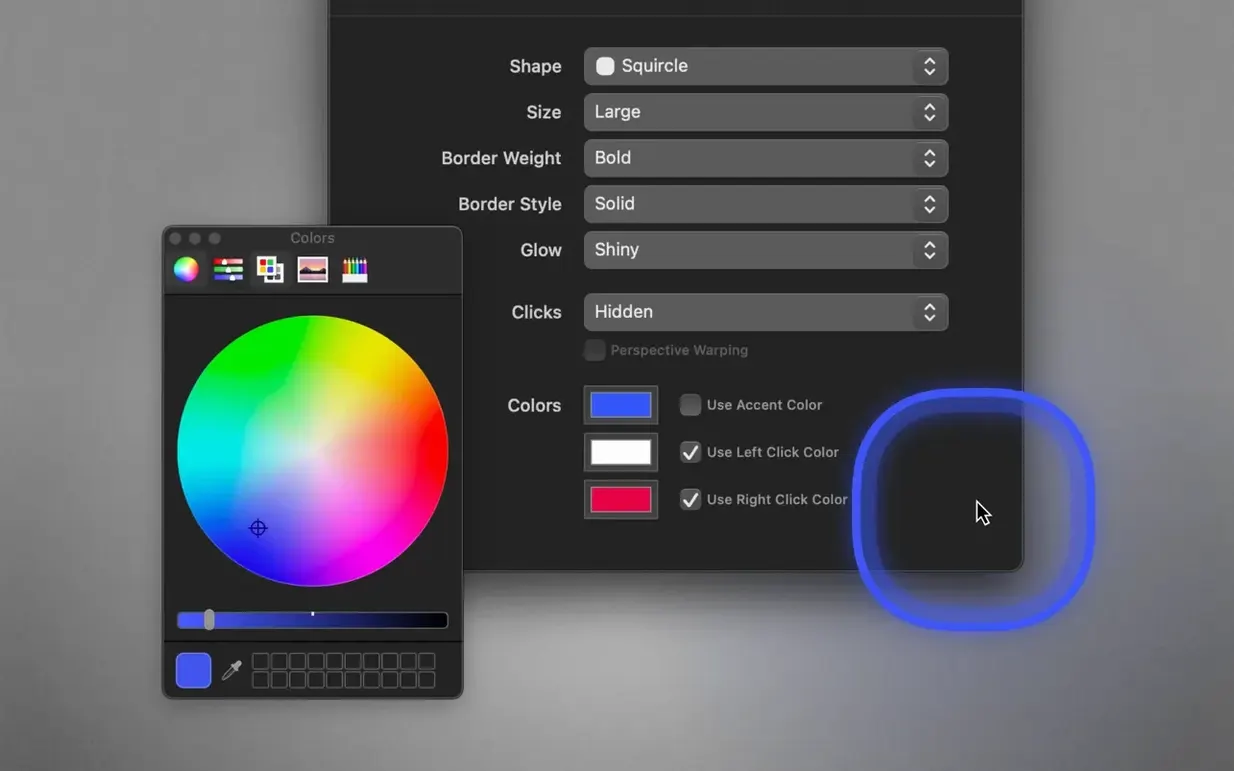
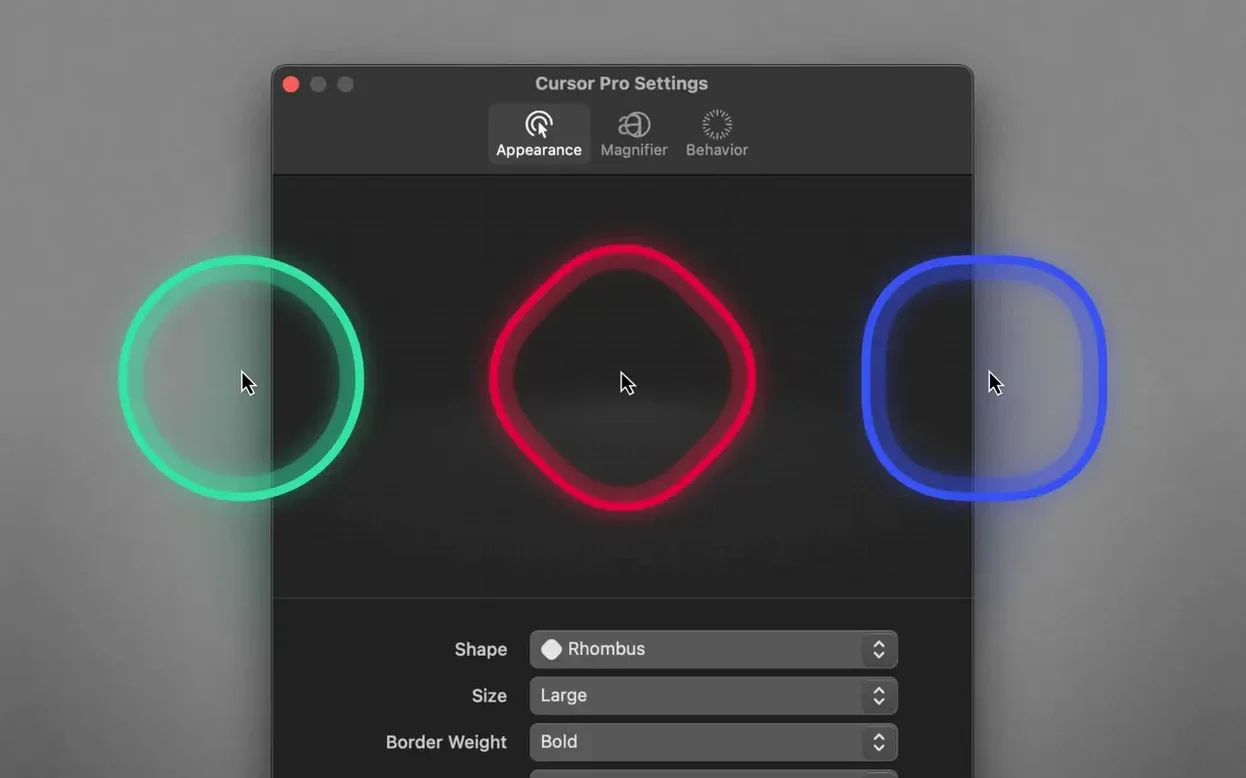
- You can customize the highlight shape and make the cursor pulse.
First-day setup habits
Open Cursor Pro right after you finish dragging it into Applications. A few minutes now save you fumbling mid-presentation later.
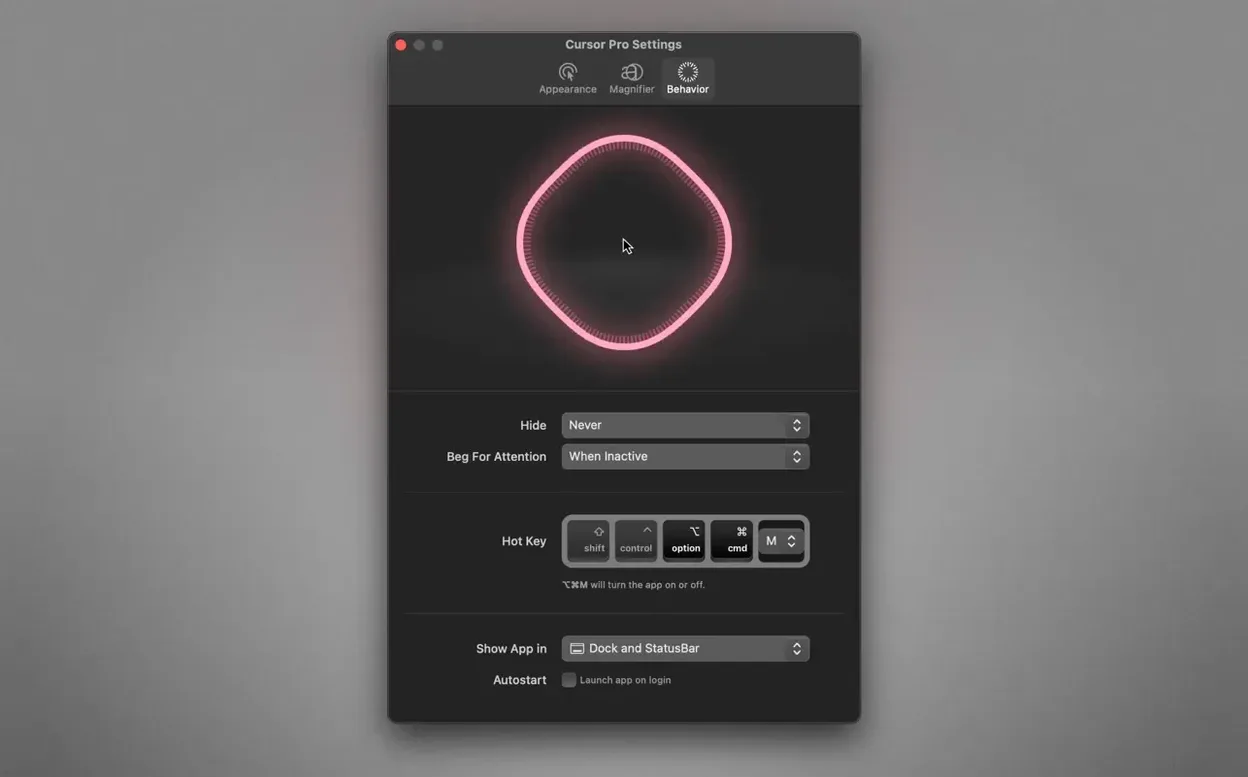
- Pick your activation key early. The global hotkey ships with a default you will forget under pressure. Set something your fingers already know — maybe the same modifier you use for screenshots. Test it once with a blank document behind the cursor so you see the highlight fire.
- Decide where the app lives. Go to preferences and choose menu bar only, Dock only, or both. Presenters who share their whole screen usually want menu bar only — less clutter if you accidentally Alt-Tab.
- Lock in one highlight shape and colour. Circle or diamond, a warm orange or a cool blue glow. Pick one, use it for a day, adjust only if it blends into your typical background. A pulsing cursor draws more attention on dense dashboards; a steady glow works better on clean slides.
- Set auto-launch at login. Cursor Pro is tiny — you want it running before you remember you need it.
How Cursor Pro compares
Three apps often appear in the same conversation. Here is how they differ in daily use.
Cursor Pro vs. Mouseposé. Mouseposé dims the entire screen except a spotlight around the pointer. That approach works beautifully for recorded tutorials where you want the viewer locked onto one zone. Cursor Pro keeps the full screen visible and marks the pointer itself, so it suits live presentations where the audience still needs surrounding context — a spreadsheet, a code editor, a slide plus notes.
Cursor Pro vs. Presentify. Presentify bundles pointer highlighting with an annotation toolbar. If you draw arrows and boxes constantly, Presentify consolidates those tools. Cursor Pro does one job — pointer visibility plus magnification — and stays out of your way. No floating palettes, no extra clicks. Many teachers run both: Cursor Pro for the consistent cursor glow, Presentify only when they need on-screen drawing.
Cursor Pro vs. macOS built-in cursor shake. Shaking the mouse makes the pointer grow briefly, but it is a reactive gesture your audience cannot predict. Cursor Pro keeps the highlight always on while sharing, so nobody has to wait for you to wiggle the mouse after losing track.
Highlight Visibility When Sharing Full Screen vs. Single Window
Does the highlight show up in screen-sharing apps? Yes, when you share your entire screen — the standard choice in Zoom, Teams, and similar tools. If you share a single window instead, the overlay sits outside the captured region and stays invisible. Switch to full-screen sharing and the glow, pulse, and magnifier all appear for viewers.
Will the magnifier slow down an older Mac? The magnifier redraws a small portion of the screen at your chosen zoom factor. On any Mac running macOS 11 or later — Intel or Apple Silicon — the performance cost is negligible. The app does not record or process the full frame buffer.
Can I hide the highlight quickly without quitting the app? Auto-hide behaviour is configurable. Tap the global hotkey to toggle the highlight off, or set the app to hide the pointer overlay when you stop moving the mouse for a few seconds. The magnifier follows its own toggle, so you can silence the highlight and keep the zoom if you prefer.
The app supports eight interface languages including Japanese, Korean, and Simplified Chinese, so teams working across regions can set preferences independently.
- macOS 11 or later
- Apple Silicon or Intel 64-bit processor
Questions I get before install
Does Cursor Pro work with Zoom or Teams?
Yes, when you share your entire screen—not just a single window—the highlight and magnifier remain visible to all participants.
What is the global hotkey for?
It lets you instantly toggle the pointer highlight and screen magnifier on or off without reaching for the menu bar.
Can I keep the app out of my Dock?
Absolutely. You can configure Cursor Pro to appear only in the menu bar, only in the Dock, or in both locations.
Comments 0
Sign in to leave a comment.Sign inCreate an account
No comments yet. If a step is still there after you install it, say so.
More in Mac Apps
All in Mac Apps Cycling '74 Max
Patches together custom audio, MIDI and visual tools from connectable objects.
21 steps saved
 Updated
Cubase
Records, arranges and mixes music with deep MIDI editing and scoring tools.
17 steps saved
 DaisyDisk
Maps disk usage as an interactive sunburst chart so you spot what is eating space in seconds.
4 steps saved
 Updated
CrossOver
Translates Windows commands so a game or launcher runs on your Mac.
17 steps saved
 Updated
Dash
Gives developers instant offline access to API docs and code snippet libraries.
22 steps saved
 Updated
DataGrip
Reads your database schema and catches query mistakes before you run them.
11 steps saved
 DataSpell
Combines notebooks, datasets, and a Python console for focused data exploration.
11 steps saved
 CorelDRAW
Puts vector, layout, and photo editing in one native Mac workspace.